You plug in your Galaxy A55 5G expecting a quick top-up, but the battery crawls upward, the lock screen never shows the "Super fast charging" message, or the percentage barely moves after half an hour. It is a frustrating gap between what the phone can do and what it is actually doing, because the A55 5G genuinely supports fast charging; it just is not delivering it right now.
The good news is that most slow-charging cases on this model come down to the charger, the cable, a settings toggle, or a damp port, and you can work through them yourself in a few minutes.
Before you start, it helps to know exactly what your phone is capable of. The Galaxy A55 5G has a 5,000 mAh (typical; 4,905 mAh rated) Super Fast Charging battery and charges over its USB Type-C port at up to 25W.
Two details trip up a lot of owners: there is no charger in the box (the 25W Super Fast Charging wall charger is sold separately), and this model does not support wireless charging, so anything you have heard about charging wirelessly to dodge a wet port does not apply here. Work through the fixes below in order, starting with the simplest and safest.
Start With the Charger and Cable, Not the Phone
A common reason fast charging does not kick in on the A55 5G is the accessory you are plugging into. Because the phone ships without a charger in the box, an old or low-power adapter, or a basic cable, may not deliver the power the phone needs for its top charging speed.
For the full 25W speed, you need a USB PD (Power Delivery) wall charger that supports Super Fast Charging, paired with a good-quality USB-C cable rated for fast charging. An old, low-power, or non-PD adapter or cable will only charge the phone slowly and will never trigger Super Fast Charging, no matter what the battery menu says. Use Samsung-certified accessories where you can.
Reseat and Inspect Every Connection
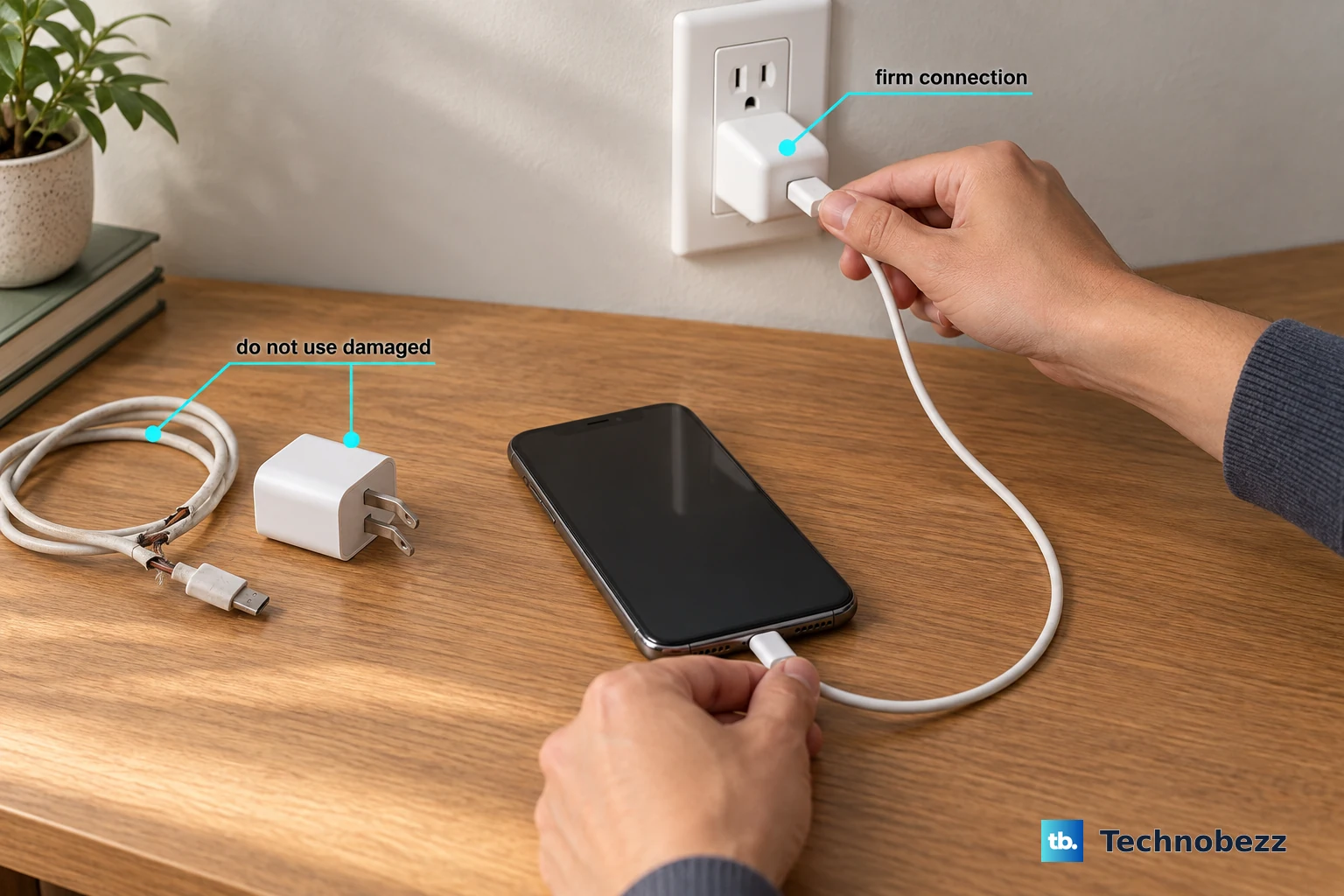
A loose, dirty, or damaged connection anywhere along the line will quietly cap your charging speed. Before assuming the phone is at fault, redo the physical setup carefully.
Firmly plug the cable into the USB plug (the wall adapter). Next, securely plug the charger into a wall socket. Then connect the charging cable to your device's charging port, and check that the adapter and cable are securely connected at both ends.
If it still charges slowly, try a different known-good cable and a different wall outlet to rule those out. Look closely at the USB-C port for lint or debris, since a partially blocked port stops the cable from seating fully and can prevent fast charging entirely.
Confirm Fast Charging Is Switched On
The A55 5G has a dedicated toggle for this feature, and if it is off, the phone will only charge at standard speed. The one quirk to remember is that you cannot change the setting while the phone is plugged in.
- 1.Unplug the phone from the charger first.
- 2.Open Settings.
- 3.Tap Battery.
- 4.Tap Charging settings.
- 5.Turn on Fast charging (and Super fast charging if shown).
- 6.Plug the charger back in.
Samsung notes plainly that you cannot enable or disable this feature while your device is charging, which is why the unplug-first step matters. Once it is on, look for the charging message on the lock screen to confirm the faster rate is active.
Give the Phone Room to Cool Down
Heat is a built-in brake on charging speed. Samsung states that charging speed may vary depending on the charging environment and other factors, and a warm phone is one of the biggest of those factors.
If you are gaming, streaming, or charging in a hot spot such as direct sunlight or under a pillow, the phone deliberately slows the charge to protect the battery. Set it down somewhere with a moderate temperature, close demanding apps, and let it rest while it powers up. You will often see the speed recover once the phone is no longer working hard and warming itself.
Rule Out Battery Protection Capping the Charge
If your A55 seems to stop charging early or never quite reaches 100%, the cause may not be a fault at all. One UI includes a Battery protection feature that intentionally limits charging to extend the battery's lifespan.
Go to Settings > Battery > Battery protection and check which mode is active. Basic: Whenever your battery is charged to 100%, charging will automatically stop until the battery level drops down to 95% before it starts charging again. Adaptive: Your device will switch to "Maximum" mode while you're asleep and back to "Basic" mode before you wake up. Maximum: Your battery will stop charging when it reaches 80%.
If Maximum is on, an 80% ceiling is expected behavior, not a charging failure. Choose the mode that matches how you want the phone to charge.
Dry the Port if You See the Moisture Icon
If a water-drop icon or a moisture popup appears, the phone has detected dampness in the USB-C port and has blocked charging on purpose to prevent damage. Forcing it will not help; you need to dry the port. Remember that the A55 5G has no wireless charging, so there is no alternative but to wait until the port is dry and charge by cable.
Unplug the phone from the charger. After that, wipe the area with a dry cloth, or gently shake your device (5 to 10 times) with the port facing downwards to release any excess moisture. Place your phone on a cloth in a well-ventilated area, or dry it with a fan.
Be careful here. Samsung warns that excessive force or shaking may cause damage to your phone, so when shaking your device, be gentle. The phone is rated IP67 for water and dust resistance, but the port still needs to be dry before it will accept a charge.
Force Restart a Frozen System
A frozen or glitched system can stop the phone from charging properly, and a force restart clears that temporary state without touching your data.
Press and hold the Volume down button and the Side/Power button at the same time for more than 7 seconds until the phone restarts; you may feel a vibration as it does. This does not erase any of your files, photos, or settings. Once it boots back up, plug in and check whether the charging speed has returned to normal.
Install the Latest Software Update
Charging behavior is partly controlled by firmware, so a software bug can throttle or interrupt charging until it is patched. Keeping the phone current is a quick and safe step that does not affect your personal data.
Open Settings. Now tap Software update. Tap Download and install (depending on your carrier, the button may instead read "Check for system updates" or "Check for software updates"). Install any available update and let the phone restart.
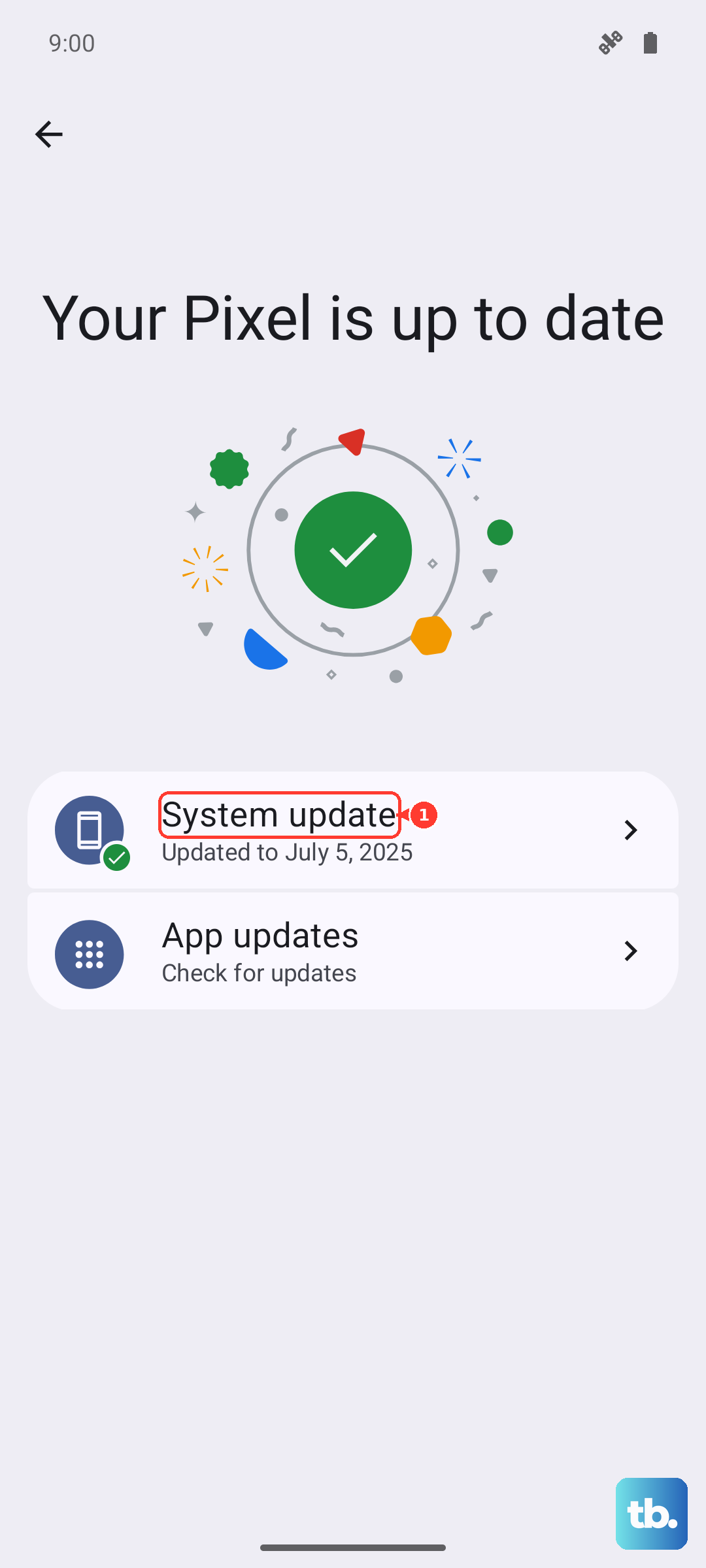
If an update is available, installing it can clear charging bugs that older firmware introduced, and then you can test charging again.
Factory Reset as a Last Resort
If charging still misbehaves after every step above, a factory reset clears deeper software problems by returning the phone to its original state. This erases all of your personal data, so back up everything you need first; once the reset runs, your personal information may not be recoverable.
Back up your photos, files, and accounts, then open Settings. Tap General management, then tap Reset. Tap Factory data reset. Tap Reset, then tap Delete all.
After the phone reboots and you set it back up, test charging before restoring all of your apps, so you can tell whether the reset alone solved it.
When to Get Samsung to Inspect the Hardware
If fast charging still does not work after the software steps and a reset, the problem is likely physical. The cable, the USB-C port, the charging board, or the battery may need a hands-on inspection that you cannot do at home.
At this point, contact Samsung Support or visit an authorized service center for a hardware diagnosis and any repair. Bring the charger and cable you have been using so the technician can test the whole setup together rather than just the phone.
Frequently Asked Questions
Does the Galaxy A55 5G come with a fast charger in the box?
No. The A55 5G supports charging at up to 25W, but the 25W Super Fast Charging wall charger is sold separately. You will need a compatible USB PD charger and a fast-charging USB-C cable to reach the phone's full speed.
Why does my A55 stop charging at 80%?
That is almost certainly the Battery protection feature set to Maximum mode, which stops charging at 80% to help preserve battery health. Go to Settings > Battery > Battery protection and switch to Basic if you want the phone to charge all the way to 100%.
Can I charge the Galaxy A55 5G wirelessly if the port is wet?
No. The A55 5G does not support wireless charging, so there is no wireless workaround for a damp port. You must dry the USB-C port and then charge with a cable.
Why can't I turn Fast charging on while the phone is plugged in?
Samsung does not allow you to enable or disable the feature while the device is charging. Unplug the phone, go to Settings > Battery > Charging settings, turn on Fast charging, then plug it back in.
Will a force restart or update delete my data?
No. A force restart (holding Volume down and the Side/Power button for more than 7 seconds) and a software update both leave your data intact. Only a factory data reset erases your personal information, which is why it is the last resort and should be done after a backup.