You line up a shot on your Galaxy A55, tap the shutter, and the photo comes back soft, smeared, or stuck hunting for a focus point that never locks.
Sometimes the preview itself looks foggy before you even press the button, and other times only close-ups or low-light shots turn to mush.
The good news is that the A55's triple rear camera (a 50MP wide lens with optical image stabilization, a 12MP ultra-wide, and a 5MP macro) plus its 32MP front camera are all capable of sharp results, so blur is almost always something you can fix yourself.
Work through the steps below in order, starting with the quick, safe checks and only moving to a reset or a repair if the easy fixes come up short.
Start with the glass over your rear lenses
The most common cause of a blurry photo is also the simplest one: something on the lens.
A film of dust, a fingerprint smudge, or a bit of pocket lint sits right in the optical path and confuses the autofocus, so every shot lands soft.
Dust or debris can interfere with focus, so clean the lenses with a soft, dry, lint-free cloth.
The A55's rear cameras are grouped together on the back, so wipe the whole cluster, not just one lens.
Do the same for the front camera at the top of the display, since smudges from holding the phone to your face affect your selfies in the same way.
Avoid liquids and abrasive fabrics; a gentle dry wipe is all the lenses need.
Clear the case, film, and lens covers out of the way
A case or accessory that creeps over the edge of the camera can block part of the frame or scatter light into a haze.
The official advice is to make sure your phone cover and accessories do not cover the edges of the camera lens, and to check that no laminated glass, tempered glass, or film is sitting over the camera itself.
If you recently added a screen protector, a back skin, or a snap-on cover, pop it off and shoot a test photo.
If the blur or fog disappears, the accessory was the culprit, and you can reseat it or replace it with one cut correctly for the A55.
Give the autofocus the help it needs
Sometimes the hardware is fine and your technique just needs a small adjustment.
Touch the subject on the screen so the camera focuses exactly where you want, then hold the phone as still as you can and make sure the scene is well lit.
Each lens also has its own working range, and getting too close is a frequent reason a shot will not lock.
If your close-ups stay soft, you may be inside the lens's minimum focus distance.
The official tip is to back away and zoom in, since each lens has a different range of focus.
Remember too that the main camera has optical image stabilization, so if motion blur persists, brace your hands and pause for a beat before the shutter rather than blaming the sensor.
Refresh the Camera app and then the phone
A temporary software hiccup can leave the preview frozen or perpetually soft.
Start small by fully closing the Camera app and reopening it, which clears a stuck session without touching anything else.
If the camera is still blurry or unresponsive after that, restart the whole phone to flush out the glitch.
To force restart the A55, press and hold the Volume down button and the Side button (or Power button) simultaneously until the device turns off and turns back on.
Samsung notes this can take more than 7 seconds of holding both buttons.
The screen turns black and then the Samsung logo appears, after which the phone boots normally.
This clears temporary software glitches and does not delete any of your photos or data, which makes it one of the safest fixes to try early.
Switch off Tracking auto-focus if shots will not refocus
The A55 has a Tracking auto-focus feature that locks onto a subject you tap and follows it for a few seconds.
That is useful for moving subjects, but it can make the camera seem stubborn, holding focus on one spot while the wider scene stays soft.
Turning it off lets the camera refocus freely on whatever you point it at.
Open the Camera app and tap the Settings icon.
On One UI 7.0 and above, tap the Quick controls icon (the four dots) first, then tap the Settings icon.
Tap the switch next to Tracking auto-focus to turn it off.
Take a few test shots afterward.
If your photos start landing sharp again, tracking was simply holding focus where you no longer wanted it.
Send the Camera app back to its defaults
If a buried setting is causing the blur and you are not sure which one, returning the Camera app to its factory defaults is a clean way to rule it out.
This affects only the camera's own options, not your saved photos or anything else on the phone.
Open the Camera app and tap the Settings icon.
Swipe to and tap Reset settings.
Tap the Reset button to confirm.
After the reset, the Camera app reopens with stock options, so any unusual mode or toggle that was interfering is gone.
Shoot a test photo to confirm focus is back to normal.
Install the latest One UI and security update
Camera focus problems are frequently fixed in software, and the A55 receives ongoing One UI and security updates as part of its long support window.
Installing the newest build can resolve a known bug without any further effort on your part.
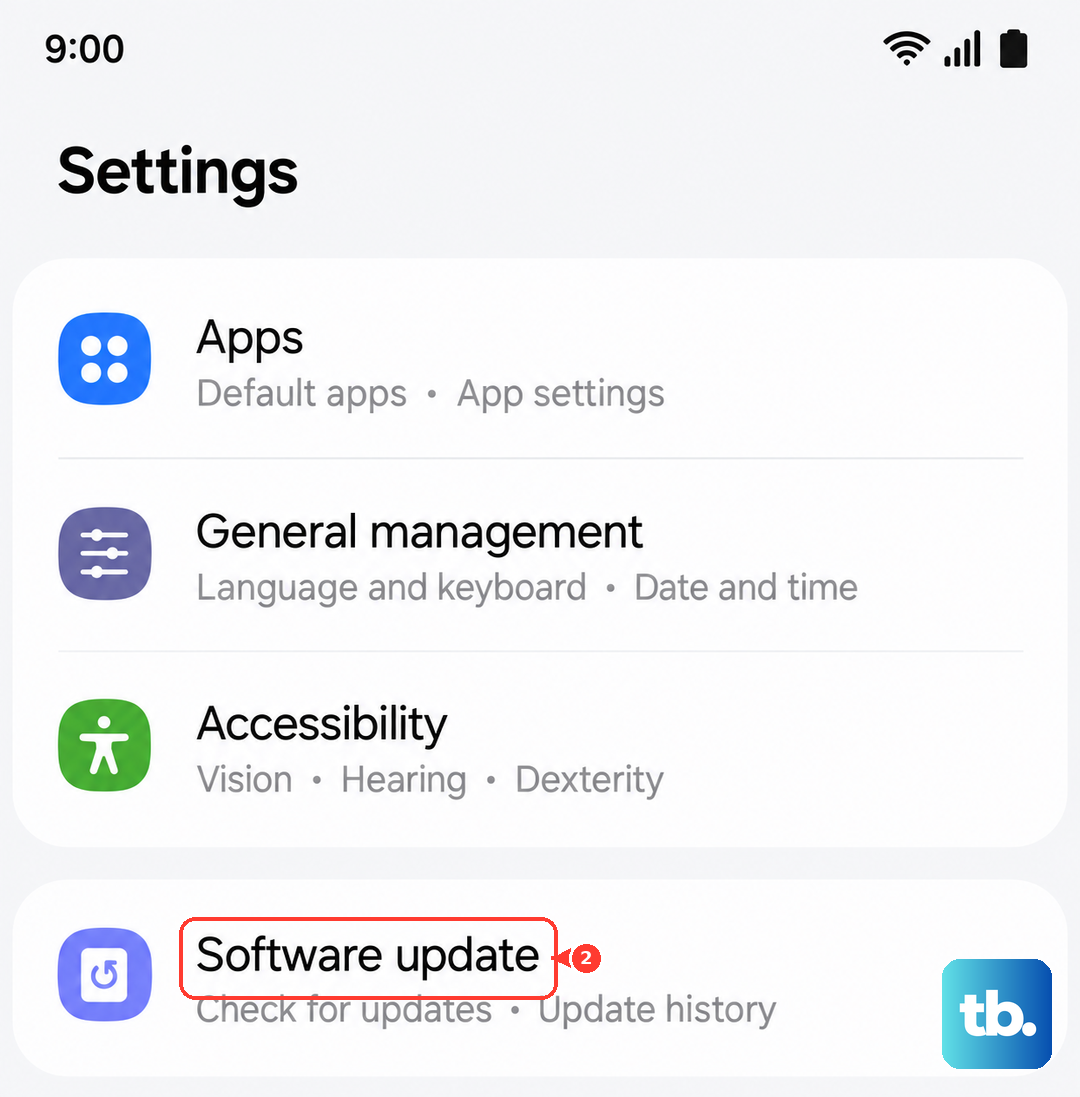
Go to Settings > Software update > Download and install.
Depending on your carrier, this menu may instead read System updates, Check for system updates, or Check for software updates.
Tap Download now if prompted, then follow the on-screen steps to install.
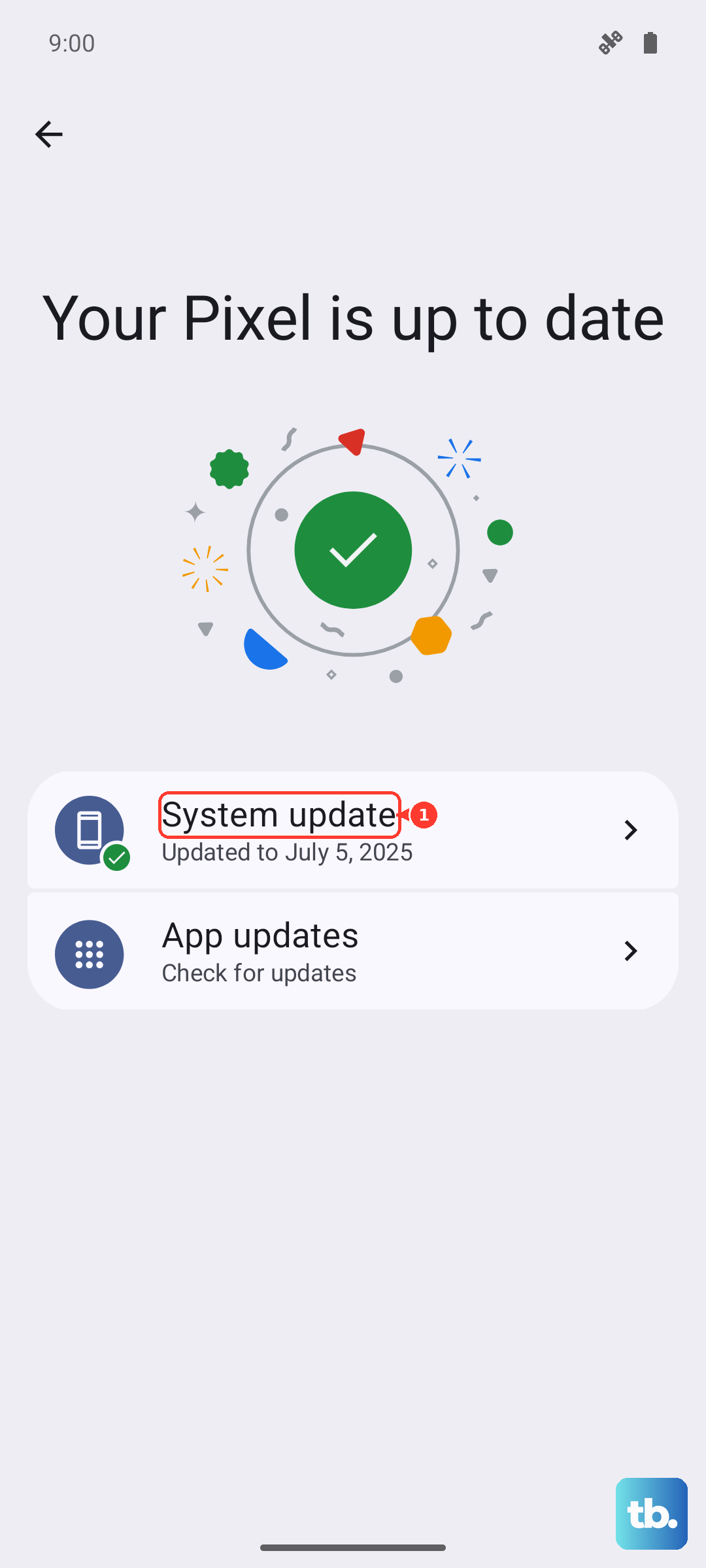
If you would rather update from a computer, Samsung Smart Switch on Windows or Mac can also update the phone's software.
Either way, let the phone restart fully and then test the camera again.
Rule out a rogue app with Safe mode
A third-party app, especially one that can use the camera, can interfere with focus across the system.
Safe mode loads the phone with only its built-in apps, so it is the fastest way to tell whether something you installed is to blame.
Swipe down to open the Quick panel and tap the Power icon.
Touch and hold the Power off icon, then tap Safe mode.
Open the Camera app and test whether it focuses normally.
If photos come out sharp in Safe mode, an installed app is the problem.
Restart the phone to exit Safe mode, then uninstall recently added apps one at a time, starting with the most recent, until the blur stops coming back.
Wipe and rebuild with a factory reset
If none of the steps above help and the camera still will not focus, a factory data reset returns the phone to its original software state and clears out a deep configuration problem.
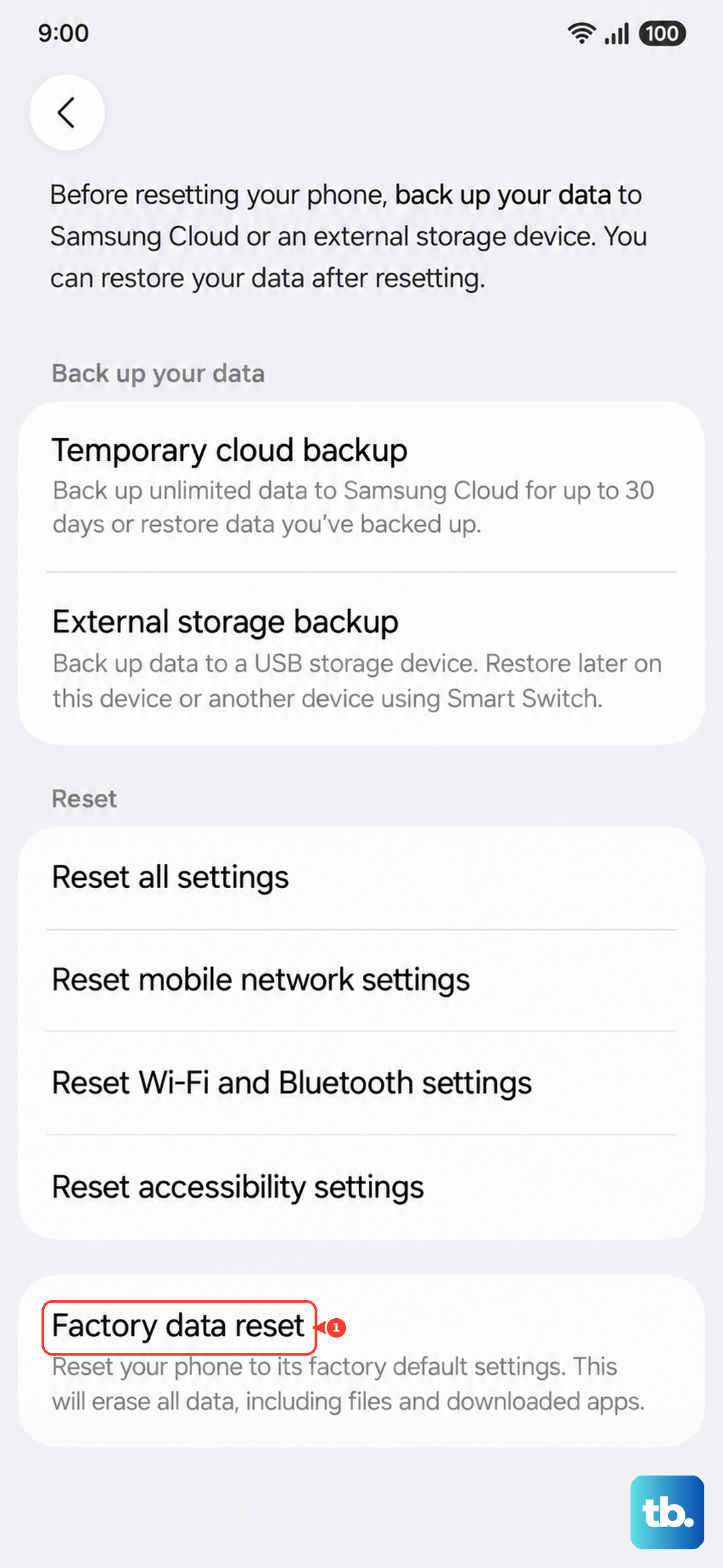
This erases everything on the device, so it is a last resort rather than a quick fix.
Back up your data first.
As Samsung warns, please save any information you need prior to the factory reset because your personal information may not be recovered.
Once your photos, contacts, and accounts are safely backed up, proceed:
- 1.Go to Settings > General management > Reset > Factory data reset.
- 2.Review the information shown, then tap Reset.
- 3.Tap Delete all, and enter your security credentials or Samsung account password if prompted.
The phone wipes itself and returns to the initial setup screen.
Set it up, test the camera before restoring everything, and you will know whether software was the cause.
Book a repair when the blur will not clear
If persistent blur survives every step above, the trouble is more likely a hardware fault than a software glitch, and it is time to get the phone looked at.
Run a diagnostic and submit an error report through the built-in Samsung Members app, which can gather log files and send them to Samsung Support.
You can also find an authorized service center through Samsung's official support website and arrange a repair.
Frequently Asked Questions
Why are only my close-up photos on the A55 blurry?
Close-ups usually fail because you are inside the lens's minimum focus distance. Try backing away from your subject and zooming in, since each lens has a different range of focus. Holding the phone steady and tapping the subject to set focus also helps.
Will resetting the camera settings delete my photos?
No. Choosing Reset settings inside the Camera app (the Settings icon, then Reset settings, then Reset) only returns the camera's own options to their defaults. Your saved photos and the rest of your phone's data are untouched.
How do I force restart a frozen Galaxy A55?
Press and hold the Volume down button and the Side button (or Power button) simultaneously until the device turns off and turns back on. The screen goes black and then the Samsung logo appears. Samsung notes this can take more than 7 seconds of holding both buttons.
Can a software update fix the camera blur?
Often, yes. Many focus bugs are resolved in newer firmware, and the A55 continues to receive One UI and security updates. Go to Settings > Software update > Download and install, then follow the prompts and test the camera after the phone restarts.
What if the camera still will not focus after a factory reset?
If blur persists after a full reset, the autofocus hardware is the likely cause. Submit an error report via the built-in Samsung Members app, or find an authorized service center through Samsung's official support website to arrange a repair.