You press the Side button on your Galaxy A55, and nothing happens: the 6.6-inch Super AMOLED display stays completely black, even though the phone may still ring, vibrate, or feel warm in your hand. On the A55 a black screen is far more often a software freeze or a drained battery than a broken panel, which means there is a real chance you can revive it yourself in a few minutes. Work through the steps below in order, starting with the safest button trick and saving the data-erasing options for the very end.
Force the A55 to Reboot With the Buttons
A frozen A55 often shows a black, unresponsive screen even though it is still powered on. A forced restart cuts the power to the system and brings it back without touching any of your data, so it is always the first thing to try.
- 1.Press and hold the Volume down button and the Side button (or Power button) simultaneously.
- 2.Keep holding until the device turns off and turns back on; this can take up to about 60 seconds.
- 3.Release the buttons once the Samsung logo appears on screen.
Because the A55 battery is non-removable, this button combination is the modern replacement for the old "pull the battery out for 60 seconds" trick, which does not apply to this model. If you unlock with a fingerprint or face, have your backup PIN or password ready, since you will need it the first time the phone reboots.
Give a Drained Battery a Proper Charge
A deeply drained battery looks exactly like a dead black screen, with no logo and no response to any button. Before assuming the worst, give the phone a long, uninterrupted charge from a known-good power source.
Connect and charge the phone using the appropriate charger for at least 1 hour.
Wait for the battery charging indicator; if the battery is fully drained, it may take up to 10 minutes to appear on the display.
After that, disconnect the phone, then press and hold the Power button (or Side button) for 15 to 20 seconds to try to power it on.
The A55 ships without a wall charger in the box, so use a genuine 25W Super Fast Charging-capable adapter and cable, plugged directly into a wall outlet rather than a power strip. If the Samsung logo appears after this, the phone simply needed the charge.
Inspect the Cable, Port, and the Phone Itself
If charging did nothing, the problem may be the connection rather than the phone. Check that the phone, charger, and USB cable have no physical or liquid damage, and remove any case or accessory that covers the charging port or the buttons.
Look into the USB-C port for corrosion, lint, or bent pins, since a blocked or damaged port can stop power from reaching the battery and leave the screen black. You can also eject the SIM and microSD tray and shine a flashlight inside to check for moisture or corrosion before charging again.
Boot Into Safe Mode to Catch a Misbehaving App
If the screen only goes black or misbehaves some of the time, a downloaded app may be the culprit. Safe mode starts the A55 with only its built-in apps, so you can quickly tell whether something you installed is to blame.
Completely power off the phone.
Turn on the device and, when the Samsung logo appears, press and hold the Volume down button.
If done correctly, "Safe mode" will display in the bottom-left corner of the screen.
You can also reach it from the power menu: press and hold the Side button and the Volume down button at the same time, touch and hold the Power off icon, then tap the Safe mode icon. If the black-screen problem disappears in Safe mode, uninstall recently added apps one at a time until the trouble stops. To leave Safe mode, simply restart the phone and it will reboot normally; alternatively, swipe down from the top of the screen, tap the "Safe mode is on" notification, and tap Turn off.
Pick Normal Boot if a Maintenance Screen Appears
After a forced restart, the A55 sometimes lands on a boot or Maintenance mode screen instead of starting up, which can look like another stall. This screen is harmless, and you only need to choose the right option to continue.
Use the Volume buttons to cycle through the on-screen options, then press the Power button or Side button to select Normal Boot. The phone will then start up the usual way rather than sitting on a black or stalled screen.
Install Any Pending One UI Update
Once the phone is back on, install any waiting software update, since firmware fixes resolve many display and boot bugs on One UI and Android 14. Updating is non-destructive and can quietly clear up a recurring black-screen glitch.
Open Settings, then swipe to and tap Software update (or System updates).
Next, tap Download and install.
Follow the on-screen instructions to install the update.
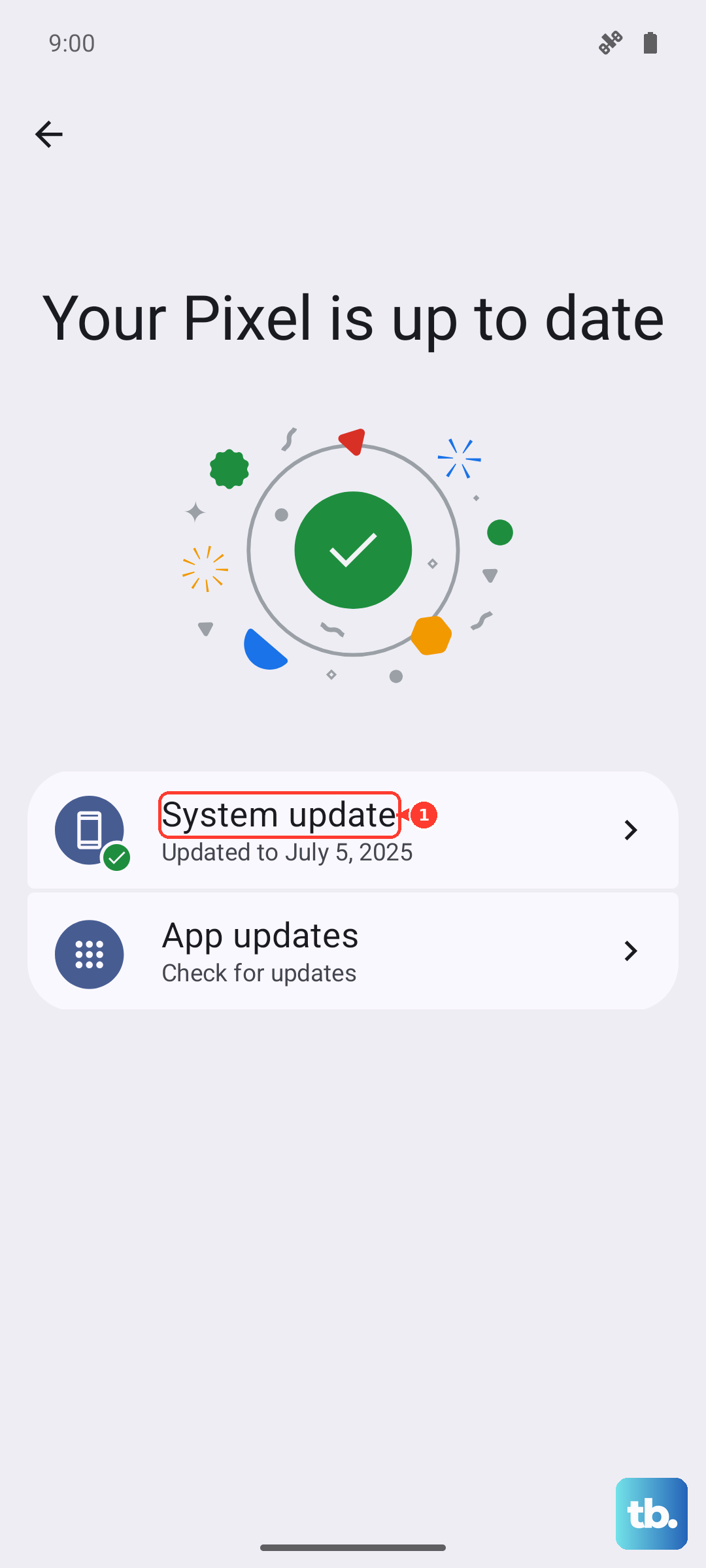
You can also update through Samsung Smart Switch on a Windows PC or Mac, which is handy if the phone struggles to download over Wi-Fi. Depending on how far behind your version is, you may need to run the update process more than once to reach the latest build.
Rescue Your Files While the Screen Is Black
If the A55 is clearly powered on but the display stays black, you can still get your data off before you consider erasing anything. The trick is to give yourself a screen and a way to navigate that does not rely on the broken panel.
Connect the phone to a TV or monitor through an HDMI adapter, attaching the adapter to your phone, connecting the HDMI cable to the adapter, and then plugging it into the display's HDMI port to mirror the screen. You can also connect a USB mouse and keyboard through an adapter to navigate the phone and enter your PIN. From there, back up everything important with Samsung Smart Switch before moving on to any erase.
Wipe the Phone With a Factory Reset
If the black screen keeps returning and the phone is still usable, a factory reset returns the software to a clean slate and clears out stubborn corruption. This step erases everything, so only do it after you have backed up using the previous step.
Open Settings, then tap General management.
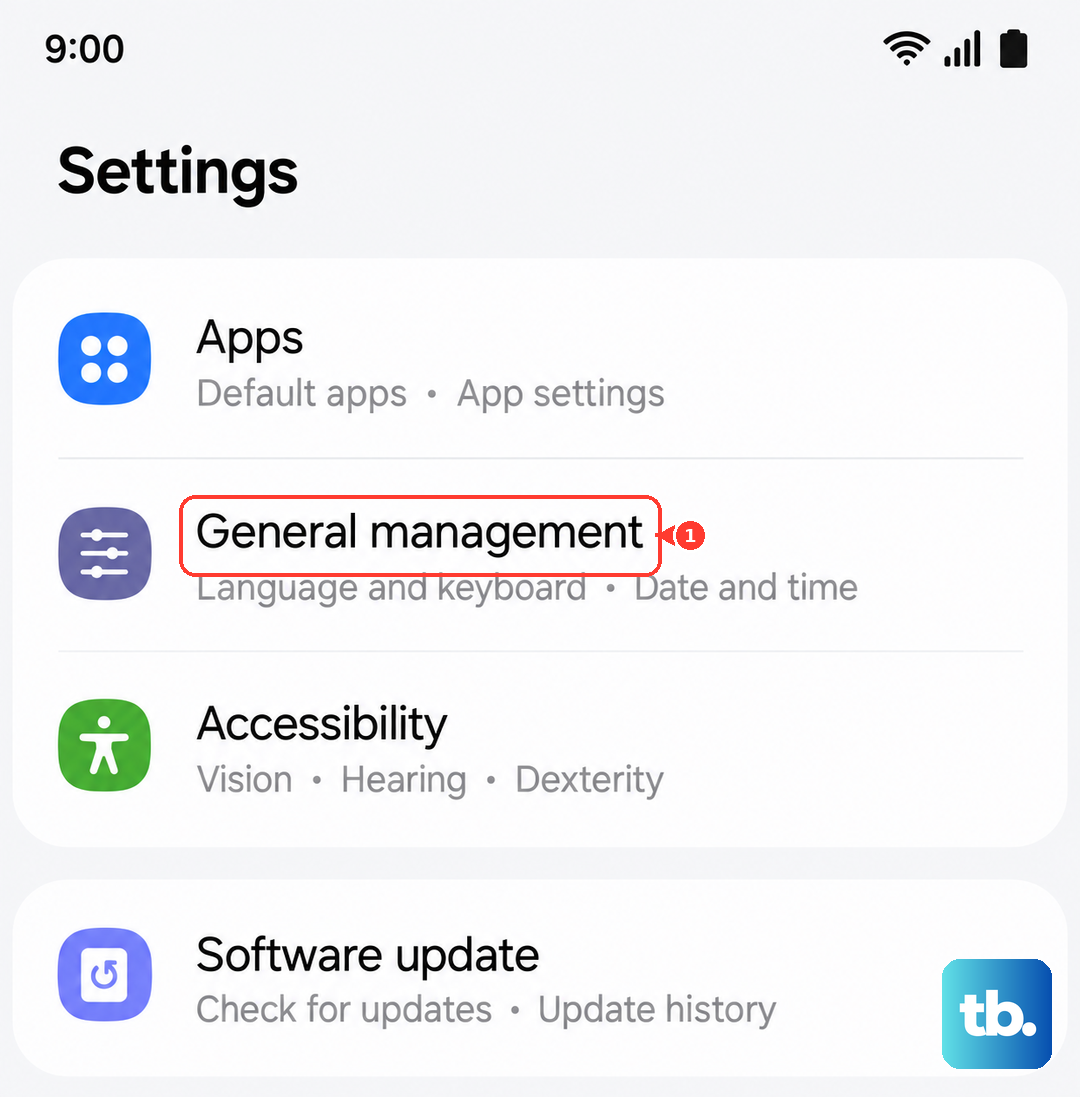
Then tap Reset, then Factory data reset.
Review the information, tap Reset, then tap Delete all (enter your security credentials and Samsung account password if prompted).
Samsung is explicit about the data loss, warning that you should save any information you need prior to the factory reset because your personal information may not be recovered. Keep in mind that a network connection will be required to log out of your Samsung account before you can complete the reset.
Book a Repair With Samsung
If the screen still will not turn on after charging and a forced restart, the issue points to a hardware fault in the display or battery rather than software. At that point Samsung's guidance is direct, stating that your device needs service and that you should contact the Samsung Support Center for further assistance.
Use the Samsung Support Center online service request to book a repair, or open the Samsung Members app, which offers in-app support, device diagnostics, and service booking. Because the A55 carries up to 5 years of security updates, it is well worth repairing rather than replacing if the panel has failed.
Frequently Asked Questions
Why is my Galaxy A55 screen black but the phone still rings or vibrates?
That combination usually means the phone is powered and running while only the display has stopped responding, which most often points to a software freeze. Start with the forced restart (Volume down plus the Side button held until it turns off and back on), since that resolves the majority of these cases without losing any data.
Will a force restart delete my data?
No. Holding Volume down and the Side button only cuts power and reboots the phone, much like restarting a computer, so your apps, photos, and settings stay in place. The only step in this guide that erases data is the factory reset, which carries a clear warning.
How long should I charge a completely dead A55 before it will turn on?
Charge it with an appropriate 25W-capable adapter for at least 1 hour, and be patient if nothing appears at first. On a fully drained battery, the charging indicator can take up to 10 minutes to show on the display, after which you can press and hold the Power or Side button for 15 to 20 seconds to power on.
Does a factory reset on the A55 delete everything?
Yes. A factory data reset erases all data on the phone, and Samsung warns that your personal information may not be recoverable afterward, so back up first. You will also need a network connection so the phone can log out of your Samsung account before the reset can complete.
What should I do if the screen never turns on at all?
If charging and a forced restart both fail to bring the display back, treat it as a hardware fault. Request service through the Samsung Support Center online service request or the Samsung Members app, since the display or battery likely needs professional repair.