
When your Samsung Galaxy A36 gets stuck trying to download a new update, it's a common roadblock, especially with the initial rollout of One UI 7. You might see an error message, a download that never starts, or a progress bar that freezes. Let's get it moving.
Force Restart Your Phone
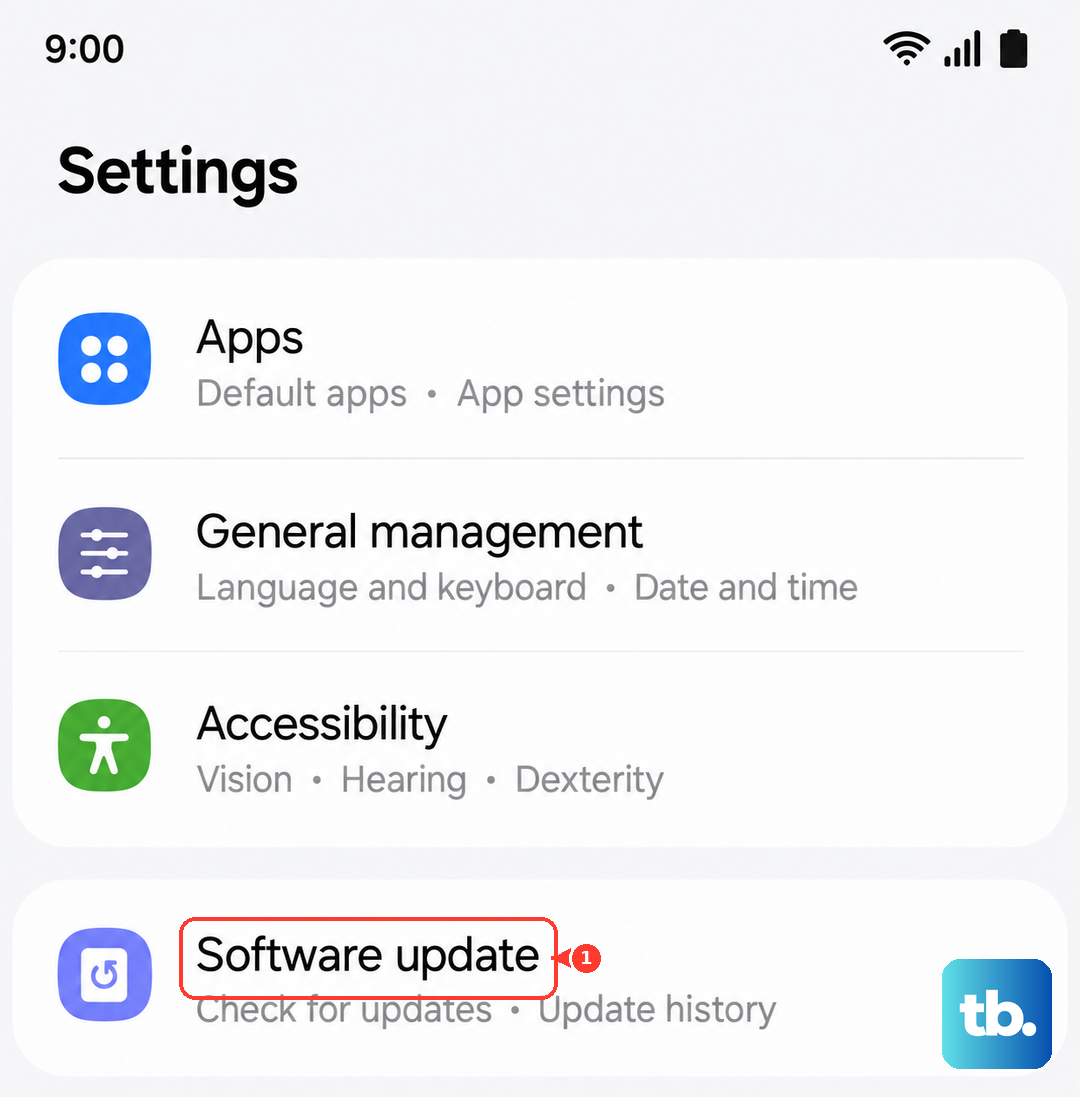
This is the quickest fix for a temporary software hang. Press and hold the Volume Down button and the Power button together for about 10 seconds. Keep holding until you see the Samsung logo appear on the screen, then let go. Once it boots back up, head to Settings > Software update and tap Download and install to try again.
Check Your Wi-Fi Connection
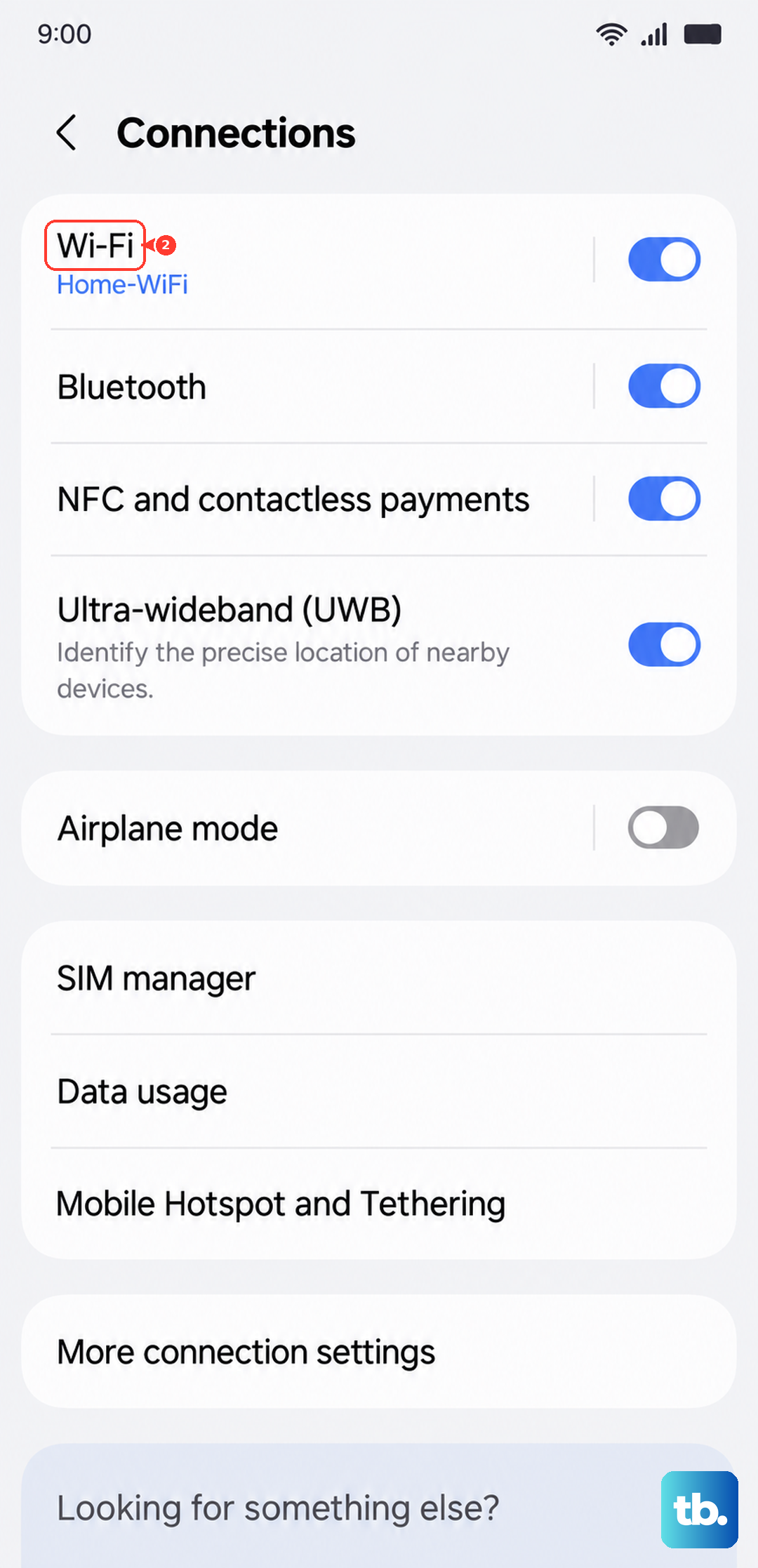
Android updates are large and require a stable Wi-Fi connection. Go to Settings > Connections > Wi-Fi and make sure you're connected. Try loading a webpage in Samsung Internet to test the speed. If it's slow, restart your router or switch to a different network. Public Wi-Fi often blocks large downloads, so use your home network if possible.
Free Up Storage Space
Your Galaxy A36 needs enough free space to download and unpack the update file. Go to Settings > Device care > Storage. You'll want at least 5-6 GB free for a major One UI update. The Device Care tool can help you clean junk files. You can also move photos to the cloud or uninstall apps you don't use.
Clear the Update App Data
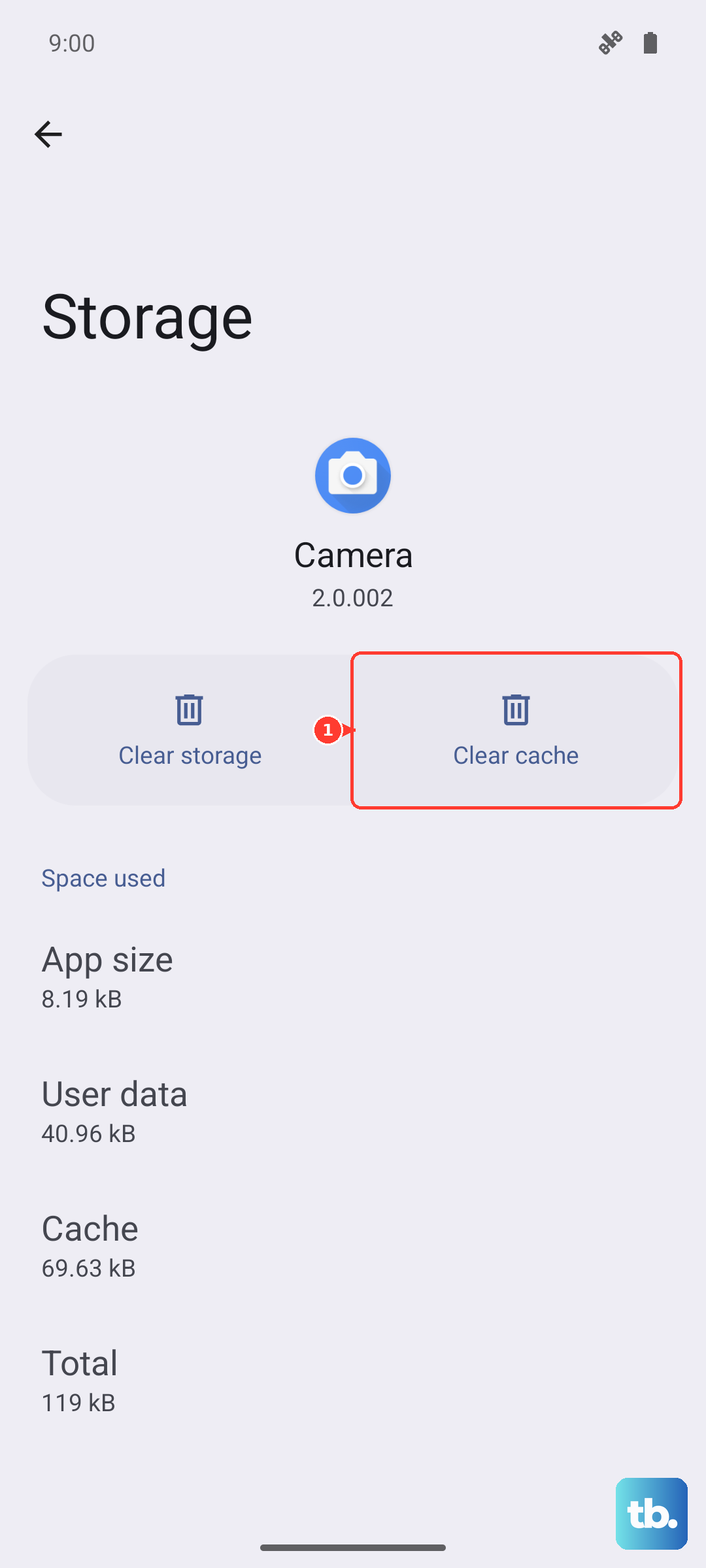
Sometimes the Software Update service itself gets stuck with corrupted temporary data. Go to Settings > Apps, tap the filter menu (three dots), and select Show system apps. Find and tap Software update. Go into Storage and tap Clear cache first. If that doesn't work, tap Clear data. This resets the update app without harming your personal files.
Reset Your Network Settings
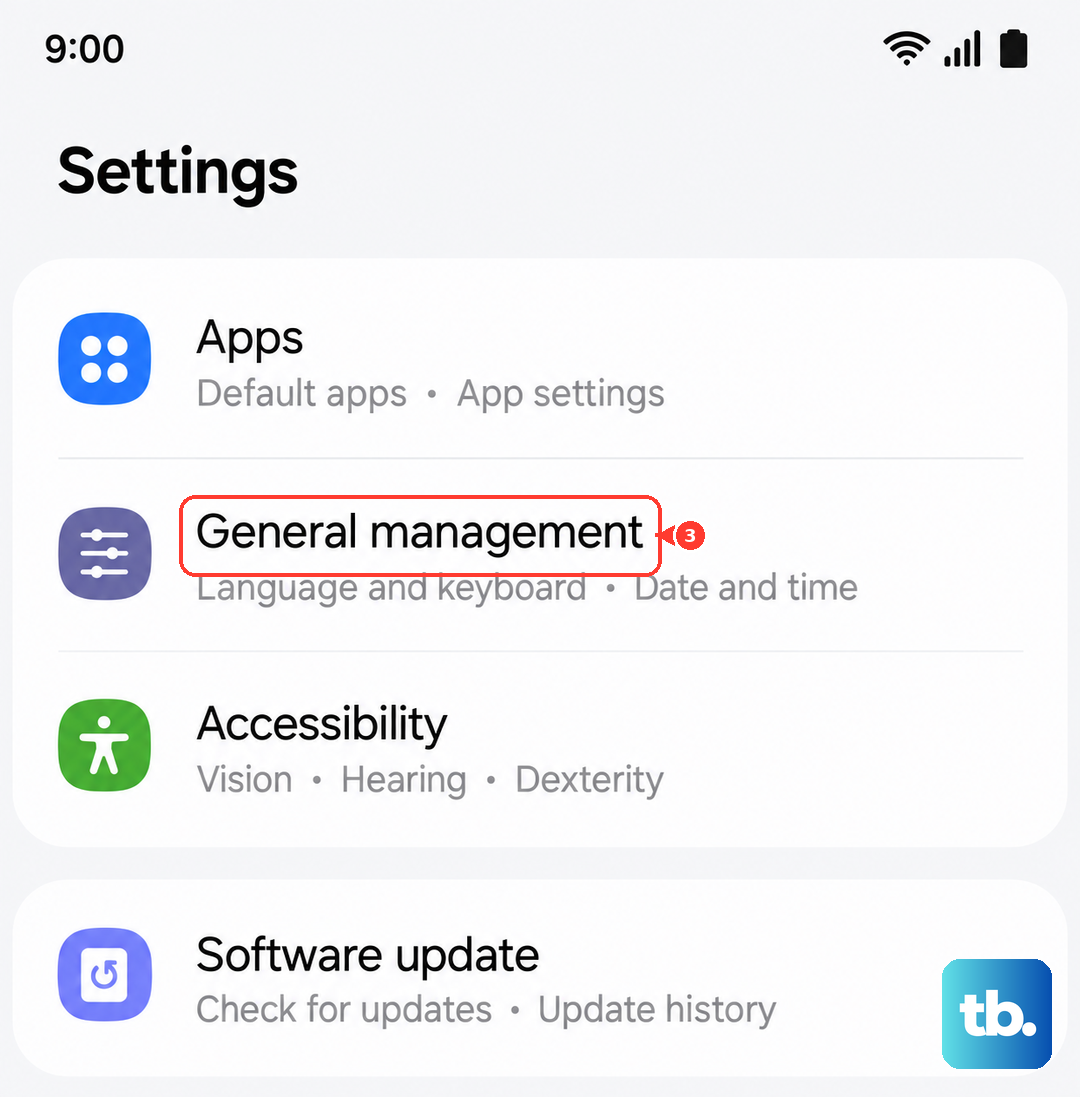
This clears all your saved Wi-Fi networks, Bluetooth pairings, and mobile data settings, which can resolve hidden connection conflicts. Go to Settings > General management > Reset > Reset network settings. Tap Reset settings and confirm. You'll need to reconnect to your Wi-Fi network afterward, then immediately try the update again.
Use Samsung Smart Switch on a Computer
If the over-the-air update keeps failing, use Samsung's official desktop tool. Download and install Samsung Smart Switch on your Windows PC or Mac. Connect your Galaxy A36 to the computer using a USB-C cable. Open Smart Switch, and if an update is available, it should prompt you. This method downloads the update file to your computer first, which can bypass issues with your phone's storage or connection.
Check for Server Issues
The problem might not be with your phone at all. When a new update like One UI 7 first launches, Samsung's servers can get overwhelmed. You can check community forums like the Samsung Members app or Reddit to see if other A36 users are reporting the same download failure. If it's a widespread server issue, the only fix is to wait a few hours and try again later.
Try Downloading During Off-Peak Hours
If many people are trying to update at the same time, it can slow down or break the download process. I've found that trying early in the morning or late at night often works when daytime attempts fail. The servers are typically under less load, and the download is more likely to complete without interruption.
Disable VPN or Security Apps Temporarily
Some third-party apps, especially VPNs or aggressive security apps, can interfere with the communication needed to download an update. Before you start the update process, go to Settings > Connections > More connection settings > VPN and turn off any active VPN profile. You can also try restarting your phone and going straight to the Software Update menu before opening any other apps.