You tap out a message on your Samsung Galaxy A36 5G, hit send, and nothing moves. The text stalls behind a spinning icon, throws a red exclamation mark, or quietly fails while your calls and mobile data keep working.
Because the A36 handles SMS and MMS through its standard Messages app over your carrier's LTE and 5G Sub6 network, a stuck text almost always traces back to a temporary glitch, a weak connection, or a setting that has drifted out of place. The fixes below are ordered from the quickest and safest to the most involved, so start at the top and only work down to a full reset if nothing earlier clears it.
Quick resets that clear most stuck texts
Before changing any settings, give the phone a clean restart. Make sure it actually has a usable carrier signal. These two steps resolve the majority of sudden "won't send" problems and cost you nothing.
1. Force restart the Galaxy A36
A temporary software glitch can quietly block the Messages app from handing texts off to your carrier. A forced restart clears that state without touching your data.
Press and hold the Volume down button and the Side button (or Power button) simultaneously until the device turns off and turns back on, then let go once the Samsung logo appears on the screen. Wait for the phone to finish loading, then try sending a text again. A correctly performed forced restart does not erase any information on the phone, so it is safe to use whenever messaging acts up.
2. Check your signal and switch off Wi-Fi
Texts need a working carrier connection, and a strong Wi-Fi network can sometimes mask a phone that has actually dropped off the cellular network. Make sure you have an active data connection to your carrier, then temporarily disable Wi-Fi.
Confirm you have at least a 3G signal in the status bar before trying to send again. If you depend on Wi-Fi Calling for messages in a low-signal spot, confirm it is on under Settings > Connections > Wi-Fi Calling.
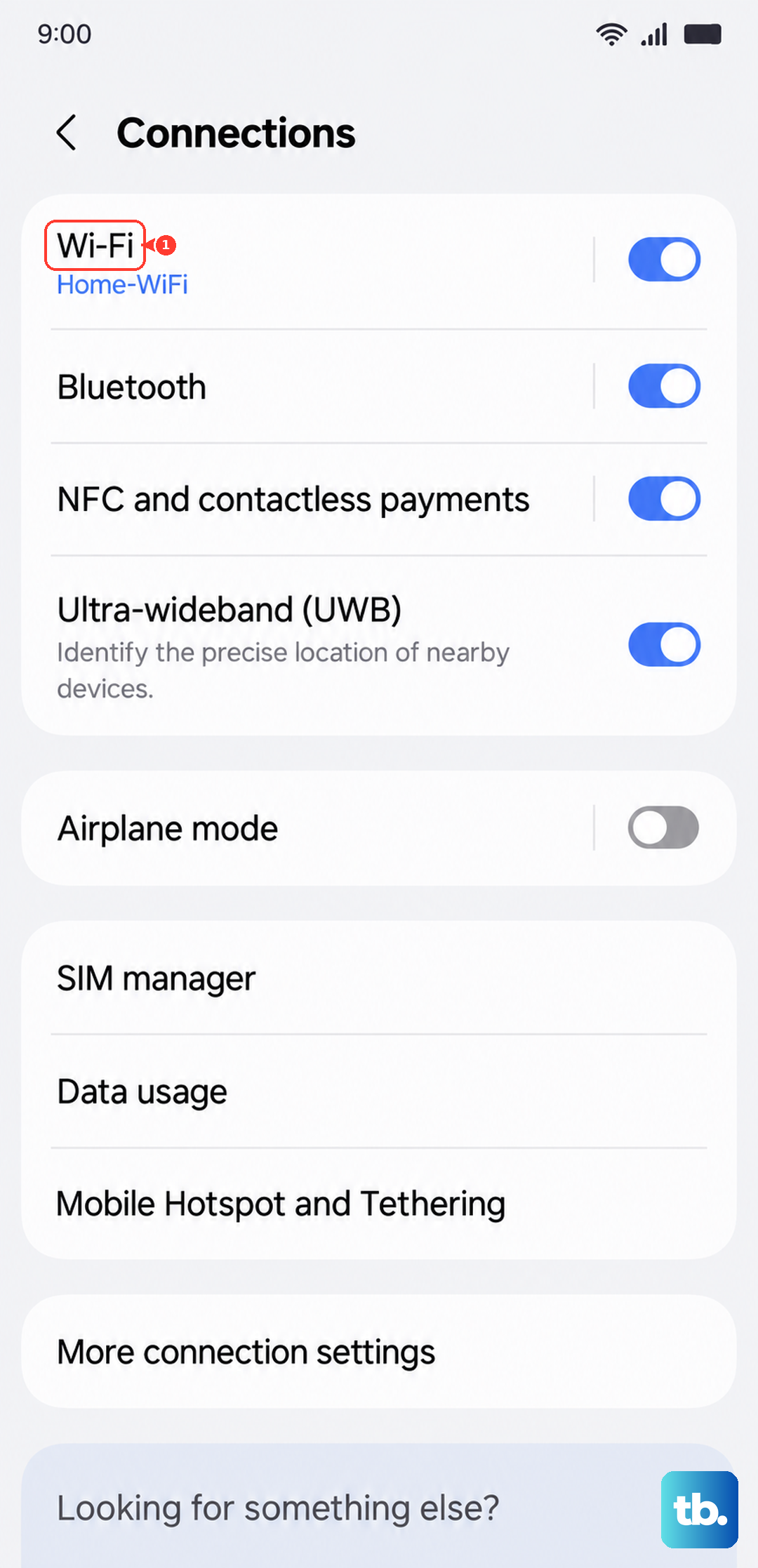
Then toggle it on. Once you have a clear bar of carrier signal, send a test text to confirm whether the problem is gone.
Make sure the SIM, plan, and carrier are healthy
If a restart and a good signal do not help, the next most common culprits sit between your SIM card and your carrier's billing system. None of these steps risk your data.
3. Reseat or inspect the SIM card
A loose or dirty SIM can let calls through while quietly breaking SMS. Power the phone off, remove the SIM, and gently clean it. Reinsert it firmly, then power back on.
Verify the SIM card is correctly installed and is not damaged. If it looks worn or cracked, contact your carrier about a replacement.
4. Confirm your account and plan are active
Messaging problems are most often a carrier or service issue rather than a phone fault. Verify that your account is in good standing and that your service is active, since an overdue balance or a suspended line will block outgoing texts first.
You may need to call your service provider to confirm that your plan includes SMS and MMS and that there are no outages in your area. If a recent plan change is the cause, your carrier can often re-provision the line in a few minutes.
Fix the messaging settings on the phone itself
When the network and account check out, turn to the settings that control how your A36 sends messages. A wrong number, the wrong default app, or a corrupted cache can each stop texts cold.
5. Set the correct message centre (SMSC) number
If you cannot send any SMS to anyone, the stored message centre number may be missing or incorrect. This number tells your phone where to route every outgoing text, so an error here breaks all of them at once.
Open the Messages app, then go to Menu > Settings > More settings > Text messages > Message centre. Enter the correct message centre number supplied by your network provider. If you are unsure of the exact number, your carrier's support line can read it out, since it varies by network and region.
6. Confirm the correct default messaging app
If the wrong app is set as your default, your texts can vanish into an app you never open. Set the one you actually use as the default and grant it the permissions it needs.
Navigate to and open Settings, and then tap Apps. Tap Choose default apps, and then tap SMS app. Select the messaging app you actually use, such as Samsung Messages or Google Messages. After switching, grant any SMS or Contacts permissions the app requests so it can read your conversations and send on your behalf.
7. Clear the Messages app cache
A corrupted cache file can stop messages from sending even when everything else is correct. Clearing it removes only temporary files, not your actual conversations.
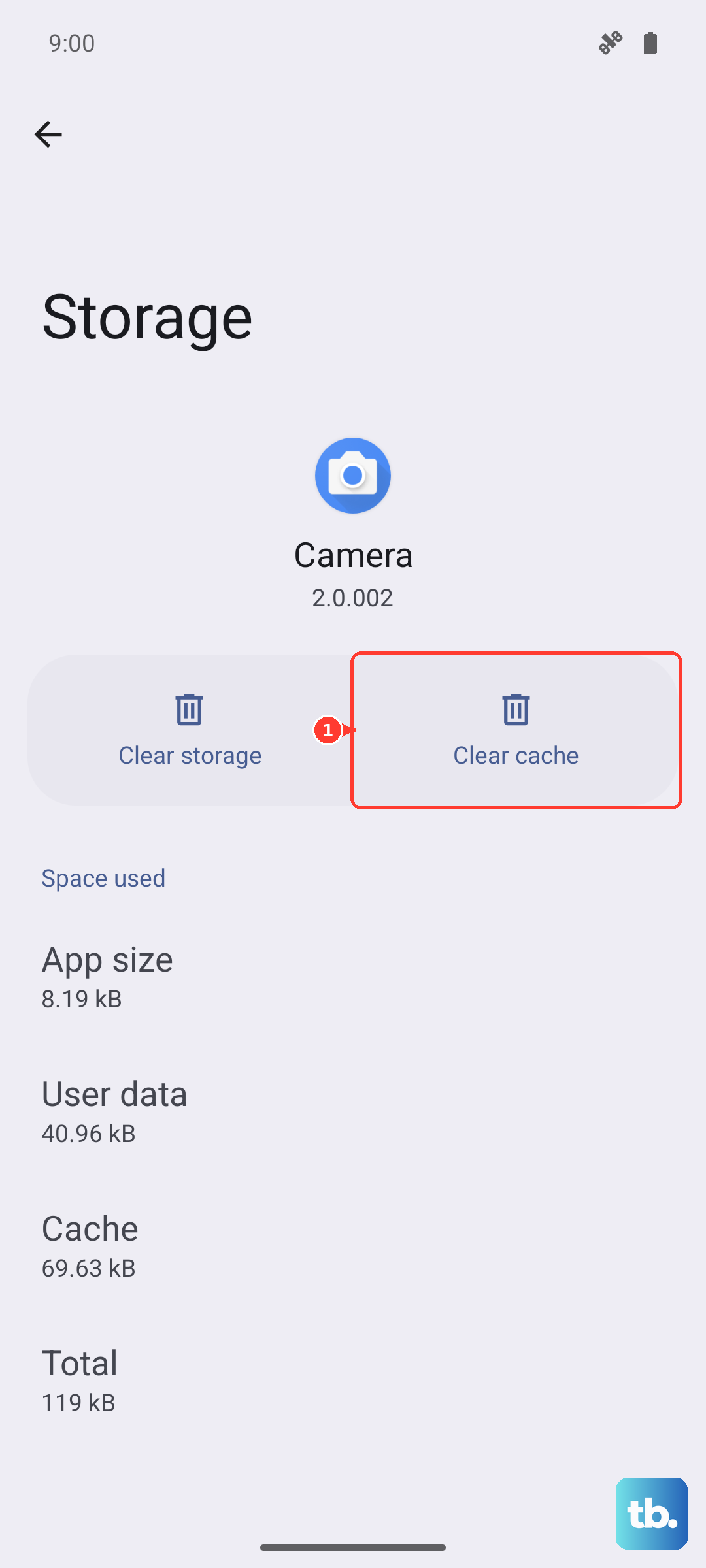
Go to Settings > Apps > Messages > Storage, then tap Clear cache. Reopen the app and send a test message to see whether the backlog clears.
Coming from an iPhone? Deregister iMessage
If you recently moved from an iPhone to your Galaxy A36, iMessage may still be tied to your number and capturing your texts, leaving them stuck in limbo so they never arrive as standard SMS. This is a frequent cause of one-way or missing messages after a switch.
Deregister iMessage by turning it off on the old iPhone, or by using Apple's official deregistration page if you no longer have the iPhone. Once your number is released, messages will route over SMS to your A36 as expected.
Update One UI to restore messaging compatibility
An out-of-date system can break messaging compatibility with your carrier's network. The Galaxy A36 5G ships with One UI 7 (based on Android 15) and is promised up to six generations of OS upgrades and six years of security updates, so keeping it current is both easy and worthwhile.
Charge the phone to at least 20 percent and connect to Wi-Fi. Open Settings and tap Software update (some phones label this System updates). Tap Download and install, then tap Install now.
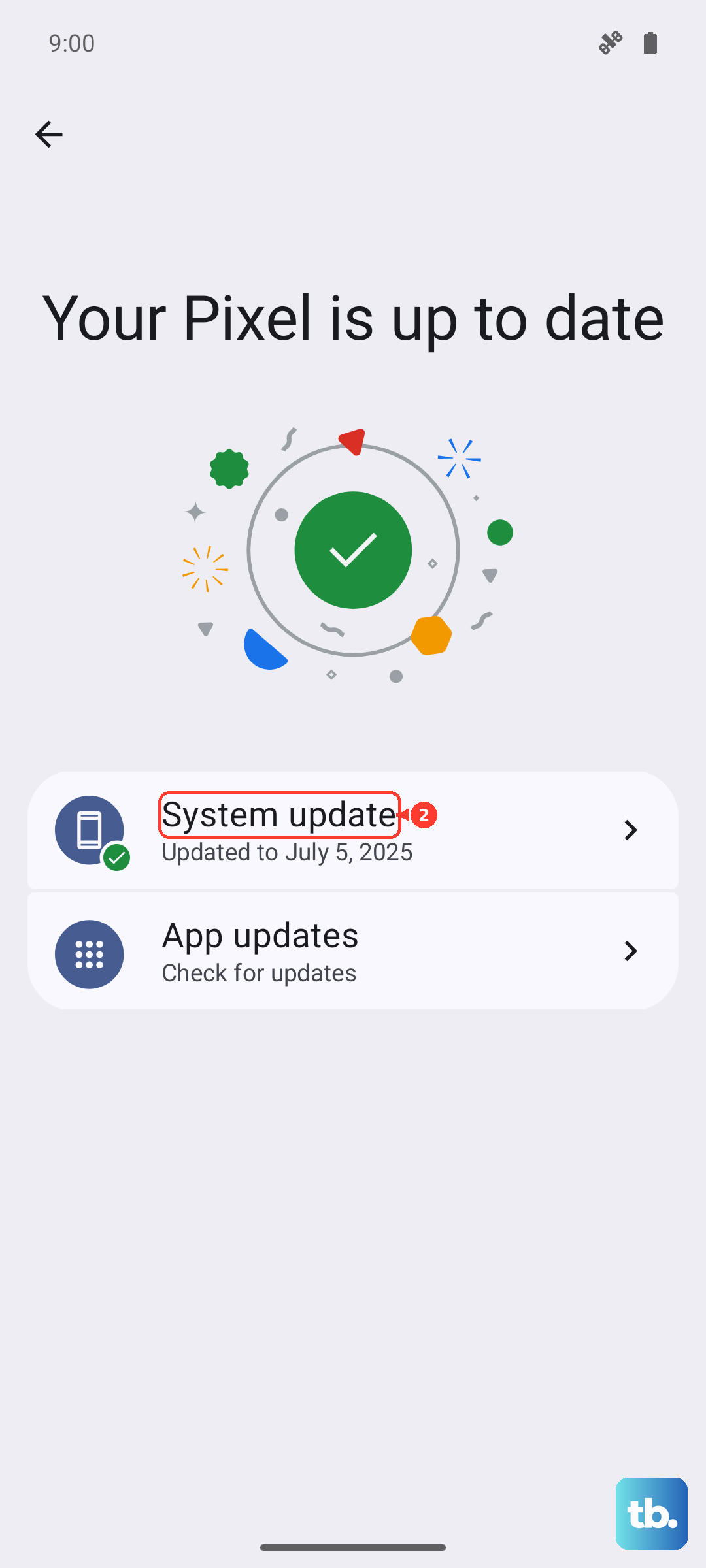
Stay on Wi-Fi and let the update finish without interruption. Then test your messages once the phone restarts.
When nothing works, reset and reach out for support
A factory data reset wipes the phone back to its out-of-box state and should only be used after the steps above have failed. Because this step removes your apps, accounts, and files, back up everything first using Samsung Smart Switch or your preferred backup method.
- 1.Back up your data so you can restore it afterward.
- 2.Navigate to and open Settings, and then tap General management.
- 3.Swipe to and tap Reset, then tap Factory data reset and follow the prompts.
Samsung warns that you should save any information you need prior to the factory reset because your personal data may not be recovered. If texting still fails after the reset, the problem is likely on the network side; contact your carrier or Samsung Support to escalate it. You can also run a quick self-diagnostic from the Samsung Members app, the official optional support tool built in to Galaxy phones.
Frequently Asked Questions
Why can my Galaxy A36 receive texts but not send them?
This pattern usually points to a connection or settings problem rather than a broken phone. Confirm you have at least a 3G carrier signal with Wi-Fi off, check that the message centre (SMSC) number is correct, and verify your plan still includes outgoing SMS. If all three are fine, clear the Messages app cache and try again.
Will a force restart on the Galaxy A36 delete my messages?
No. A correctly performed forced restart, holding the Volume down button and the Side button until the Samsung logo appears, does not erase any information on the phone. It only clears the temporary state that can cause texts to stall.
Does clearing the Messages cache delete my conversations?
No. Clearing the cache under Settings > Apps > Messages > Storage removes only temporary files. Your existing conversations and threads stay intact.
Do I need a special app to send texts on the Galaxy A36?
No. The Galaxy A36 is a standalone smartphone that sends SMS and MMS through its built-in Messages app, so no companion app is required. Samsung Members is an optional official app you can use for support and self-diagnostics if texting problems persist.