Seeing that "No SIM" or "SIM card not detected" message on your Samsung Galaxy A36 is a real roadblock. You can't make calls, send texts, or use mobile data. The good news is this is almost always something you can fix yourself, and I'd start with the simplest steps first.
Before you do anything else, give your phone a quick restart. This clears out temporary software glitches that can confuse the SIM reader. Just press and hold the Volume Down and Power buttons together for about ten seconds until you see the Samsung logo appear.
Check the SIM Card Itself
Power your A36 off completely. Grab the SIM ejector tool that came in the box and pop out the tray. Take a close look at the SIM card's gold contacts. If you see any dust, lint, or a faint white corrosion, that's likely the culprit.
Gently wipe the contacts with a clean, dry microfiber cloth. You can also use a cotton swab with a tiny bit of isopropyl alcohol, but let it dry completely before reinserting. Make sure the card is seated correctly in the tray, with the notched corner aligned.
Toggle Airplane Mode and Verify SIM Status
Swipe down from the top of your screen twice to open the full Quick Settings panel. Tap the Airplane Mode icon to turn it on, wait five seconds, then tap it again to turn it off. This forces your phone's modem to re-establish a fresh connection with the network.
Next, go into Settings > Connections > SIM card manager. Make absolutely sure the switch next to your SIM is toggled on. Sometimes a software hiccup can turn it off without you realizing.
Update Your Phone's Software
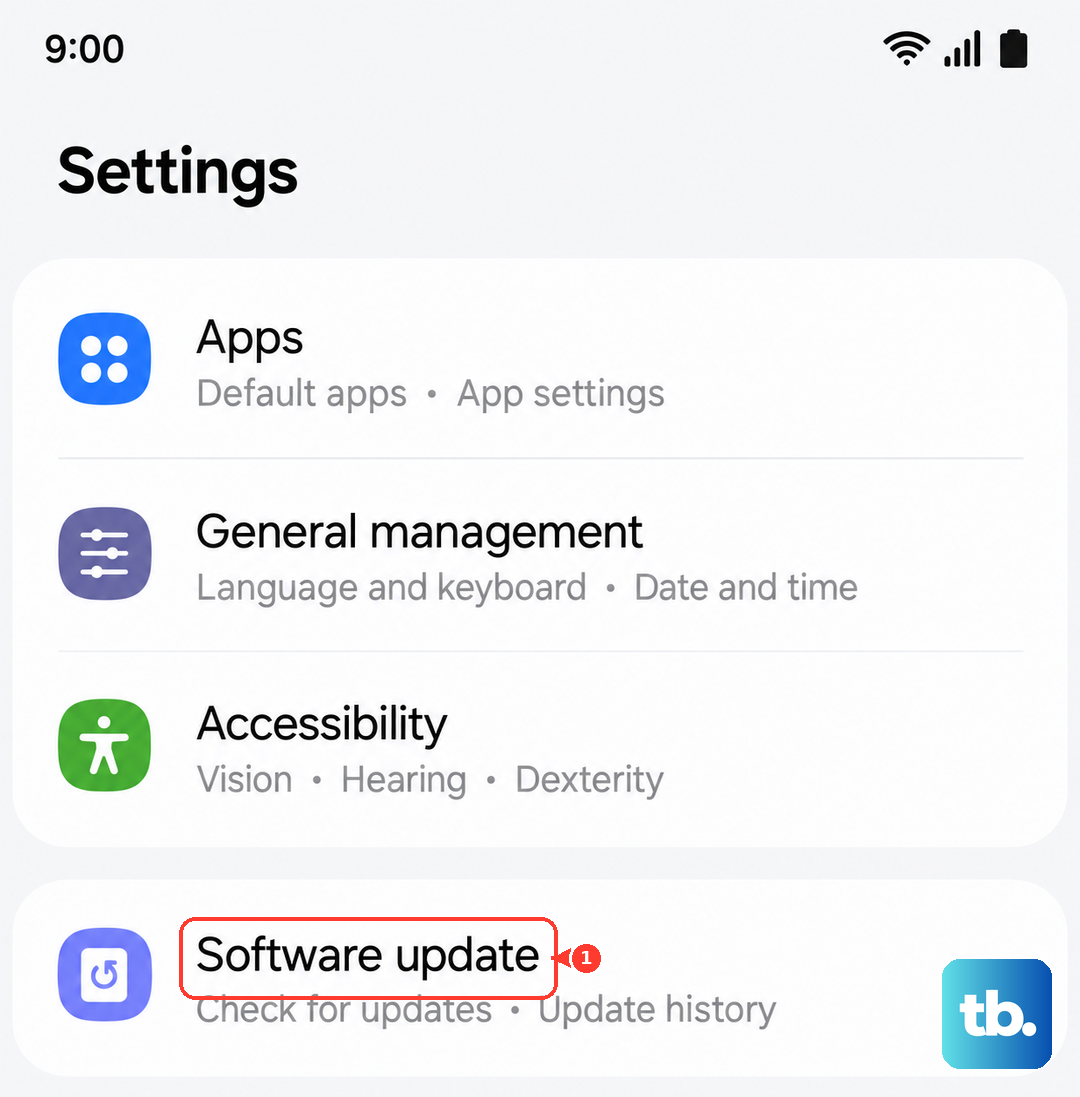
Since the A36 runs Android 15 with One UI 7, there could be a bug causing the issue. Samsung is usually quick to patch these things. Head to Settings > Software update and tap "Download and install."
If an update is available, let it install completely and then restart your phone. I've seen this resolve a lot of the initial network bugs that popped up after the One UI 7 launch.
Reset Your Network Settings
This is a more thorough step that clears out all your saved Wi-Fi passwords, Bluetooth pairings, and mobile network configurations. It won't touch your photos or apps, but you will have to reconnect to Wi-Fi networks afterward.
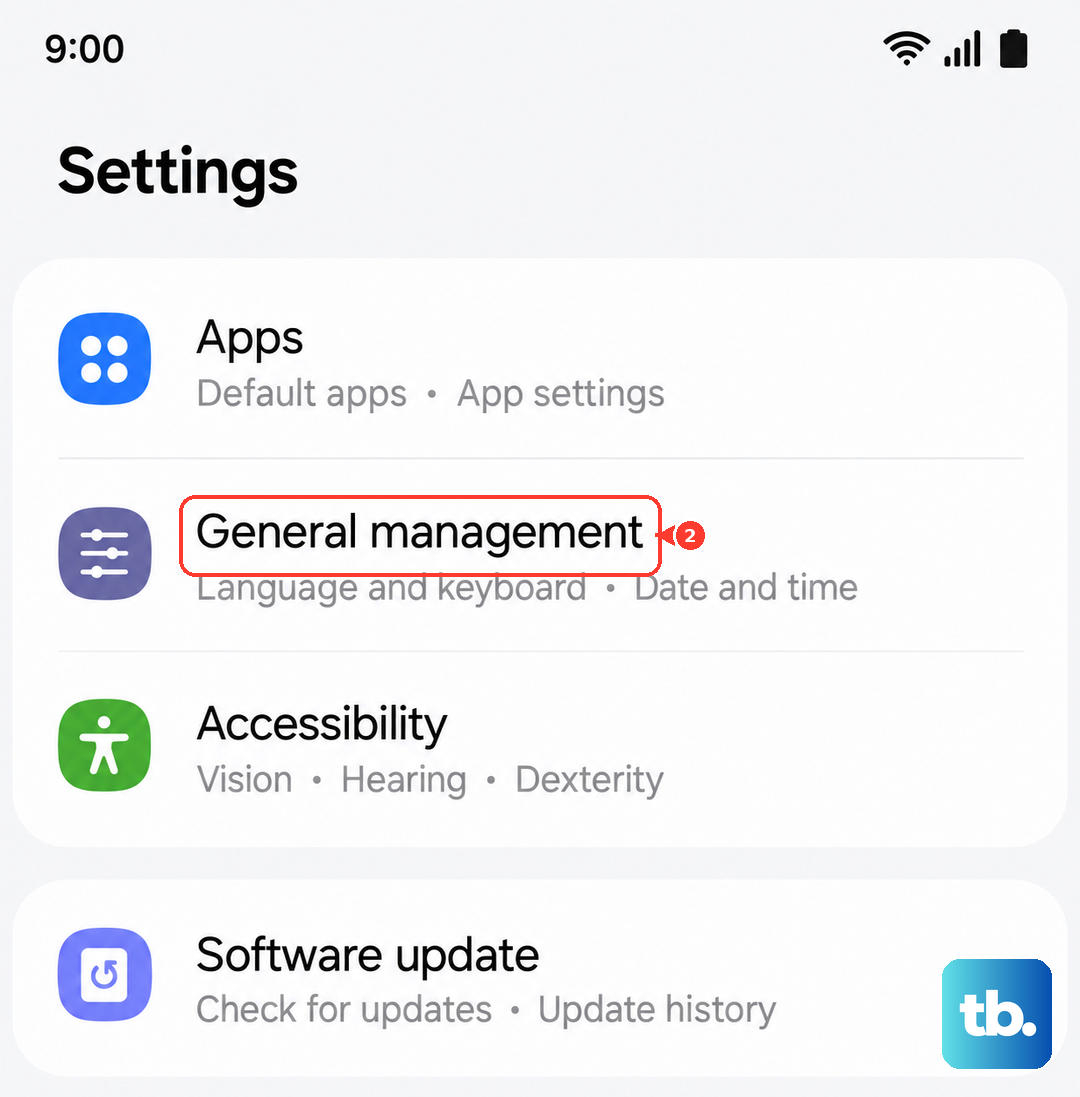
Go to Settings > General Management > Reset. Then, select "Reset network settings" and confirm. Your phone will reboot, and this often kicks a stubborn SIM card back into recognition.
Check and Reset APN Settings
Incorrect Access Point Name (APN) settings can sometimes manifest as a SIM error. Go to Settings > Connections > Mobile Networks > Access Point Names.
Tap the three-dot menu in the top right and select "Reset to default." Your phone will load the standard APN for your carrier. If you had to enter custom settings before, you may need to re-add them from your carrier's website.
Try Manual Network Selection
Your phone usually picks a network automatically, but that process can fail. Go back to Settings > Connections > Mobile Networks and tap "Network operators."
Tap "Search now" and wait for the list to populate. Instead of "Choose automatically," manually select your carrier's name from the list. This can force a more stable connection.
Clear the SIM Toolkit Cache
Background system apps that manage the SIM can get bogged down with bad data. Open Settings > Apps. Tap the three-dot menu and select "Show system apps."
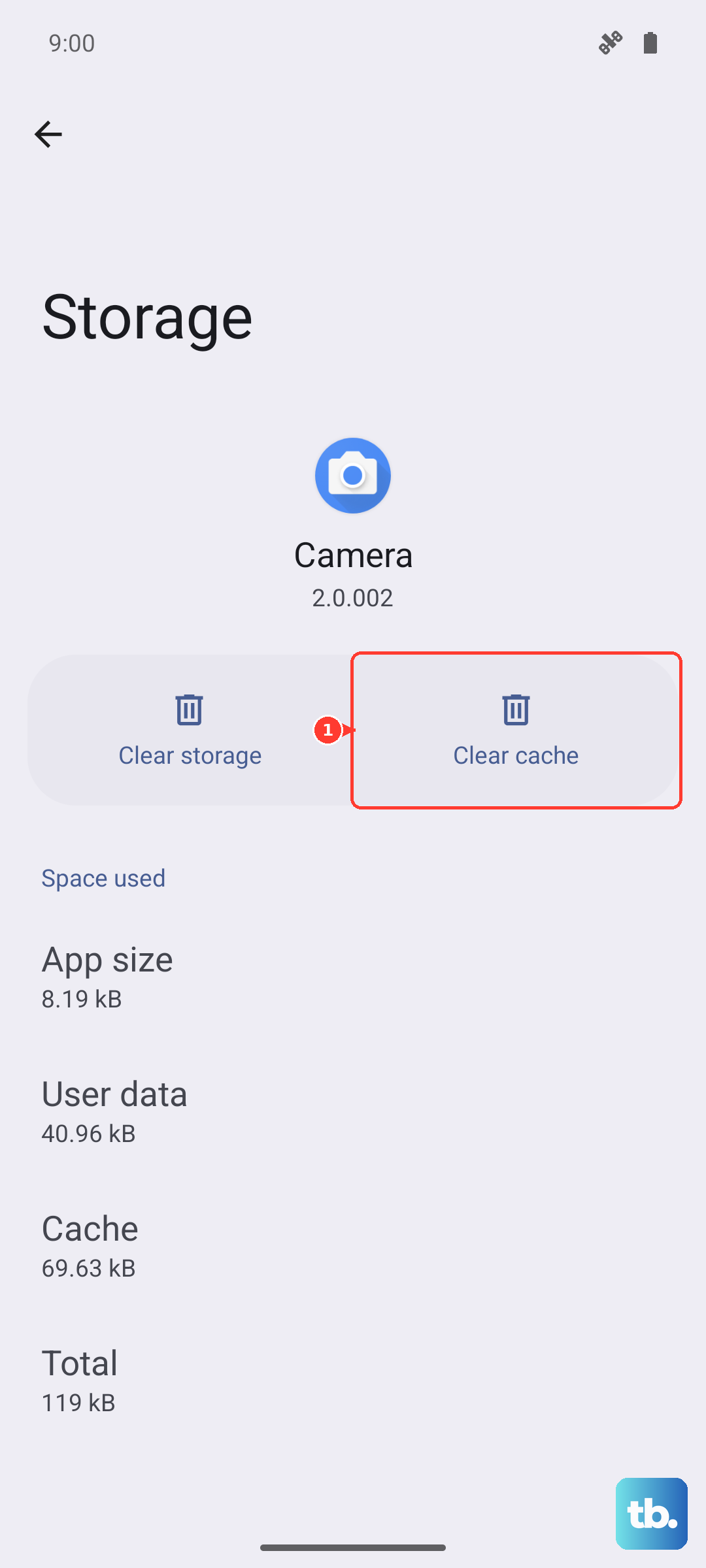
Scroll down and find "SIM Toolkit" or "SIM Application Toolkit." Tap on it, go to "Storage," and then tap "Clear Cache." This is a harmless step that can clear up minor software conflicts.
Test the SIM in Another Phone
This is the definitive test to see if the problem is with your SIM card or your Galaxy A36. If you have access to another unlocked phone, power it off and insert your A36's SIM card.
If the other phone also says "No SIM," then the card itself is likely faulty or deactivated. You'll need to contact your carrier for a replacement SIM. If it works perfectly in the other phone, the issue is with your A36's hardware or software.
Consider a Factory Reset
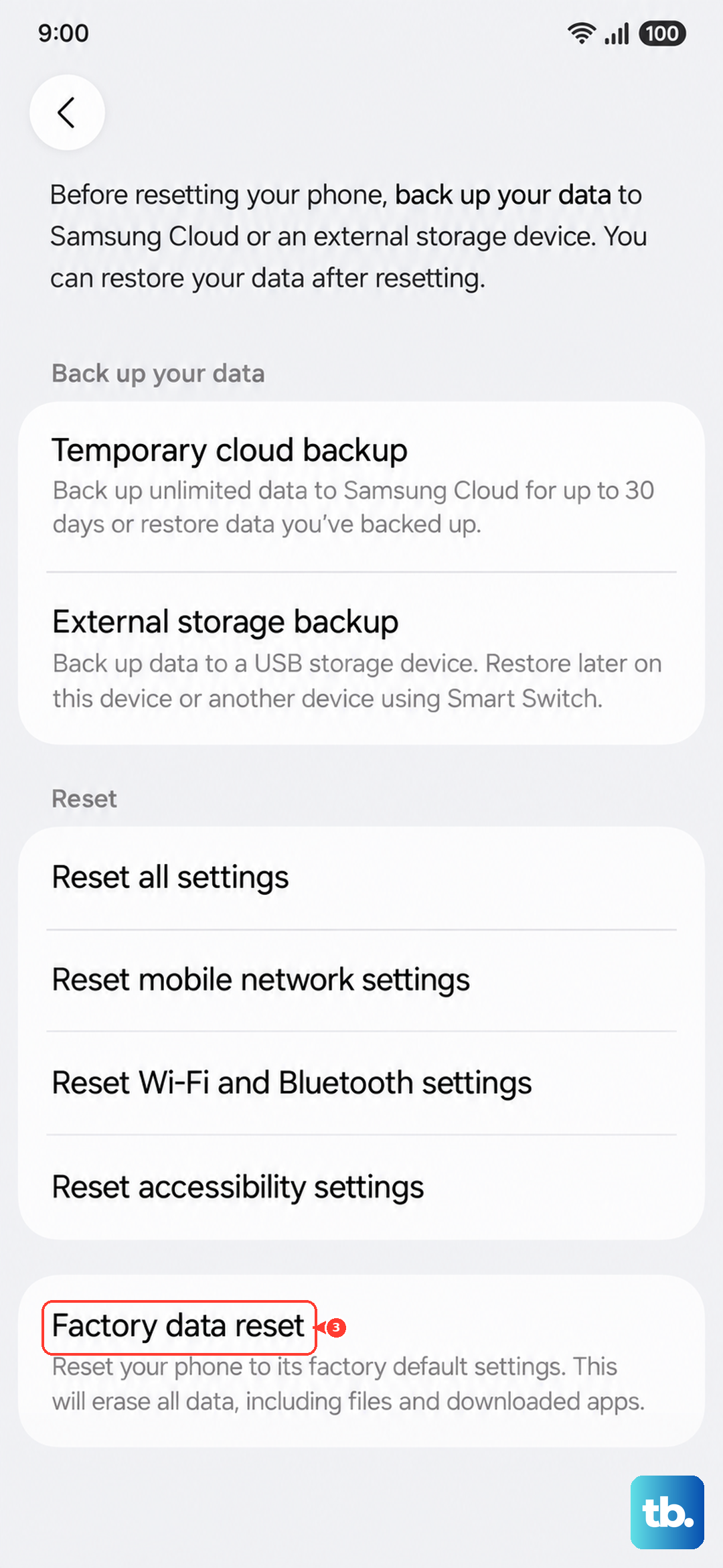
This is your last resort for a software fix. Before you begin, you must back up everything important. Use Samsung Cloud or Google Drive to save your photos, messages, and app data.
Once backed up, go to Settings > General Management > Reset > Factory data reset. Follow the prompts. If a deep-seated software bug was causing the "No SIM" error, this should wipe it out.