
Seeing "No Service" or a missing signal icon on your Samsung Galaxy A36 is one of those modern headaches that can stop you in your tracks. You're suddenly cut off from calls, texts, and mobile data, and it feels like your phone has just become a very small, expensive tablet. The good news is that this is almost always a temporary glitch you can fix yourself.
I'd start with the simplest fix first, which is to force restart your phone. This clears out any temporary software bugs that might be blocking the cellular radio. On the Galaxy A36, you do this by pressing and holding the Volume Down button and the Power button together for about ten seconds, until you see the Samsung logo appear on the screen.
Check Your Basic Connection Settings
It sounds obvious, but it's worth a quick double-check. Swipe down from the top of your screen twice to open the full Quick Settings panel. Make sure the Airplane Mode icon isn't highlighted. If it is, tap it to turn it off.
While you're there, also tap the mobile data icon to turn it off and then back on. This forces the phone to re-establish a data session with the tower, which can sometimes kickstart a stalled connection. If you're in an area you know has good coverage, take a few steps or move near a window.
Reinsert Your SIM Card
A loose or dirty SIM card is a classic culprit for signal problems. The Galaxy A36 uses a nano-SIM, which is tiny and can shift in its tray. You'll need the SIM ejector tool that came in the box (a small paperclip works in a pinch).
Find the SIM tray on the side of the phone, insert the tool into the tiny hole, and gently pop the tray out. Carefully remove the SIM card, give the gold contacts a gentle wipe with a soft, dry cloth, and then reseat it firmly in the tray. Push the tray back into the phone until it clicks.
Reset Your Network Settings
If the quick fixes don't work, the next step is to reset all your network settings. This will erase saved Wi-Fi passwords, Bluetooth pairings, and any custom mobile network configurations, but it won't touch your personal photos, messages, or apps.
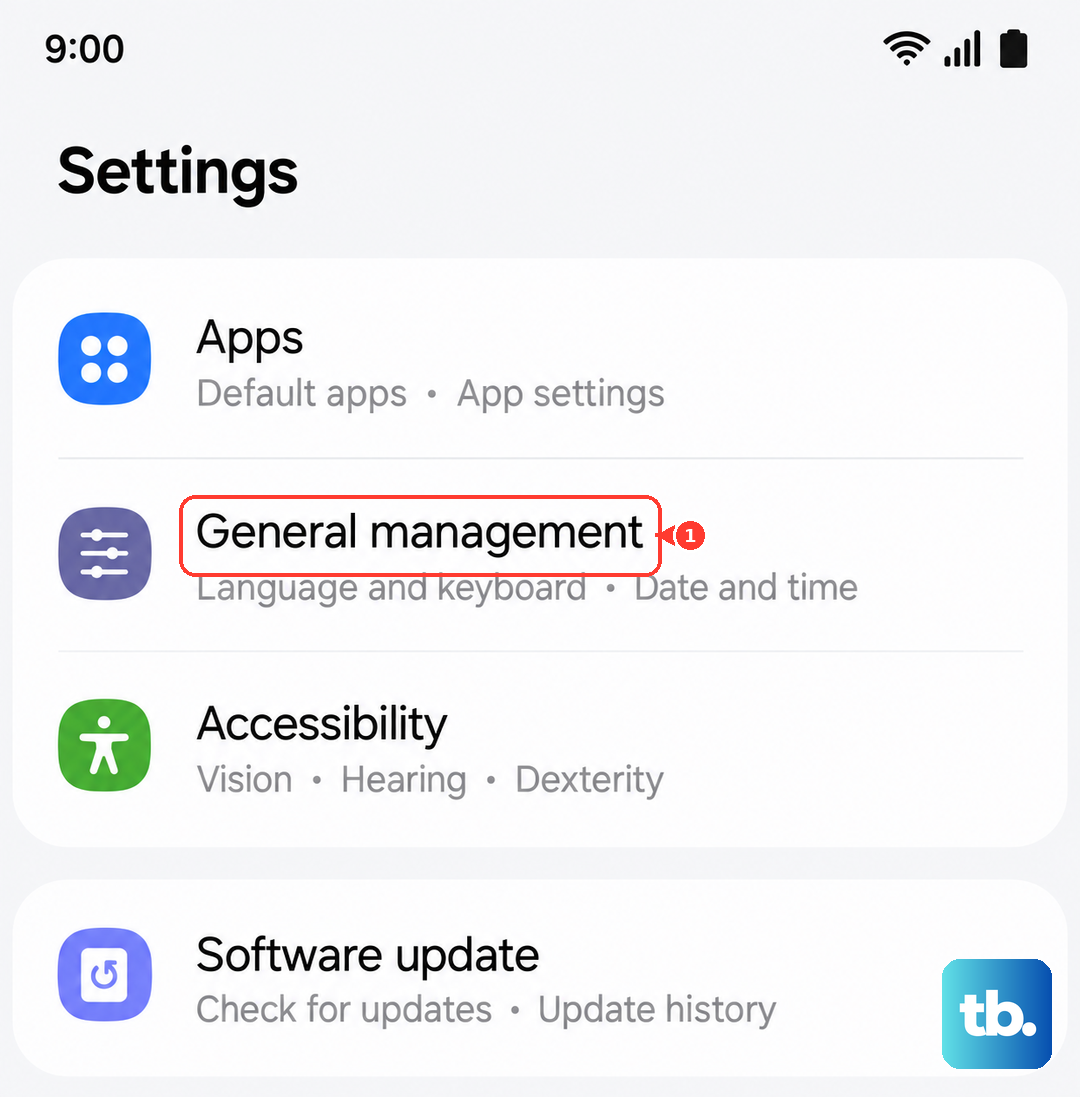
Go to Settings > General Management > Reset. Tap on Reset network settings and confirm. Your phone will reboot. After it comes back on, you'll need to reconnect to Wi-Fi and Bluetooth devices, but this often clears up persistent cellular issues.
Verify Your APN Configuration
The Access Point Name (APN) is like the address your phone uses to find your carrier's data network. If these settings are wrong or got corrupted, you'll have no data and possibly no signal. The path is Settings > Connections > Mobile networks > Access Point Names.
You should see a list with at least one APN for your carrier selected (indicated by a filled-in circle). If it looks empty or wrong, tap the three dots in the top right and select Reset to default. If that doesn't populate the correct settings, you'll need to get them directly from your carrier's website or customer service and enter them manually here.
Manually Select Your Network Operator
Sometimes your phone gets stuck trying to connect to a weak tower from a different carrier. You can force it to search for and lock onto your specific provider. Go to Settings > Connections > Mobile networks > Network operators.
Tap Search networks and wait a moment. A list will appear. Find your carrier's name in the list and select it. Your phone will attempt to register. If it fails, go back and choose Select automatically to let it try again on its own.
Check for a Software Update
Since the Galaxy A36 runs Android 15 with One UI 7, there's a chance a bug in the initial software could affect radio performance. Samsung regularly releases updates that include stability improvements. Go to Settings > Software update > Download and install.
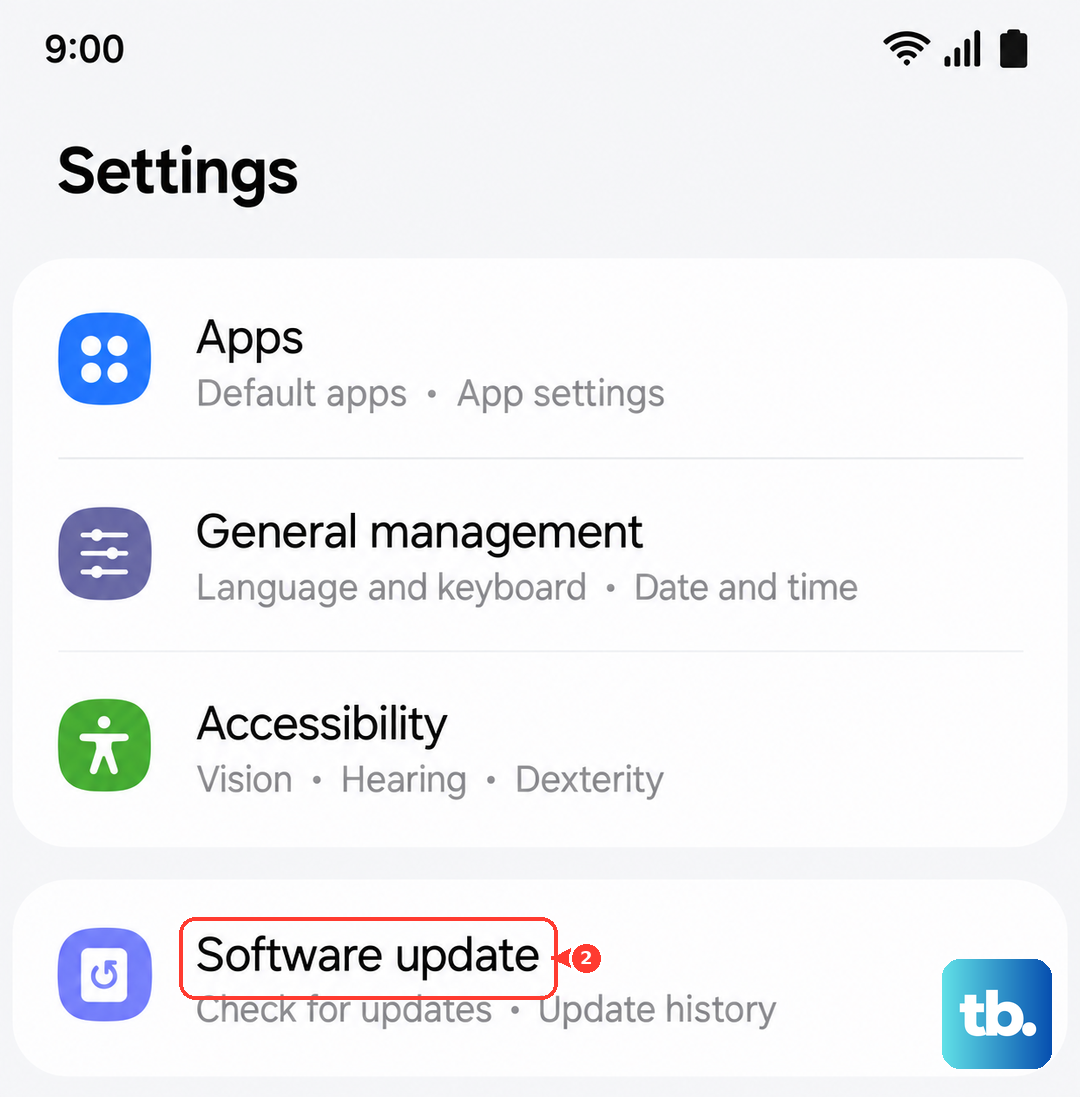
If an update is available, make sure you're on Wi-Fi and plug in your charger. I'd recommend using a USB-PD compatible 45W charger to get it done quickly, since the phone doesn't come with one in the box. Installing the latest update can resolve a host of connectivity issues.
Use the Diagnostic Menu
Android has a hidden testing menu that lets you see the raw status of your cellular radio. Open your Phone app and dial *#*#4636#*#*. This should open the "Testing" menu. Tap on Phone information.
On this screen, you can see your signal strength in dBm (anything better than -100 dBm is okay), check your network type, and even run a ping test. Near the top, there's a toggle for "Mobile Radio Power." You can try turning it off, waiting a few seconds, and turning it back on to force a hard reset of the modem.
Review Your SIM Card Status
It's time to rule out a problem with the SIM card itself or your account. The easiest way is to borrow a friend's phone (that uses the same size SIM) and see if your SIM card gets a signal in their device. If it doesn't, the problem is with the card or your carrier account.
If your SIM works in another phone, then the issue is likely with your Galaxy A36. At this point, contacting your carrier is a good move. They can check for local outages, reprovision your line on their network, or send you a replacement SIM card if yours is faulty.
Consider Disabling 5G Temporarily
While 5G offers great speed, the signal doesn't travel as far or penetrate buildings as well as 4G LTE. If you're in a spotty area, your phone might be struggling to hold onto a weak 5G signal when a stronger 4G one is available. You can force it to use 4G.
Go to Settings > Connections > Mobile networks > Network mode. Instead of "5G/LTE/3G/2G (auto connect)," select "LTE/3G/2G (auto connect)." This is also a useful tip for improving battery life on your A36 if you find yourself in areas with inconsistent 5G coverage.