You flip on Mobile Hotspot on your Samsung Galaxy A36 5G, but the laptop or tablet you are trying to connect either never sees the network or drops it within seconds. It is a frustrating wall to hit when you are away from Wi-Fi and counting on your phone to get you online.
The good news is that most Galaxy A36 hotspot failures trace back to a carrier plan setting, a configuration mismatch, or a temporary software glitch, and you can work through them yourself. The fixes below are ordered from the quickest and safest to the most involved, so start at the top and stop as soon as your hotspot is working again.
1. Confirm your tethering plan and turn on mobile data
Before changing anything on the phone, rule out the most common cause, which is your account. Samsung states that "you must have a tethering plan on your service account with your carrier," and notes that "most mobile service providers require an additional Hotspot plan." Carriers can also charge extra for tethering or apply data overage fees.
Confirm your account is in good standing with an active data plan, then open Settings and check that mobile data is turned on, since the hotspot shares your phone's mobile data connection.
2. Switch Mobile Hotspot off and back on
A simple toggle clears many temporary hiccups. Go to Settings > Connections > Mobile Hotspot and Tethering, then tap the switch next to Mobile Hotspot to turn it off, wait a moment, and tap it again to turn it back on.
Once it is back on, try reconnecting your other device before moving on to the next fix.
3. Restart your Galaxy A36
A restart clears background processes that may be interfering with the connection. Press and hold the Volume down button and the Side button (or Power button) at the same time, and after a few seconds the power options appear. Tap Restart, and then tap Restart again to confirm.
Once the phone is back on, reopen Settings > Connections > Mobile Hotspot and Tethering and try connecting again.
4. Review the hotspot security and visibility options
An incorrect security setting or a hidden network can stop other devices from connecting. In Mobile Hotspot settings, make sure the Security status is set to WPA2. If your devices cannot find the network at all, open the Advanced menu and turn off "Hidden network" so the hotspot becomes visible.
While you are in Mobile Hotspot > Information > Advanced, check the "Turn off when no device connected for" option. If it is set to a short interval, the hotspot can switch itself off before another device has a chance to join.
5. Change the broadcast band between 2.4 GHz and 5 GHz
The wireless band your hotspot uses affects which devices can see it. Go to Settings > Connections > Mobile Hotspot and Tethering > Mobile Hotspot > Information and set the Band. The 2.4 GHz option is compatible with more devices, while 5 GHz provides better performance.
If an older laptop, tablet, or smart device refuses to connect, switch the band to 2.4 GHz. This Information section is also where you can view or change the hotspot's Network name and Password if a connecting device keeps rejecting the credentials.
6. Inspect the SIM card and call your carrier
A damaged or poorly seated SIM can disrupt the mobile data the hotspot depends on. Inspect the SIM card for visible damage and contact your carrier for a replacement if you find any.
While you have your carrier on the line, confirm that hotspot or tethering is available and actively provisioned on your account, since the feature can be present on the phone but disabled at the network level.
7. Install the latest One UI software update
Outdated software can carry connectivity bugs that a newer build resolves. Go to Settings > Software update > Download and install (on some models this option reads "System updates" instead), then choose Install now, Schedule install, or Later.
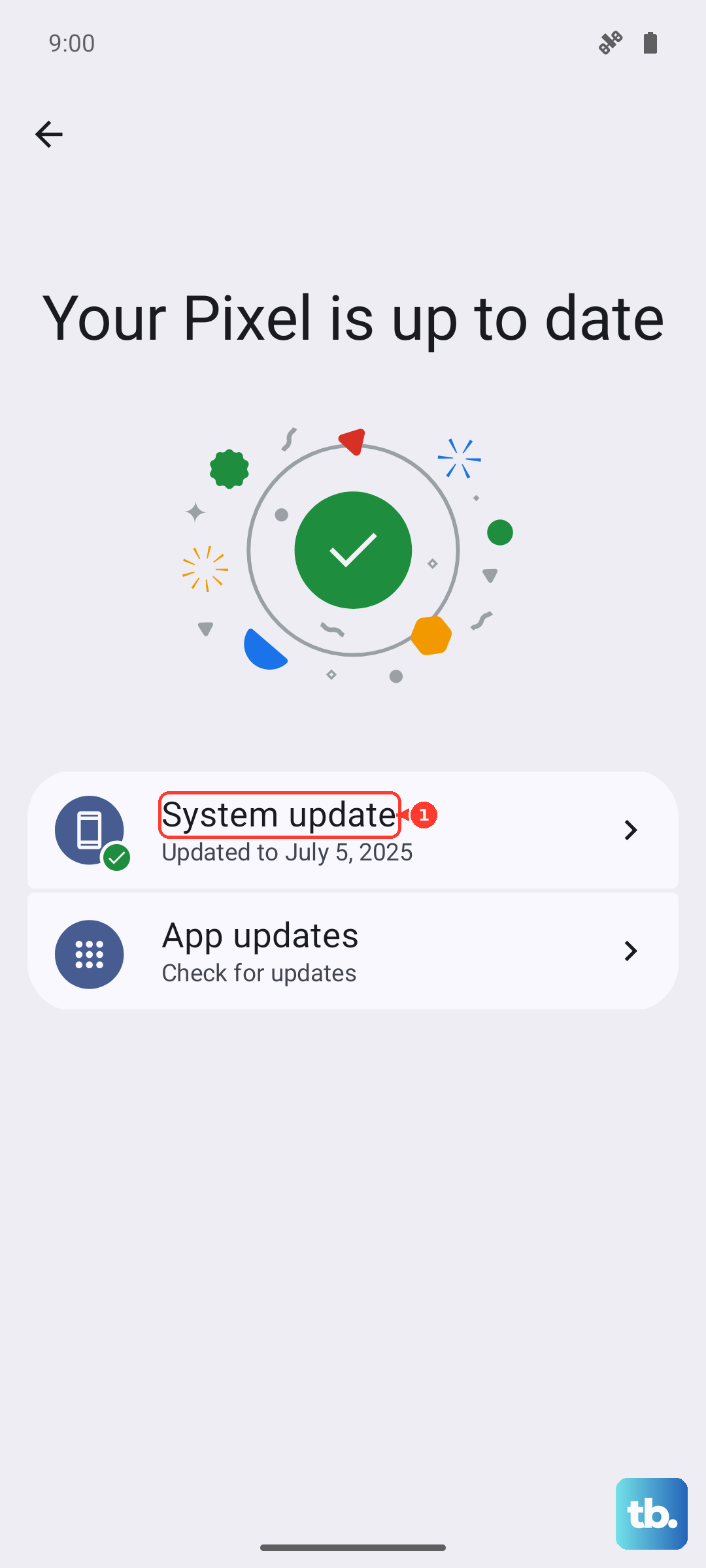
Before updating, make sure the device is charged, connected to the internet, and has enough free storage for the download. The Galaxy A36 5G is supported with ongoing Android and security updates, so it is worth checking here whenever connectivity acts up.
8. Test the hotspot in Safe Mode
Safe Mode loads the phone with only its built-in apps, which helps you tell whether something you downloaded is interfering. Open the Power menu, then touch and hold Power off until the Safe mode icon is displayed, and confirm.
With the phone in Safe Mode, turn the hotspot on and test it. If it works normally, a downloaded app is the cause, so restart back to normal mode and uninstall recently installed apps one at a time until the hotspot stays reliable.
9. Force restart a frozen or unresponsive phone
If your A36 has locked up while you were configuring the hotspot, a force restart can bring it back without touching your files. Press and hold the Volume down button and the Side button (or Power button) simultaneously until the device turns off and turns back on, which takes about 10 seconds.
The screen goes black and the Samsung logo reappears as the phone restarts. This does not erase any data, so it is safe to use whenever the phone stops responding.
10. Back up and run a factory data reset as a last resort
If nothing above restores the hotspot, a factory data reset returns the phone to its original software state. Back up your data first, for example to Samsung Cloud or your Google account, because a reset erases everything on the phone.
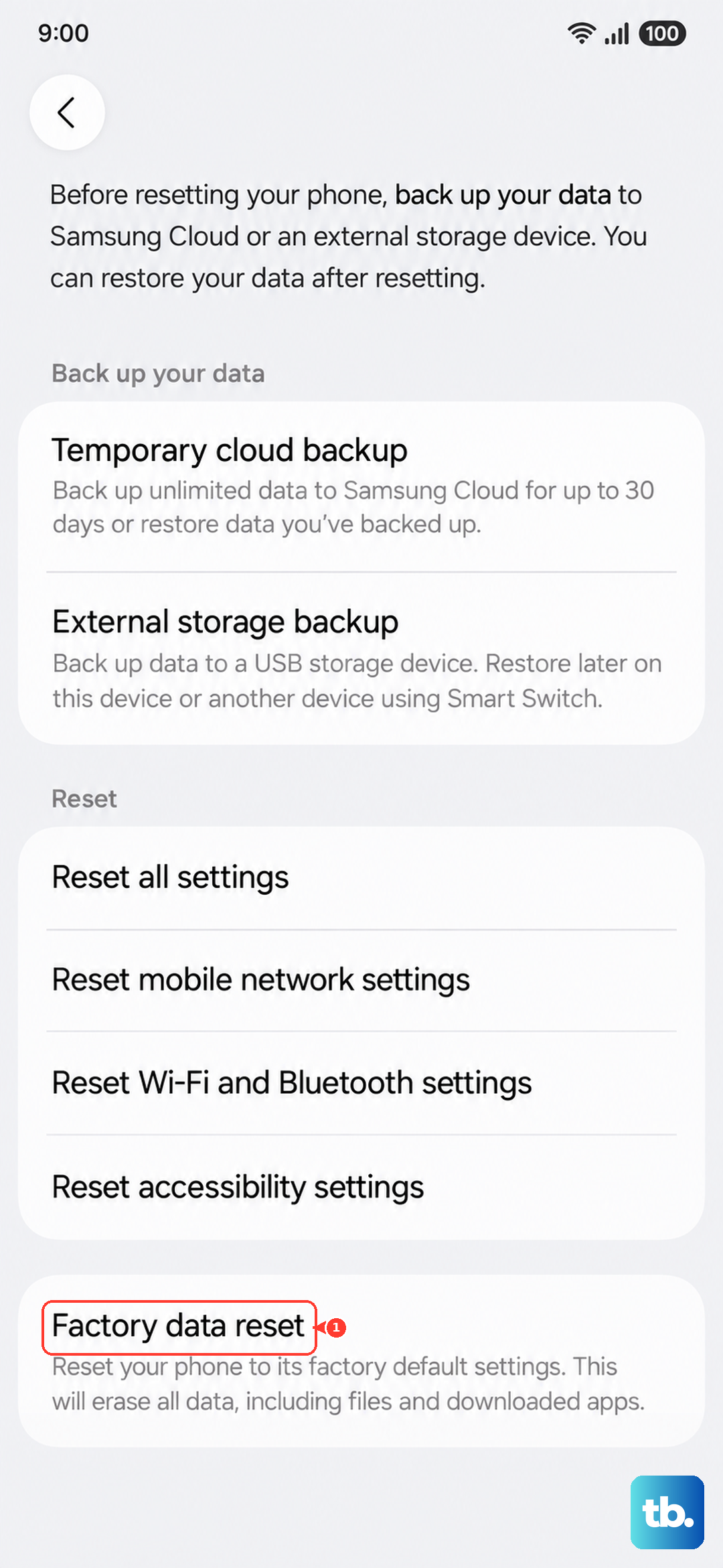
When your backup is complete, go to Settings > General management > Reset > Factory data reset, review the information shown, then tap Reset and Delete all. Samsung's warning states, "Please save any information you need prior to the factory data reset because your personal information may not be recovered." If the hotspot still fails after the reset, contact Samsung Support or your carrier.
Frequently Asked Questions
Does the Samsung Galaxy A36 5G support a mobile hotspot?
Yes. The Galaxy A36 5G supports the Mobile Hotspot and Tethering feature documented for Galaxy phones, which lets you turn the phone into a Wi-Fi hotspot. Per Samsung, you must have a tethering plan on your service account with your carrier to use it.
Why does my Galaxy A36 hotspot keep turning itself off?
The hotspot has an automatic shutoff timer. Go to Settings > Connections > Mobile Hotspot and Tethering > Mobile Hotspot > Information > Advanced and check the "Turn off when no device connected for" setting; if it is set to a short interval, the hotspot can switch itself off before a device connects.
Why can an older device not find my A36 hotspot?
Older devices often cannot see a 5 GHz network. In Mobile Hotspot > Information, set the Band to 2.4 GHz, which is compatible with more devices. Also open the Advanced menu and turn off "Hidden network" so the hotspot is visible.
Will a factory data reset delete everything on my phone?
Yes. A factory data reset erases all data on the device, so back up first, for example with Samsung Cloud. Samsung warns to "save any information you need prior to the factory data reset because your personal information may not be recovered."