
A Galaxy A36 with an unresponsive touchscreen can leave you staring at a frozen image, unable to swipe, tap, or even unlock it. The screen might be stuck on an app, the lock screen, or just black. I've found that with Android 15 and One UI 7, these freezes are almost always a temporary software hiccup you can fix yourself.
Force Restart Your Galaxy A36
This is the go-to solution for a completely frozen phone. Press and hold the Volume Down button and the Power button at the same time. Keep holding them for about 10 seconds, or until you feel the phone vibrate and see the Samsung logo appear. This forces a clean reboot without deleting any of your personal data.
Let the Phone Finish Its Task
Sometimes the A36 isn't truly frozen, it's just working hard on something in the background. This could be installing a system update, processing photos, or an app that's stuck. If the phone feels warm to the touch, that's a good sign it's still active. Give it a solid five to ten minutes before you try a force restart.
Plug It Into a Charger
A battery that's completely drained can cause the phone to become unresponsive. Grab a USB-C cable and a compatible charger. For the fastest recovery, use a USB-PD compatible 45W charger if you have one. Let it charge for at least 15 to 20 minutes before you try turning it on again.
Close the Problem App
If the rest of your phone works but one app is frozen, you can force close it. Swipe up from the bottom of the screen and hold to open your recent apps. Find the frozen app's preview and swipe it all the way up to close it. If a specific app keeps causing freezes, head to the Galaxy Store or Google Play Store to check for an update.
Check Your Available Storage
When your phone's storage is almost full, the system has no room to create temporary files it needs to run smoothly, which can lead to freezing. If you can get into your settings, go to Settings > Device care > Storage. Look for large files or apps you don't use anymore to delete and free up space.
Install the Latest Software Update
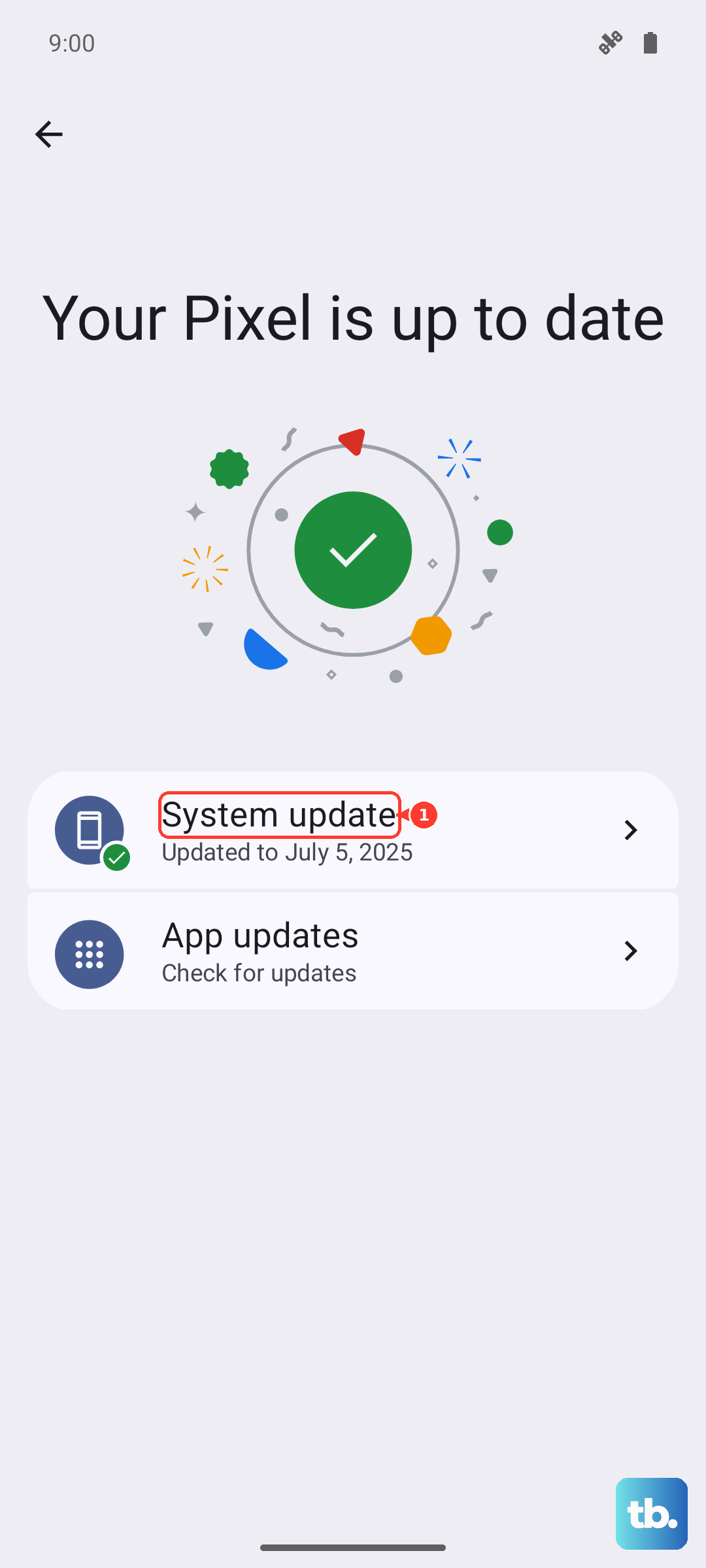
Since the A36 launched with One UI 7, there have been some initial bugs reported. Samsung releases updates to fix these exact issues. After restarting your phone, go to Settings > Software update > Download and install. Installing the latest update can resolve software glitches that cause touchscreen problems.
Reset Your Phone's Settings
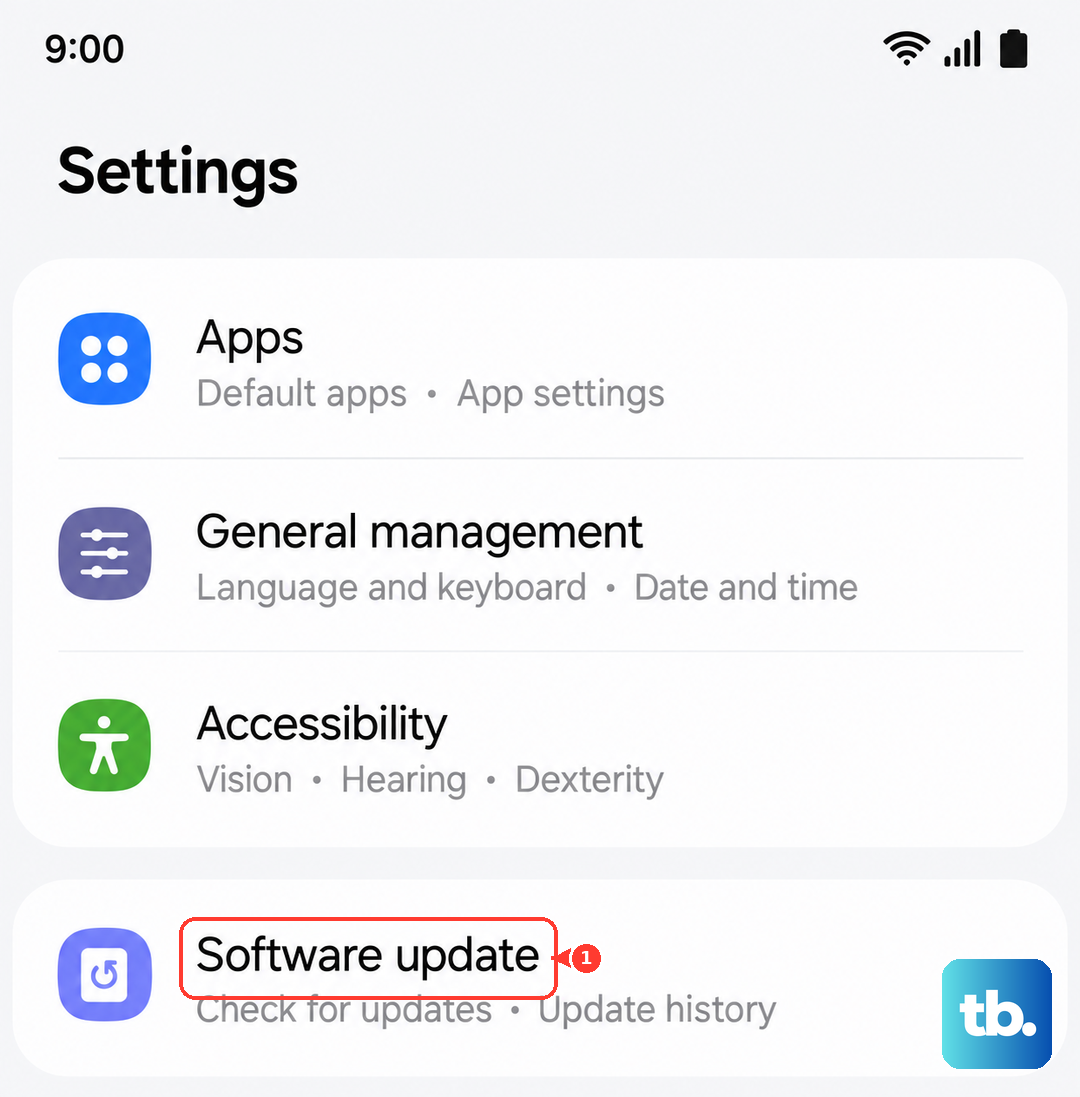
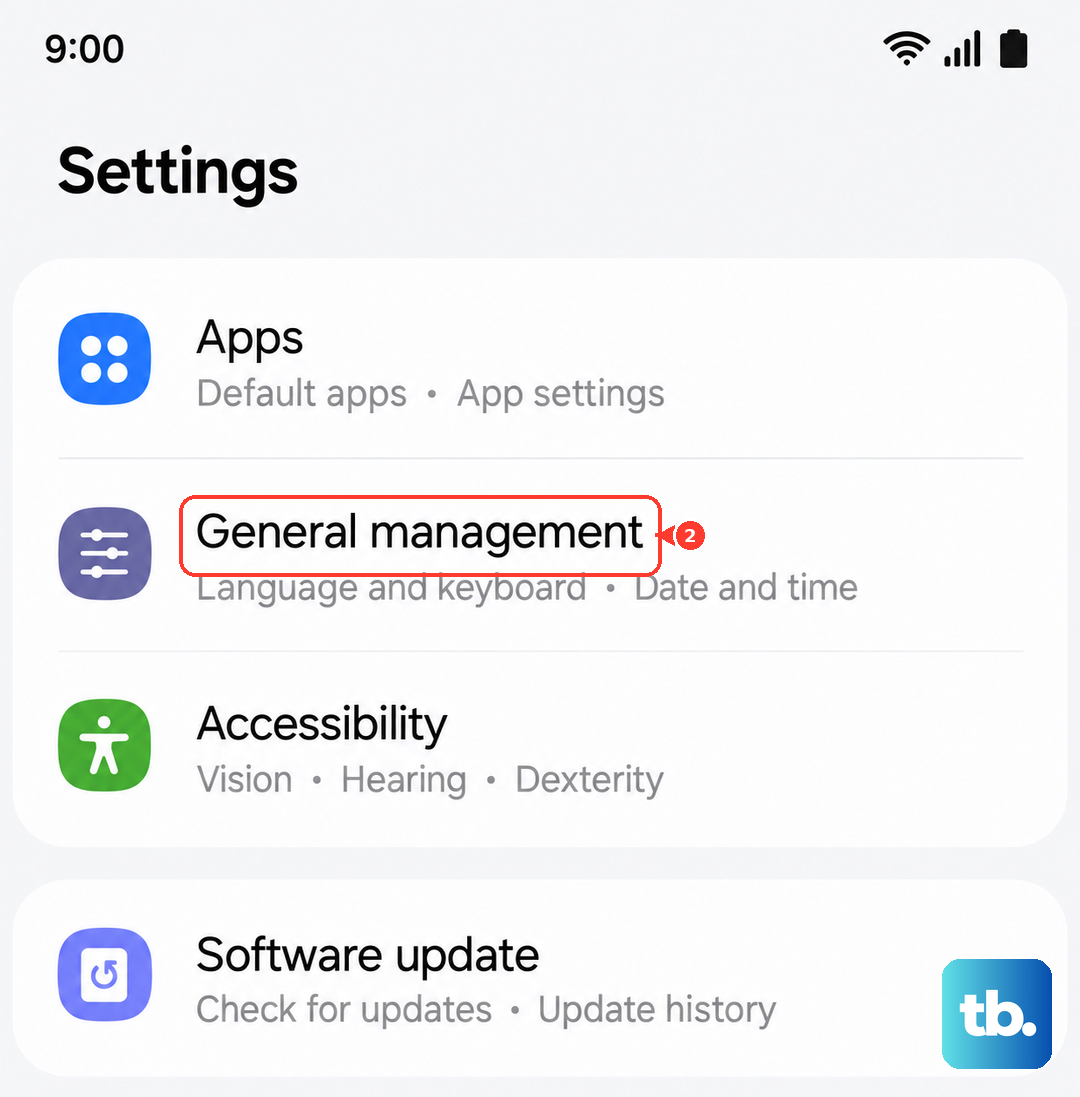
If freezes keep happening after a restart, a system setting might have become corrupted. You can reset them without touching your photos or apps. Go to Settings > General management > Reset > Reset all settings. You'll need to redo things like your Wi-Fi passwords and display preferences, but it often stops recurring freezes.
Consider a Factory Reset
This is a last resort if nothing else works and the phone is constantly unresponsive. A factory reset will erase all your data, so it's crucial to have a backup. You can initiate it from the settings menu if the phone is working, or use the hardware buttons. Turn the phone off, then press and hold Volume Up and the Power button to boot into recovery mode and select the wipe data/factory reset option.
Let an Overheated Phone Cool Down
Your Galaxy A36 has built-in protection that will throttle performance or freeze if it gets too hot. If the back of the phone is very warm, take it out of its case and move it away from direct sunlight. Let it sit for 15-20 minutes to cool down completely before trying to use or charge it again.