You rest your thumb on the Galaxy A36 screen, the fingerprint icon glows, and then nothing happens. Maybe it asks you to try again, throws a "no match" message, or simply ignores you until you punch in your PIN instead. Because the A36 5G uses an in-screen (in-display) fingerprint reader rather than a physical button, the things that throw it off tend to be small and fixable: a smudge, a screen protector, a stale scan, or a software hiccup. Work through the fixes below in order, starting with the quickest and safest, and only move on to the service path at the end if the sensor is genuinely faulty.
Start with a clean, dry, fully covered finger
The most common reason an A36 ignores your fingerprint has nothing to do with software. Samsung's guidance is to make sure the scanner and your fingertip are clean and dry before scanning, since sweat, lotion, dust, or moisture on either surface breaks the read. Wipe the lower part of the screen with a soft cloth and dry your finger first.
Placement matters just as much on an in-screen sensor. Samsung advises that you fully cover the fingerprint sensor with your finger so that strong light does not enter the sensor. It also helps to hold the phone the same way you did when you registered the print, and to press flat and firmly over the on-screen icon rather than tapping with the tip of your finger. Give it a beat to read.
Restart the A36 to clear a temporary glitch
A simple restart clears the temporary software glitches that can freeze the scanner, and it is the safest reset you can try. For a normal restart, press and hold the Volume down button and the Side (Power) button at the same time, then tap Restart and tap Restart again.
If the screen has become unresponsive and the buttons do nothing, you can force the phone to reboot instead. Press and hold the Volume down button and the Side button together for about 10 seconds; the screen will turn black when the device turns off, and then the Samsung logo will appear as it powers back on. Try the fingerprint again once you are back at the lock screen.
Rule out your screen protector and switch on Touch sensitivity
Anything sitting between your finger and the in-display sensor can block recognition. Samsung notes that some devices come with a pre-installed plastic screen protector designed to work with the in-screen sensor, and that installing another screen protector may affect fingerprint recognition. If you added a third-party film or a thick glass protector, that is a strong suspect; test the sensor with the protector removed if you can.
If you want to keep a protector on, turn on the setting that helps the screen read touches through it. Go to Settings > Display > Touch sensitivity and tap the switch to turn it on. Turn it back off if you later remove the film, since the screen can otherwise respond too sensitively without a protector in place.
Delete and re-register the fingerprint that keeps failing
A print that was captured poorly the first time will not improve on its own, so the fix is to remove it and scan again carefully. Open the fingerprint settings, delete the troublesome entry, and add it back with clean, dry hands using the placement tips from the first fix.
- 1.Navigate to Settings, then tap Security and privacy.
- 2.Tap Lock screen, then tap Fingerprints (on some One UI 7 builds this menu reads Biometrics instead of Lock screen).
- 3.Select the saved fingerprint and tap Remove twice to confirm.
- 4.Tap Add fingerprint and follow the prompts to register it again.
While you are here, consider registering more than one finger. Adding a couple of fingerprints means the phone can unlock however you happen to be holding it, which cuts down on failed reads during the day.
Install the latest One UI software update
Firmware updates routinely fix bugs that can affect biometric features, so an outdated build may be the reason the scanner misbehaves. Go to Settings > Software update > Download and install, then tap Install now if an update is available. Depending on your carrier, this menu may read System updates or Check for software updates instead.
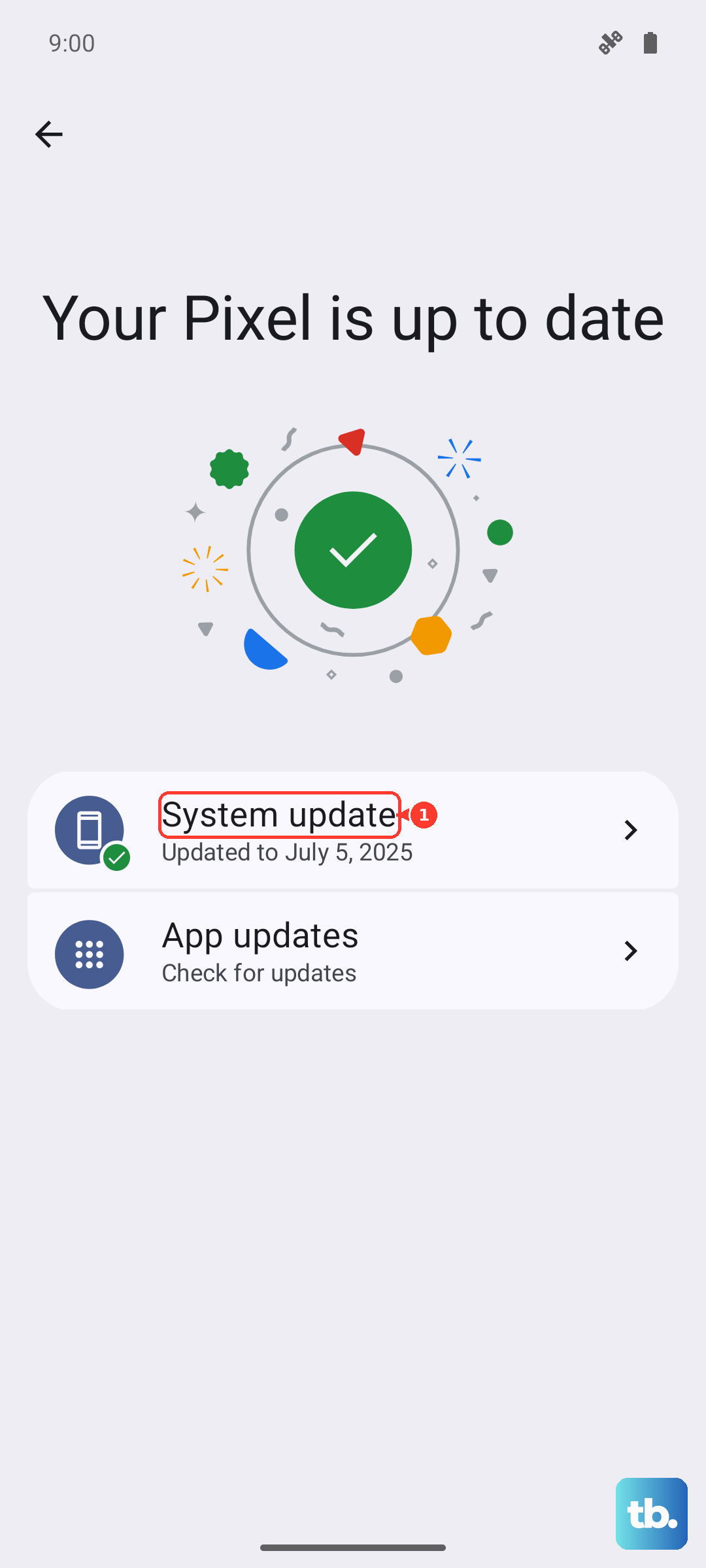
It is worth letting the phone keep itself current so you do not fall behind on bug fixes. If you would rather update from a computer, Samsung's desktop app Smart Switch can update the firmware and back up your data over a cable.
Test for a rogue app in Safe mode
A recently installed or updated app can interfere with the lock screen and stop fingerprint unlock from working. Safe mode loads the phone without any third-party apps, which tells you quickly whether one of them is the culprit. If the fingerprint works in Safe mode but fails normally, an app you added is the likely cause.
- 1.Power the phone off completely.
- 2.Turn it back on, and when the Samsung logo appears, press and hold the Volume down button.
- 3.Keep holding until Safe mode shows in the bottom-left corner of the screen.
- 4.Test the fingerprint sensor; in Safe mode your device will not run any third-party apps.
To leave Safe mode, simply restart the phone. If the scanner behaved itself in Safe mode, uninstall the apps you added most recently (or any that updated just before the trouble started), then check the sensor again in normal mode.
Factory reset the A36 when nothing else works
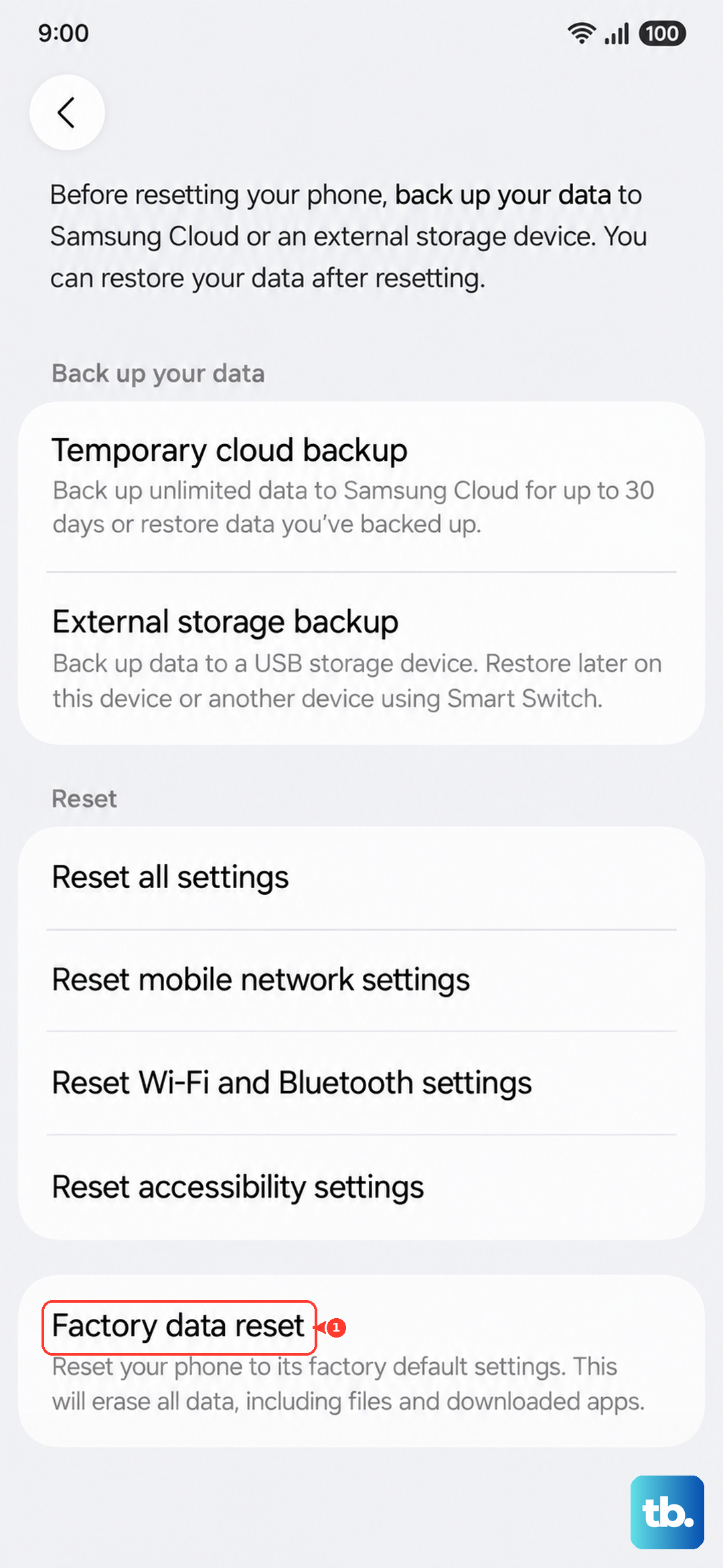
If the sensor still fails after every step above, a factory reset returns the software to a clean state and clears any deeper corruption. This erases your data, so treat it as a last resort and back up everything first. Samsung warns that you should save any information you need prior to the factory reset because your personal information may not be recovered; Smart Switch on a PC or your usual cloud backup can capture photos, contacts, and settings beforehand.
Once your backup is confirmed, go to Settings > General management > Reset > Factory data reset > Reset > Delete all. After the phone resets and restarts, set up the device again and re-register your fingerprint. If the scanner works on the fresh software, a misbehaving setting or app was to blame; if it still fails, the problem is almost certainly hardware.
Book a repair through Samsung when the sensor is faulty
When a clean reset does not restore the fingerprint reader, you are likely looking at a hardware fault rather than a software one. The fastest way to check is the Samsung Members app, Samsung's official support and diagnostics app for Galaxy phones, which can run hardware diagnostics and connect you to support.
If diagnostics flag a problem, arrange service through Samsung Support at the official support site to organize a repair. Keep your proof of purchase handy, since an in-screen sensor that fails on its own may be covered under warranty.
Frequently Asked Questions
Why does my Galaxy A36 fingerprint keep saying "no match"?
The usual causes are a wet, dirty, or partly placed finger, or a print that was captured poorly when you set it up. Make sure both your fingertip and the scanner are clean and dry, cover the on-screen sensor fully, and if it keeps failing, delete that fingerprint and register it again.
Does a screen protector stop the A36 fingerprint sensor from working?
It can. Samsung notes that installing a screen protector other than one designed for the in-screen sensor may affect fingerprint recognition. If you keep a protector on, turn on Settings > Display > Touch sensitivity so the screen reads your touch through the film, and turn it off again if you remove the protector.
Can I register more than one fingerprint on the Galaxy A36?
Yes. In Settings > Security and privacy > Lock screen > Fingerprints (labeled Biometrics on some One UI 7 builds) you can tap Add fingerprint to register additional prints. Adding more than one means the phone can recognize you however you are holding it, which reduces failed unlocks.
Will a factory reset fix the fingerprint scanner?
A factory reset can fix the issue if it is caused by corrupted software or a conflicting app, but it erases your data, so it is a last resort. Back up first, since Samsung warns that personal information may not be recovered after a reset, then go to Settings > General management > Reset > Factory data reset.
Is the A36 fingerprint sensor optical or ultrasonic?
Samsung's official spec and support pages list it as a fingerprint sensor and describe it as an in-screen (in-display) reader, but they do not state whether it is optical or ultrasonic. Either way, the fixes above apply, because they target the placement, film, scan, and software issues that affect any in-display sensor.