
If your Samsung Galaxy A36 camera app is crashing, freezing, or just showing a black screen, the first thing to try is a force restart. Press and hold the Volume Down and Power buttons together for about 10 seconds until you see the Samsung logo appear. This clears the phone's temporary memory and can fix a lot of software hiccups that affect the camera.
Start with a free camera test to rule out a hardware fault. If a live preview appears there but not in your app, the camera is fine and the app is the problem.
Key Points
- Restart and Update Your Phone: A force restart is the fastest way to clear temporary glitches.
- Check for App and System Updates: Bugs in One UI 7 or the camera app itself can cause failures.
- Clear the Camera App's Cache and Data: Corrupted temporary files are a common culprit for camera crashes.
- Check App Permissions: The camera app needs permission to use the camera and microphone.
- Scan for Conflicting Third-Party Apps: Other camera or security apps can interfere with the stock camera.
- Inspect the Camera Hardware: Look for physical damage or obstructions on the lenses.
- Boot Into Safe Mode: This helps determine if a downloaded app is causing the problem.
- Reset All Settings: This reverts your settings to default without deleting your personal data.
- Perform a Factory Reset: A last resort to eliminate deep-seated software issues.
After the phone reboots, give it a moment and then open the camera app again to see if it's working.
Check for App and System Updates
Since the A36 launched with One UI 7, there have been some initial bugs reported. Samsung is usually quick to patch these. Open Settings > Software update and tap Download and install. Make sure your phone is connected to Wi-Fi and has enough battery.
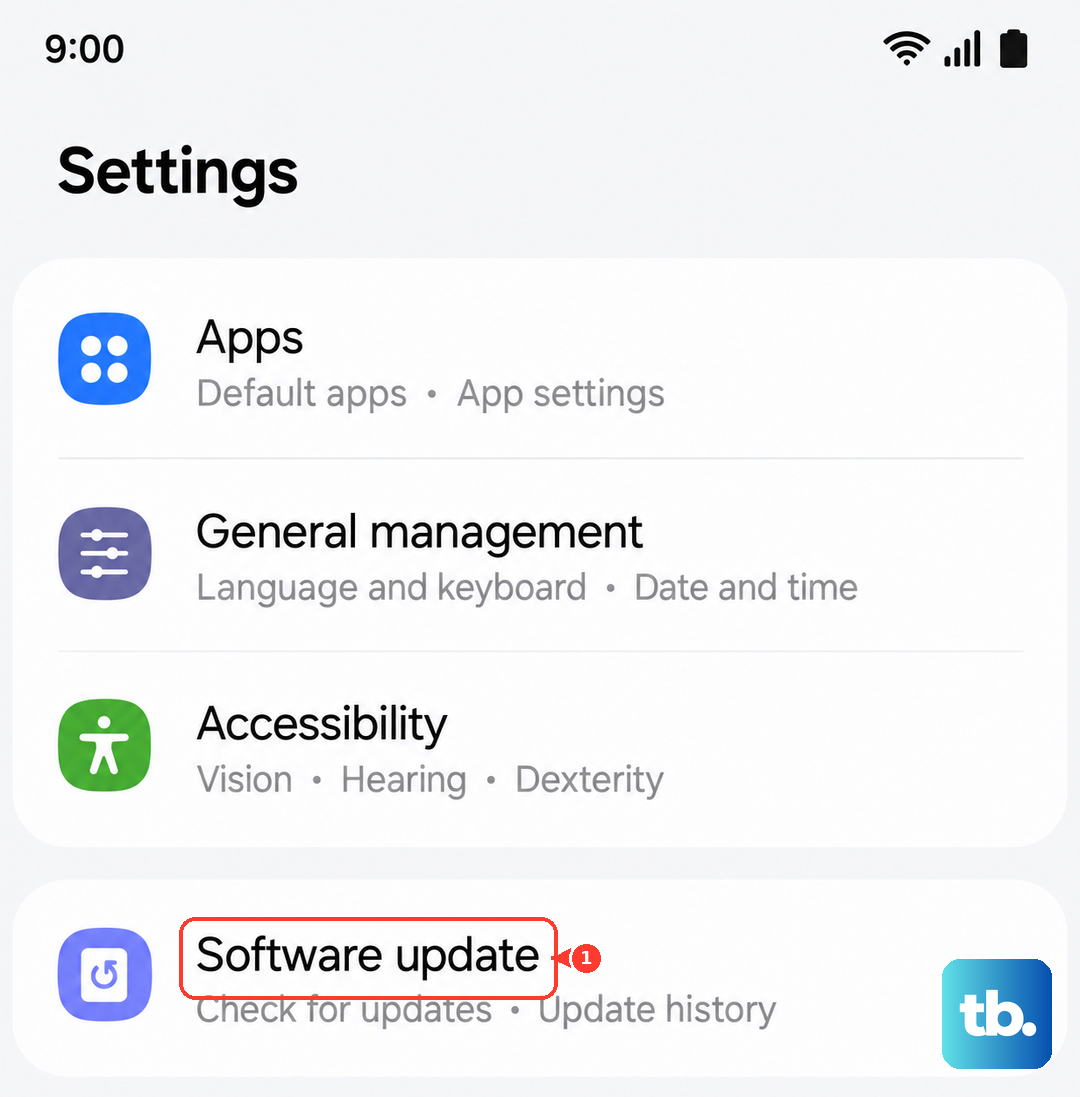
You should also check the Galaxy Store and Google Play Store for updates to the Camera app itself. Open the Galaxy Store, tap the menu icon, and go to Updates. Sometimes a buggy app update gets pulled and replaced with a fixed version.
Clear the Camera App's Cache and Data
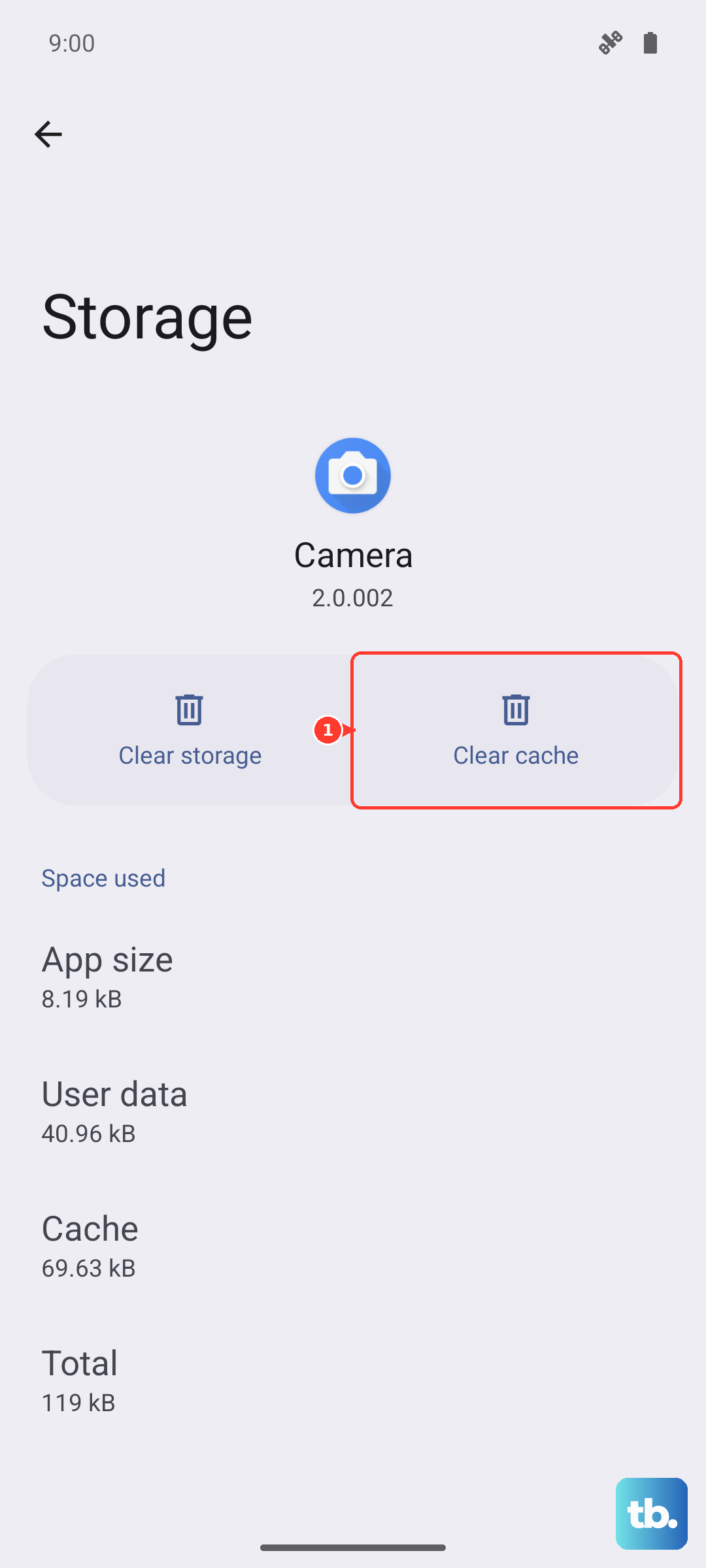
This is one of the most effective fixes for a camera that's crashing or showing errors. Corrupted cache data can build up over time. Go to Settings > Apps, then find and tap on Camera.
Tap on Storage, and you'll see two options: Clear cache and Clear data. Tap Clear cache first. This deletes temporary files and won't affect your photos. If the problem persists, go back and tap Clear data. This will reset the camera app to its default settings, so you might lose any custom modes or settings within the app, but your actual photos and videos are safe in your Gallery.
Check App Permissions
It sounds simple, but sometimes permissions get revoked, especially after an update. Go to Settings > Apps > Camera > Permissions. Make sure both the Camera and Microphone permissions are set to "Allow."
If you see any other permissions listed, like Location, check those too. While not always required for basic function, some camera modes might need them to work properly.
Scan for Conflicting Third-Party Apps
Other apps that use the camera can sometimes cause a conflict. Do you have any other camera apps, QR code scanners, or apps with augmented reality features installed? Try uninstalling any recent downloads in that category.
Also, check for any "device cleaner" or "security" apps that might be aggressively managing permissions or killing background processes. These can sometimes interfere with system apps like the camera. I'd temporarily disable or uninstall them to see if your camera starts working again.
Inspect the Camera Hardware
Take a close look at the camera lenses on the back of your phone. Are they clean? Use a soft, dry microfiber cloth to gently wipe them. Even a small smudge can cause blurry photos or make the camera software act up.
Look for any cracks or physical damage to the glass covering the lenses. Also, check if your phone case is properly aligned and isn't pressing against or covering any part of the camera module. A misaligned case can sometimes obstruct the lens or flash.
Boot Into Safe Mode
Booting into Safe Mode temporarily disables all third-party apps you've downloaded. This is a great way to see if one of them is causing the camera to fail. To start Safe Mode, press and hold the power button until the power menu appears.
Then, tap and hold the "Power off" option on your screen. You'll see a prompt to reboot into Safe Mode. Tap it. Once your phone restarts, you'll see "Safe mode" in the bottom corner. Try opening the camera app. If it works perfectly in Safe Mode, you know a downloaded app is the problem.
You'll need to restart your phone normally to exit Safe Mode. Then, start uninstalling recently added apps one by one, testing the camera after each one, until you find the culprit.
Reset All Settings
This won't delete your photos, messages, or apps, but it will reset all your system settings to factory defaults. Things like Wi-Fi passwords, Bluetooth pairings, display settings, and custom ringtones will be lost. Go to Settings > General management > Reset > Reset all settings.
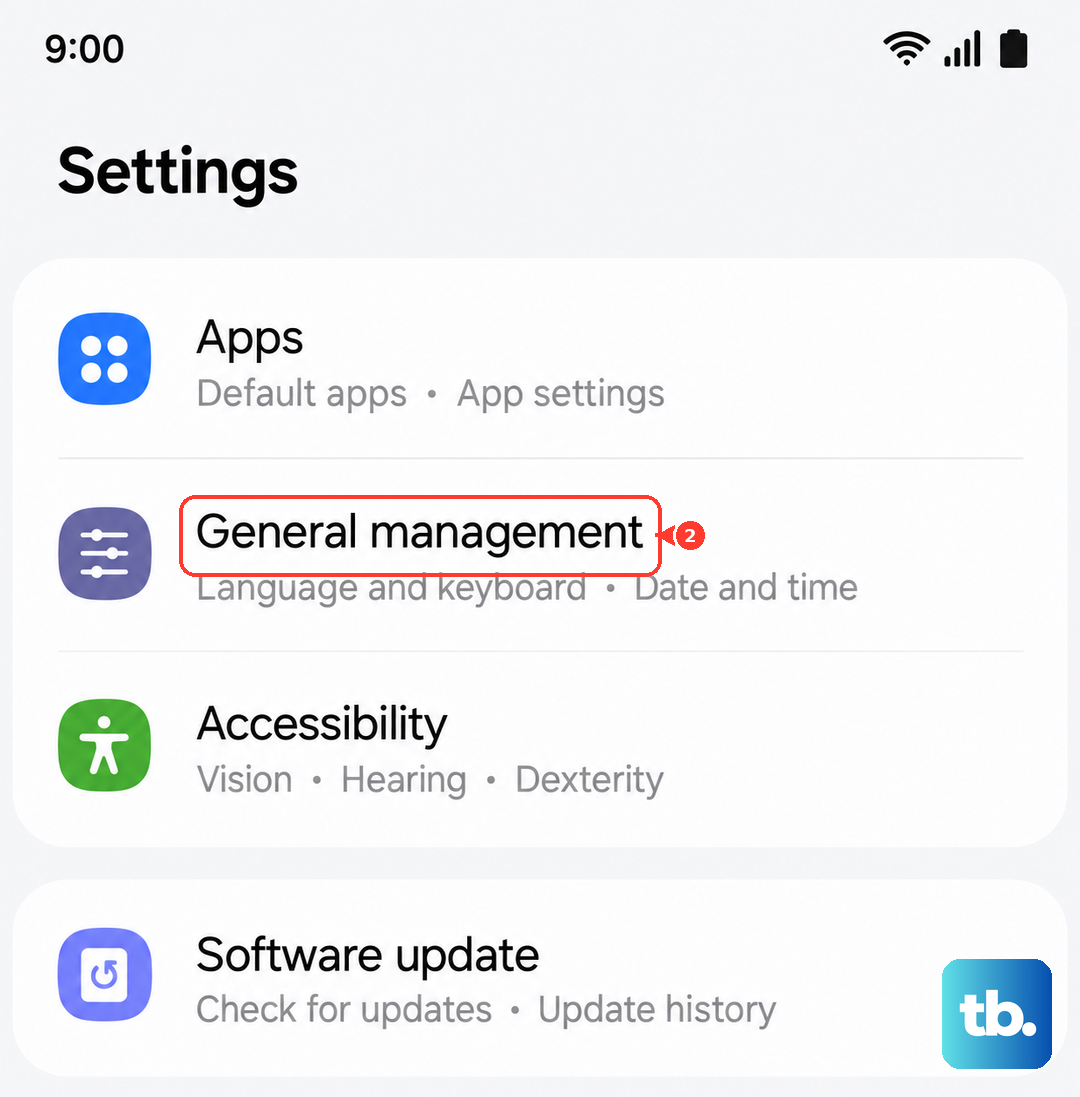
Enter your PIN or password if prompted, and confirm. Your phone will restart. After it boots up, you'll need to reconfigure your preferences, but it often resolves conflicts caused by a misconfigured setting that's hard to pinpoint.
Perform a Factory Reset
This is the final step before considering a hardware issue. A factory reset erases everything on your phone and reinstalls the operating system fresh. You must back up all your important data first. Go to Settings > General management > Reset > Factory data reset.
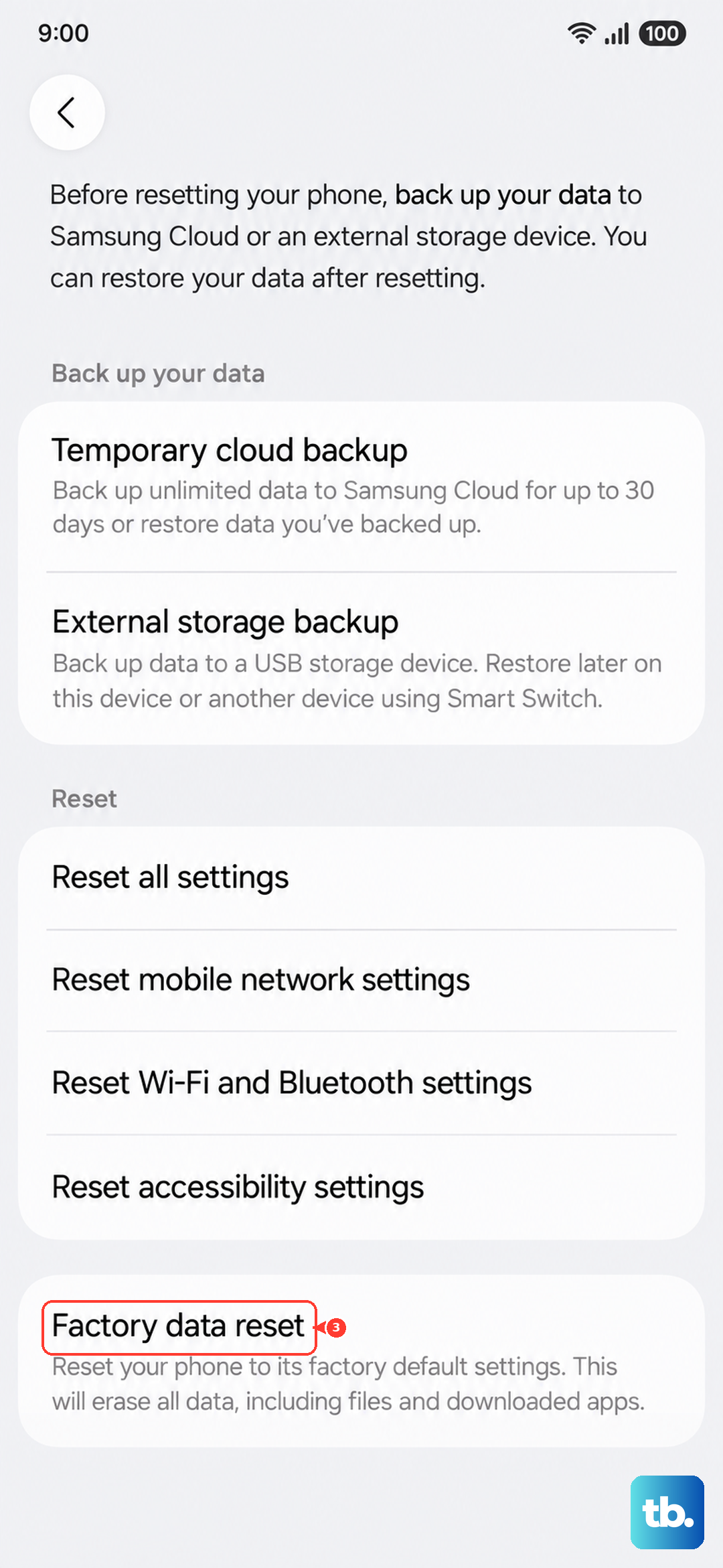
Tap Reset, and follow the prompts. This process can take several minutes. Once it's complete, set up your phone as new without restoring a backup immediately. Test the camera right away on the fresh setup. If it works, the problem was software-related. If it still doesn't work after a full factory reset, there's a strong chance the camera module itself has a hardware fault.