
If your Samsung Galaxy A36 won't connect to your headphones, car, or speaker, it's a common hiccup with One UI 7. The good news is you can usually fix it yourself without much fuss. I'd start with the basics and work through these steps, which are tailored for the A36's specific setup.
Check the Simple Stuff First
Before you dive deep, run through this quick checklist. It solves more problems than you'd think. Make sure both your phone and the Bluetooth device have enough battery, ideally above 20%.
Pull down the notification shade on your A36 and confirm the Bluetooth icon is blue and active. Keep the devices within about 10 feet of each other without walls in the way for the initial pairing. Finally, double-check that the accessory you're trying to connect is actually in pairing or discovery mode.
Toggle Bluetooth and Restart
The oldest trick in the book still works wonders. Swipe down twice from the top of your screen to open the full Quick Settings panel. Tap the Bluetooth icon to turn it off, wait a solid 10 seconds, then tap it again to turn it back on.
If that doesn't do it, give both devices a fresh start. For your Galaxy A36, press and hold the Volume Down and Power button together for about 10 seconds until you see the Samsung logo. Do the same for your headphones or speaker, then try pairing again from scratch.
Forget and Re-Pair the Device
Sometimes a pairing gets corrupted. The fix is to remove that connection and start over. Open your phone's Settings and go to Connections > Bluetooth.
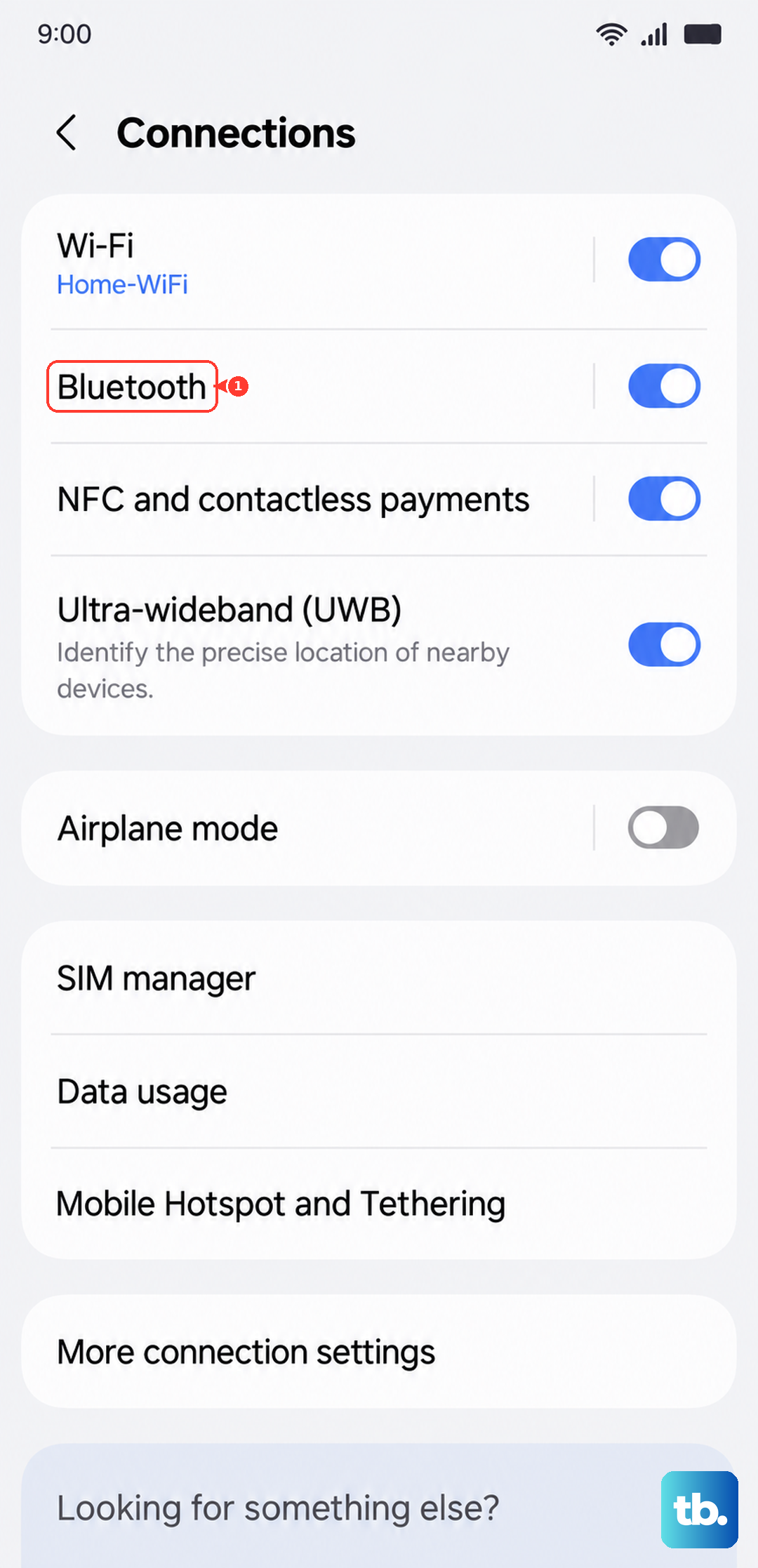
Find the problematic device in your list of paired gadgets. Tap the gear icon next to it and select Unpair or Forget. Once it's gone, put your accessory back into pairing mode and select it from the "Available devices" list on your A36 to create a new connection.
Clear the Bluetooth System Cache
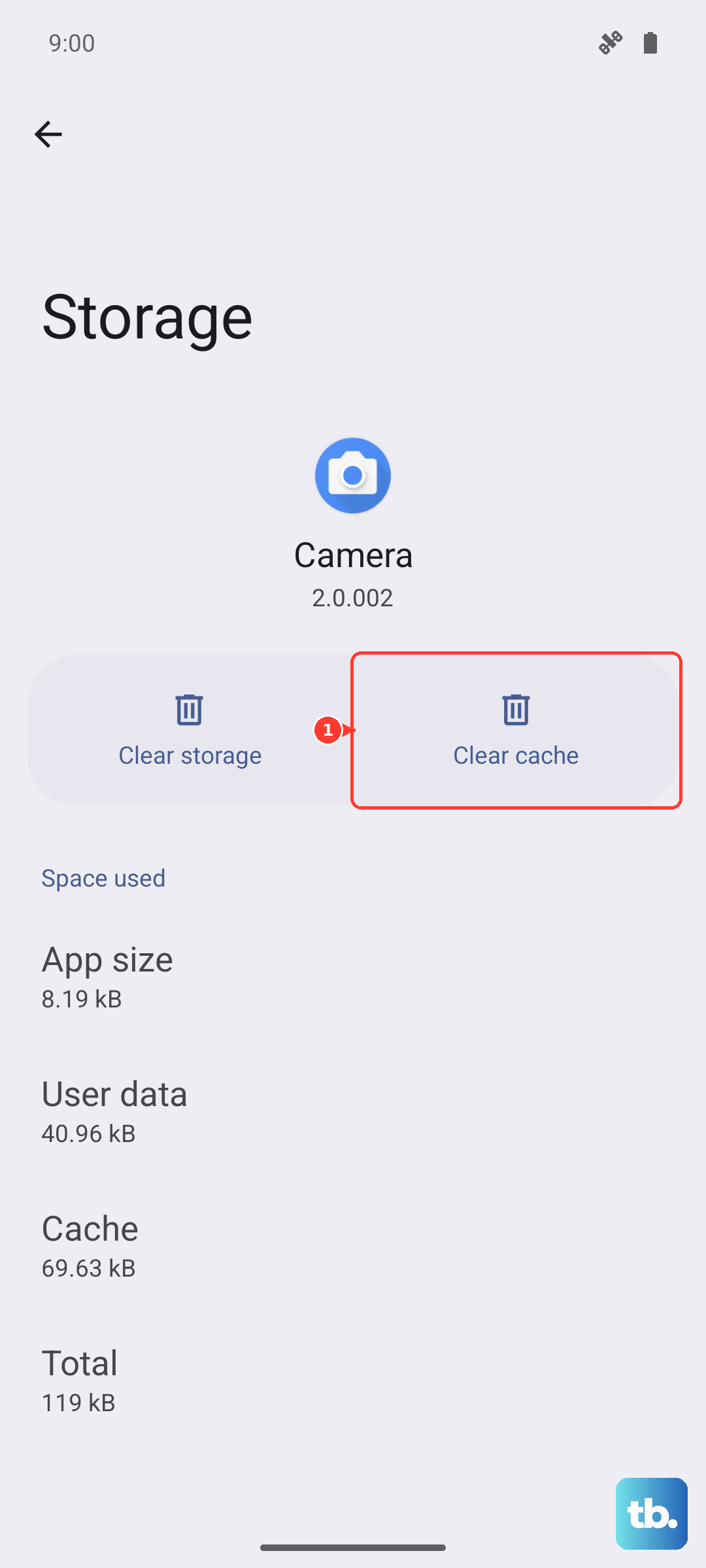
Your phone stores temporary data to make Bluetooth run faster, but this cache can get messed up. Clearing it is safe and won't delete your paired devices. Go to Settings > Apps.
You might need to tap the three-dot menu and select Show system apps. Scroll down and find the app simply called "Bluetooth." Tap on it, then go to Storage. Here, tap the Clear cache button. Restart your phone and test the connection again.
Reset Your Network Settings
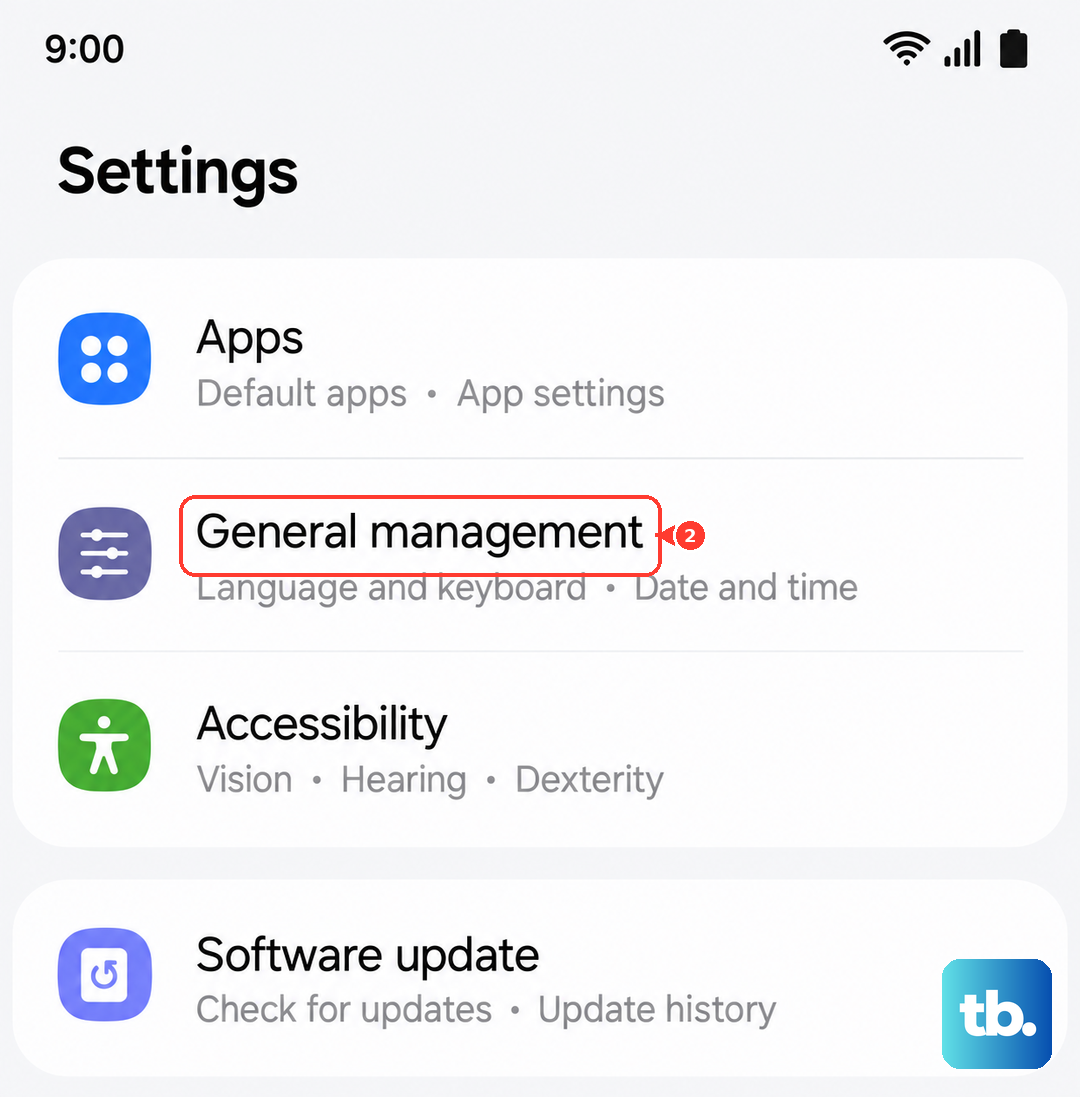
This is a more thorough step that resets all wireless radios, including Wi-Fi and mobile networks, back to default. It will erase all your saved Bluetooth pairings and Wi-Fi passwords, so be ready to re-enter them.
On your A36, navigate to Settings > General management > Reset. Tap on Reset network settings. You'll need to enter your PIN or password to confirm. After the phone reboots, you'll have a clean slate for all wireless connections.
Check for a Software Update
Since the A36 runs Android 15 with One UI 7, there could be a bug affecting Bluetooth that Samsung has already patched. Software updates often include fixes for connectivity issues. Go to Settings > Software update and tap Download and install.
If an update is available, make sure your phone is plugged into a charger, using a USB-PD compatible 45W charger will speed this up, and connected to Wi-Fi before you proceed. Also, check if your Bluetooth accessory has a companion app, like Galaxy Wearable for earbuds, that might have its own firmware update.
Boot Into Safe Mode
If a recently downloaded app is causing a conflict, Safe Mode will tell you. It temporarily disables all third-party apps. To enter Safe Mode on the Galaxy A36, press and hold the Power button until the menu appears.
Then, tap and hold the Power off option on your screen. You'll get a prompt to reboot into Safe Mode. Tap OK. If Bluetooth works perfectly in Safe Mode, you know an app is the culprit. Restart normally and try uninstalling apps you installed around the time the problem started.
Clear Bluetooth App Data
This is a stronger step than clearing the cache. It will wipe out all your paired devices and any custom Bluetooth settings on the phone. Only do this if the other steps haven't worked. Go back to Settings > Apps > Bluetooth > Storage.
This time, tap Clear data instead of Clear cache. Confirm your choice. Your phone will act like it's never used Bluetooth before. You'll need to restart and then re-pair every single device from your car to your watch.
Address Specific Connection Problems
For car Bluetooth that won't connect, you often need to clean both lists. Delete your phone from your car's infotainment system menu, and forget the car from your A36's Bluetooth list. Then, with the car in pairing mode, try again.
If Bluetooth simply won't turn on at all, even after a restart, try the network reset. For audio that stutters or cuts out, it's worth checking if you have battery protection enabled. While great for longevity, sometimes power-saving features can interfere. You can find this under Settings > Battery > More battery settings.
For accessories like Galaxy Buds that keep disconnecting, make sure they're fully charged and that the wearable app is up to date. Most Bluetooth issues on the Galaxy A36 are resolved with these software resets and updates. The hardware itself is rarely the problem unless the phone has suffered physical damage.