
When a software update fails on your Samsung Galaxy A26 5G, it usually hangs on "Downloading" or throws an error right at the end. Here's how to get past the typical roadblocks and get One UI 7 installed.
Start with a Force Restart
Press and hold the Volume Down and Power buttons together for about 10-15 seconds. The phone will vibrate and restart. This clears temporary system glitches that can block the update process. Check for the update again immediately after it boots up.
Check Your Internet Connection
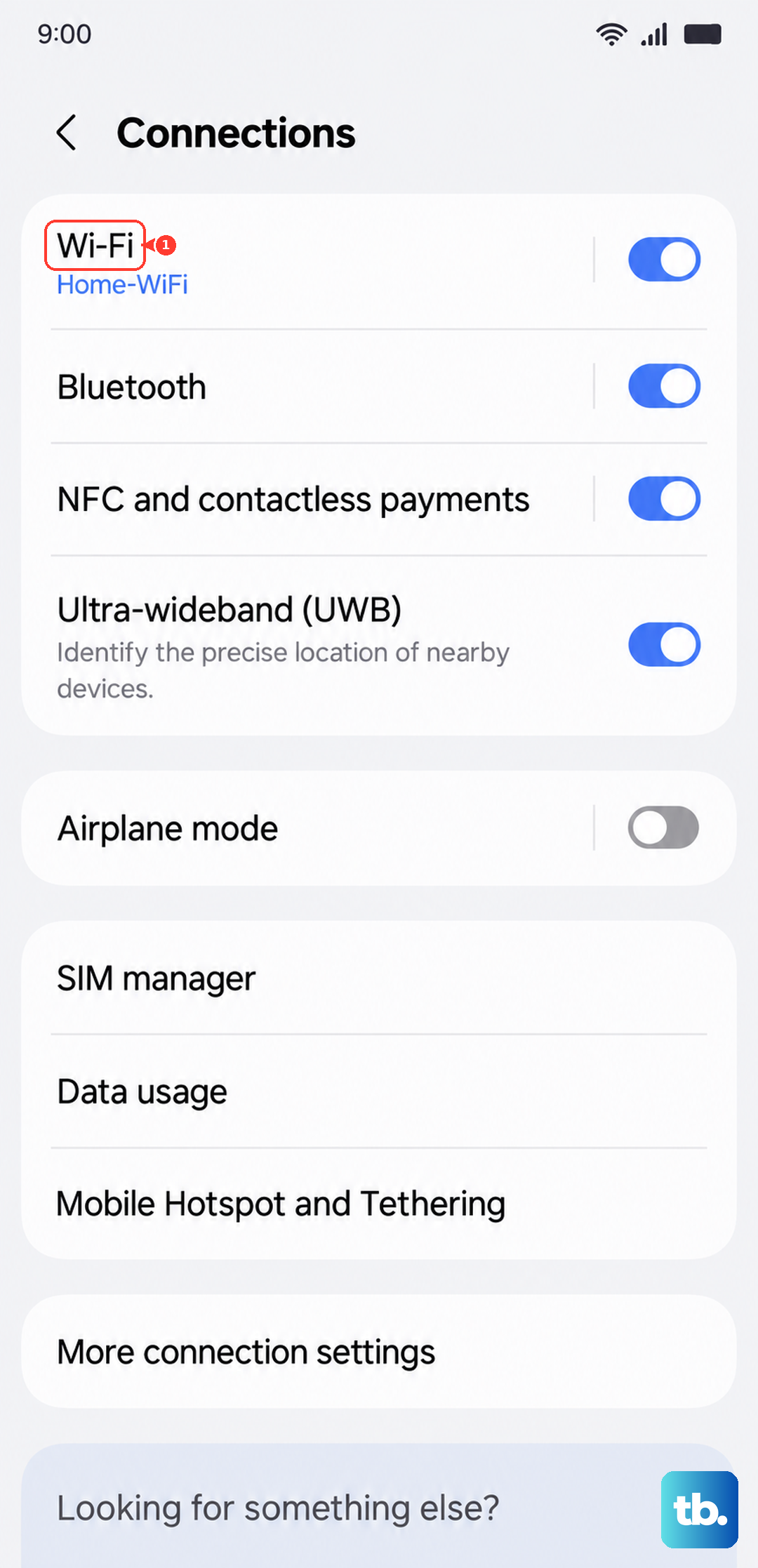
Go to Settings > Connections > Wi-Fi and make sure you're on a stable network. If your connection drops mid-download, the update will fail. Try switching from a 5GHz band to 2.4GHz, which often has better range and stability for large downloads.
Free Up Storage Space
Major Android updates need a few gigabytes of free space to unpack and install. Open Settings > Battery and device care > Storage. If you're running low, offload unused apps or move photos to an SD card. You need at least 5-7 GB free for a smooth update.
Clear the Cache Partition
Power off your Galaxy A26 5G completely. Press and hold Volume Up and Power together until the Samsung logo appears, then release. Use the volume keys to navigate to Wipe cache partition and press the Power button to select it. This clears system junk that can interfere with updates without touching your personal data. Reboot the phone afterward.
Delete the Update File and Try Again
If a download gets corrupted, it blocks future attempts. Go to Settings > Apps, tap the three dots in the corner, and select Show system apps. Find Software Update, tap Storage, and select Clear data. Then go back to Settings > Software Update and download the update from scratch.
Check the Date and Time Settings
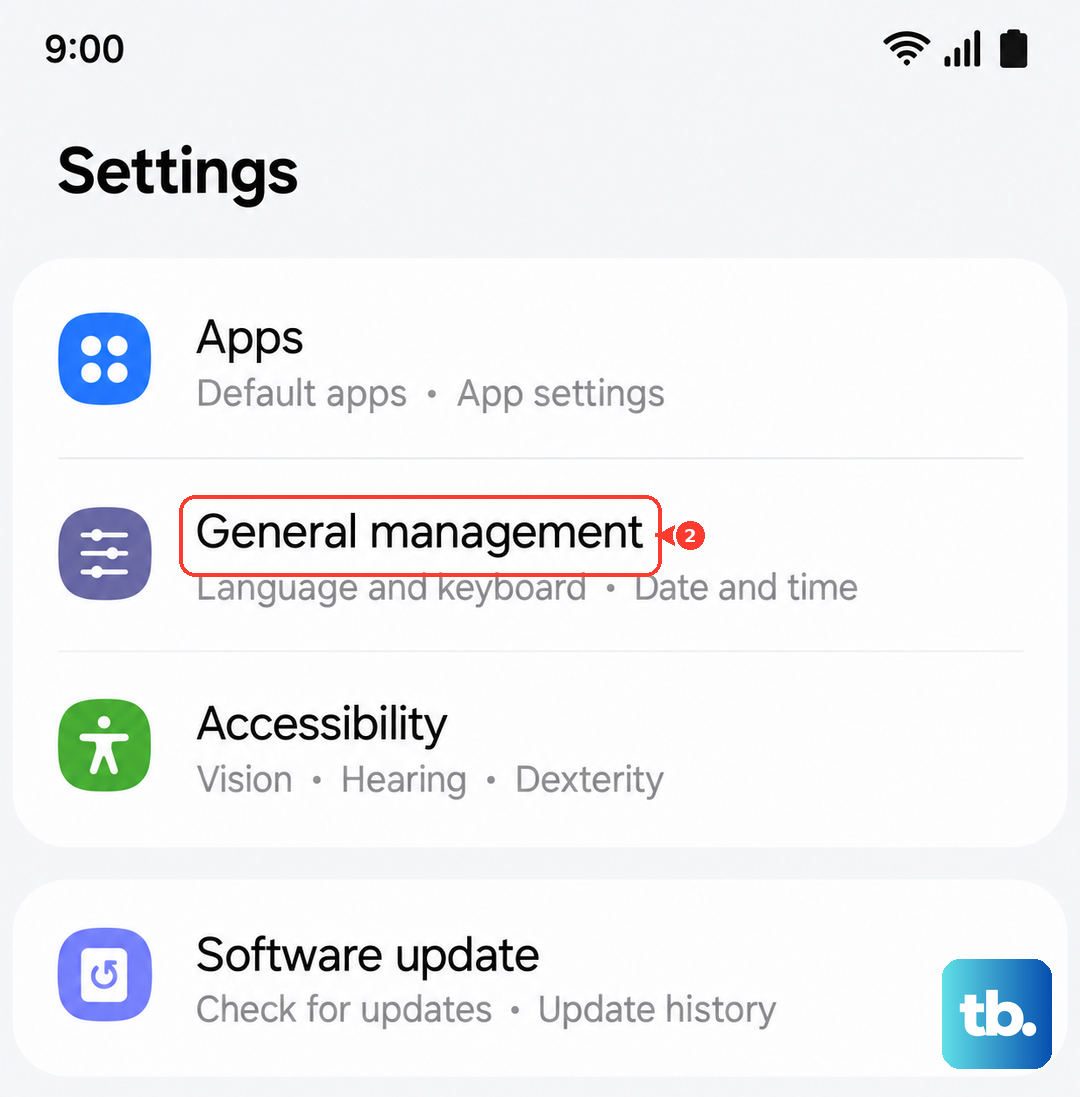
Incorrect time settings break the security certificates needed for update verification. Open Settings > General management > Date and time and make sure Automatic date and time is toggled on. If it already was, toggle it off and back on to force a refresh.
Update Using Smart Switch on a Computer
If the phone keeps failing, bypass it entirely. Download Smart Switch on your PC or Mac. Connect your A26 5G with a USB-C cable, open Smart Switch, and click Update. The computer handles the download and sends it directly to the phone, avoiding storage and Wi-Fi issues on the device.
Ensure the Battery Is Charged
The update process requires a minimum battery level, usually around 30%. Plug your phone into its charger and let it charge for a few minutes before attempting the update. Using a compatible USB PD 3.0 charger with PPS support will get you to a safe level faster.
Is an App Interfering?
Some third-party apps, especially VPNs or ad blockers, can disrupt the update process. Press and hold the Power button, tap Power off, then long-press the Power off icon until you see the Safe mode prompt. Tap it. In Safe mode, try the update again. If it works, one of your apps was the culprit.