
Picture messages failing on your Samsung Galaxy A26 5G usually come down to something small in the settings or a temporary network glitch. The phone runs Android 15 with One UI 7, so the menu paths are slightly different from older Samsung models. Here are the fixes that actually work.
Check your mobile data and MMS settings
MMS needs a working data connection to send. Swipe down twice to open the quick panel and make sure mobile data is turned on. If it's already on but MMS still fails, head to Settings > Connections > Mobile networks and tap Access Point Names. Your APN should have an MMS proxy and MMS port filled in. If those fields are blank, contact your carrier for the correct values and add them manually.
Switch to 4G or LTE instead of 5G
5G can be inconsistent depending on your location. Open Settings > Connections > Mobile networks > Network mode and change it to LTE/3G/2G (auto connect). This forces the phone onto 4G, which often handles MMS more reliably. Try sending the picture again after the switch.
Turn off Wi‑Fi calling temporarily
Wi‑Fi calling can interfere with MMS delivery on some carriers. Go to Settings > Connections > Wi‑Fi calling and toggle it off. Send a test MMS. If it goes through, leave Wi‑Fi calling off or check with your carrier for a fix.
Force restart the phone
Press and hold the Volume Down and Power buttons simultaneously for about 10 15 seconds until the device restarts. This clears minor software hiccups without erasing any data. It's often enough to fix a stuck MMS.
Clear the Messages app cache
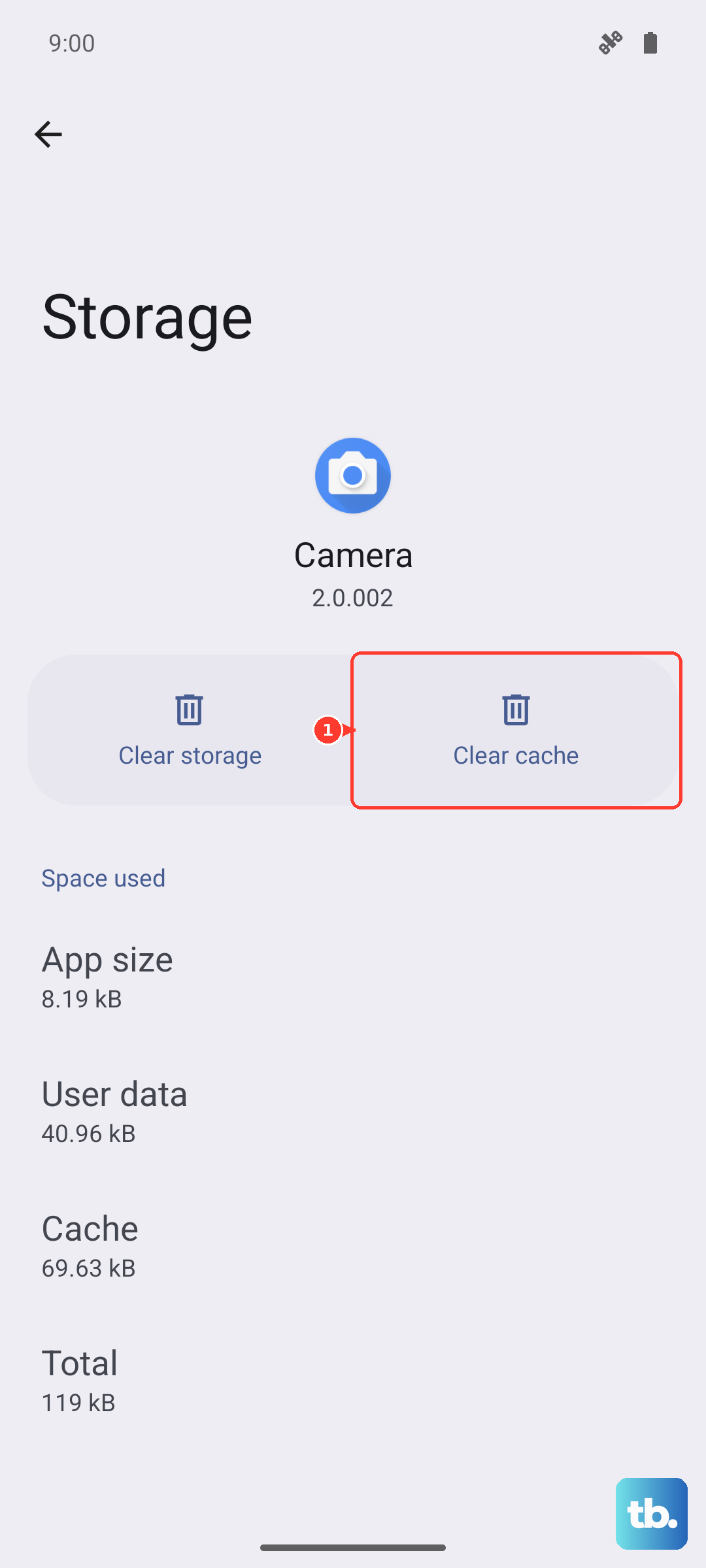
A corrupted cache in the Messages app can block MMS. Go to Settings > Apps, tap Messages, then Storage. Tap Clear cache (not Clear data that would delete your conversations). Then reopen the app and try sending.
Verify date and time are set automatically
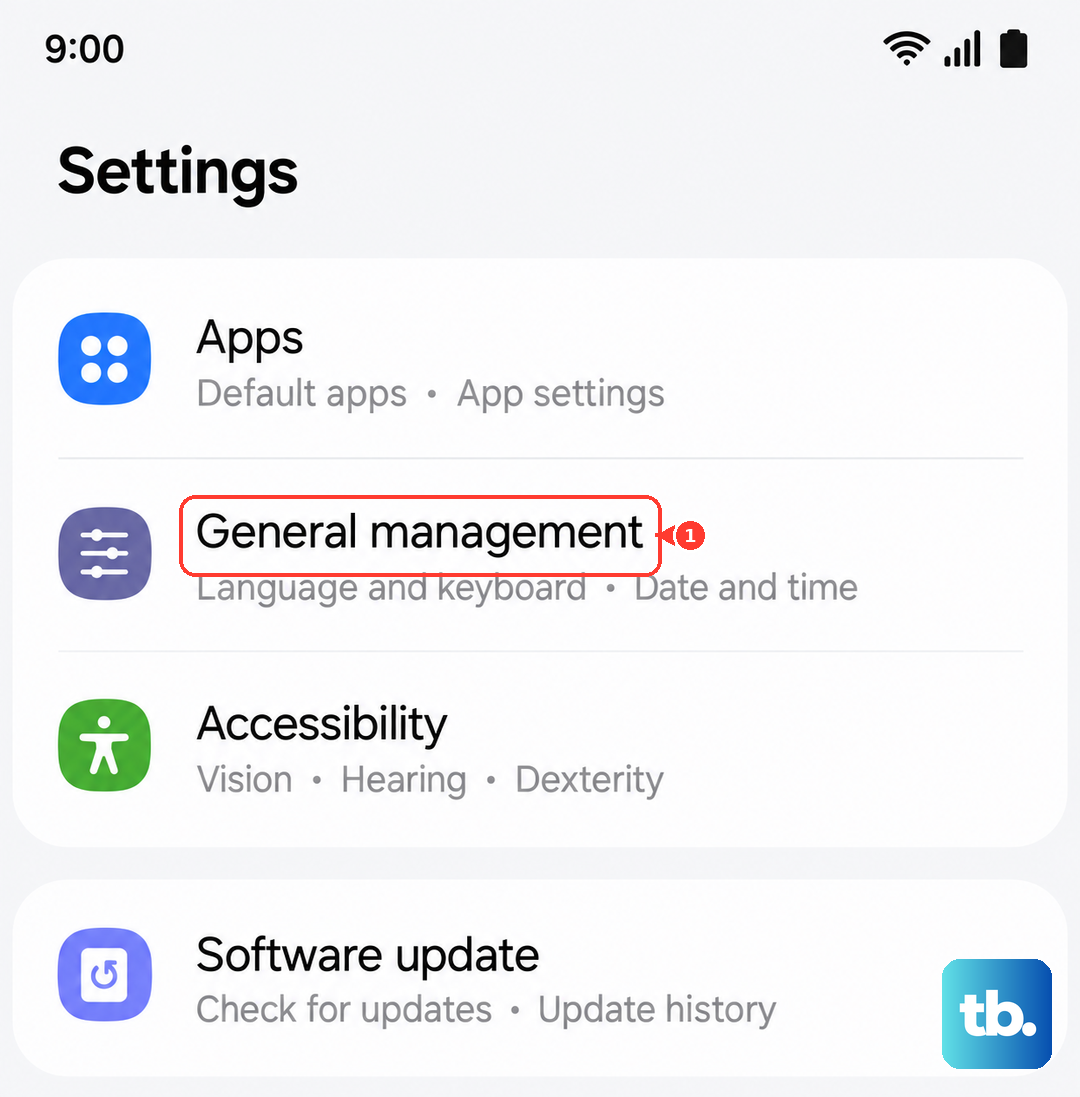
Incorrect date or time can confuse the carrier's network. Open Settings > General management > Date and time. Make sure Automatic date and time is turned on. If it's already on but wrong, toggle it off and back on to force a refresh.
Disable Data Saver or restrict background data
Data Saver can stop MMS from sending in the background. Go to Settings > Connections > Data usage > Data saver and turn it off. Also check that the Messages app isn't restricted: Settings > Apps > Messages > Mobile data and make sure Allow background data usage is on.
Reset network settings
This erases saved Wi‑Fi networks and Bluetooth pairings but often fixes stubborn MMS issues. Go to Settings > General management > Reset > Reset network settings. Enter your PIN or password, then confirm. After the phone restarts, reconnect to Wi‑Fi and try MMS again.
Update the software and carrier settings
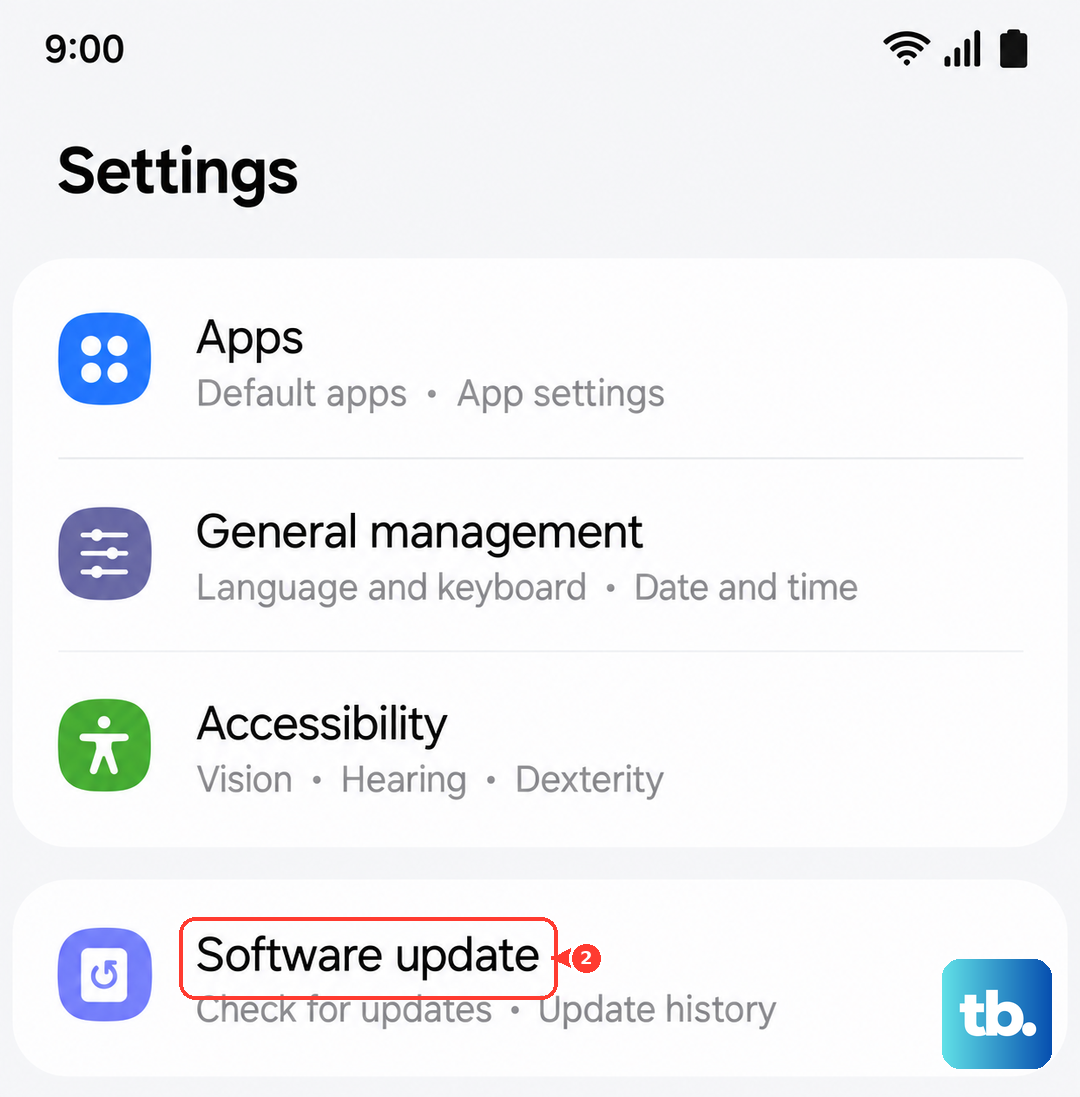
Carrier settings updates sometimes roll out without a visible alert. Open Settings > Software update and tap Download and install. If an update is available, install it. After that, go to Settings > Connections > Mobile networks and look for a Carrier settings option if present, tap Update.
Check for a blocked number or recipient issue
If MMS only fails with one person, they may have blocked you or their phone may have a data issue. Try sending a regular text first. If that works but MMS doesn't, ask the recipient to check their own message settings or restart their phone. On your end, go to Phone app > Recent > three-dot menu > Blocked numbers to make sure you didn't accidentally block someone.