Predictive text on the Samsung Galaxy A26 5G is usually pretty good at learning your typing habits. When it stops working, lags, or starts suggesting gibberish, it slows down everything you do on the phone. Let's walk through six fixes that usually get the Samsung Keyboard back on track.
Restart or Force Restart Your A26 5G
A simple restart clears out temporary glitches more often than you'd think. If the screen is frozen or the keyboard won't pop up, a standard restart is the first thing to try.
If your phone isn't responding, use the force restart method. Press and hold the Volume Down and Power buttons simultaneously for about 10-15 seconds until the device restarts. This won't erase any of your data, but it will kick the system back into shape.
Clear the Keyboard Cache
Corrupted temporary files are a common cause of predictive text issues on the A26 5G. Clearing the cache is a safe step that won't delete your personal dictionary or settings.
Open Settings and tap Apps. Tap the three dots in the top right corner and select Show system apps. Scroll down to Samsung Keyboard and tap Storage, then tap Clear Cache. Do the same for Samsung Keyboard Neural Beta if you see it listed.
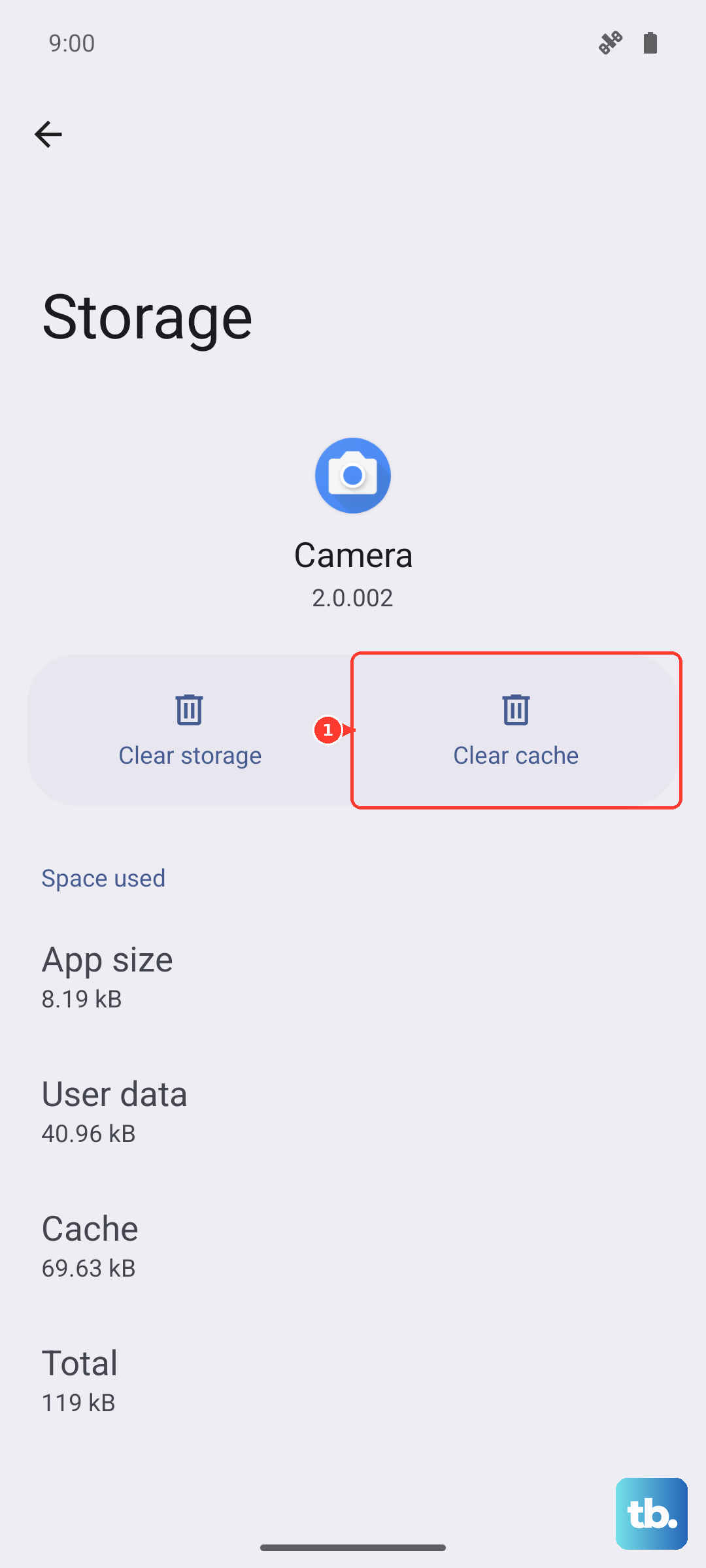
After clearing the cache, test the keyboard in a messaging app. If the problem is still there, move on to clearing the data.
Check the Predictive Text Settings
Sometimes the settings for predictive text get toggled off during an update or by accident. It's worth checking that everything is enabled in the right places.
Go to Settings > General Management > Language and Input > On-screen keyboard > Samsung Keyboard. Tap Smart typing and make sure Predictive text is turned on.
While you're in there, toggle Predictive text off and then on again. This refreshes the feature and can sometimes kickstart it back to life without needing a full reset.
Update the Keyboard and Language Data
An outdated keyboard app can cause compatibility problems with One UI 7. The Play Store is where you'll find the latest version of the Samsung Keyboard app.
Open the Play Store, tap your profile picture, and select Manage apps & device. Search for "Samsung Keyboard" and tap Update if it's available.
You should also check for updates to the language data. Go to Settings > General Management > Language and Input > On-screen keyboard > Samsung Keyboard > Languages and Types. Select your language, tap the three dots, and choose Check for an update.
Reset Samsung Keyboard to Default
If the keyboard is still misbehaving, resetting it to its factory state can clear up deeper software conflicts. Keep in mind this will erase your custom dictionary and any typing shortcuts you've saved.
Navigate to Settings > General Management > Language and Input > On-screen keyboard > Samsung Keyboard. Tap Reset to default settings and confirm your choice.
Install the Latest One UI 7 Software Update
Samsung regularly pushes out software updates that fix known bugs, including issues with the keyboard and predictive text. Running outdated firmware can lead to unpredictable behavior.
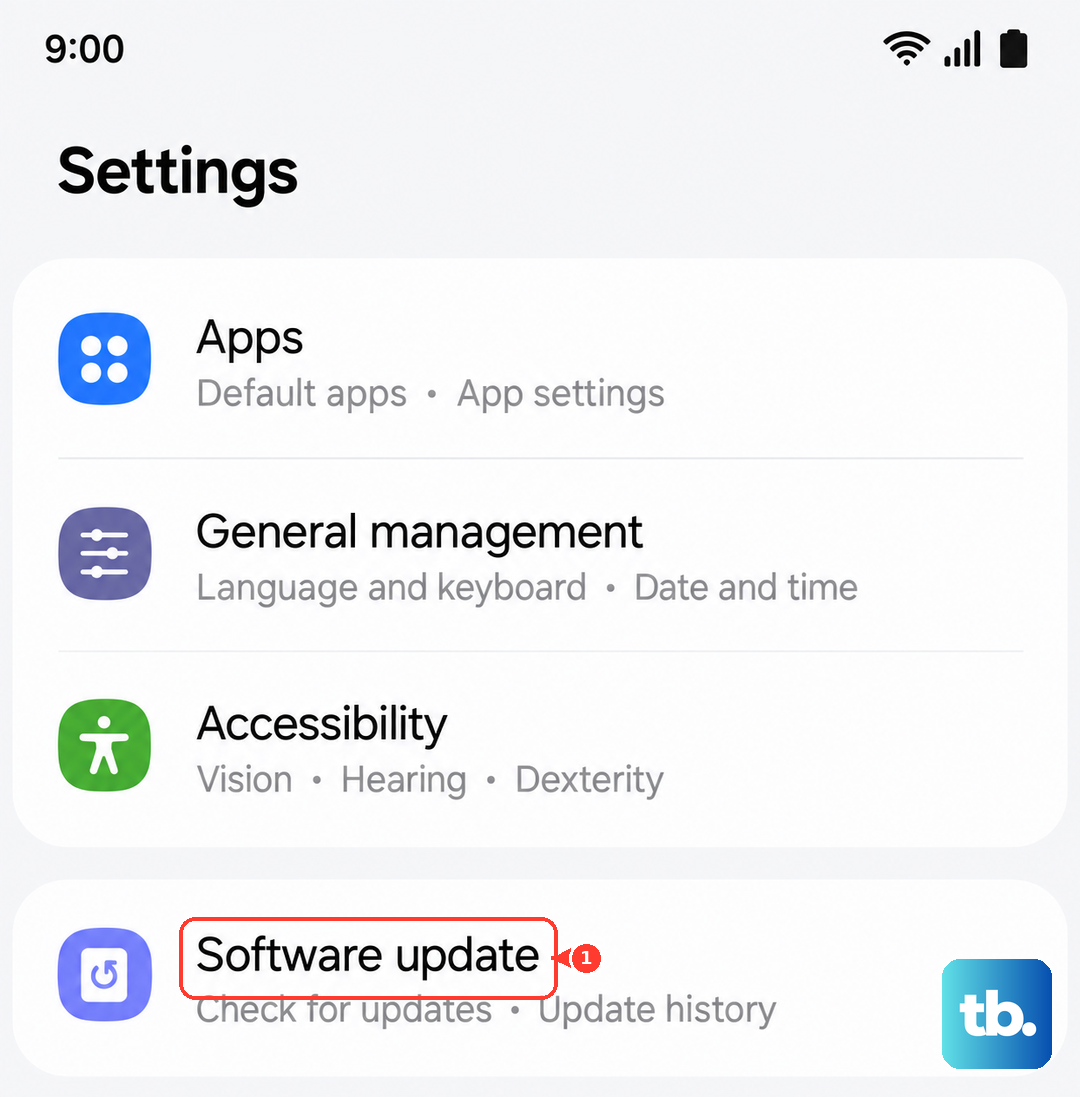
Open Settings > Software Update > Download and Install. If an update is available, download it and let the phone restart. This is often the final step for users who have tried everything else without success.