
Call failures on the Samsung Galaxy A26 5G usually come down to a weak signal, a temporary software glitch, or a misconfiguration in the phone's network settings. The good news is that most of these issues are quick to fix once you know where to look.
Here are ten fixes to try, starting with the fastest ones.
Toggle Airplane Mode
This is the easiest way to force the phone to reconnect to the cellular network without restarting. Swipe down twice from the top of the screen to open the Quick Settings panel. Tap the Airplane mode icon to turn it on, wait about 15 seconds, then tap it again to turn it off. Your phone will search for the network fresh, and many temporary glitches clear up immediately.
Force Restart the Phone
If toggling Airplane mode didn't help, a force restart often resolves deeper software hiccups that prevent calls from going through. Press and hold the Volume Down and Power buttons simultaneously for about 10-15 seconds until the device restarts. This won't delete any data, it just reboots the phone from scratch.
Check Your Signal Strength
Look at the signal bars in the top status bar. If you're down to one bar or see "No service," the problem is that the phone simply can't reach a tower. Move closer to a window, step outside, or drive to a higher area. Buildings with thick walls or basements are notorious for killing cellular reception.
Turn Off Do Not Disturb and Focus Modes
Samsung's One UI 7 includes Modes and Routines that can block incoming calls without you realizing it. Swipe down twice and tap the Modes icon (it might be labeled Do Not Disturb). Make sure Sleep, Driving, or any custom mode isn't active. If a mode is on, tap it and select "Turn off."
Update the Software
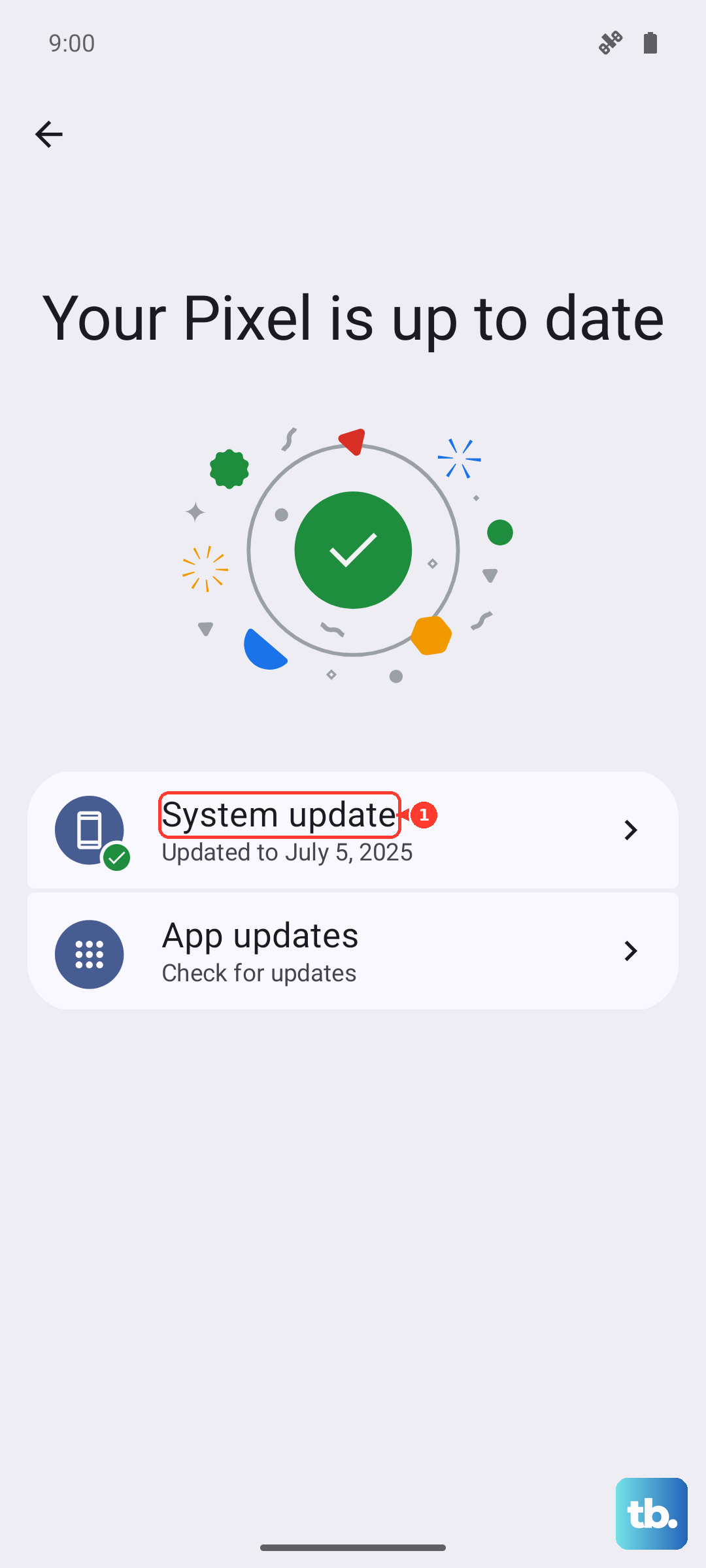
Bug fixes for calling issues are often included in system updates. Go to Settings > Software update > Download and install. If an update is available, install it while connected to Wi-Fi and with at least 50% battery. The Galaxy A26 5G runs Android 15 with One UI 7, so check that you're on the latest version.
Check Your SIM Card
A loose or damaged SIM card is a common culprit for call failures. Use the SIM ejector tool (or a paper clip) to pop out the tray on the left side of the phone. Remove the SIM, inspect the metal contacts for dirt or scratches, and reinsert it firmly. If you have another phone handy, try the SIM in that device to see if the problem follows the card or stays with the A26.
Reset Network Settings
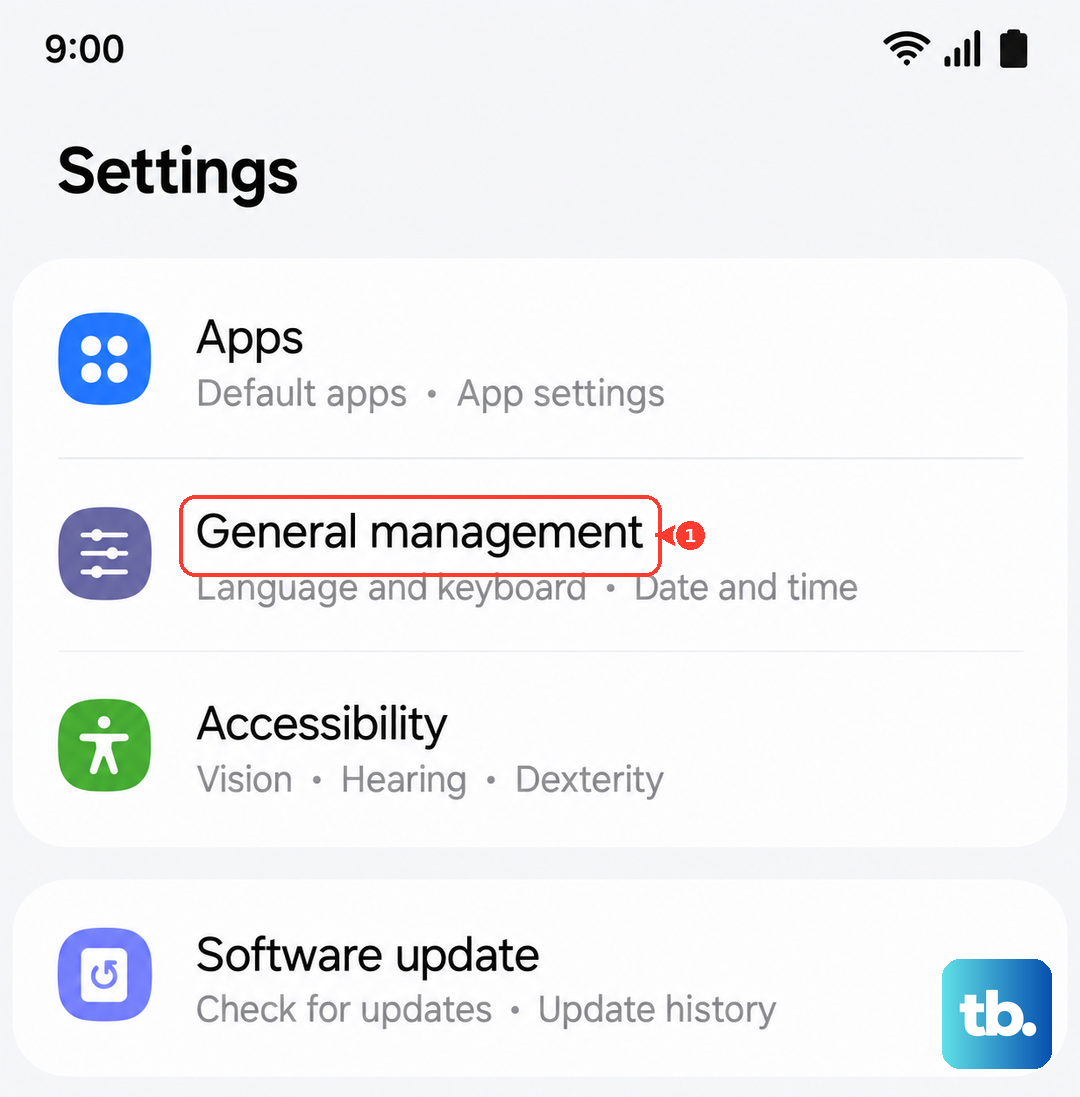
This clears saved Wi-Fi networks, Bluetooth pairings, and cellular settings without touching your personal data. Go to Settings > General management > Reset > Reset network settings. Confirm with your PIN or password, then let the phone restart. You'll need to re-enter Wi-Fi passwords afterward, but it often fixes stubborn call failures.
Clear the Cache Partition
Corrupted system cache can cause weird behavior in the telephony app. Clearing it through recovery mode is safe and can help. Turn off the phone completely. Press and hold the Volume Up and Power buttons together until the Samsung logo appears, then release only the Power button. Use the volume keys to navigate to "Wipe cache partition" and press the Power button to select it. Confirm with "Yes" and then select "Reboot system now." This takes about a minute.
Check Blocked Contacts
You might have accidentally blocked the number you're trying to call. Open the Phone app, tap the three-dot menu, and select Settings > Block numbers. Scroll through the list and remove any numbers that shouldn't be there. Tap the minus sign next to the entry to unblock it.
Switch Network Mode
Sometimes the phone gets stuck trying to connect to a 5G or LTE band that has a weak signal. Forcing it to use 4G (or 3G) can stabilize calls. Go to Settings > Connections > Mobile networks > Network mode. Select "LTE/3G/2G (auto connect)" instead of 5G. Test a call. You can switch back to 5G later if the issue clears up.