
Nothing kills a good playlist or hands-free call quite like Bluetooth that refuses to connect. If your Samsung Galaxy A26 5G is struggling to pair with headphones, your car, or any other wireless accessory, you're probably staring at a spinning "connecting" circle or a flat-out failure message. The good news is that most Bluetooth issues on this phone are software-related and fixable in a few minutes.
Check the Obvious Stuff First
Before you dig into settings menus, run through the quick checklist. Make sure both devices have enough battery charge, below 15% can cause flaky Bluetooth behavior. Keep them within reasonable range, ideally under 30 feet with no walls in between.
Is the device you're trying to connect to actually in pairing mode? Some accessories need a specific button hold or switch flip before they show up. And if you're pairing Samsung earbuds or a Galaxy Watch, you'll need the Galaxy Wearable app installed, the A26 won't see them through basic Bluetooth alone.
Toggle Bluetooth and Restart the Phone
Pull down the notification shade and tap the Bluetooth icon to turn it off. Wait about ten seconds, then tap it back on. Try pairing again.
If that doesn't do it, restart the Galaxy A26. Hold the Power and Volume Down buttons together, then tap Restart. This clears out temporary glitches that can hang the Bluetooth radio. Once the phone boots back up, try connecting again.
Forget and Re-Pair the Device
Sometimes the saved pairing data gets corrupted. Wiping it clean and starting fresh often does the trick.
Head to Settings > Connections > Bluetooth. Find the problem device in your list and tap the gear icon next to it. Select Unpair or Forget. Now put the accessory back into pairing mode and connect like it's the first time.
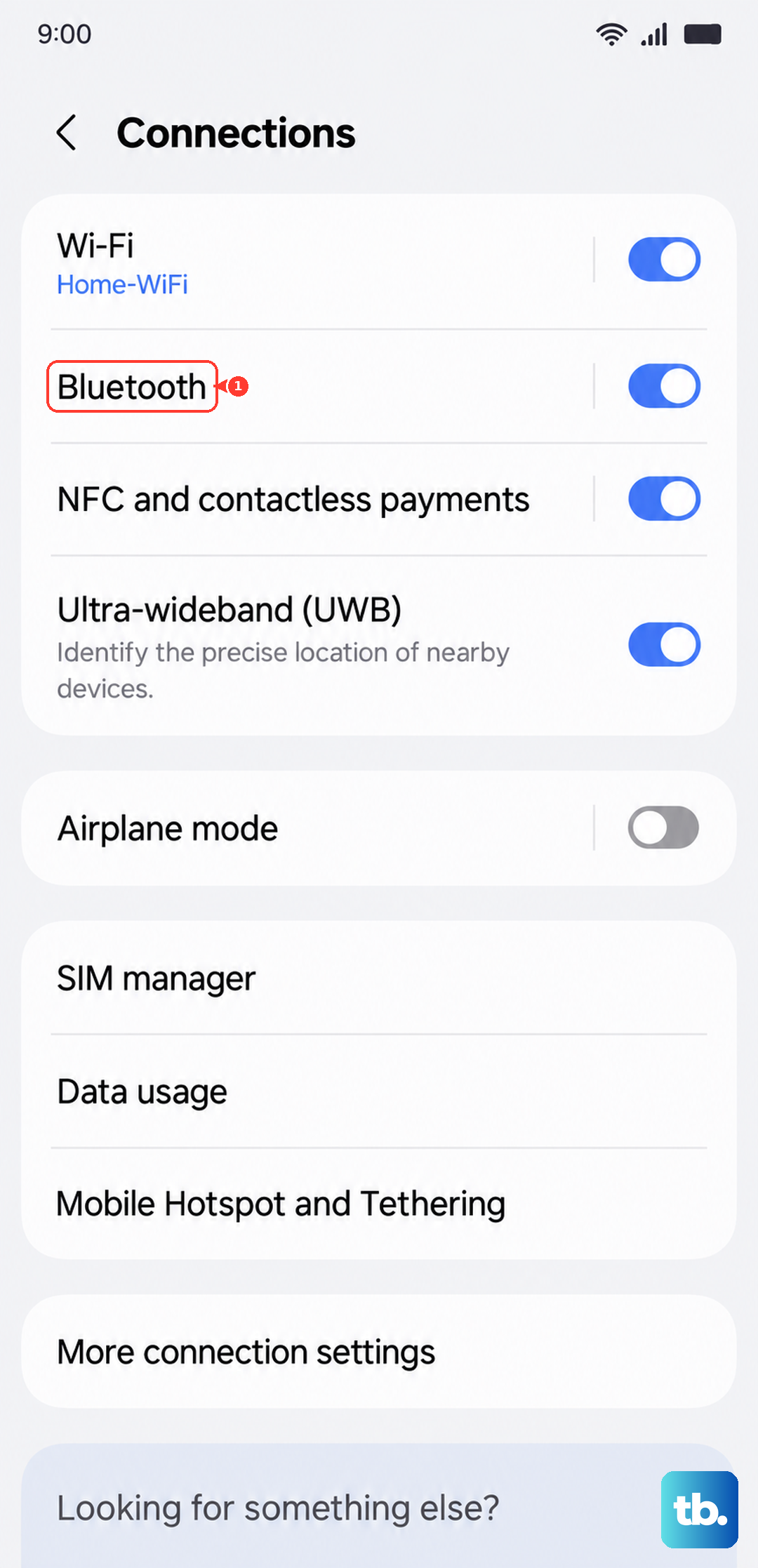
If you have a bunch of old paired devices in that list, go ahead and clear them all out. Too many stale connections can create conflicts on the A26.
Clear Bluetooth Cache and Data
Android apps store temporary data in a cache, and Bluetooth is no exception. If that cache gets corrupted, connections start failing. Clearing it is harmless and usually fast.
Go to Settings > Apps. Tap the filter icon and turn on Show system apps. Scroll down to Bluetooth and tap it, then tap Storage. Hit Clear Cache, don't worry, this won't delete your paired devices.
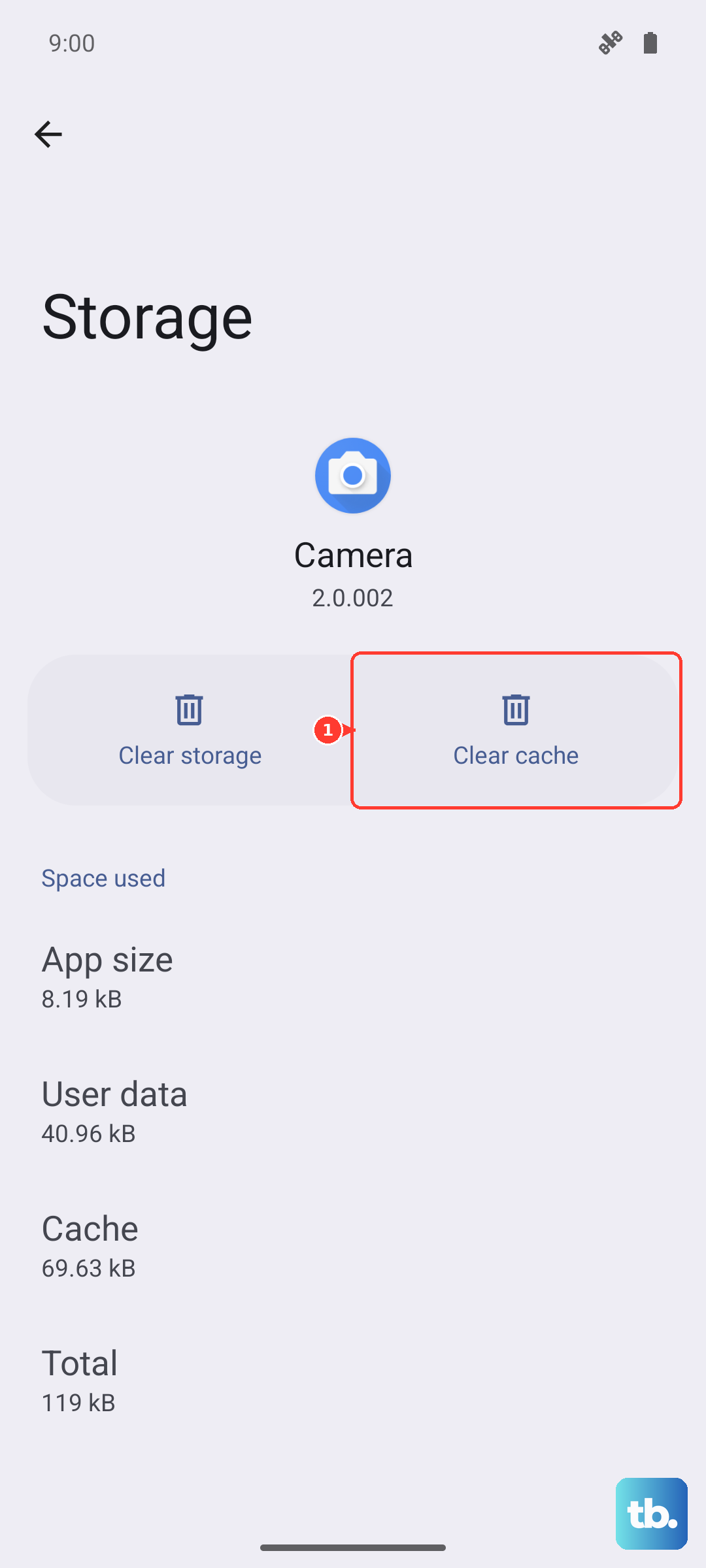
If the problem persists, go back to the same spot and tap Clear Data instead. That will wipe all your saved Bluetooth pairings, so you'll need to re-pair everything afterward. It's a nuclear option for the Bluetooth subsystem, but it works when nothing else does.
Test in Safe Mode
A third-party app could be interfering with Bluetooth. Safe Mode disables every app you've installed, leaving only the system software running.
Press and hold the Power and Volume Down buttons until the power menu appears. Tap and hold Power off, then tap Safe Mode when it shows up. The phone will restart with "Safe Mode" in the bottom-left corner.
Try pairing your Bluetooth device in Safe Mode. If it works, you've got a rogue app somewhere. Restart normally and start uninstalling recently added apps one by one until Bluetooth behaves itself again.
Reset Network Settings
This is a bigger reset that affects Wi-Fi, mobile data, and Bluetooth all at once. It won't touch your photos, apps, or accounts, so it's safe to try before a full factory reset.
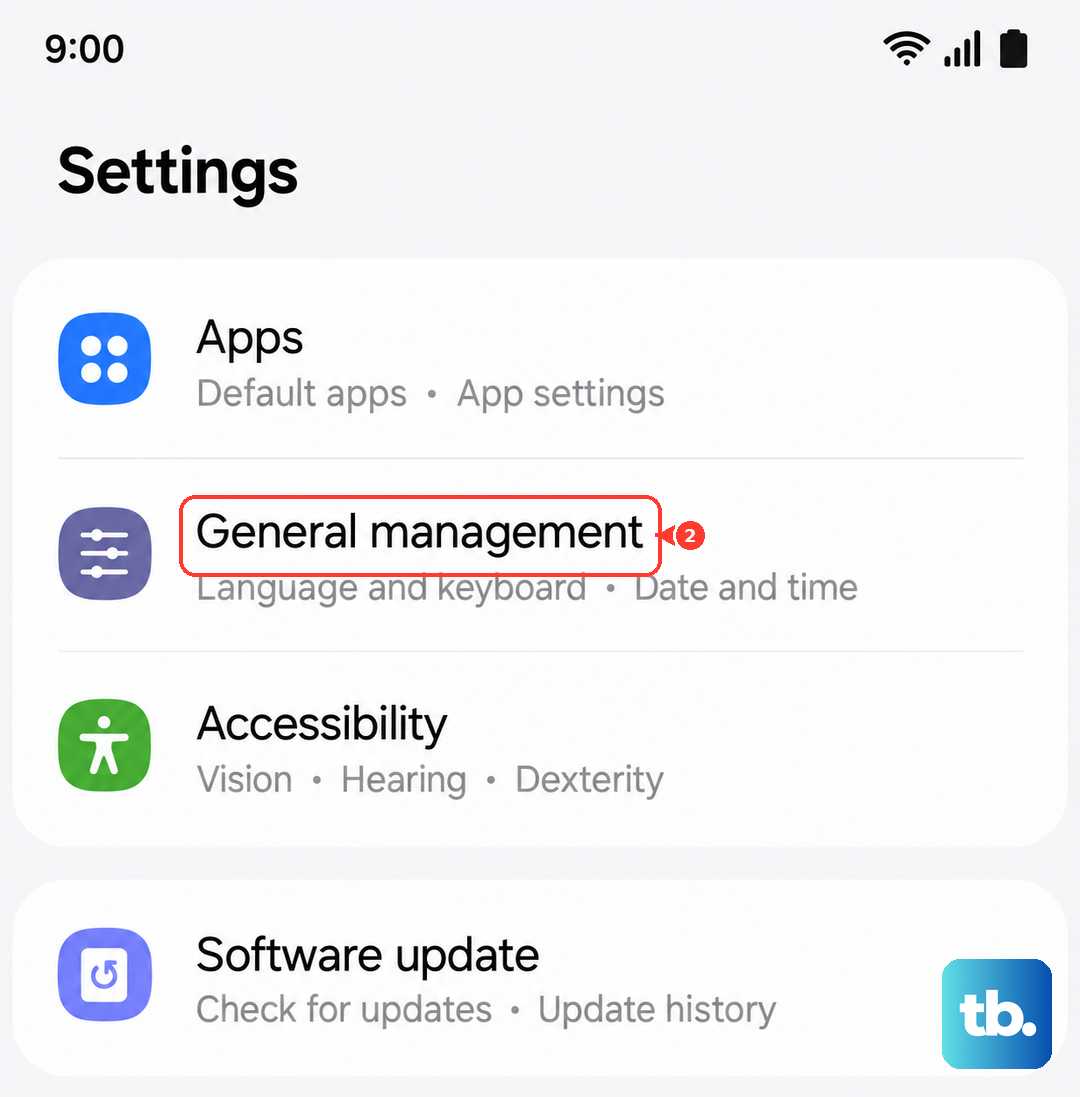
Open Settings > General management > Reset, then choose Reset mobile network settings (for SIM or mobile network issues) or Reset Wi-Fi and Bluetooth settings (for Wi-Fi or Bluetooth issues). You'll need to enter your PIN or pattern. Confirm the reset, and the phone will restart. Afterward, you'll have to re-enter Wi-Fi passwords and re-pair Bluetooth devices, but it often clears stubborn connectivity bugs.
Update the Software
Samsung pushes regular updates to the Galaxy A26 5G, and some of those are specifically aimed at connectivity fixes. Go to Settings > Software update > Download and install. If an update is available, grab it and let the phone restart.
Don't forget to check whether your Bluetooth accessory has a firmware update, too. Many headphones and earbuds have companion apps that let you update their firmware, which can resolve pairing issues with newer phones.
Last Resort: Factory Reset
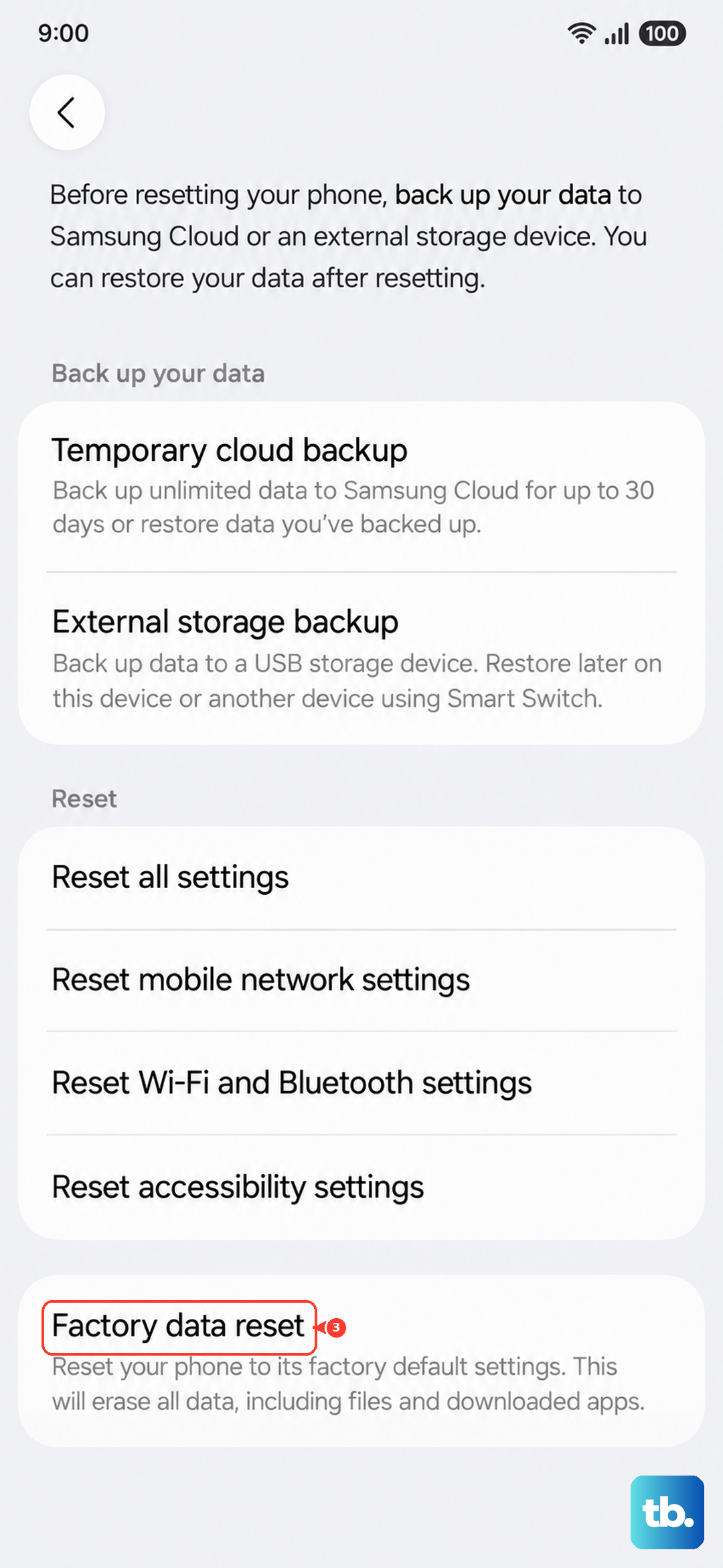
If you've tried everything above and Bluetooth still won't connect, a factory reset is your final software option. This wipes everything, apps, accounts, photos, settings, so back up anything you don't want to lose first.
Go to Settings > General management > Reset > Factory data reset. Follow the prompts, and the phone will return to its out-of-box state. Set it up fresh, then try pairing your Bluetooth device before restoring any backups.
What If It's Still Broken?
If Bluetooth fails even after a clean factory reset, there might be a hardware problem inside the phone itself. The Bluetooth antenna or chip could be damaged, especially if the phone has taken a drop or gotten wet. At that point, you're looking at a repair, and it's best to check with Samsung or an authorized service center.