
If your Samsung Galaxy A26 5G is burning through battery faster than you'd expect, you're not imagining it. Between screen-on time and background tasks, there's usually a fix that stops the drain. Let's run through the most effective ones.
Start with a Force Restart
Before diving into settings, give the phone a quick hard reset. Press and hold the Volume Down and Power buttons together for about 10 to 15 seconds. Keep holding until the Galaxy logo appears on screen. This clears out any minor software glitches that could be draining the battery or messing with the charge time display.
It won't delete any of your data. It just gives the system a clean slate.
Check for a System Update First
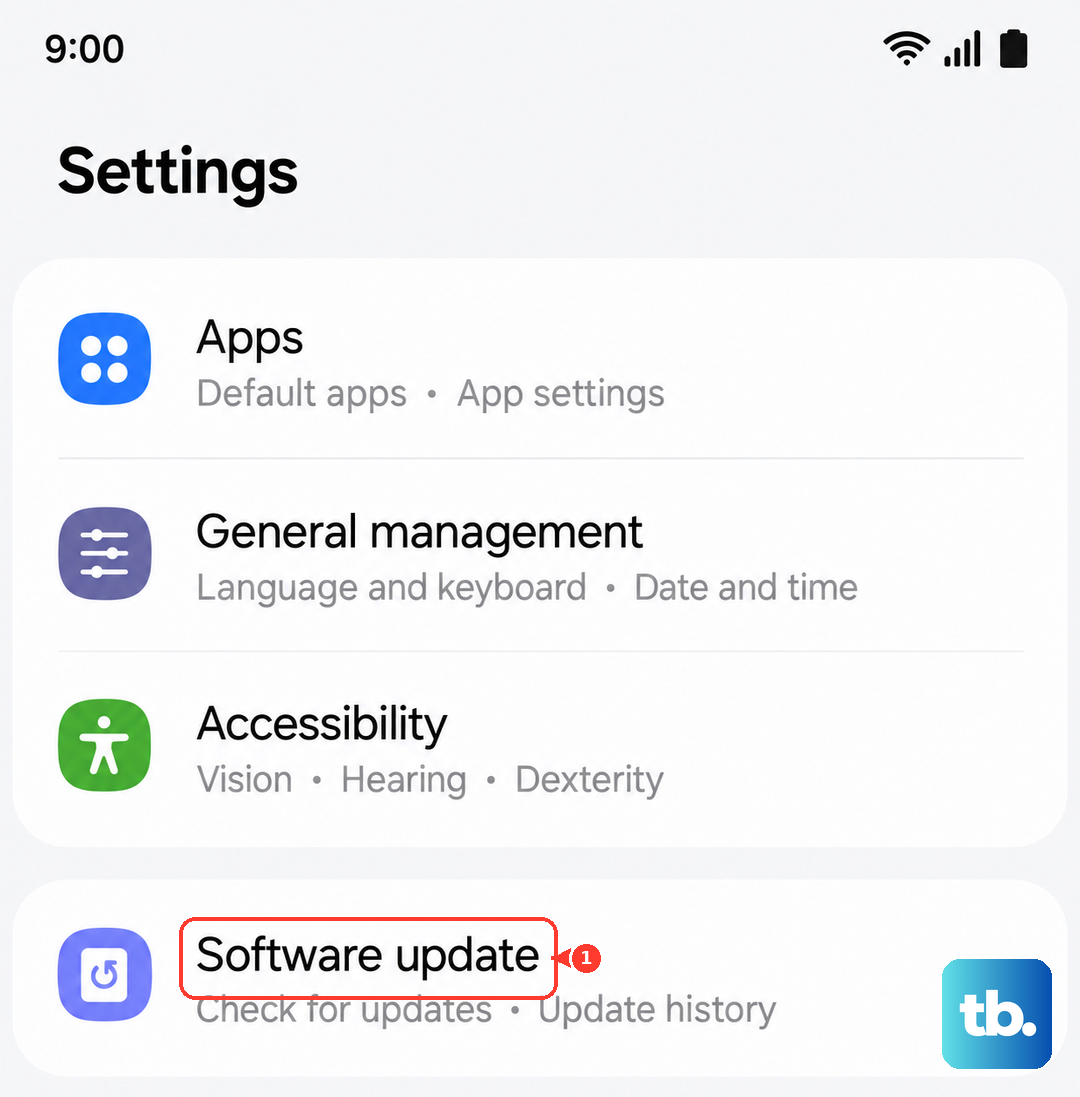
Battery drain is often caused by bugs in the software. Open Settings > Software Update and tap Download and Install. Samsung regularly pushes One UI 8 patches that fix background drain issues and improve charging behavior. If there's an update waiting, install it and let the phone reboot.
Dark Mode is Your Friend
The Galaxy A26 has an AMOLED screen. That matters because black pixels are literally turned off on this display type. Go to Settings > Display and switch to Dark mode. At high brightness levels, this alone can save you a noticeable chunk of battery over a full day.
You can also enable Adaptive Brightness in the same menu. It learns your habits and keeps the screen from blasting at full power unnecessarily.
Tame Background Apps and Location
Some apps are hungry in the background. Go to Settings > Battery and check Battery Usage. If an app is using 30% or more without you actively using it, consider limiting its background activity.
For location, go to Settings > Location and turn it off for apps that don't need it. Social media and games usually don't need your GPS running all day. You can also put unused apps to deep sleep under Battery > Background Usage Limits.
Clear the Cache Partition
This is a solid fix for weird battery stats or charging hiccups. Turn the phone off completely. Then press and hold Volume Up and Power until the recovery menu shows up. Use the Volume keys to scroll to Wipe cache partition and press the Power button to confirm.
This doesn't touch your photos, messages, or apps. It just clears out temporary system junk that can sometimes misbehave and drain the battery.
Check Your Charger and Cable
Sometimes the battery feels like it's draining fast because it never fully charged in the first place. The Galaxy A26 supports 25W fast charging, but it needs a compatible charger. Look for a USB PD 3.0 adapter with PPS support. If you're using an old phone charger or a cheap third-party cable, it might trickle charge or stop entirely.
Also inspect the USB-C port on the phone. Pocket lint can get packed in there and prevent a solid connection. Use a wooden toothpick or a plastic pick to gently clean it out.
Turn Off Fast Charging
This sounds counterintuitive, but it fixes a known issue. Some Galaxy A26 units randomly stop charging or throw an overheating warning when fast charging is active. Go to Settings > Battery > Charging and toggle off Fast charging.
Charging will take a bit longer, but it's much more stable. The phone won't heat up as much, and it will actually reach 100% without cutting out.
Avoid Using It While Plugged In
Heat degrades battery health over time. If you notice the phone getting warm while charging, put it down. Streaming video or gaming while plugged in creates extra heat that can trigger the phone's thermal protection, slowing the charge or stopping it entirely.
Just let it sit for an hour on a desk or nightstand and it'll charge up much more reliably.
Use the Built-in Battery Protection
One UI 7 has a feature that helps the battery last longer. Go to Settings > Battery > Battery Protection. You can set it to stop charging at 85% or 95%. This is huge for long-term battery life. If you've had the phone for a while and notice the drain getting worse, enabling this can slow down the degradation.
Reduce Screen Timeout and Animations
Set your screen to turn off faster. Go to Settings > Display > Screen timeout and pick 30 seconds. Every second the screen is on pulls from the battery.
You can also reduce motion effects under Settings > Accessibility > Reduced animations to lighten the load on the processor slightly.
Factory Reset if Nothing Else Works
If the battery is still draining fast after all these steps, a factory reset often fixes deep software conflicts. Back up your photos and files first. Go to Settings > General Management > Reset > Factory Data Reset.
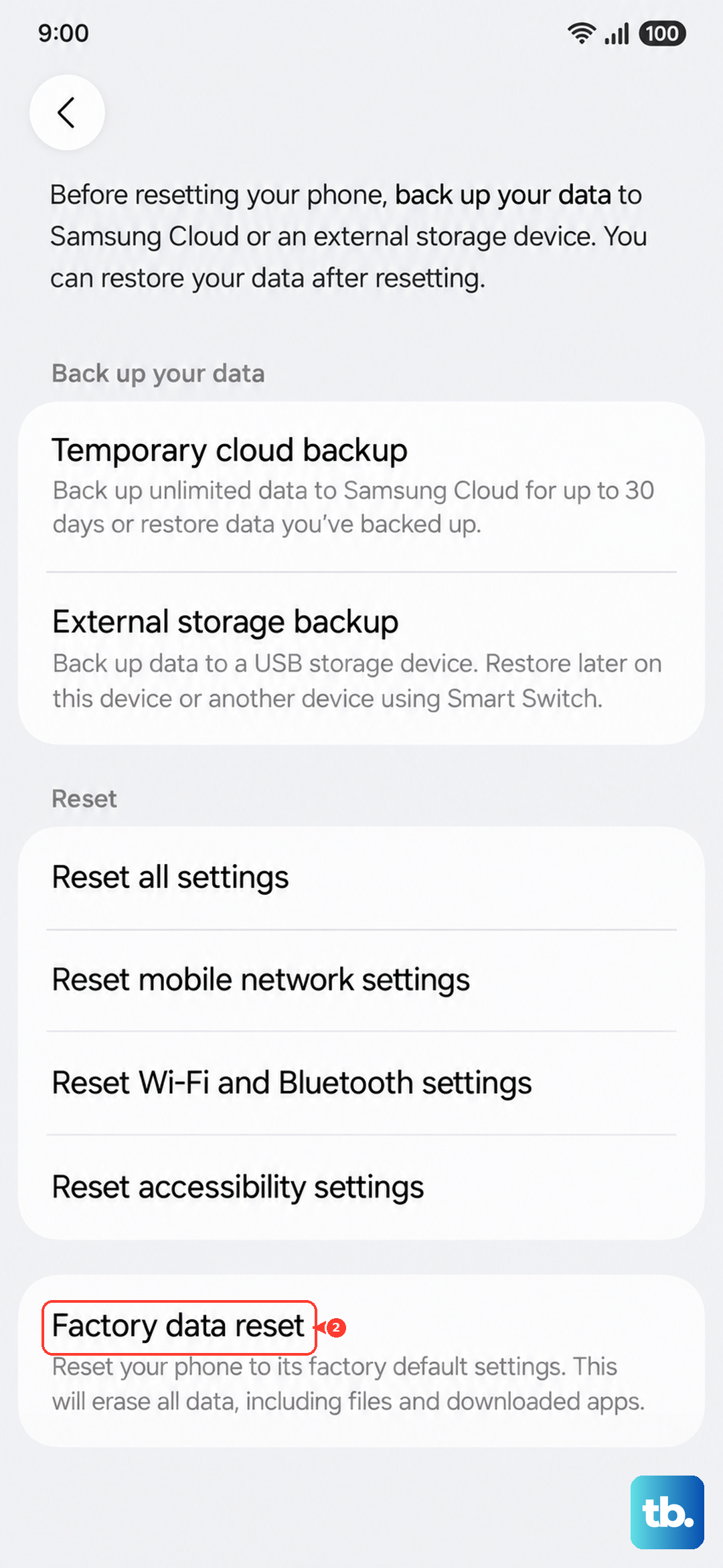
This wipes everything and brings the phone back to its clean out-of-box state. After the reset, don't restore old backups right away. Use the phone for a day to see if the battery life is back to normal before syncing anything.