You're trying to download an app on your Galaxy A26 5G and the download either stalls at 99% or throws up an error. Maybe the Play Store won't even open. Most of the time this is a simple glitch, and you can fix it in a minute or two.
Force Restart Your Galaxy A26
Before diving into settings, do a hard restart. This clears temporary software snags without losing anything.
Press and hold the Volume Down and Power buttons simultaneously for about 10-15 seconds until the device restarts. That's the force restart method for this phone. Once it boots back up, try downloading again.
Check Date and Time
Google's servers check your phone's clock when you install apps. If the date or time is off, downloads will fail.
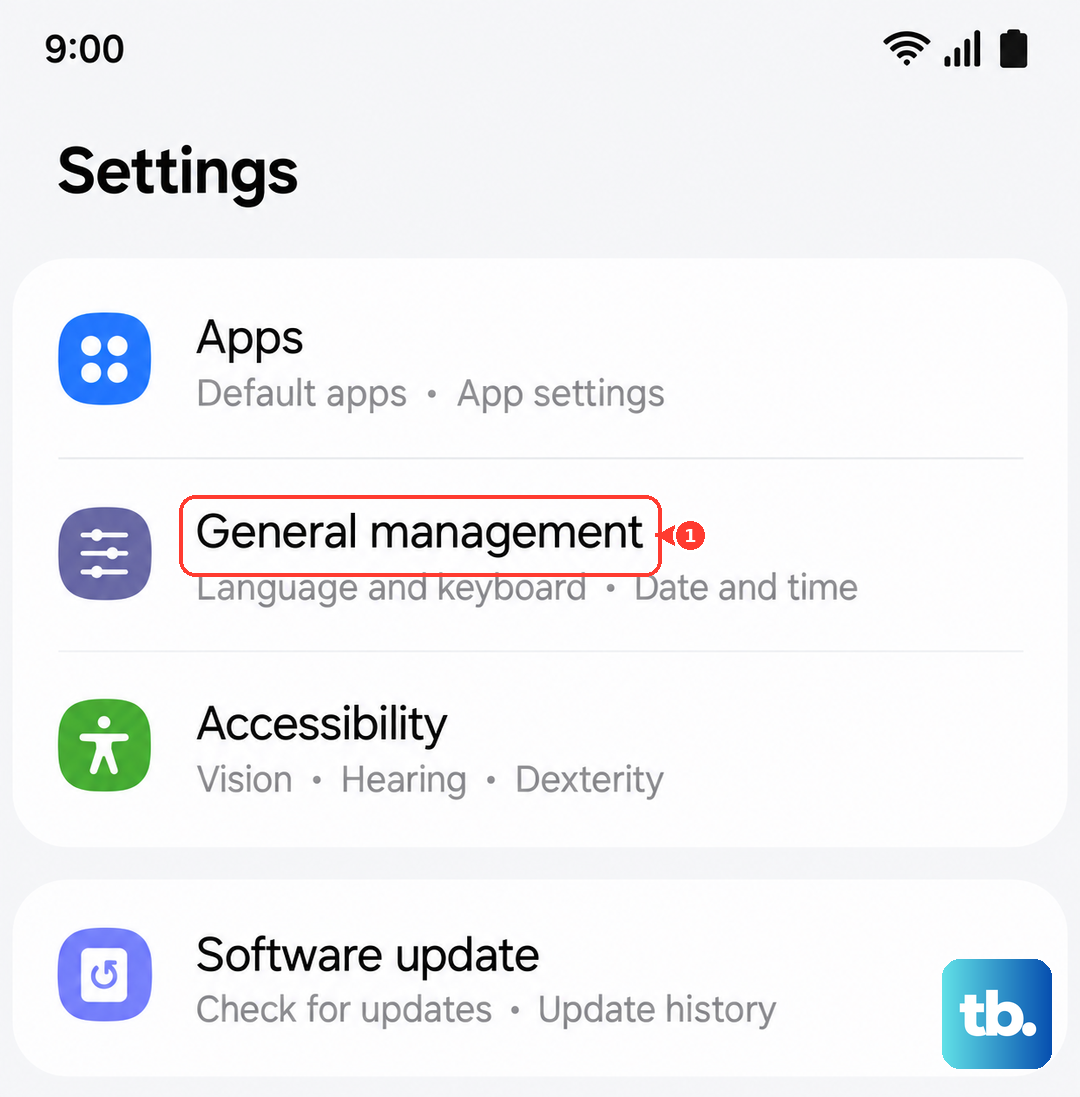
Go to Settings > General Management > Date and Time and turn on Automatic Date and Time. If it's already on, toggle it off, set the correct time manually, then turn automatic back on. Sometimes that refresh is enough.
Switch to Mobile Data
Some Wi‑Fi networks block the port Google Play uses for downloads (port 5228). If you're on Wi‑Fi and apps won't install, try switching to mobile data.
Swipe down the notification shade, tap the Wi‑Fi icon to disable it, then tap the mobile data icon to enable it. Give it a few seconds and try the download again.
Clear the Cache Partition
The cache partition stores temporary system files. Clearing it through recovery mode can fix stubborn app installation issues without wiping your personal data.
Turn off your Galaxy A26. Press and hold the Volume Up and Power buttons simultaneously until the Samsung logo appears, then release. When the Android recovery menu loads, use the volume buttons to highlight Wipe cache partition and press the Power button to select. After it finishes, reboot your phone.
Clear Play Store Cache and Data
The Play Store itself can accumulate corrupted cache files. Clearing them is quick and often does the trick.
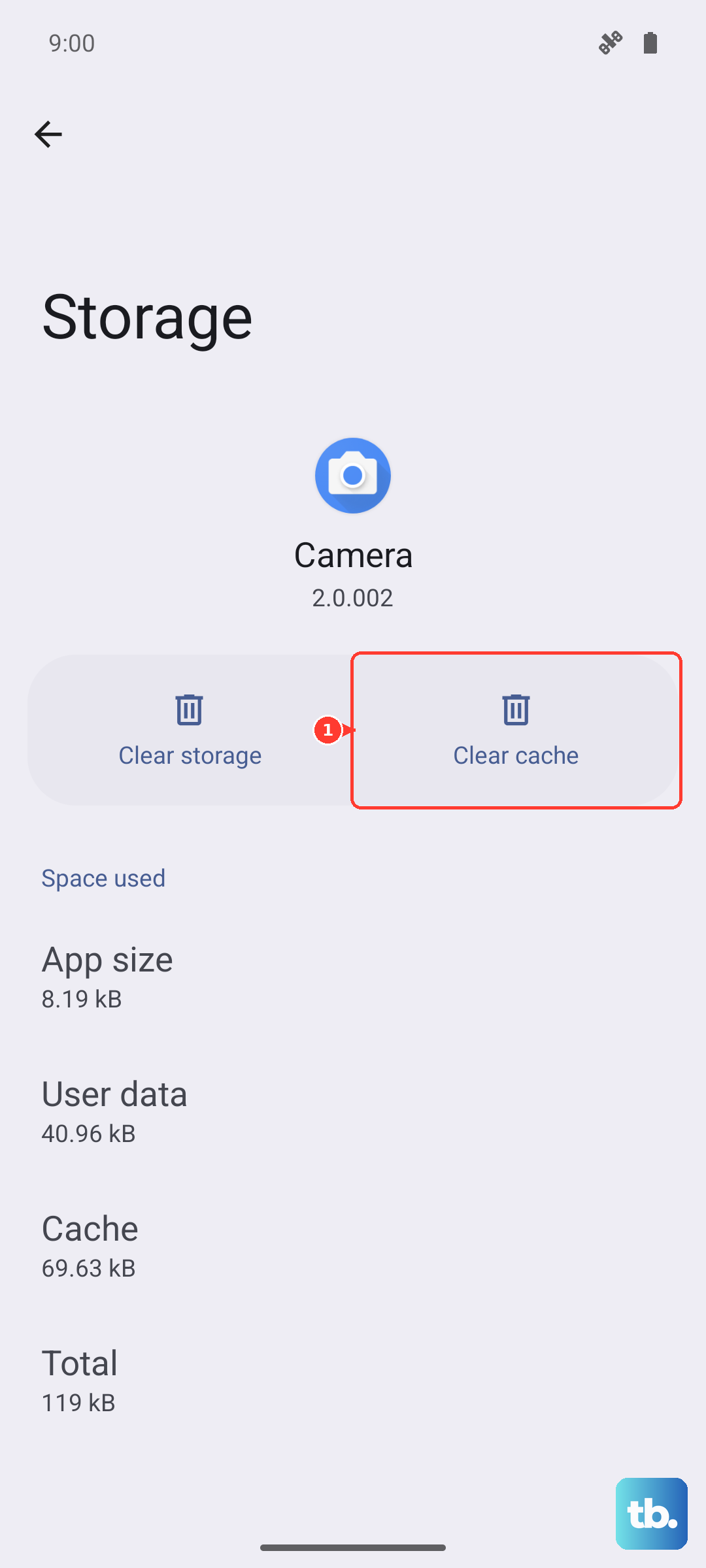
Go to Settings > Apps > Google Play Store > Storage. Tap Clear Cache first. If that doesn't work, tap Clear Data and confirm. Restart your phone afterward.
Clear Google Play Services Data
Play Services handles the communication between your apps and Google's servers. If it's misbehaving, nothing downloads.
Head to Settings > Apps > Google Play Services > Storage. Tap Clear Cache, then tap Manage Storage > Clear All Data. This will reset Play Services without removing your Google account.
Check Google Play Services Permissions
Play Services needs the right permissions to function. If something got changed, downloads can get blocked.
Go to Settings > Apps > Google Play Services > Permissions. Make sure Storage is enabled. Then tap Change system settings and ensure Allow permission is on.
Refresh Your Google Account Sync
Sometimes the account connection gets stuck and interrupting the sync clears it up.
Open Settings > Accounts and backup > Manage accounts and select your Google account. Tap Sync account, then tap the three‑dot menu and choose Cancel sync. Wait about 30 seconds, then sync again by tapping the same three‑dot menu and selecting Sync.
Uninstall Google Play Services Updates
If the problem started after a Play Services update, you can roll it back.
Go to Settings > Apps > Google Play Services. Tap the three‑dot menu (top right) and choose Uninstall updates. Confirm and restart your phone. After the restart, go back to the Play Store and let it update Play Services again.
Reset Your Google Account
As a last software step, remove and re‑add your Google account. This clears up any account‑level glitches.
Go to Settings > Accounts and backup > Manage accounts, select your Google account, and tap Remove account. Then tap Add account > Google and sign back in. Your apps and data will resync automatically.
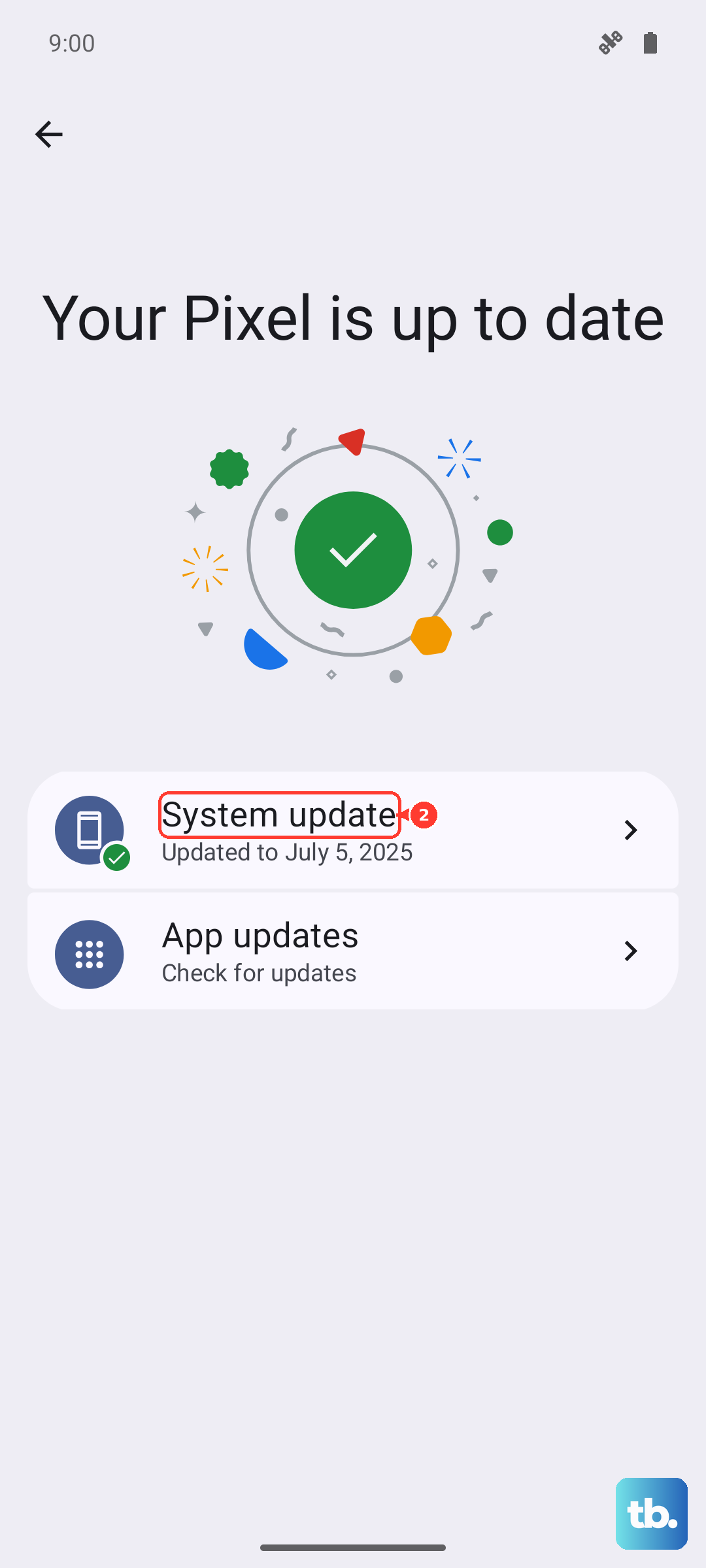
If none of these get apps downloading, check for a system update under Settings > Software update, and make sure you have enough storage space, sometimes a nearly full phone won't let new apps install. Those steps cover almost every scenario on the Galaxy A26 5G.