When your Samsung Galaxy A16's volume buttons stop responding, it can feel like you're stuck with one volume level. You press them, but nothing happens on the screen, and there's no feedback. The good news is that this is often a temporary software hiccup or a simple fix you can handle yourself.
Before you consider a repair shop, there are several things you can try right now. I'd start with the force restart, as it resolves a lot of these glitches on Android phones.
Remove Your Phone Case
Start with the simplest check. Take your Galaxy A16 out of its case. Sometimes, a case that's slightly misaligned or has worn out over time can physically block the buttons from being pressed fully. This is especially true for cases with thick button covers.
With the case off, press the volume buttons a few times to see if they feel clicky and responsive. If they work now, you've found the culprit.
Perform a Force Restart
A force restart is the go-to fix for unresponsive buttons caused by a software freeze. It clears the phone's temporary memory without deleting any of your personal data, photos, or apps.
For the Samsung Galaxy A16, press and hold the Volume Down button and the Power button at the same time. Keep holding them for about 10 to 15 seconds. You'll see the screen go black and then the Samsung logo will appear as the phone boots up normally.
Check for Software Updates
Since your A16 runs Android 14 with One UI 6.1, a bug in the system software could be causing the issue. Samsung regularly releases updates that fix these kinds of problems.
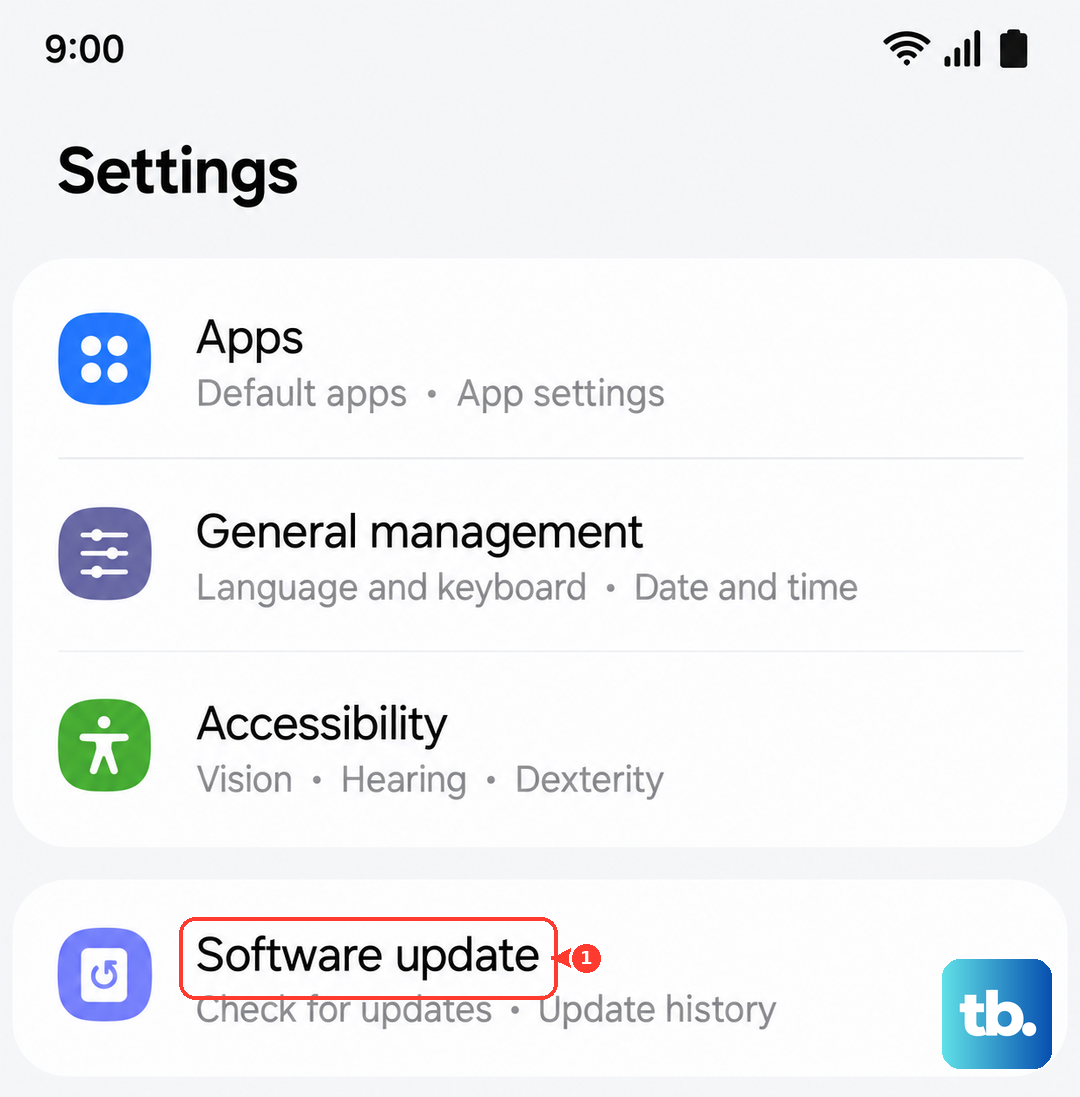
Go to Settings > Software update and tap Download and install. Make sure you're connected to Wi-Fi and have at least a 50% charge. Installing the latest update can resolve conflicts that affect hardware controls.
Clean the Volume Buttons
Dust, lint, or pocket debris can easily get packed around the buttons on a phone. This gunk can prevent the button from making proper contact inside the phone when you press it.
You can try blowing gently around the button area. For more stubborn grime, power off your phone first. Then, use a dry, soft-bristled brush (like a clean toothbrush) or a cotton swab with a tiny amount of isopropyl alcohol to carefully clean around the edges of the buttons. Let it dry completely before turning the phone back on.
Test in Safe Mode
Safe Mode temporarily disables all third-party apps you've downloaded. If the volume buttons work perfectly in Safe Mode, then a recently installed app is likely causing the conflict.
To boot into Safe Mode on the Galaxy A16, press and hold the Power button until the power menu appears. Then, tap and hold the "Power off" option on your screen. You'll see a prompt to reboot to Safe Mode. Tap it.
If the buttons work here, restart your phone normally to exit Safe Mode. Then, think about any apps you installed just before the problem started and try uninstalling them one by one.
Use On-Screen Volume Controls
While you're figuring this out, you're not stuck without volume control. You can always adjust it directly from the settings. Pull down the notification panel twice to see the quick settings tiles, and you'll find a volume slider there.
You can also go to Settings > Sounds and vibration to adjust your ringtone, media, and notification volumes manually with sliders.
Check Accessibility Settings
Samsung's One UI has extensive accessibility features, and sometimes a setting meant to help can accidentally interfere. It's worth a quick look to make sure nothing is overriding your physical buttons.
Go to Settings > Accessibility > Interaction and dexterity. Look at options like "Universal switch" or "Assistant menu" and make sure they are turned off unless you specifically use them.
Try the Buttons in Different Apps
Open a few different apps to test the buttons. Try playing a video on YouTube, then some music in Spotify or Samsung Music. If the volume buttons work in one app but not another, the problem is likely with that specific app, not your phone's hardware.
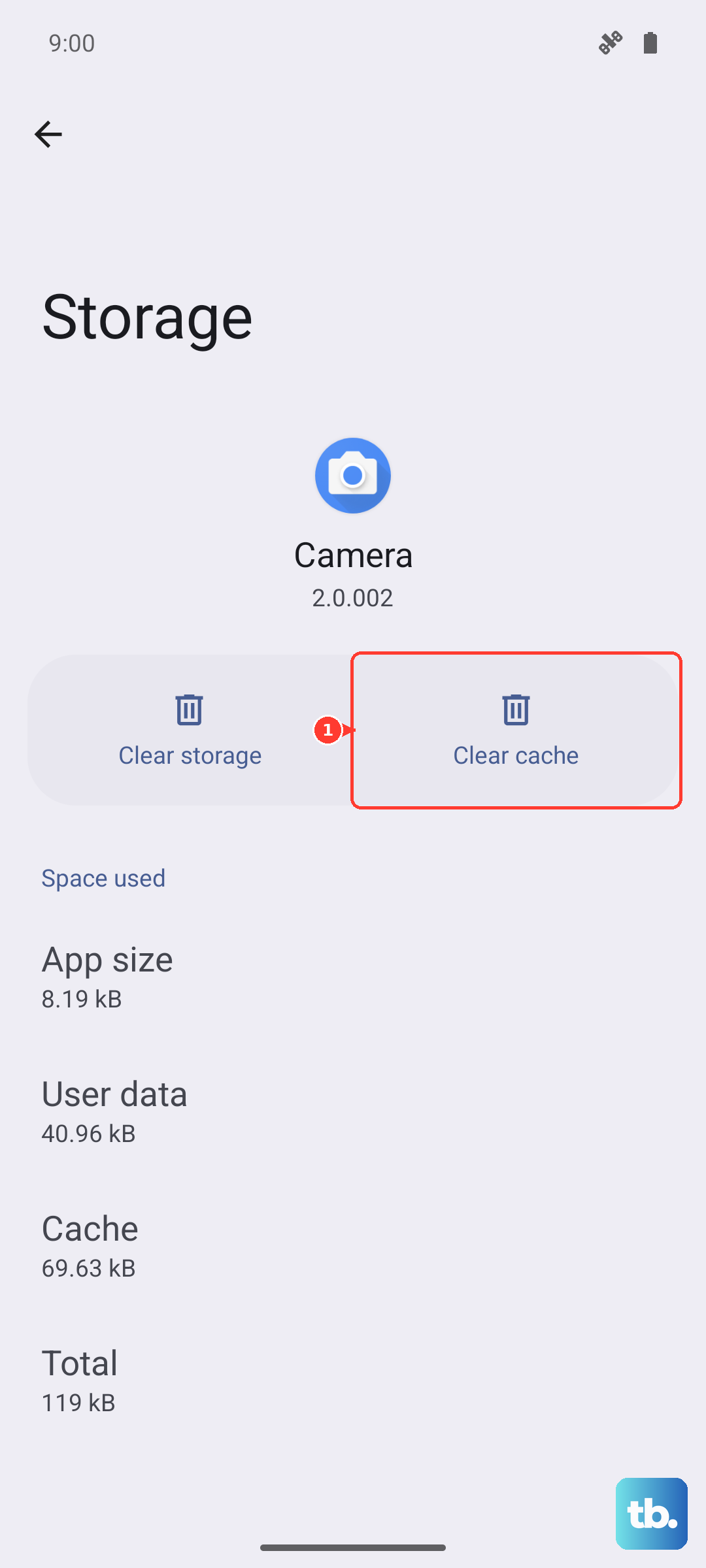
In that case, try clearing the app's cache. Go to Settings > Apps, select the problematic app, tap Storage, and then tap Clear cache. This is a good general maintenance tip for the A16 to help prevent occasional lag.
Reset All Settings
If you're still having trouble, a settings reset can help. This will revert all your system settings (like Wi-Fi passwords, Bluetooth pairings, and display preferences) back to factory defaults, but it won't touch your personal files, photos, or apps.
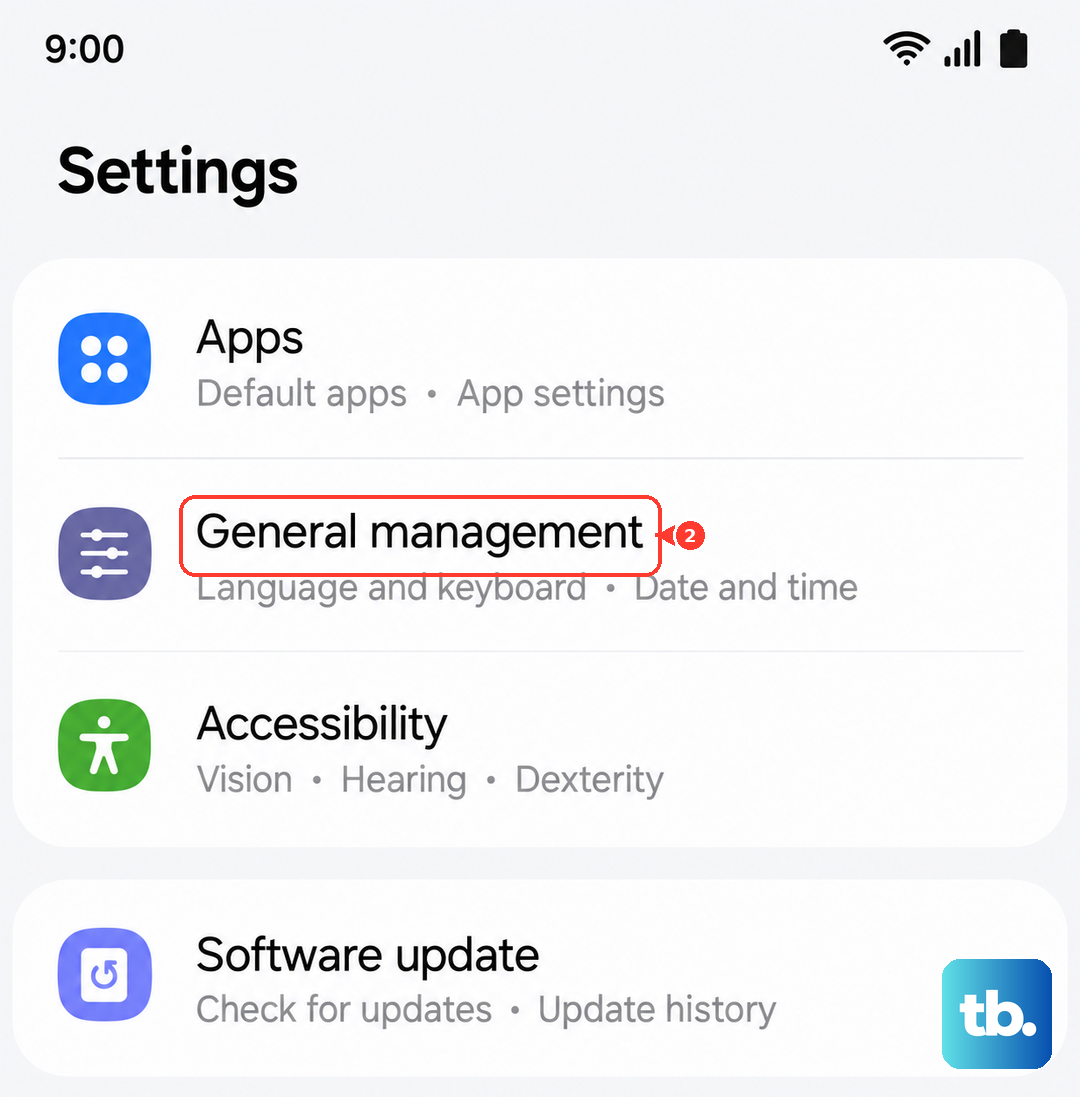
Go to Settings > General management > Reset > Reset all settings. You'll need to enter your PIN or password. After the phone reboots, you'll have to reconfigure your preferences, but it often clears out corrupted settings causing hardware issues.