
Seeing a "SIM Not Provisioned" message on your Samsung Galaxy A16 can stop you from making calls or using mobile data right when you need it. This error means your phone can't connect your SIM card to your carrier's service, so it's essentially not recognized as active on the network.
It's a common hiccup, and there are several straightforward things you can try to get back online. I'd start with the quick network refresh, as it solves the issue more often than you'd think.
Toggle Airplane Mode On and Off
Swipe down twice from the top of your screen to open the full Quick Settings panel. Tap the airplane icon to turn it on, wait about 15 seconds, and then tap it again to turn it off. This forces your Galaxy A16 to drop its current network connection and search for a fresh signal, which can clear up temporary provisioning glitches.
Perform a Force Restart
If a simple toggle doesn't work, a full restart can clear out deeper software bugs. For the Galaxy A16, press and hold the Volume Down button and the Side (Power) key together for about 10 seconds. Keep holding them until you see the Samsung logo appear on the screen, then let go. Your phone will boot up fresh and attempt to re-register with the network.
Check Your SIM Card's Physical Connection
It's worth taking a minute to check the SIM tray. Power your phone off completely first. Then, locate the small pinhole on the left side of the phone and use the ejector tool that came in the box (or a straightened paperclip) to pop out the tray.
Carefully remove the SIM card and look at the gold contacts. If you see any dust, lint, or smudges, gently wipe them clean with a soft, dry cloth. Re-seat the card firmly in the tray, making sure it's not loose, and slide the tray back into the phone until it clicks. Power the device back on.
Verify Your SIM is Activated and Account is Active
This is the most common cause, especially with a new SIM card or a recently transferred number. If you just got this SIM, it might not be fully activated on your carrier's system yet. Similarly, if you're on a prepaid plan, a low balance could have suspended service.
The fastest way to check is to contact your mobile provider's customer service. They can tell you in seconds if the SIM is active, if there's an unpaid balance, or if there's an outage in your area affecting provisioning.
Manually Select Your Network Operator
Sometimes the automatic network selection gets stuck. You can manually pick your carrier to force a connection. Open the Settings app on your Galaxy A16 and tap "Connections." Then, select "Mobile networks" and tap "Network operators."
Your phone will search for available networks. Once the list populates, select your specific carrier's name from the options. Don't worry if it takes a minute to register; this process can sometimes resolve provisioning errors that automatic selection misses.
Update Your Phone's Software
Software updates often include fixes for connectivity and carrier-related bugs. Go to Settings, scroll down and tap "Software update," and then tap "Download and install." If an update is available, follow the prompts to install it. I've seen minor updates specifically address SIM recognition issues on Samsung phones.
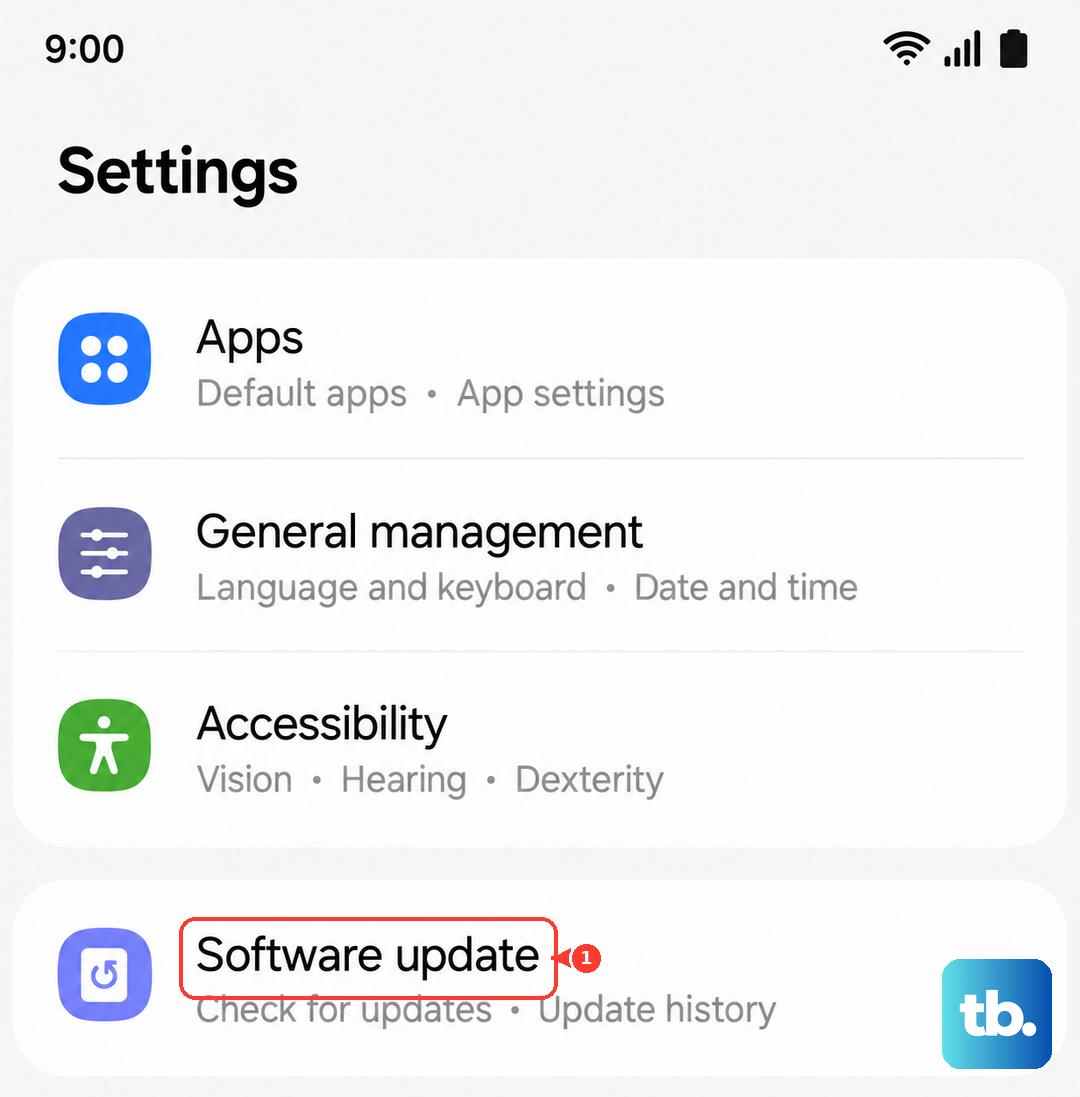
Keeping your Galaxy A16 on the latest version of Android and One UI helps ensure compatibility with your carrier's network settings.
Reset Your Network Settings
This will erase all your saved Wi-Fi passwords, Bluetooth pairings, and custom network preferences, but it's a powerful step for persistent mobile data issues. To do this, open Settings and go to "General management." Scroll down and tap "Reset," then select "Reset network settings."
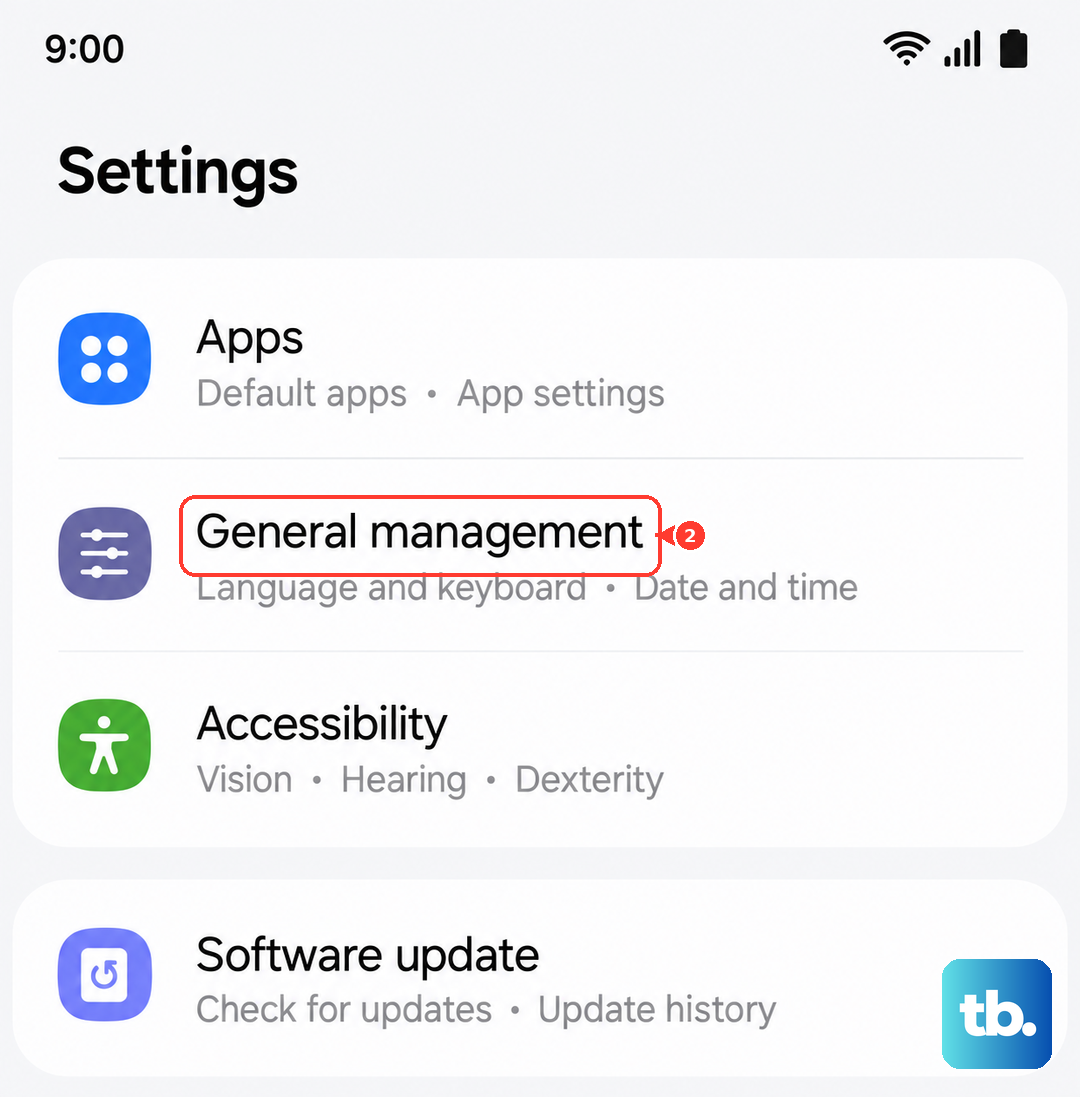
Tap "Reset settings" at the bottom and confirm. Your phone will reboot. After it turns back on, you'll need to reconnect to Wi-Fi and Bluetooth devices, but it often clears stubborn network configuration errors that cause the provisioning message.
Check for Carrier Services Updates
Open the Google Play Store app, tap your profile icon in the top right, and go to "Manage apps & device." Under the "Updates available" section, see if an app called "Carrier Services" is listed. If it is, tap "Update" next to it. This background app helps manage communication between your phone and your carrier's network.
Test the SIM Card in Another Phone
If you have access to another unlocked phone, try inserting your Galaxy A16's SIM card into it. If the other phone also shows a "Not Provisioned" error, then the issue is definitely with the SIM card or your carrier account. If the SIM works perfectly in the other device, the problem is likely specific to your Galaxy A16's hardware or software.
Contact Your Carrier for a Replacement SIM
If you've tried everything else and the SIM still doesn't work in any phone, the SIM card itself may be faulty, expired, or damaged. The final step is to get in touch with your mobile provider. Explain the troubleshooting you've done, and they can usually issue a replacement SIM card, often for free or a small fee.
They can also perform a deeper check on their end to see if there's a system error blocking your number. With a new SIM, you'll be back online as soon as it's activated.