
If your Samsung Galaxy A16 is refusing to send picture messages or group chats, it's a pretty common snag. The good news is it's almost always something you can fix yourself, whether it's a quick setting toggle or a deeper network reset. Let's get your MMS working again.
Start With a Quick Restart
Before diving into settings, give your phone a fresh start. Press and hold the Volume Down and Power buttons together for about 10 seconds until you see the Samsung logo. This force restart can clear out temporary glitches that might be blocking your messages.
Verify Your Mobile Data is On
MMS doesn't travel over your regular cellular signal or Wi-Fi, it needs mobile data. Swipe down from the top of your screen twice to open the full Quick Settings panel and make sure the Mobile Data icon is lit up. You can also go into Settings > Connections > Data usage to ensure it's enabled.
If you're on Wi-Fi, try turning it off temporarily. Some networks have firewalls that can interfere with MMS delivery, so forcing the message to use your cellular data often does the trick.
Check Your MMS App Settings
Open your Samsung Messages app and tap the three-dot menu in the top right, then go to Settings. Look for the Multimedia messages section here. Make sure "Auto download" is turned on.
Also, check the "Group conversation" setting. If that's off, your phone might be trying to send group MMS as separate individual texts, which can fail. I'd make sure both of these are enabled as a starting point.
Clear the Messages App Cache
Corrupted temporary files can cause all sorts of app weirdness. Go to Settings > Apps, find and select Messages. Tap on Storage and then hit Clear cache.
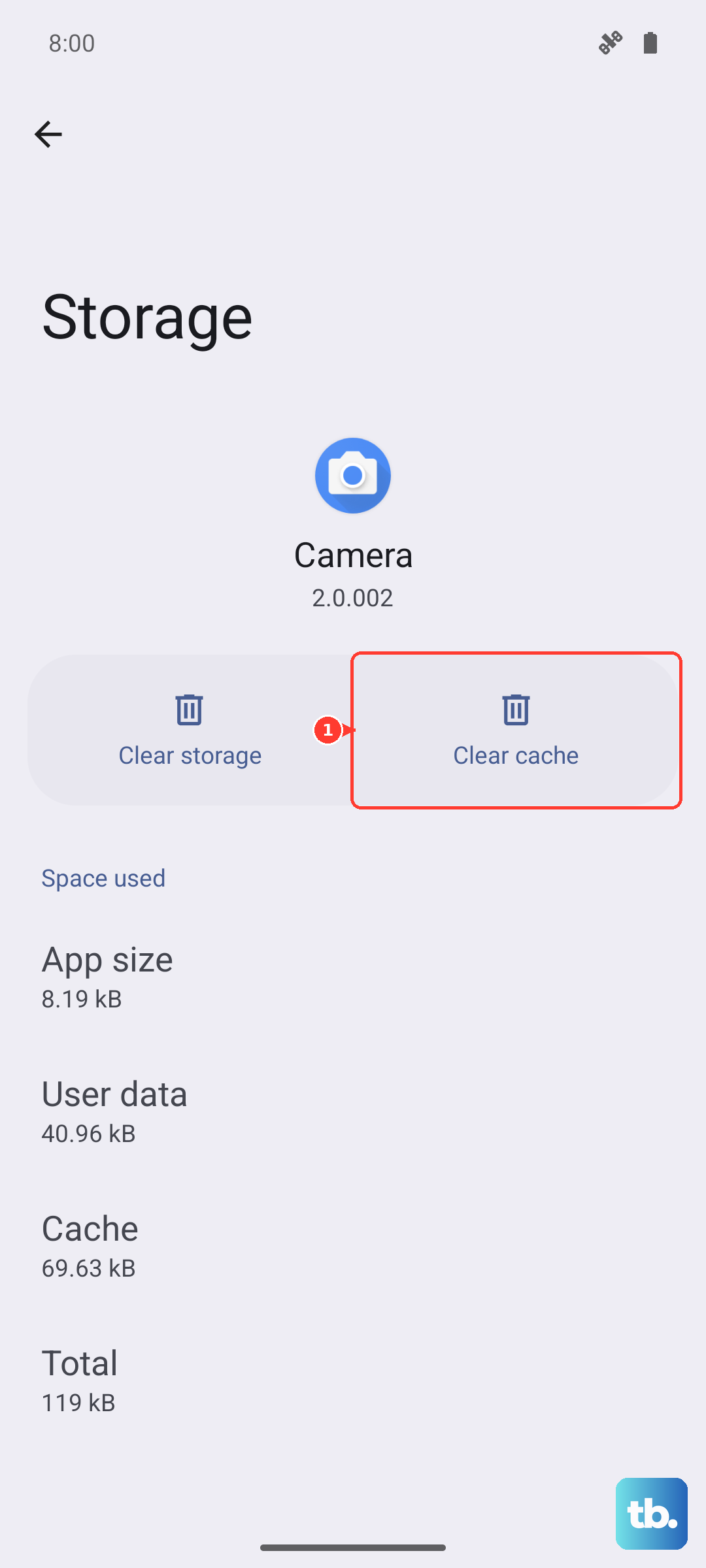
This won't delete any of your actual conversations. If the problem persists, you can go back and tap Clear data, but be warned this will erase your entire message history, so only do this if you're okay with that or have a backup.
Review Your APN Settings
This is a big one. Your Access Point Name (APN) is like the address your phone uses to find your carrier's MMS service. If it's wrong, messages go nowhere. Go to Settings > Connections > Mobile networks > Access Point Names.
You should see a list with your carrier's APN selected. If things look off or you only see a generic entry, you'll need the correct settings from your carrier. A quick web search for "[Your Carrier] APN settings 2024" or a call to their support will get you the right details to enter.
Reset Your Network Settings
If you're still stuck, this nuclear option for connectivity can work wonders. It will wipe all your saved Wi-Fi networks, Bluetooth pairings, and cellular settings back to factory defaults. Go to Settings > General management > Reset > Reset network settings.
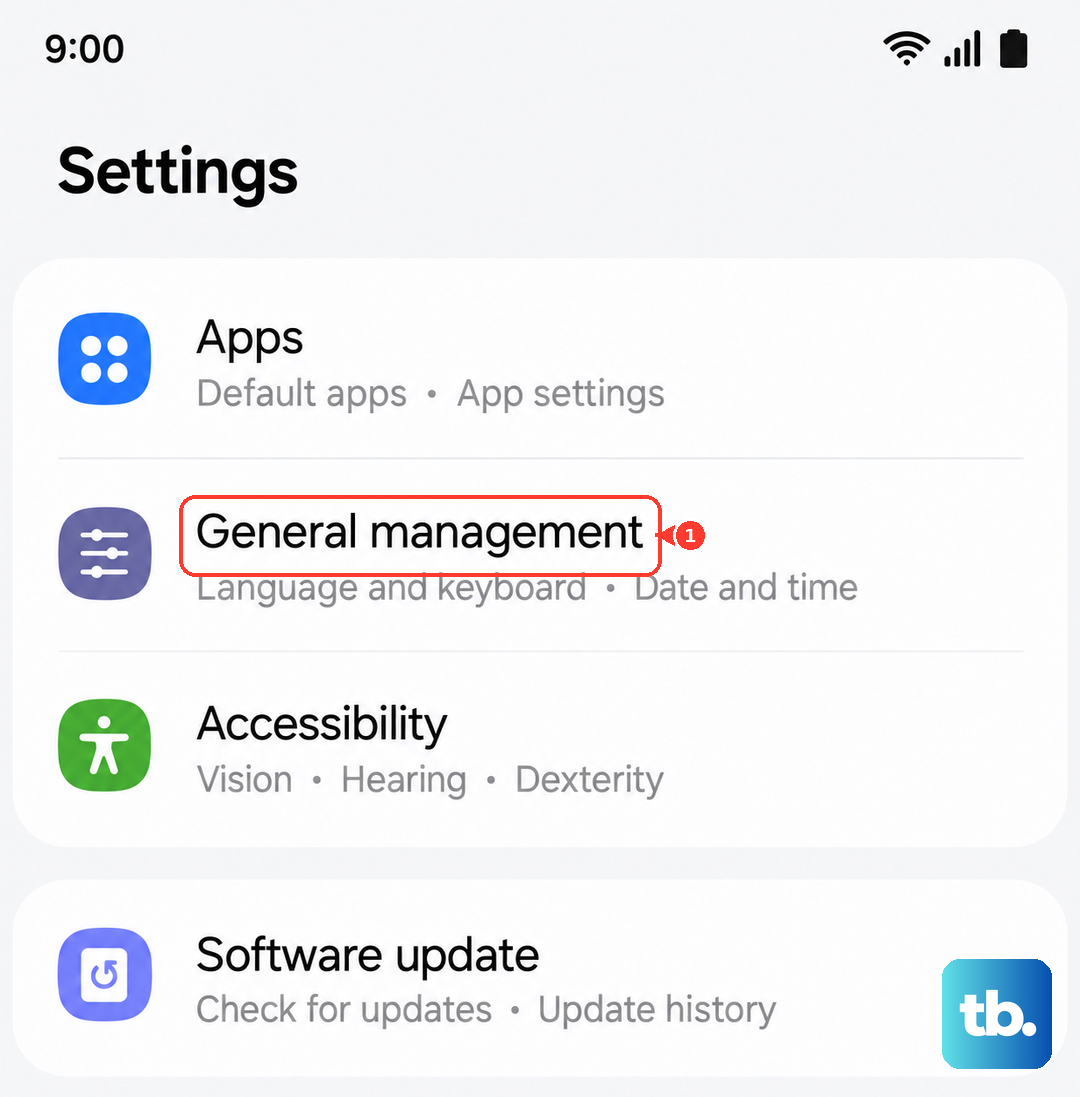
Tap to confirm, and your A16 will reboot. Afterward, you'll just need to reconnect to your Wi-Fi and re-pair any Bluetooth devices. This often cleans up obscure MMS configuration errors.
Make Sure Your Software is Updated
An outdated system can have bugs that break messaging. Samsung releases updates to patch these things. Head to Settings > Software update > Download and install.
Let it check for and install any available updates. Given the A16 runs Android 14 with One UI 6.1, there's a good chance Samsung has released stability improvements since launch that could help.
Check Your Phone's Storage Space
If your internal storage is completely full, your phone might not have room to process and send multimedia messages. Go to Settings > Battery and device care > Storage to see how much space you have left.
Try cleaning out some old downloads, app caches, or unused apps. Freeing up a few hundred megabytes can sometimes be all it takes to get things moving again.
Try a Different Messaging App
To rule out a problem with the Samsung Messages app itself, try installing Google Messages from the Play Store. Once installed, it will ask to be set as your default. Go with it and see if you can send an MMS.
If it works in Google Messages, the issue is specific to your Samsung app's configuration or data. You can either keep using Google's app or use its success as a clue to dig deeper into your Samsung app settings.
Look for Carrier-Specific Issues
Occasionally, the problem is on your carrier's end. It's worth giving them a quick call or checking their support site. Ask if there are any known MMS outages in your area or if they've recently changed any settings that might affect your Galaxy A16.
You can also ask them to reprovision your line for MMS, which is a fancy way of telling their system to refresh your messaging services. This has solved it for me more than once when nothing else would.