
When the flashlight on your Samsung Galaxy A16 won't turn on, it's a real hassle. The toggle in the Quick Settings panel might do nothing, or the camera flash might also be dead. Let's get it working again.
Close the Camera App First
The flashlight on your A16 uses the same LED as the camera flash. If the Camera app is running, even in the background, it locks that hardware. Swipe up from the bottom and hold to see your recent apps, then swipe the Camera app away to close it. Try the flashlight toggle again right after.
Perform a Force Restart
This is the go-to fix for most weird glitches on the Galaxy A16. Press and hold the Volume Down button and the Power button together for about 10 seconds. Keep holding until you see the Samsung logo appear, then let go. This clears the phone's temporary memory and often fixes a stuck flashlight.
Check Your Power Saving Modes
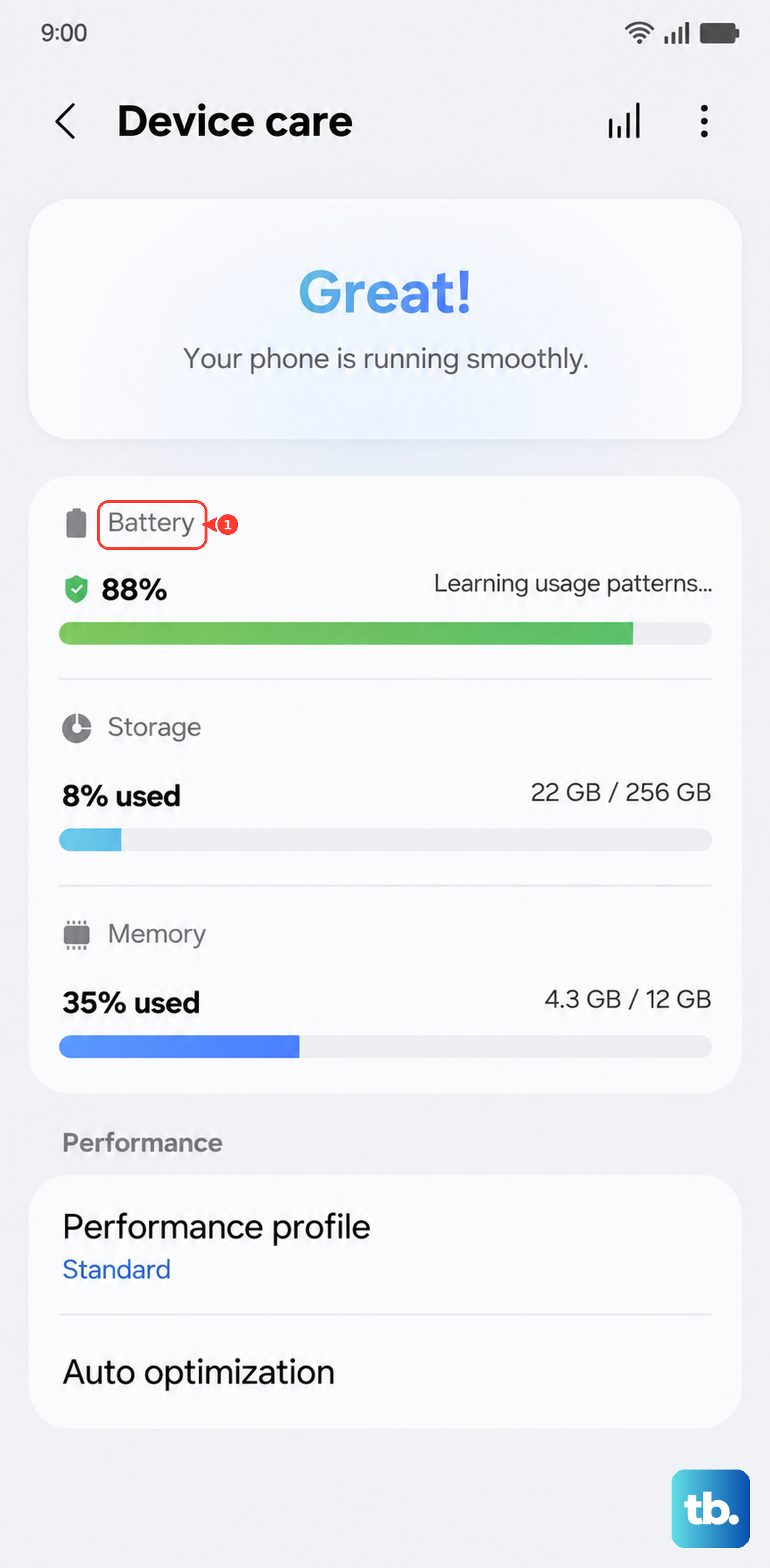
While power saving shouldn't outright disable the flashlight, it can sometimes make system features less responsive. Pull down the Quick Settings panel twice and look for any power saving icons. You can also go to Settings > Battery and device care > Battery to ensure all power saving modes are turned off before testing the light.
Let Your Phone Cool Down
If your Galaxy A16 has been working hard or is in a hot environment, it can overheat. As a safety measure, the system will disable certain features, including the flashlight. If the back of the phone feels warm, give it a break in a cooler spot for 10-15 minutes. The function should return once the temperature drops.
Use Google Assistant as a Workaround
Say "Hey Google, turn on the flashlight." If the Assistant can control it but your Quick Settings toggle can't, you're likely dealing with a minor software bug in the interface. The force restart mentioned earlier is your best bet to clear it up after using this method to confirm the light itself still works.
Adjust the Flashlight Brightness
You might not realize the flashlight is on if it's set to its dimmest level. Tap the text label under the flashlight toggle in your Quick Settings panel, don't just tap the icon. A menu should pop up letting you choose between different brightness levels. Set it to the highest setting and see if that makes it visible.
Reset Your App Preferences
This is a less drastic step than a full settings reset. Go to Settings > Apps, tap the three-dot menu in the top right, and select Reset app preferences. This resets permissions and default actions for all apps, which can sometimes resolve conflicts affecting system controls like the flashlight.
Install the Latest Software Update
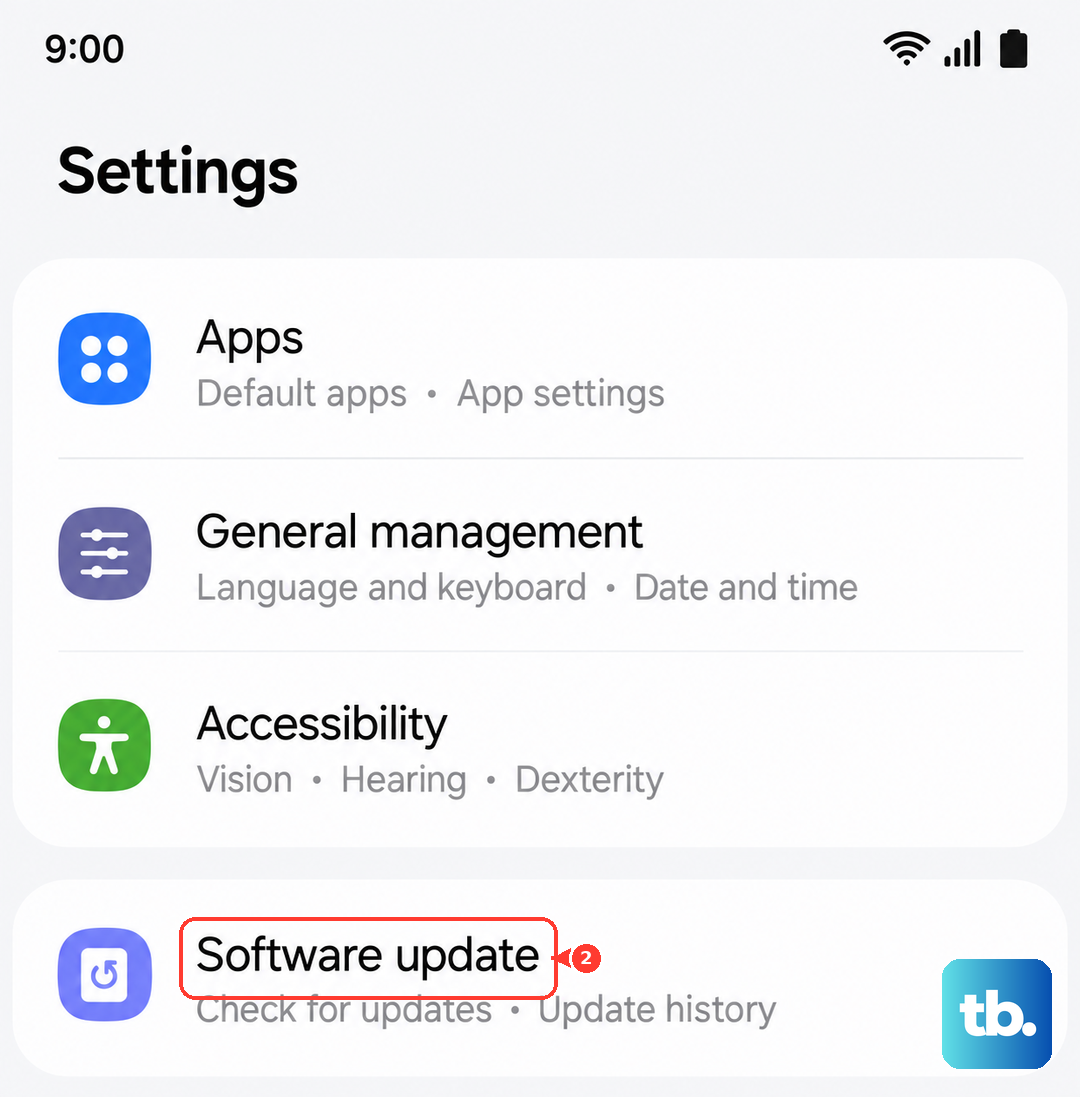
Samsung regularly releases updates that fix bugs. Go to Settings > Software update and tap Download and install. If there's an update available, install it. I've seen updates resolve specific issues with hardware controls on past Galaxy models.
Clear the System UI Cache
Sometimes the interface that controls the Quick Settings panel gets bogged down. Turn off your phone. Then, press and hold the Volume Up button and the Power button together until the Samsung logo appears. Use the volume keys to navigate to "Wipe cache partition" and select it with the power button. This clears temporary system files without touching your data.
Test the Camera Flash
Open your Camera app and try taking a picture with the flash forced on. If the flash doesn't fire during a photo, the LED hardware itself might have an issue. Since the flashlight uses the exact same component, this confirms a potential hardware problem that would need a technician to look at.