You plugged your Galaxy A16 into the charger expecting that 25W Super Fast Charging boost, but the battery is creeping up at a trickle, or the "Super fast charging" notice never appears on the lock screen. On a phone with a 5,000mAh battery (4,860mAh rated), a slow charge is frustrating, and it usually traces back to the charger you are using, a setting that is quietly throttling the battery, or something physical in the USB-C port. The good news is that the Galaxy A16 (both the A16 4G, model SM-A165, and the A16 5G, model SM-A166) genuinely supports 25W Super Fast Charging, so this is almost always fixable at home. Work through the checks below in order, starting with the quickest and safest, and save the reset and service options for last.
One thing to know up front, the A16 charges over its USB-C cable only. Neither variant supports wireless charging, so any "fast wireless charging" option you read about does not apply to this phone, even though it shares the same Samsung menus.
Begin with the charger, cable, and the outlet you plug into
This is the single most common reason an A16 will not fast charge. Samsung lists the 25W Super Fast Charging wall adapter as "sold separately," meaning it is not included in the box. If you are reusing an old, low-wattage brick or a generic charger, the phone simply cannot reach its full speed.
Samsung's guidance is to stick with Samsung-approved chargers and certified accessories for stable charging. For the fastest results, use a genuine Samsung 25W USB-C Super Fast Charging adapter together with a good USB-C cable, plugged into a wall outlet.
Avoid charging from a computer's USB port when you need speed. A computer port delivers less power than an authentic Samsung wall charger, which results in a slower charge, so plug a genuine Samsung charger into a wall outlet for the fastest top-up.
Check the charging toggles and battery caps in Settings
Before blaming the hardware, confirm the software is actually allowing fast charging. There are two settings worth checking, and the exact menu names vary slightly depending on which One UI version your phone is running.
To turn on the fast-charging option, Samsung's wording is: "Tap Settings. Select Battery. Select Charging settings. Enable Fast charging and Fast wireless charging." Because the A16 has no wireless charging, only the Fast charging toggle matters here, so ignore the wireless option.
On some One UI versions the same controls live in a different place. In that case, "Go to Battery and device care in Settings and tap Battery. Tap More battery settings. You can check the status of Fast charging, Super fast charging, and Fast wireless charging." Either path gets you to the same toggle.
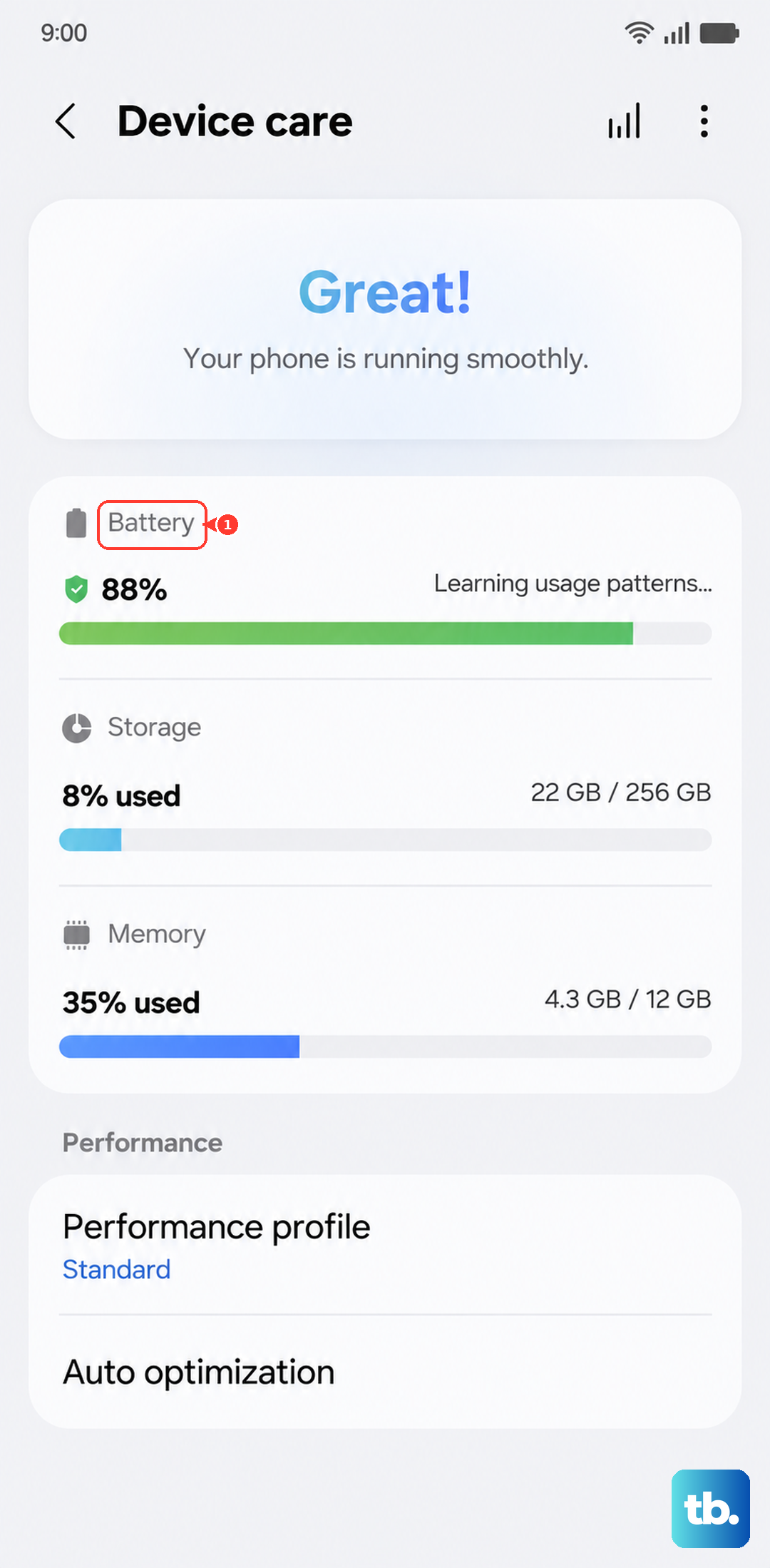
Next, rule out a battery-protection cap, which can intentionally limit or stop charging once the battery hits a set level. Open Settings, then tap Battery, and make sure "the switch next to Protect Battery or Battery Protection is turned off; it will appear gray when disabled." If that switch was on, your phone may have been stopping the charge on purpose.
Inspect the USB-C port for debris, damage, and moisture
Pocket lint packs into a USB-C port over time and pushes the cable just far enough out to break the connection. Before anything else physical, check that the phone, charger, and USB cable have no physical damage, and look over the USB connections for corrosion or bent pins. A frayed or bent cable should be swapped for an approved one.
If you see dust or debris lodged in the port, "remove debris using a soft brush." Do not poke around with metal tools such as pins or paper clips, which can damage the contacts inside the port.
Moisture is another silent blocker. If the phone detects liquid in the USB-C port, it stops charging as a safety measure. Samsung notes you can "Check for liquid damage. The indicator is found inside the SIM or SD slot, and will appear pink or red if it has been exposed to liquid." If the port has been wet, let it dry fully before you plug in again.
Keep the temperature down and put the phone to rest while it charges
Heat is a built-in speed limiter. Charging can be limited when the phone or the surrounding environment is too hot or too cold, so Samsung recommends charging at room temperature. If your A16 has been in a hot car or sitting in direct sun, move it somewhere cooler and try again.
What you do with the phone while it is plugged in matters too. Browsing the web, watching video, and playing games while the phone charges all lead to a slower charging rate. For the quickest top-up, set the phone down and leave it alone while it charges.
Clear a software glitch with a restart and an update
A frozen or glitchy system can stall the charging process even when the hardware is fine. A force restart clears that without touching your data. Follow the official sequence exactly:
- 1.Press and hold the Volume down button and the Side button (or Power button) at the same time.
- 2.Keep holding (Samsung UK says hold for more than 7 seconds) until the device turns off and turns back on.
- 3.The screen goes black, then the Samsung logo appears, and the phone restarts.
This force restart does not delete any data, so it is safe to do whenever the phone is unresponsive or behaving oddly.
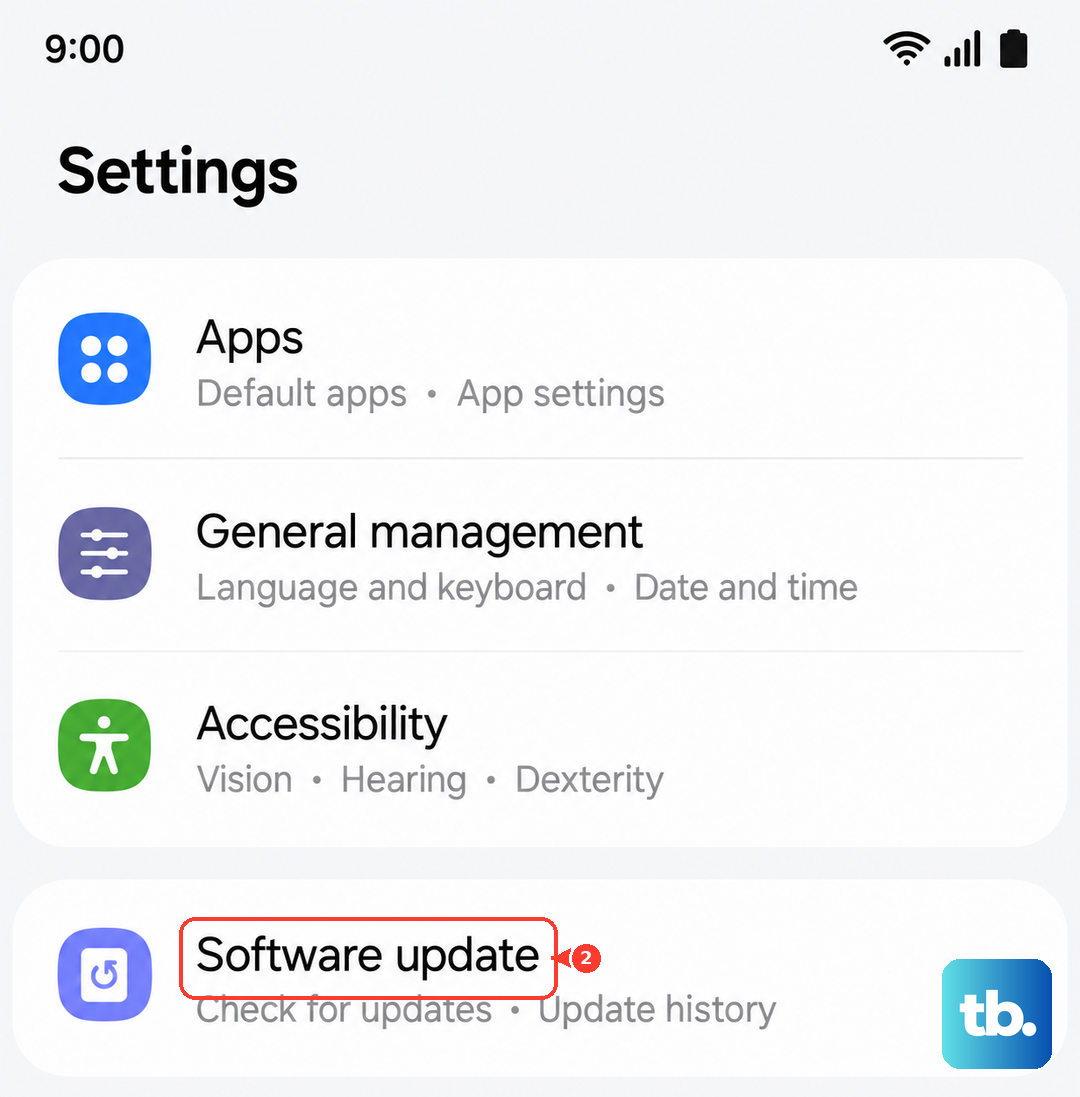
A firmware bug can also affect how the phone charges, and Samsung pushes fixes through software updates. To check, open Settings, then tap Software update, then tap Download and install or Check for updates (Settings > Software update > Download and install). Stay on Wi-Fi, keep some charge in the phone, and let the update finish. If the update will not install on the phone itself, you can update over USB using Samsung Smart Switch on a computer.
Let the phone test its own battery and port
The A16 ships with the Samsung Members app, which includes an official diagnostic that checks the battery and charging port for you. This is the fastest way to tell a setting problem apart from a hardware fault.
- 1.Open the Samsung Members app.
- 2.Go to Phone diagnostics.
- 3.Tap "Battery status" or "Cable charging" to start the test.
- 4.Follow the on-screen guidance if the test reports a problem.
If the diagnostic flags the battery or the port, that points you toward a service visit rather than more home troubleshooting.
Reset as a last resort, then get it checked
If every step above has failed and the diagnostic is inconclusive, a factory data reset can clear a deeper software issue. This erases everything on the phone, so it is genuinely a last resort. Back up your photos, contacts, and files first, and have your Samsung account password ready, because you may need it after the reset.
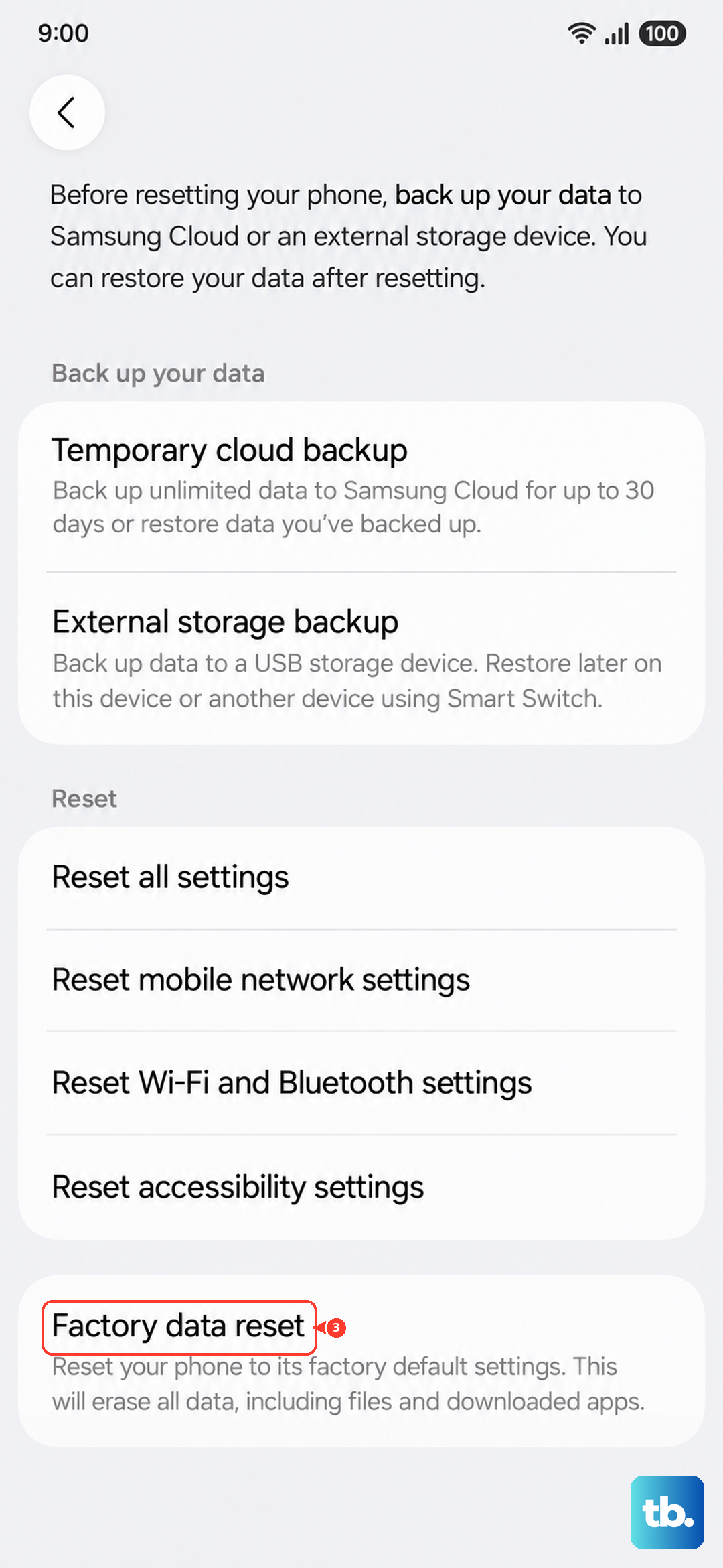
Samsung's warning is direct: "Please save any information you need prior to the factory reset because your personal information may not be recovered." Once you have a backup, follow the official path:
- 1.Open Settings.
- 2.Tap General management.
- 3.Tap Reset.
- 4.Tap Factory data reset.
- 5.Tap Reset, then tap Delete all.
If charging still fails after a reset, the problem is most likely hardware, such as the battery or the charging board, and that needs a technician. Visit a Samsung service center or schedule a repair online, and bring your charger and cable so the service team can test the whole setup.
Frequently Asked Questions
Does the Galaxy A16 actually support fast charging?
Yes. Samsung's official spec pages for both the A16 5G (SM-A166) and the A16 4G (SM-A165) list a 5,000mAh battery (4,860mAh rated) with 25W Super Fast Charging. The phone can fast charge, but only with the right adapter and cable.
Why doesn't my A16 fast charge out of the box?
The 25W Super Fast Charging wall adapter is sold separately and is not included in the box. If you are using an older or weaker charger, the phone falls back to a slower speed, so a genuine Samsung 25W USB-C adapter is usually what is missing.
Can the Galaxy A16 charge wirelessly?
No. Both A16 variants are wired charging only, with no wireless charging support. Any "fast wireless charging" toggle you see in the menus does not apply to this phone, so focus on the wired Fast charging option.
Why does my A16 charge slowly from my laptop?
Charging over a USB cable connected to a computer delivers less power than an authentic Samsung wall charger, which results in a slow charge. For the fastest results, plug into a wall outlet with a genuine Samsung charger instead.
Will these fixes erase my data?
Most will not. A force restart and a software update do not delete anything. Only the factory data reset erases everything on the phone, so back up your data before using that step, as your personal information may not be recoverable afterward.