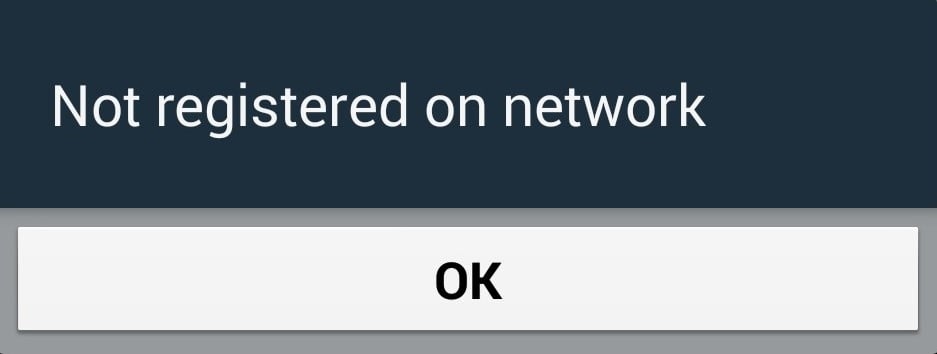
If your Android phone shows a null or unknown IMEI, or displays a not registered on network error, your device cannot make calls, send texts, or use mobile data. The IMEI (International Mobile Equipment Identity) is a unique 15-digit number that identifies your phone to your carrier. When the carrier cannot read a valid IMEI, your phone effectively becomes invisible to nearby cell towers.
The good news is that most of the time this is a software or SIM problem, not a damaged IMEI. The two issues often appear together, so the steps below start with the quick fixes that resolve the network error for most people, then move on to what to do if the IMEI itself is genuinely missing.
Check Your IMEI First
Open your phone dialer and enter *#06#. A valid IMEI is a 15-digit number, and a dual-SIM phone will show two of them.
If you see a real number here, your IMEI is fine and your problem is almost certainly a SIM, carrier, or network-settings issue, so focus on those fixes. If you instead see "Null," "Unknown," "000000," or a blank field, the IMEI is not being read and you will want the dedicated IMEI section near the end of this guide.
You can also confirm the number under Settings > About phone > IMEI. Keep this number somewhere safe, because your carrier may ask for it when you call.
Restart Your Phone
A restart forces your phone to re-register with the nearest cell towers from scratch, which clears the temporary glitches behind most of these errors. It is the single most effective first step, so do not skip it.
Press and hold the power button (or the power and volume-up buttons on many recent phones), tap Restart, and wait for the device to fully boot. Once you see the home screen, check whether the signal bars and IMEI have returned.
Toggle Airplane Mode On and Off
Airplane mode shuts off the cellular radio, and turning it back off triggers a fresh connection to your carrier without a full reboot. It is faster than restarting and often does the same job.
Swipe down to open Quick Settings, tap the Airplane Mode icon, wait about 30 seconds so the radio fully powers down, then tap it again to turn it off. Give the phone a moment to find the network before you check the signal.
Reseat or Swap the SIM Card
A loose, dusty, or worn SIM card is one of the most common causes of both errors, including a null IMEI read on some phones. Reseating it costs nothing and often fixes the problem instantly.
Power off the phone, eject the SIM tray with the supplied pin tool, and lift out the SIM. Check the gold contacts for dirt or damage, wipe them gently with a dry cloth, then seat the SIM firmly and slide the tray fully back in before powering on.
If the error stays, borrow a known-working SIM from another person and try it in your phone. If the borrowed SIM connects, your own SIM is faulty and your carrier can replace it for free. If the borrowed SIM also fails, the issue is with your phone, not the card.
Confirm Your Carrier Account and Coverage
Sometimes nothing is wrong with the phone at all. An expired prepaid plan, an unpaid bill, a suspended line, or a local network outage produces the exact same "not registered on network" message.
Log into your carrier's app or website, or call customer service from another phone, and confirm your account is active and in good standing. Ask whether there is an outage in your area, and if you recently switched carriers, confirm the line has finished provisioning.
If you bought the phone used or imported it, ask the carrier whether the device is locked to another network or blocked. A carrier-level IMEI block has to be cleared by the carrier and cannot be fixed from the phone.
Reset Network Settings
Resetting network settings clears corrupted Wi-Fi, Bluetooth, and cellular configurations that can block registration. It does not delete photos, contacts, or apps, but it does erase saved Wi-Fi passwords and Bluetooth pairings, so be ready to reconnect those.
On Samsung Galaxy phones, go to Settings > General management > Reset > Reset network settings, then tap Reset settings to confirm. On Pixel and most stock Android phones, go to Settings > System > Reset options > Reset Wi-Fi, mobile & Bluetooth.
The phone will apply the reset and reconnect to your carrier with a clean slate. The exact wording varies slightly by brand and Android version.
Check and Fix Your APN Settings
Access Point Name (APN) settings tell your phone how to reach your carrier's network. If they are wrong or missing after a SIM swap or carrier change, you can show as not registered even with a valid IMEI.
Go to Settings > Connections > Mobile networks > Access Point Names on Samsung, or Settings > Network & internet > SIMs > Access Point Names on stock Android. Tap the menu and choose Reset to default to restore the carrier's correct settings.
If resetting does not help, your carrier's support page or support line can give you the exact APN values to enter manually.
Change the Preferred Network Type
Your phone may be locked onto a band, such as 5G, that has weak or no coverage where you are. Dropping to a more widely available band can restore the connection.
Go to Settings > Connections > Mobile networks > Network mode on Samsung, or Settings > Network & internet > SIMs > Preferred network type on stock Android. Try a lower option such as LTE before 5G, and see whether the phone registers.
If a lower band works, the issue is coverage on the higher band rather than your phone. You can switch back to the wider setting once you are in a stronger signal area.
Update Your Phone Software
Manufacturers and carriers push updates that patch modem firmware and fix known network-registration bugs. Running outdated software can leave your phone unable to authenticate with modern towers.
Go to Settings > Software update on Samsung, or Settings > System > System update on most other phones, and install anything available. Let the phone restart and test the connection again.
Clear the Phone App Cache
The Phone app handles telephony, and a corrupted cache can interfere with calling and registration. Clearing the cache removes only temporary files and leaves your contacts and call history intact.
Go to Settings > Apps > Phone > Storage and tap Clear cache. Restart the phone afterward so the app rebuilds cleanly, then check whether the error is gone.
What to Do About a Genuine Null IMEI
If *#06# still shows null or zeros after the steps above, the IMEI itself is not being read. This usually traces back to a corrupted or wiped EFS partition (sometimes called NV data), which most often happens after rooting, flashing custom firmware, or a failed update. It can also be a hardware fault, such as a failing baseband or a board that was replaced.
Restoring your phone's own original IMEI is legitimate, but it is device-specific. The correct method depends on your chipset, since Qualcomm and MediaTek phones use different procedures, and it normally requires technical tools or service software. If you made an EFS or NV backup before modifying the phone, restoring that backup is the safest path.
The simplest and safest route for most people is an authorized service center or your manufacturer's support. They can restore the original IMEI through proper channels or repair the radio hardware. Be aware that restoring your device's genuine IMEI is legal, but changing it to a different number is illegal in the United States, the United Kingdom, the European Union, Canada, Australia, and many other countries, so avoid any tool or service that offers to assign a new IMEI.
Factory Reset as a Last Resort
If the network error persists and the IMEI reads correctly, a factory reset clears any deeper software corruption. It erases everything on the phone, so back up your photos, contacts, and files first.
On Samsung, go to Settings > General management > Reset > Factory data reset; on stock Android, go to Settings > System > Reset options > Erase all data (factory reset). Set the phone up again afterward and test the connection.
If the problem survives a factory reset, or the IMEI is still null, the cause is almost certainly hardware or the IMEI partition, and the phone needs a repair shop or the manufacturer.
Frequently Asked Questions
How do I check my IMEI on Android
Open the phone dialer and enter *#06#, or go to Settings > About phone > IMEI. A valid IMEI is a 15-digit number, and dual-SIM phones show two of them.
Why does my phone say not registered on network
It means your SIM cannot connect to your carrier, usually due to a software glitch, a loose or faulty SIM, wrong network or APN settings, an account or billing issue, or a network outage. Less often it points to a missing IMEI or hardware fault.
Is it legal to fix or change my IMEI
Restoring your device's original IMEI is legal and is what authorized repairs do. Changing it to a different number is a criminal offense in the United States, the United Kingdom, the European Union, Canada, Australia, and many other countries, so never use a tool that assigns a new IMEI.
Will resetting network settings delete my data
No. It removes saved Wi-Fi passwords, Bluetooth pairings, and cellular configurations, but it does not touch your photos, contacts, messages, or apps. Only a factory reset erases everything.
Why did my IMEI become null
A null IMEI usually means the EFS or NV partition that stores it was corrupted or wiped, most often after rooting, flashing custom firmware, or a failed update. It can also be caused by a hardware fault in the phone's radio.
Can a damaged SIM cause a null IMEI reading
A bad SIM mainly causes the not registered on network error, but on some phones a poorly seated or faulty SIM can affect the reading. Reseat the SIM and test a known-working one before assuming the IMEI itself is damaged.
First published October 14, 2025. Last updated June 4, 2026.