
When your Redmi Note 14 Pro's voice assistant stops responding, it can feel like you've lost a helpful tool right when you need it. Whether you're using the built-in Google Assistant or Xiaomi's own XiaoAi, getting it working again is usually straightforward. I'd start with the quick fix below, as it resolves the issue for most people.
The most common reason for voice assistant failure is a simple software glitch. A force restart can clear this up in about 30 seconds. Just press and hold the Power button on the side of your phone for 15 seconds or more. Keep holding it until you see the Redmi or Xiaomi logo appear on the screen, then release. This forces a clean reboot without deleting any of your data.
Check Your Voice Assistant Settings
First, confirm which assistant you're trying to use and that it's properly enabled. Your Redmi Note 14 Pro can use Google Assistant, XiaoAi, or both, depending on your region and setup.
For Google Assistant, open the Google app and tap your profile picture in the top right. Go to Settings > Google Assistant. Here, make sure "Hey Google" is toggled on. You can also retrain the voice model from this menu if it's having trouble recognizing you.
If you're using XiaoAi, the path is slightly different. Go to your phone's main Settings app, then tap Additional settings. Look for Voice wake-up or XiaoAi and ensure the wake-up feature is enabled. Sometimes, a system update can reset these permissions.
Review App Permissions and Accessibility
Voice assistants need specific permissions to function. If you've recently updated an app or the HyperOS software, these might have been revoked.
Head to Settings > Apps > Manage apps. Find either "Google" or "XiaoAi" in the list and tap on it. Select Permissions and ensure that the Microphone permission is set to "Allow." While you're there, check that the app is not restricted in the battery saver settings, which can prevent it from running in the background.
Also, check under Settings > Additional settings > Accessibility. Some features here, like "Sound Amplifier," can interfere with the microphone input. Try disabling any accessibility services you're not actively using to see if that restores functionality.
Clear the Assistant App's Cache and Data
Corrupted temporary files can cause the voice assistant to freeze or crash. Clearing the cache is a safe first step that won't delete your personal data or settings.
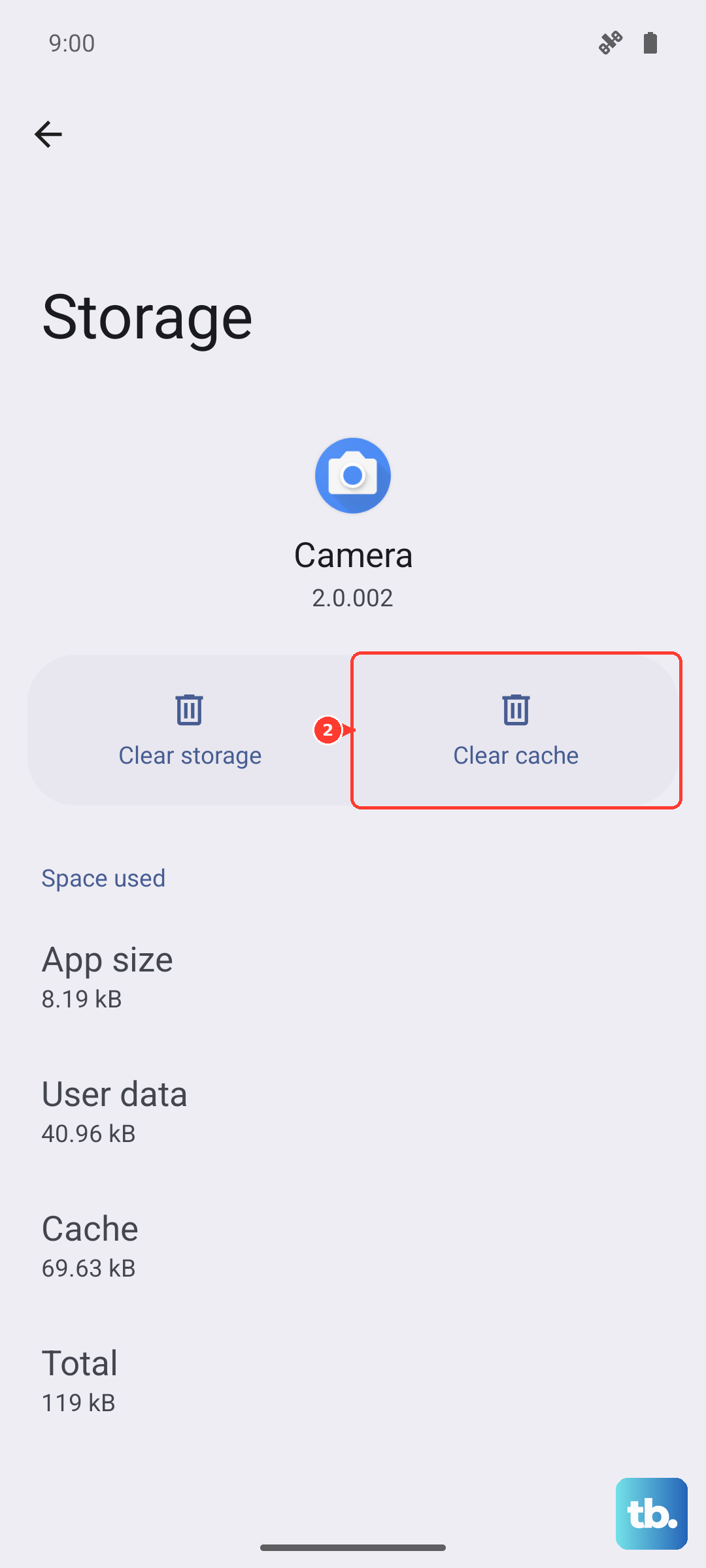
Go back to Settings > Apps > Manage apps. Select the Google or XiaoAi app. Tap on Storage usage at the bottom. First, tap Clear cache. If that doesn't work, you can try Clear data. Be aware that clearing data will reset the app to its default state, so you'll need to set up your voice model and preferences again.
Update Your Apps and System Software
Running outdated software is a frequent cause of bugs. The Google app receives updates frequently through the Play Store, so make sure it's current.
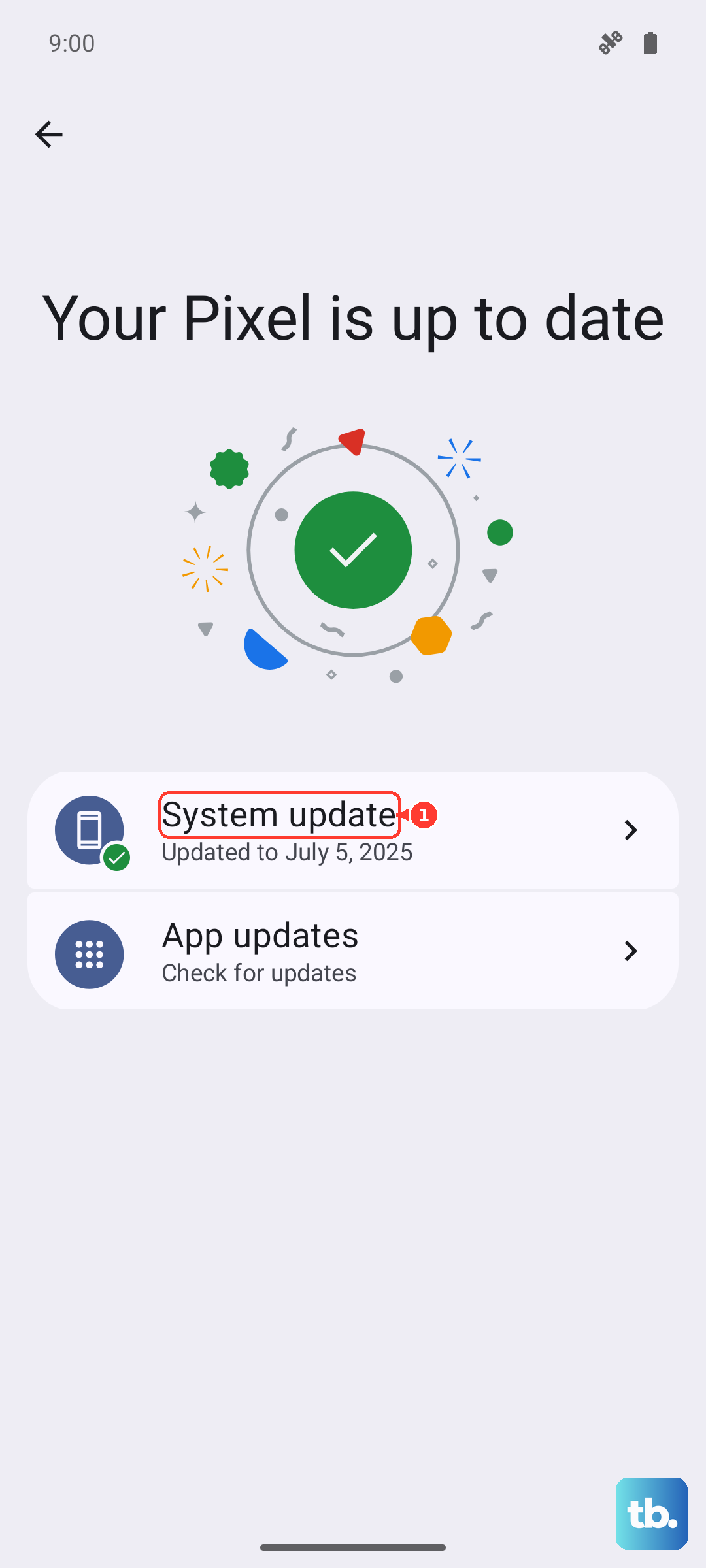
Open the Google Play Store, tap your profile icon, and go to Manage apps & device. Under "Updates available," see if the Google app is listed. If it is, update it. For system-level components and XiaoAi, you need to check for a HyperOS update. Go to Settings > About phone > HyperOS version and tap "Check for updates." Installing the latest software can patch known voice assistant issues.
Check for Audio Conflicts and Microphone Issues
If you have Bluetooth headphones or a speaker connected, try disconnecting them. Sometimes the audio routing gets confused, and the phone tries to listen for the wake word through a disconnected device. Also, ensure your phone isn't on silent or vibrate mode, as this can affect some response settings.
Physically, check the microphone ports on your Redmi Note 14 Pro. There are multiple mics, usually one at the bottom next to the USB-C port and one at the top. Make sure they aren't blocked by a case, dirt, or a poorly aligned screen protector. A gentle clean with a soft, dry brush can help.
Disable Battery Saver and Optimizations
HyperOS can be aggressive with background app management to save battery life, which can sometimes shut down the processes needed for "Hey Google" or "XiaoAi" to work.
Go to Settings > Battery. If Battery Saver is on, turn it off temporarily. Then, tap on App battery saver. Find the Google or XiaoAi app and set its battery mode to "No restrictions." This tells the system not to limit its background activity.
Verify Your Network Connection
While basic commands might work offline, many voice assistant features require an internet connection. Check that you have a stable mobile data or Wi-Fi connection. You can try toggling Airplane mode on and off from the quick settings panel to reset your network radios quickly.
Reset App Preferences or All Settings
If permissions are deeply misconfigured, you can reset all app preferences at once. This won't delete app data, but it will reset notification settings, default apps, and background restrictions.
Navigate to Settings > Apps > Manage apps. Tap the three-dot menu in the top right and select Reset app preferences. Confirm the action. For a more thorough reset, you can go to Settings > Additional settings > Backup & reset > Reset phone. Here, choose Reset all settings. This will revert all system settings (like Wi-Fi passwords and wallpapers) to default but will keep your personal files intact.