
Seeing a "SIM Card Not Provisioned" message on your Realme GT 7 Pro can stop you in your tracks. It means your phone can't connect to your carrier's network, so you can't make calls, send texts, or use mobile data. This is usually a provisioning issue, where the carrier's system hasn't properly activated or recognized your SIM.
I'd start with the simplest fixes first. A quick restart or toggling airplane mode can often clear up a temporary network glitch. If you just got a new SIM, it might not be activated yet, which is the most common reason for this error.
Restart Your Realme GT 7 Pro
First, try a normal restart. Press and hold the power button until the power menu appears, then tap "Restart." This gives the phone's modem and network software a fresh start. If the phone is unresponsive, you can force restart it by holding the power button for about 10 seconds until you feel it vibrate and the Realme logo appears.
Check SIM Card Activation and Account Status
If this is a new SIM card, it likely needs to be activated. You'll need to contact your carrier directly to check its status. For prepaid plans, also verify you have sufficient balance, as an empty account can cause service suspension. You can usually check this through your carrier's official app or website.
Toggle Airplane Mode
Switching airplane mode on and off forces your phone to re-scan for available networks. Swipe down from the top of your screen to open the Quick Settings panel and tap the airplane icon. Wait about 15 seconds, then tap it again to turn it off. Give your phone a moment to reconnect to your mobile network.
Reinsert the SIM Card
It's worth checking the physical connection. Power off your GT 7 Pro first. Use the SIM ejector tool that came in the box to pop open the tray on the bottom edge of the phone. Carefully remove the SIM, inspect the gold contacts for any dirt or damage, and then firmly reseat it. Make sure the tray is fully inserted before turning the phone back on.
Update Your Phone Software
Outdated system software can sometimes cause network conflicts. Realme frequently releases updates that improve stability. Go to Settings > About phone and tap on "Realme UI version." If an update is available, download and install it. It's a good idea to connect to Wi-Fi first, as these updates can be large.
Manually Select Your Network Operator
Automatic network selection can occasionally fail. You can try picking your carrier manually. Navigate to Settings > Mobile network. Tap on "Network operators" or a similar option. Your phone will search for available networks. When the list appears, select your specific carrier from it.
Reset Your Network Settings
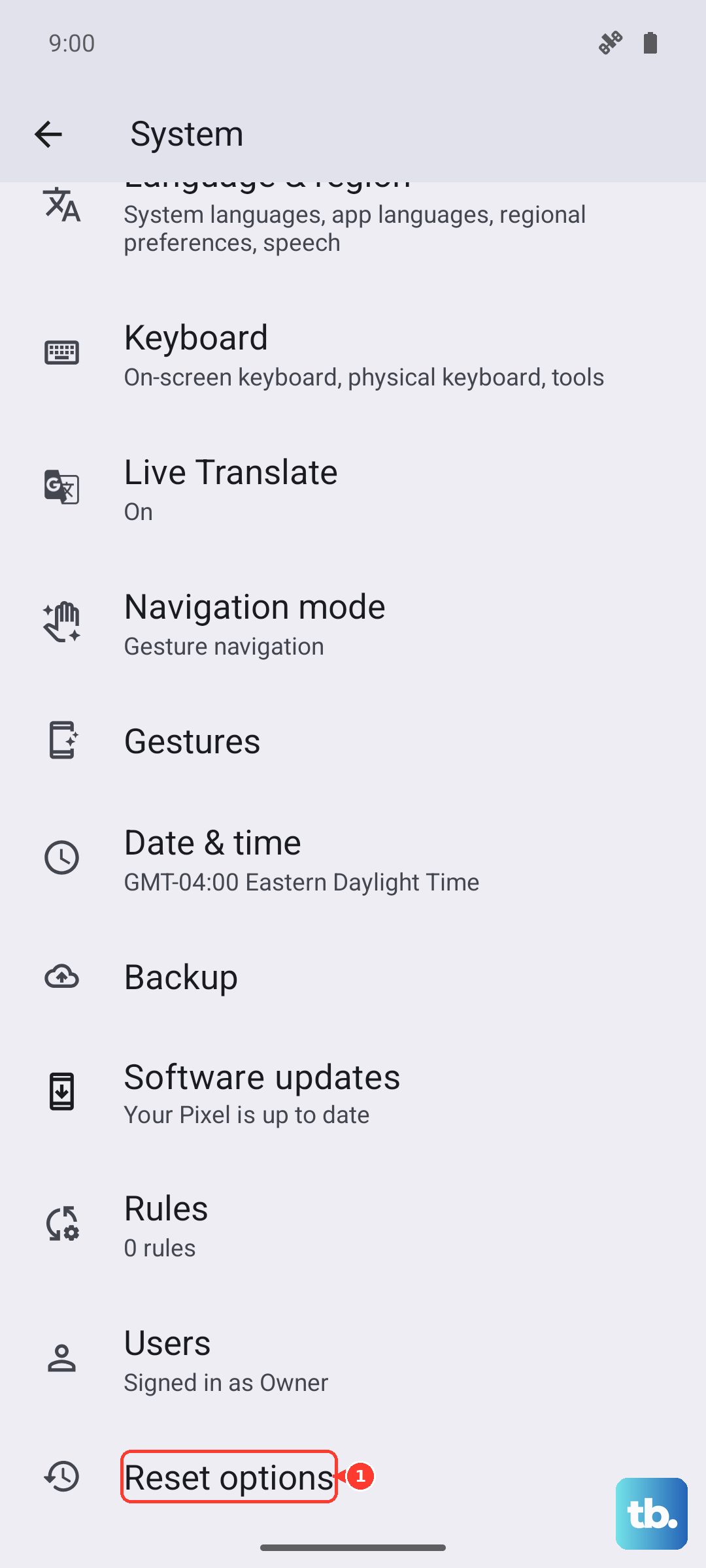
This will clear all your saved Wi-Fi networks, Bluetooth pairings, and mobile network configurations, but it often resolves persistent connection issues. On your GT 7 Pro, go to Settings > System > Reset options. Tap on "Reset Wi-Fi, mobile & Bluetooth." Confirm the action, and your phone will restart. You'll then need to reconnect to your Wi-Fi and re-pair Bluetooth devices.
Check for Carrier Services Updates
Android uses a component called Carrier Services to help manage network connections. Open the Google Play Store, tap your profile icon, and go to "Manage apps and device." Under "Updates available," see if Carrier Services is listed. If it is, update it. This app works in the background to improve SMS and network reliability.
Try the SIM Card in Another Phone
This test tells you where the problem lies. If you have access to another unlocked Android phone, power it off and insert your GT 7 Pro's SIM card. Turn that phone on. If the SIM works normally in the other device, the issue is likely with your Realme phone's hardware or software. If it also shows as not provisioned, the problem is with the SIM or your carrier account.
Contact Your Mobile Carrier
If you've tried everything else, your carrier's support team needs to investigate. They can check for outages in your area, verify your account and SIM are fully activated, and ensure your line is properly provisioned on their network. They may also determine that your SIM card is faulty and need to issue you a replacement, which is often free.