
Seeing a "Not Registered on Network" or "Emergency Calls Only" message on your Realme GT 7 Pro is incredibly frustrating. Your powerful Snapdragon 8 Elite processor and 6500mAh battery are useless if the phone can't connect to your carrier. This error means your device can't make calls, send texts, or use mobile data, essentially turning your flagship phone into a Wi-Fi-only mini tablet.
Before we get into the fixes, let's check your IMEI. Open your phone dialer and type *#06#. You should see a 15-digit number. If it shows "null," "unknown," or a string of zeros, that's a specific problem we'll address. Most of the time, though, the issue is a simpler software or settings glitch that you can fix yourself in a few minutes.
Start With a Force Restart
Given the GT 7 Pro's powerful hardware, a simple software hiccup can sometimes stall the cellular modem. A force restart is more thorough than a standard reboot. Press and hold the Power button for about 10 seconds, until you feel the phone vibrate and see the Realme logo appear. This clears the system cache and gives the modem a fresh start.
Toggle Airplane Mode
This is the quickest way to force your phone to re-register with the network. Swipe down from the top of your screen to open the Quick Settings panel and tap the Airplane Mode icon. Wait for about 15 seconds to let all radios fully disable, then tap it again to turn it off. You should see the signal bars disappear and then search again.
Check and Reseat Your SIM Card
Even a slightly misaligned SIM can cause problems. Use the SIM ejector tool that came in the box to pop out the tray. Carefully remove the SIM card, inspect the gold contacts for any dirt or damage, and gently blow on the tray slot. Reinsert the SIM, making sure it's seated firmly in the tray, and push the tray all the way back in until it clicks. Power your phone back on.
Verify Your Carrier Account
It's worth a quick check to rule out account issues. An unpaid bill or an expired prepaid plan will show the exact same error on your phone. Try logging into your carrier's website or app from another device, or give them a quick call from a different phone to confirm your line is active and in good standing.
Reset Your Network Settings
This is a very effective step for network problems on Realme UI. It will erase all saved Wi-Fi networks, Bluetooth pairings, and cellular configurations, forcing your phone to rebuild them from scratch. Go to Settings > Additional Settings > Back up and Reset > Reset Phone > Reset Network Settings. Tap to confirm, and your phone will restart. You'll need to reconnect to Wi-Fi and re-pair Bluetooth devices afterward.
Manually Select Your Network
Sometimes your phone gets stuck trying to connect to a weak or incompatible tower. You can tell it which network to use. Go to Settings > Mobile Network. Tap on your SIM card, then tap Network Operators. Turn off "Select automatically," wait a moment for the list to populate, and then manually choose your carrier's name from the list.
Update Your Software
Realme frequently releases updates that fix connectivity bugs and improve modem stability. Running outdated software on your GT 7 Pro could be the root cause. Connect to Wi-Fi, then go to Settings > About Phone > Realme UI Version. Tap on the version banner and then tap "Check for Updates." If an update is available, install it. The 120W charging will have it done in no time.
Change the Preferred Network Type
If you're in an area with spotty 5G, forcing your phone to use LTE can provide a more stable connection. Head back to Settings > Mobile Network, select your SIM, and look for "Preferred Network Type." Try changing it from "5G/LTE/3G/2G" to just "LTE/3G/2G." See if your phone registers on the network with this setting.
Clear the Phone Services Cache
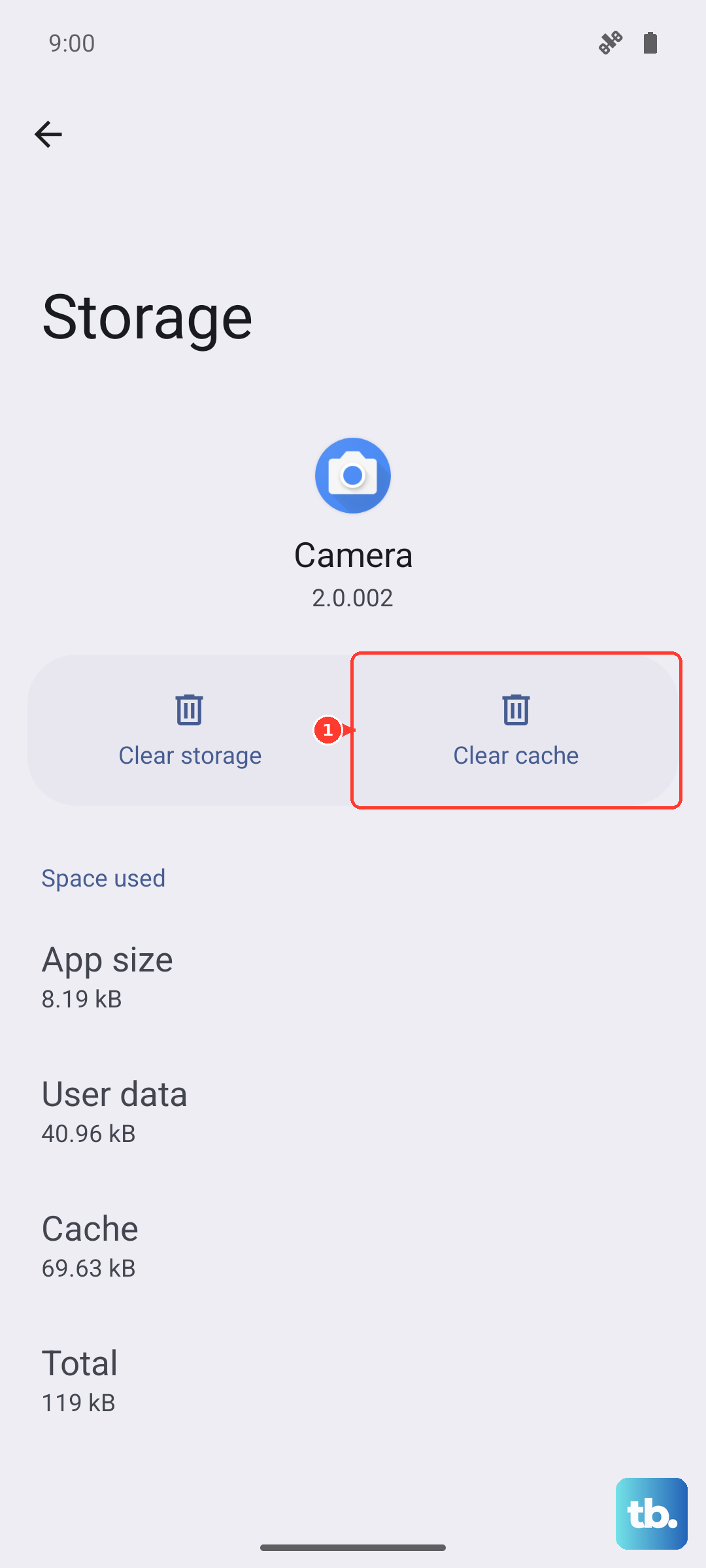
The app that manages your cellular connection can accumulate corrupted temporary data. Go to Settings > Apps > App Management. Tap the three-dot menu in the top right and select "Show System Apps." Scroll down and find "Phone Services." Tap on it, go to Storage Usage, and tap "Clear Cache." This doesn't delete any personal data.
Test With a Different SIM Card
This step helps pinpoint the problem. If you can borrow a working SIM card from a friend (even on a different network), pop it into your GT 7 Pro. If the new SIM card connects without issue, your original SIM is likely damaged or deactivated, and you need a replacement from your carrier. If the new SIM also fails, the problem is with the phone itself.
Perform a Factory Reset
This is your last resort before considering a hardware issue. A factory reset will wipe all your data, apps, and settings, so make sure everything important is backed up. You can use Realme's cloud backup or transfer files to a computer. Once backed up, go to Settings > Additional Settings > Back up and Reset > Erase all data (factory reset). Follow the prompts. After the phone reboots, set it up as new without restoring a backup immediately to test the network.