
When your Razer Blade 16 is connected to an external monitor but the screen stays black, it's usually a quick settings or connection fix. The most common culprit is the laptop not being set to output to the external display.
A browser based online monitor test cycles solid colors and gradients across the whole screen, which helps you confirm whether the panel itself shows the fault.
Press the Windows key + P on your keyboard. This opens the projection menu. Select Duplicate or Extend. If it was set to "PC screen only," that explains the blank monitor. I'd start with this one.
Inspect Your HDMI Cable and Port
Unplug the HDMI cable from both your laptop and the monitor, then plug it back in firmly. A loose connection is a frequent cause. Try a different HDMI cable if you have one, as cables can fail internally without showing physical damage.
Make sure your monitor is powered on and set to the correct input source. Use the monitor's physical buttons to cycle through inputs until you find the one labeled HDMI that your cable is plugged into.
Restart Your Razer Blade with the Monitor Connected
Shut down your laptop completely, connect the HDMI cable to both devices, and then power it back on. Sometimes the NVIDIA graphics card needs to detect the external display during the boot process to initialize it properly.
This is especially relevant for the Blade 16, which uses advanced GPU switching. A fresh boot with the monitor attached can help the system recognize the display.
Update Your NVIDIA Graphics Drivers
Outdated graphics drivers are a major source of display problems. Don't rely solely on Windows Update for this. Visit the official NVIDIA website and download the latest Game Ready Driver for your specific GPU.
During installation, choose the "Custom" option and select "Perform a clean installation." This removes old driver files that might be causing conflicts with your monitor output.
Adjust Windows Display Settings
Go to Settings > System > Display. Click the Detect button. If Windows sees the monitor, it will appear as a second screen. Click on it and scroll down to ensure the display resolution and refresh rate are set to values your monitor supports.
If you're unsure, set the external monitor to 1920x1080 at 60Hz as a safe starting point. You can increase it later once the connection is stable.
Try a Different Video Port on Your Laptop
The Razer Blade 16 typically has multiple video outputs, like HDMI and USB-C with DisplayPort Alt Mode. If your monitor has a DisplayPort input, try using a USB-C to DisplayPort cable instead.
If the image appears using a different port, the issue might be with your laptop's specific HDMI port or the original cable. This helps narrow down where the problem lies.
Disable and Re-enable Your Graphics Card
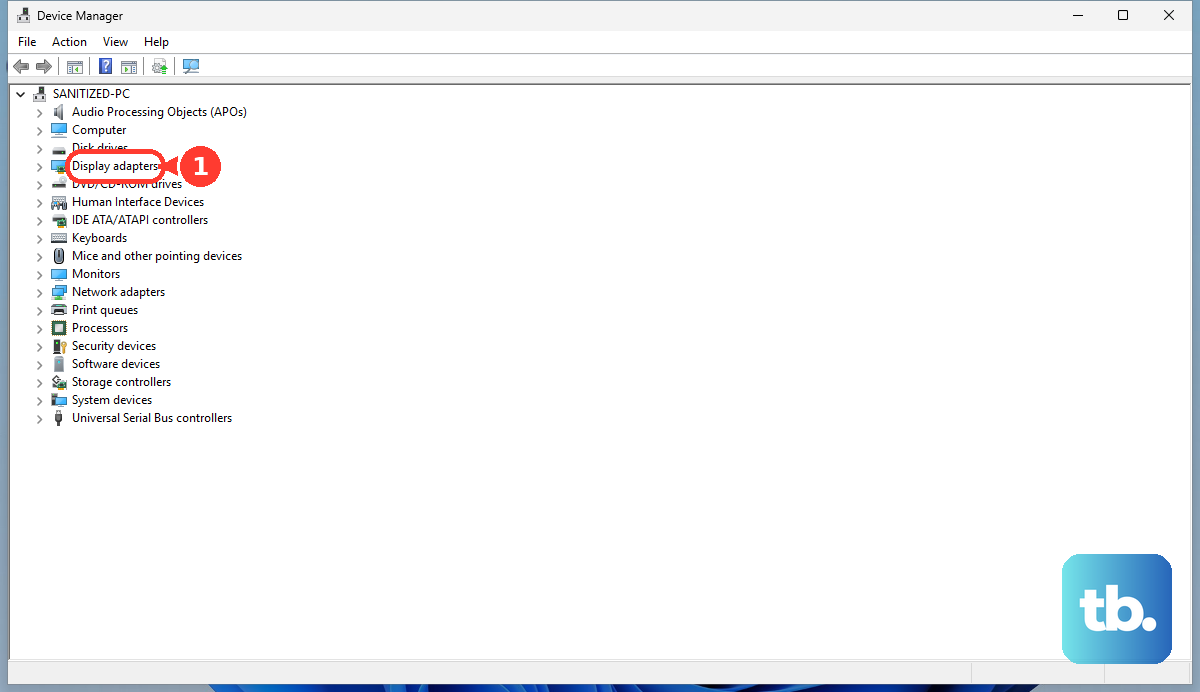
Open Device Manager by right-clicking the Start button. Expand the Display adapters section. Right-click on your NVIDIA GeForce RTX GPU and select Disable device.
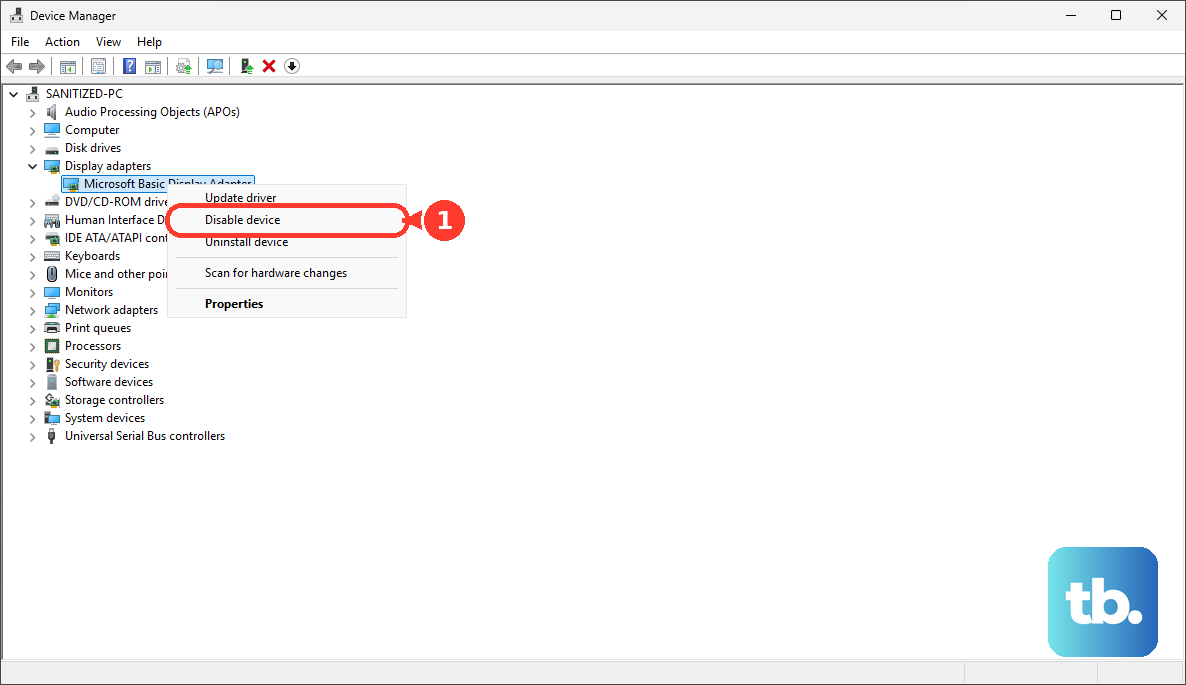
Wait about ten seconds, then right-click it again and choose Enable device. This forces the GPU to reset and can often re-establish a lost connection to your external monitor.
Check Your Razer Synapse Performance Profile
Open the Razer Synapse software. Some performance profiles or GPU modes (like a dedicated "Battery Saver" mode) might affect external display behavior. Try switching to a different profile, such as "Balanced" or "High Performance," and see if the monitor signal returns.
While Synapse is great for RGB and profiles, I've seen it occasionally interfere with other system functions after an update. It's worth a quick check.
Enter the BIOS to Check Display Settings
Restart your Razer Blade 16 and press the F1 or Delete key repeatedly as it boots to enter the BIOS. Navigate through the menus (often using the arrow keys) to look for any settings related to display output, primary display, or GPU configuration.
Look for an option like "Primary Display" and ensure it's not set to force the internal screen only. Save any changes and exit. This is a less common fix, but it can resolve issues stemming from a BIOS update that reset preferences.