
An OPPO Find X8 Pro with an unresponsive touchscreen can be incredibly frustrating. The screen might be stuck on an app, the lock screen, or just showing a static image. In my experience, this is almost always a temporary software hiccup that you can resolve without losing your photos or messages.
Force Restart Your Phone
This is the first thing you should try. Press and hold the Power button for at least 10 seconds. Keep holding it until you see the OPPO logo appear on the screen, which signals the phone is restarting. This process doesn't erase any data and resolves the vast majority of temporary freezes.
Let the Phone Finish Its Task
Sometimes the phone isn't truly frozen, it's just working hard. The Dimensity 9400 chipset can run warm during intensive tasks like a system update or processing a large batch of photos from those excellent periscope cameras. If the phone feels warm, give it 5 to 10 minutes to finish what it's doing before you force a restart.
Plug It In to Charge
A battery that's almost completely drained can cause the phone to become unresponsive. Grab the 80W SUPERVOOC charger that came in the box and plug it in. Wait for about 15 minutes to let it build up a small charge, then try the force restart again. The phone needs a minimum amount of power to boot properly.
Close the Problem App
If the rest of the phone works but one app is frozen, you can force close it. Swipe up from the bottom of the screen and hold your finger in the middle to bring up the recent apps menu. Find the frozen app and swipe it all the way up to close it. If a specific app keeps causing freezes, check for an update in the Google Play Store or Galaxy Store.
Check Your Available Storage
When your phone's storage is critically full, the system has no room to create temporary files it needs to run smoothly, which can lead to freezing. If you can access settings, go to Settings > About phone > Storage. Try to free up at least 5-10 GB of space by offloading videos or unused apps to get things running normally again.
Install the Latest Software Update
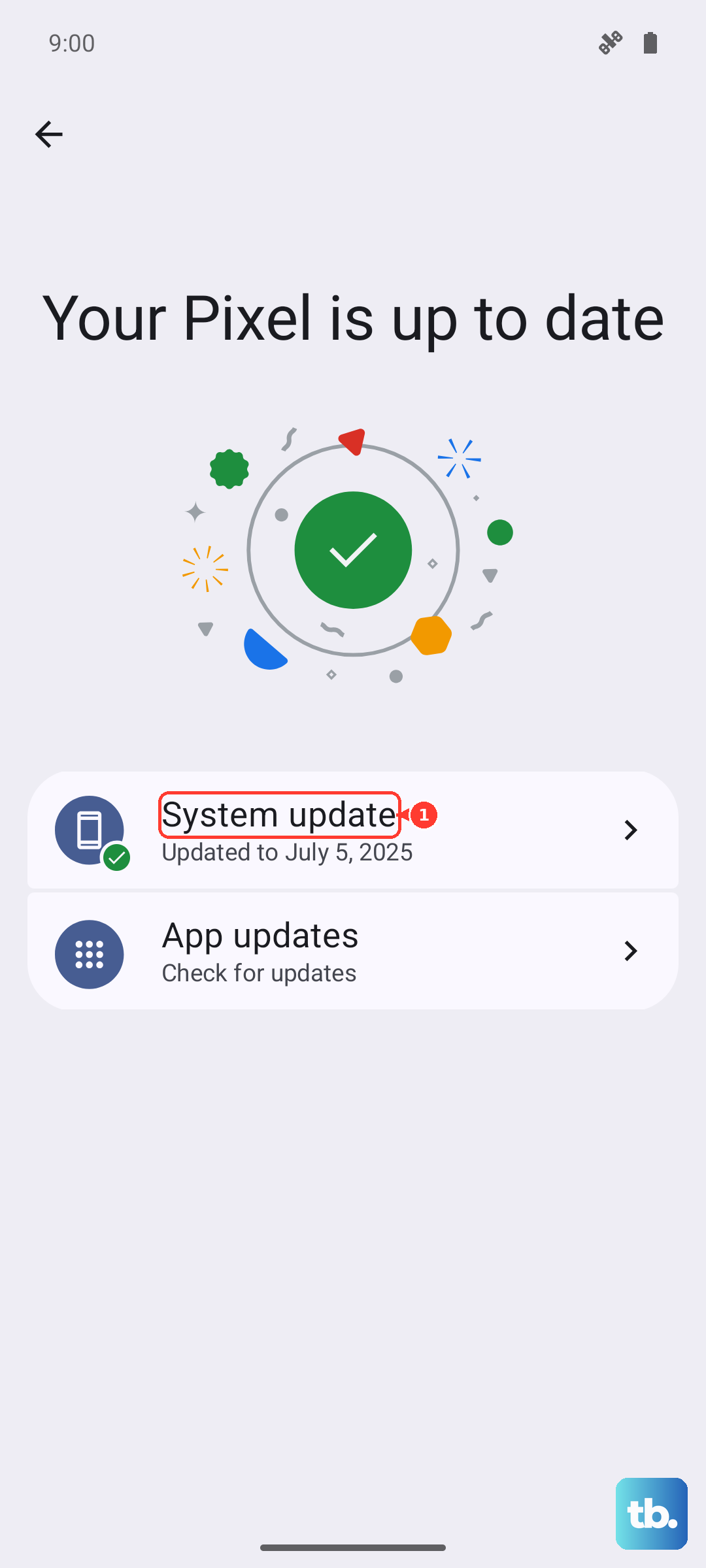
Bugs in older versions of ColorOS can cause stability issues. After you've restarted the phone, go to Settings > About phone > Software update and tap to check for updates. Installing the latest version often includes fixes for problems that cause the touchscreen to stop responding.
Reset Your Phone's Settings
If freezes keep happening, a system setting might have become corrupted. You can reset them without touching your personal data. Go to Settings > Additional settings > Backup and reset > Reset phone > Reset all settings. You'll need to reconfigure things like Wi-Fi passwords and display brightness, but your apps and photos will be safe.
Cool Down an Overheating Phone
Your phone will intentionally slow down or freeze if its internal temperature gets too high to prevent damage. If the back of the phone feels hot, take it out of its case and move it away from direct sunlight. Let it cool down for 15-20 minutes before trying to use it again, and avoid using the 50W wireless AIRVOOC charger while it's hot.
Consider a Factory Reset
If nothing else works and the screen is permanently unresponsive, a factory reset is the last software step. You will lose all data on the phone, so this is a last resort. With the phone powered off, press and hold the Power and Volume Down buttons together until the recovery menu appears. Use the volume buttons to navigate to "Wipe data/factory reset" and confirm with the Power button.