
If your OPPO Find X8 Pro's camera app is crashing, freezing, or just showing a black screen, start with a simple restart. Press and hold the power button for about 10 seconds until you feel the phone vibrate and the screen goes black. Wait for it to boot back up completely, which usually takes around 30 seconds. I've found this clears up most temporary software glitches that can cause the camera to act up.
A browser based camera test is the fastest way to check whether the camera works at all. It shows a live preview along with the detected resolution and frame rate.
Key Points
- Force Restart Your Phone: This is the quickest way to clear a temporary software hang affecting the camera.
- Check for System Updates: OPPO frequently releases updates that fix bugs, including camera performance issues.
- Clear the Camera App's Cache and Data: Corrupted temporary files can cause the camera to freeze or crash.
- Check for Physical Obstructions: The case or a lens protector might be blocking a sensor or lens.
- Boot Into Safe Mode: This helps determine if a recently downloaded app is interfering with the camera.
- Reset App Preferences: This can fix permission issues without deleting your personal data.
- Check Storage Space: A full internal storage can prevent the camera from saving photos or videos.
- Try a Third-Party Camera App: If another app works, the issue is likely with the stock camera software.
- Perform a Factory Reset: This is a last resort to eliminate deep-seated software conflicts.
After the restart, open the camera app again and see if it's working normally. If the problem started right after you installed a new app or a system update, that's a good clue for the next steps.
Install the Latest Software Update
OPPO's ColorOS team is pretty active with updates, especially for a flagship like the Find X8 Pro. Bugs that affect the camera system are often patched in these releases. To check, go to Settings > About device > Software update and tap on Check for updates.
If an update is available, make sure your phone is charged above 50% and connected to Wi-Fi before installing. The phone will restart after the update. Once it's back on, test the camera immediately to see if the issue is resolved. I'd start with this one if your camera troubles began seemingly out of the blue.
Clear the Camera App's Cache and Data
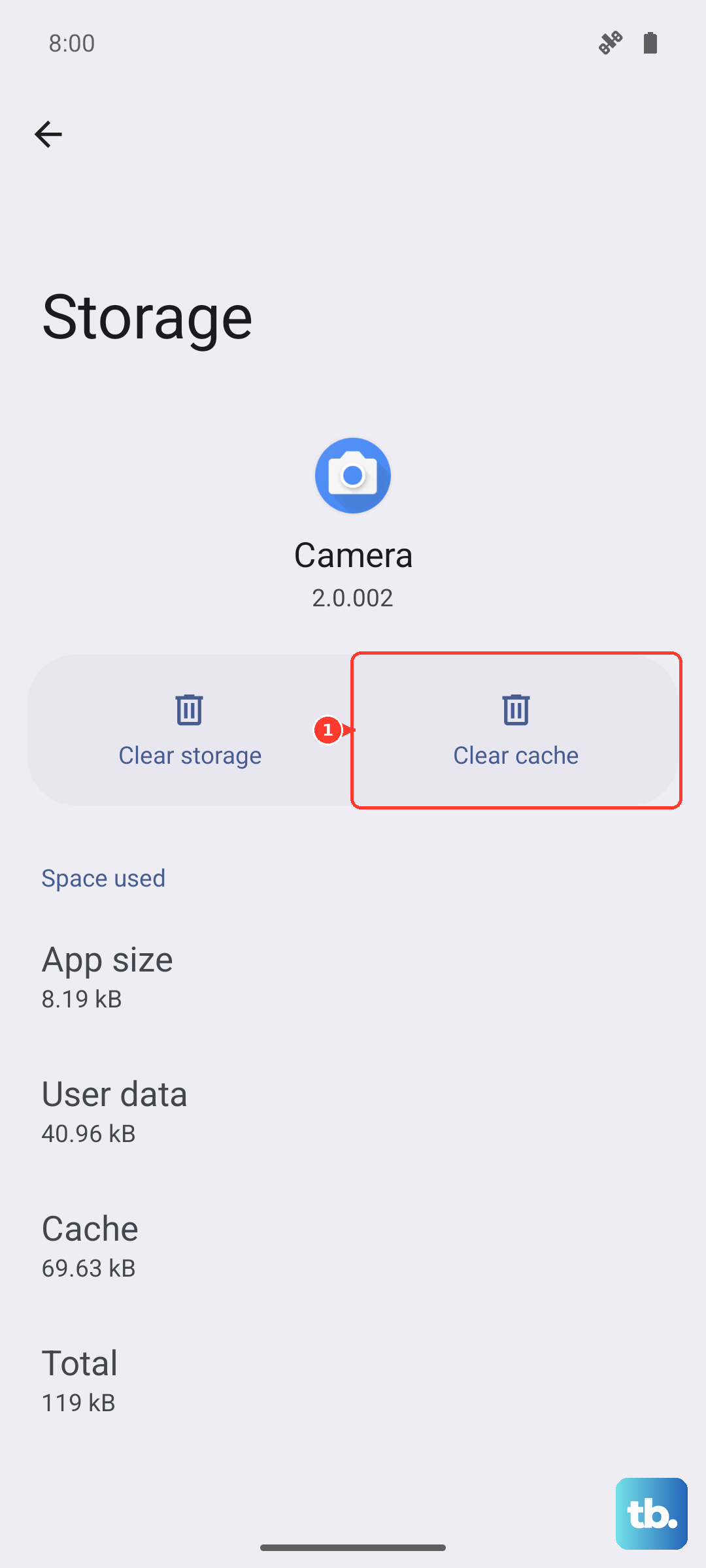
Sometimes the camera app's own temporary files get corrupted. Clearing them can fix crashes and black screens without affecting your photos. First, go to Settings > Apps > App management. Find and tap on "Camera" in the list.
Tap on Storage usage. Here, tap "Clear cache" first. This only deletes temporary files. If the camera still isn't working, go back and tap "Clear data". A warning will pop up saying this will reset the app to its default settings. Your photos and videos are safe in your gallery, but you'll lose any custom camera modes or settings you had configured.
Look for Physical Blockages
It sounds simple, but it's worth a check. Take off your phone case and see if any part of it is overlapping the camera lenses or the sensors near the camera bump. Also, if you use a lens protector, make sure it's perfectly clean and not causing any weird reflections or focus issues.
Give the entire camera array a gentle wipe with a microfiber cloth. Fingerprints and smudges on the lenses, especially the large main sensor, can definitely lead to blurry or hazy photos. The dual periscope telephoto cameras are particularly complex, so keeping them clean is key for sharp zoom shots.
Boot Into Safe Mode
If the camera works fine after a restart but then fails again later, a third-party app might be causing a conflict. Booting into Safe Mode temporarily disables all apps you've downloaded. To do this, press and hold the power button until the power off menu appears.
Then, press and hold the "Power off" option on your screen. A prompt will ask if you want to reboot to Safe Mode. Tap OK. Once your phone restarts, you'll see "Safe Mode" in the bottom corner. Try opening the camera now. If it works perfectly in Safe Mode, you know a downloaded app is the problem.
You'll need to restart your phone normally to exit Safe Mode. Then, start uninstalling apps you recently added, one by one, testing the camera after each one.
Reset Your App Preferences
This is a useful middle step before considering a factory reset. It resets all your app permissions, default apps, and background restrictions back to their factory defaults. It won't delete any of your personal data like photos or messages.
Go to Settings > Apps > App management. Tap the three-dot menu in the top right and select Reset app preferences. Confirm your choice. Afterward, you'll need to re-grant permissions when you open apps for the first time. Open the camera app and see if it requests the necessary permissions and starts working.
Check Your Available Storage
The Find X8 Pro's camera takes incredibly high-resolution photos and videos, which take up a lot of space. If your phone's internal storage is completely full, the camera app may fail to save new images or could even crash. Open Settings > About device > Storage to see how much space you have left.
If you're running critically low, try moving some photos and videos to cloud storage or a computer. Deleting old app caches or unused apps can also free up space quickly. Aim to have at least a few gigabytes free for the camera to operate smoothly.
Test With a Different Camera App
You can download a simple camera app from the Google Play Store, like Open Camera. If this third-party app can access and use all the cameras without any issues, then the problem is almost certainly with OPPO's stock camera software, not the hardware.
This points you back to software fixes like clearing data, updating, or resetting. If even a third-party app shows a black screen or can't access the lenses, it leans more toward a deeper system issue that might require the final step.
Perform a Factory Reset
This should be your last resort. A factory reset will erase everything on your phone and return it to its original out-of-the-box state. Before you do this, it is absolutely critical to back up all your important data. Use Google's backup service or OPPO's Cloud to save your contacts, messages, and app data.
To proceed, go to Settings > Additional settings > Back up and reset > Erase all data (factory reset). Follow the prompts to confirm. After the reset is complete, set up your phone as new and test the camera before restoring your backup. If the camera still doesn't work after a fresh factory install, the issue is likely hardware-related.