
When your OnePlus Open gets stuck during a system update, it can leave you staring at a frozen progress bar or an error message. This usually happens during the download or the installation phase, and it's often a temporary glitch you can fix yourself.
The quickest thing to try is a force restart. Press and hold the Power button for about 10 seconds until you feel a vibration and see the phone reboot. This simple step clears out temporary software hiccups that can stall an update. After it powers back on, head to Settings > About device > OxygenOS version and tap "Check for updates" to try again.
Check Your Wi-Fi Connection
OxygenOS updates are large and require a stable Wi-Fi connection. Make sure you're not using mobile data. Test your connection by opening a webpage in Chrome. If it's slow, try restarting your router or connecting to a different network. Public Wi-Fi networks often have firewalls that block large downloads like system updates.
Free Up Storage Space on Your Phone
Your OnePlus Open needs several gigabytes of free space to download and unpack an update file. Go to Settings > Storage to see how much space you have left. If you're below 5-6 GB, you'll need to clear some room. I'd start by clearing app caches or deleting old downloads and videos you no longer need.
Clear the Update App's Cache and Data
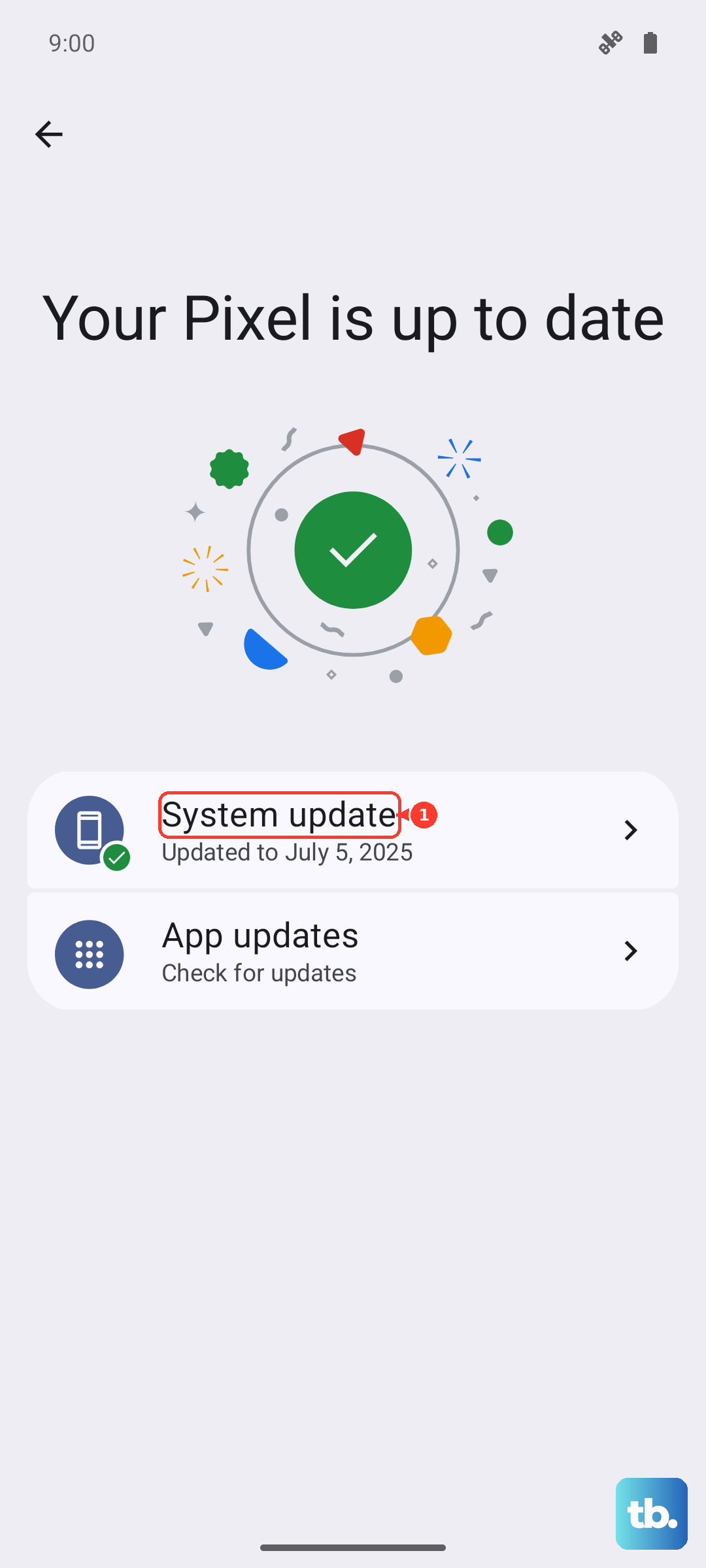
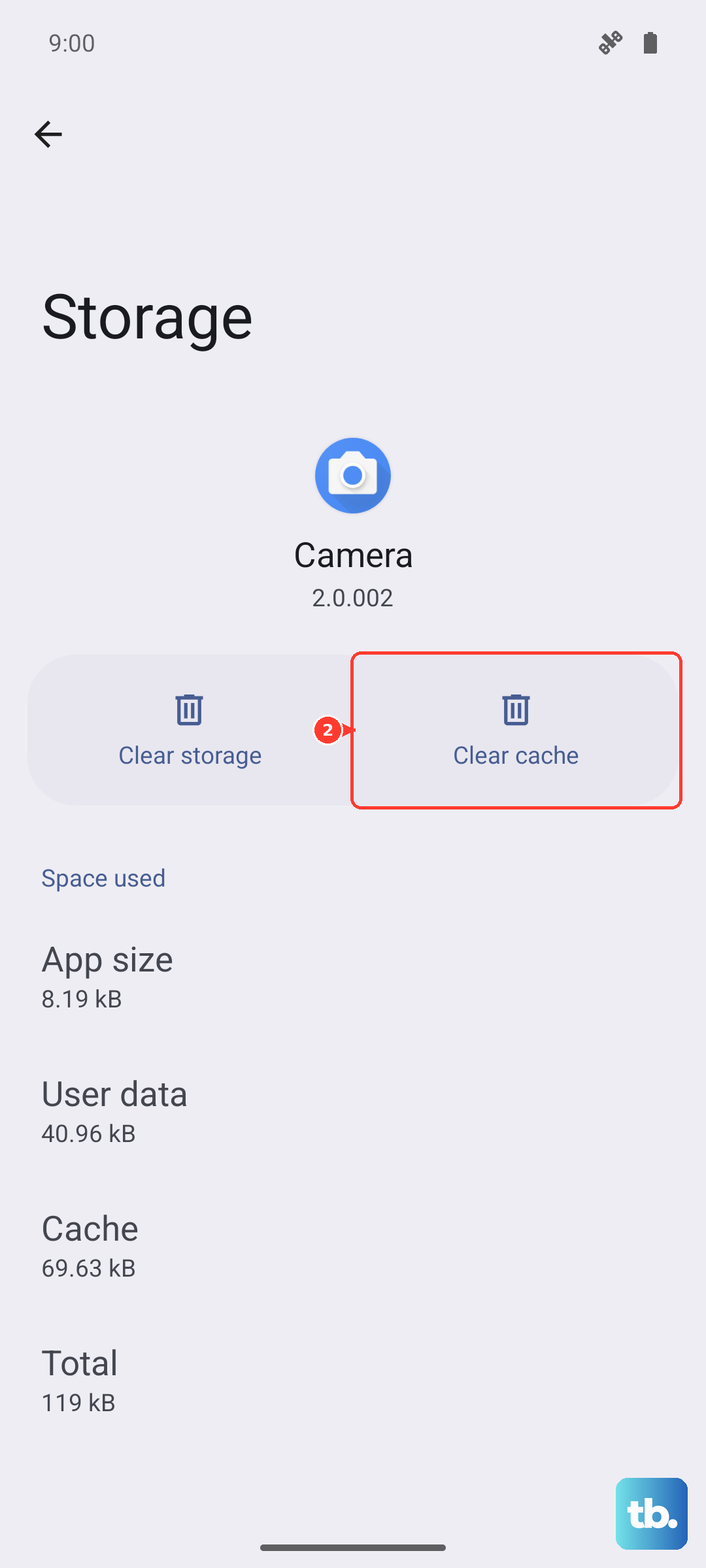
Sometimes the system update service itself gets confused. Go to Settings > Apps > See all apps. Tap the three-dot menu, select "Show system," and find the app called "Software Update" or "System Updates." Tap into it, then select Storage & cache. Tap "Clear cache" first, then try the update again. If it's still stuck, you can try "Clear storage" or "Clear data," which will reset the update service completely.
Reset Your Network Settings
Network configuration errors are a common culprit. This reset will erase all saved Wi-Fi networks, Bluetooth pairings, and mobile data settings. Go to Settings > Additional settings > Backup & reset > Reset phone > Reset Wi-Fi, mobile & Bluetooth. Confirm the reset, then reconnect to your Wi-Fi network and attempt the update once more.
Use a VPN to Change Your Region
OnePlus sometimes rolls out updates gradually by region. If the update servers for your location are having issues or the update hasn't officially reached you yet, using a VPN can help. Connect to a VPN server in a different country (like the United States or Germany), then go back and check for updates. Some users have reported this trick gets the update to appear immediately.
Update Using OxygenOS Updater or Local Install
If the standard update path is broken, you can manually install the update file. First, you need to download the correct full update package (a .OZIP file) for your exact OnePlus Open model from the official OnePlus community forums or support site. Transfer the file to the root of your phone's internal storage. Then, open the System Update page in Settings, tap the gear icon in the top right, and choose "Local install." Select the .OZIP file you transferred to begin the manual update process.
Ensure Your Phone is Charged and Cool
Your phone won't install an update if the battery is below 30%, and it may pause the process if it gets too hot. Plug in your 67W SUPERVOOC charger to ensure it has plenty of power. Also, take the phone out of any case and avoid using it while the update downloads and installs. Overheating can cause the update process to fail or stall.
Check for Known Issues with Your Current Version
Visit the OnePlus Community forums on the web or in the Community app on your phone. Search for your specific OxygenOS version number. Sometimes, a particular update has a widespread bug causing installation problems for many users. If that's the case, the forums will have threads about it, and OnePlus may have pulled the update temporarily until a fixed version is released.