
When your OnePlus Nord 4's keyboard suddenly stops working or you get that "Unfortunately, Gboard has stopped" error, it can really halt your day. The good news is this is a common Android glitch with several straightforward fixes you can try right now.
Restart the Keyboard App
Force stopping the keyboard app is often the quickest fix. This clears any temporary glitch it's stuck on. Open your Settings and go to Apps > See all apps.
Find Gboard in the list (or the name of your default keyboard) and tap on it. On the app info screen, tap Force stop and confirm. Now, just open any app where you type to see if it's working again.
Clear the Keyboard's Cache and Data
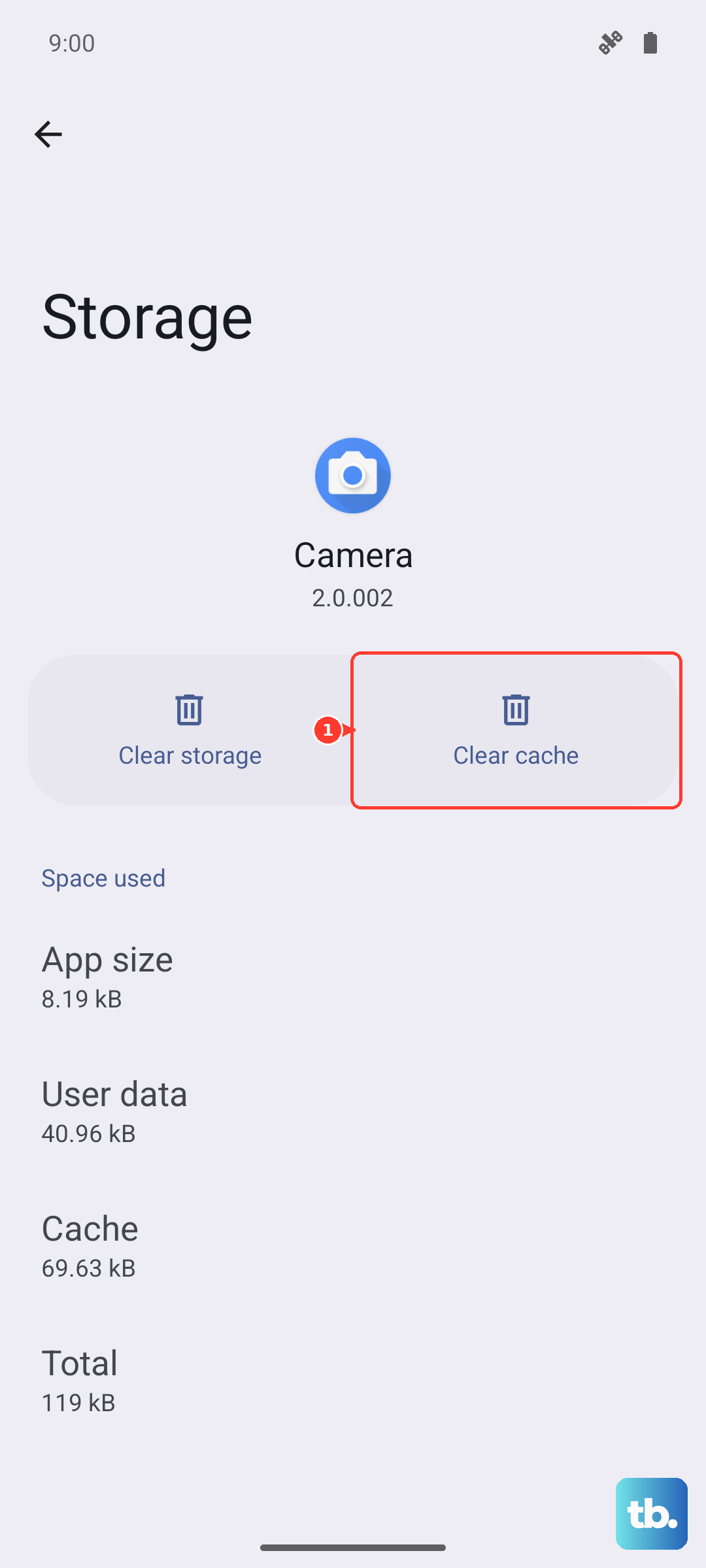
Corrupted temporary files can cause the keyboard to crash. Clearing the cache is safe and won't delete your personal dictionary or saved texts. From the same Gboard app info screen, tap on Storage & cache.
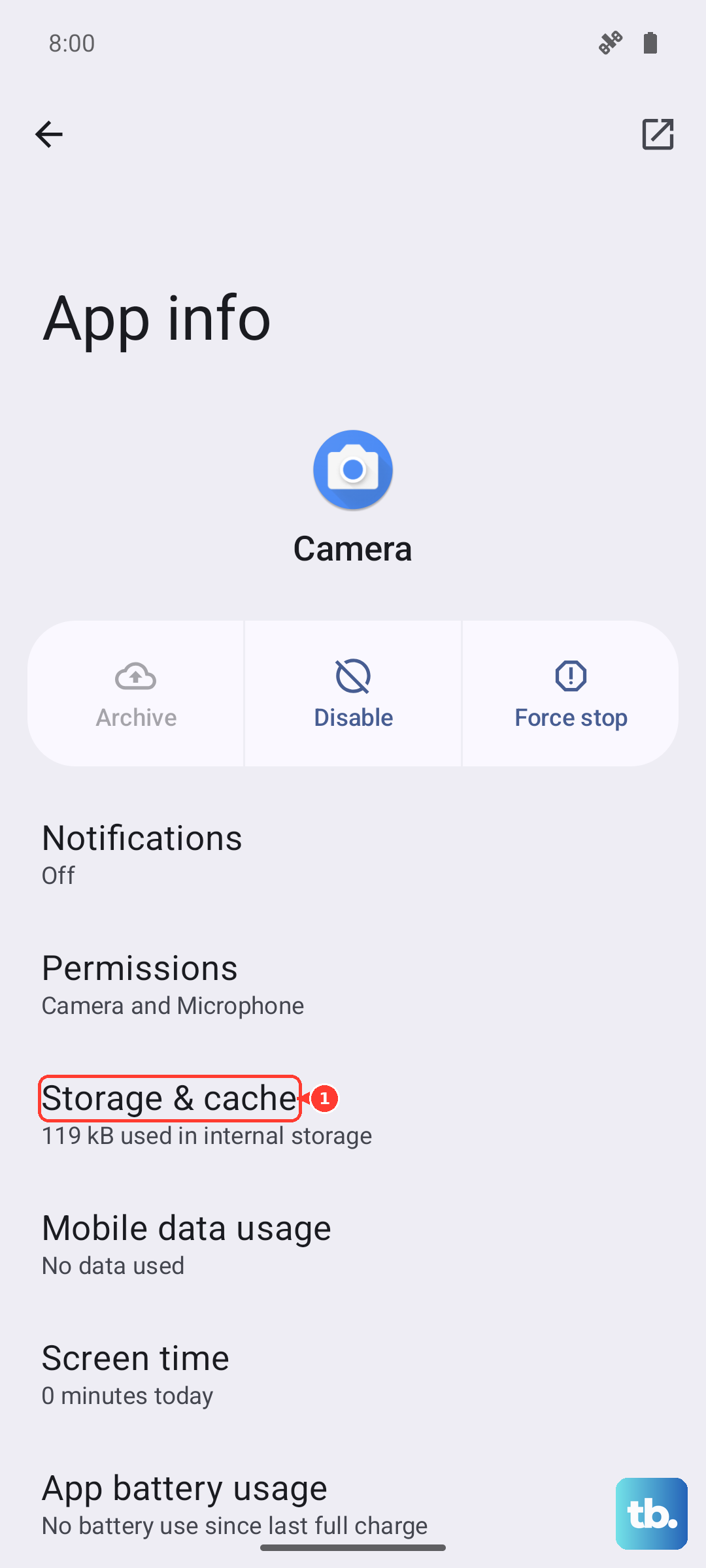
Tap Clear cache first. If that doesn't work, come back and tap Clear storage or Clear data. Be aware this will reset Gboard to its default settings, so you'll lose any custom themes or layout changes you've made.
Perform a Simple Reboot
Never underestimate the power of turning it off and on again. A full restart clears the phone's RAM and can fix a surprising number of software hiccups, including keyboard freezes.
Just press and hold the Power button until the power menu appears, then tap Restart. If the screen is completely unresponsive, you can force a restart by holding the Power button down for about 10 seconds until the phone vibrates and reboots.
Check for App and System Updates
An outdated version of Gboard might have a bug that's causing your issue. Open the Google Play Store, tap your profile icon, and go to Manage apps & device. Under "Updates available," see if Gboard is listed and update it.
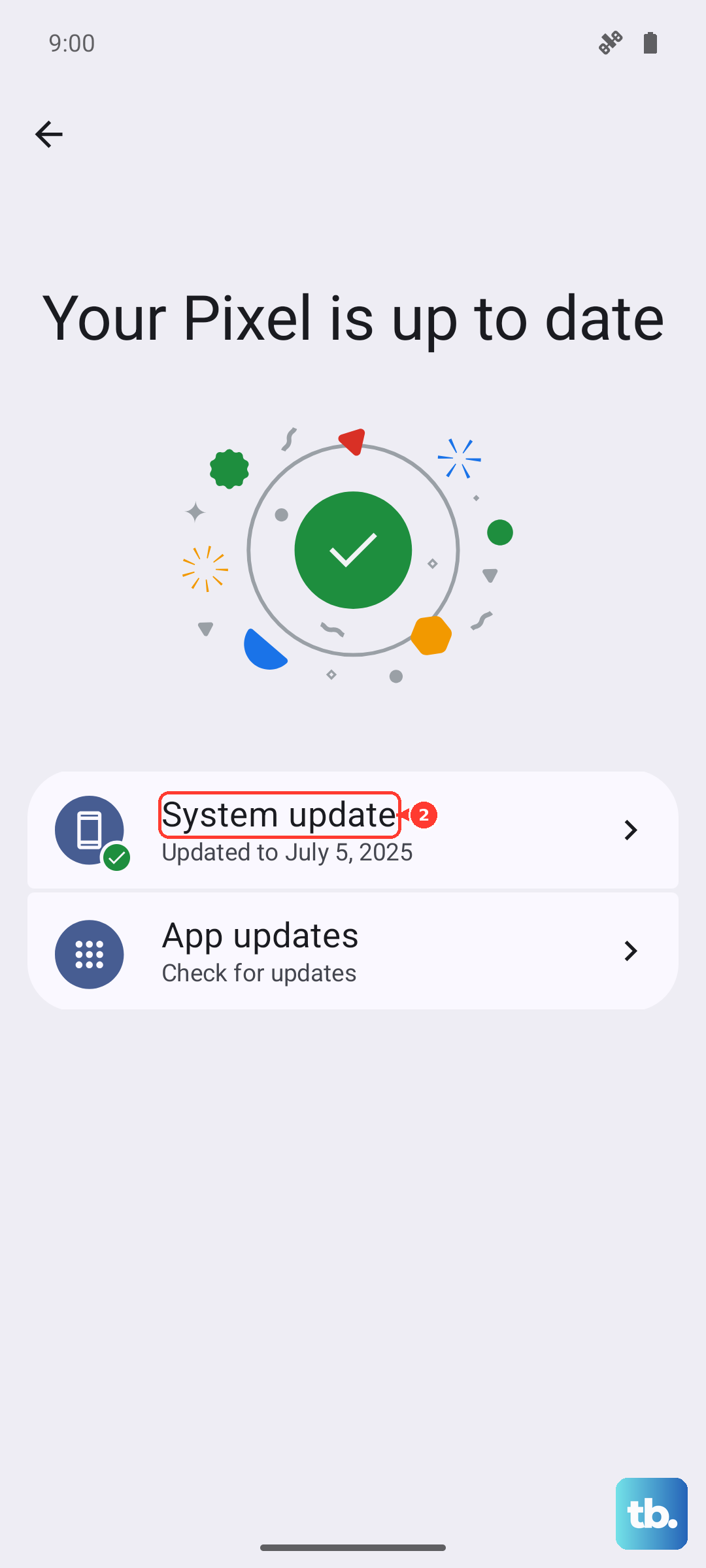
Also, check for a system update. Go to Settings > About device > OxygenOS version. Tap on the icon to check for updates. I've seen minor OxygenOS updates squash bugs that affect core apps like the keyboard.
Try a Different Keyboard App
If the stock keyboard is buggy, installing a popular alternative like Microsoft SwiftKey or Grammarly Keyboard from the Play Store gives you an instant workaround. Once installed, you'll need to enable it.
Go to Settings > System > Languages & input > On-screen keyboard. Tap Manage on-screen keyboards and toggle on your new keyboard. You can then switch between them by tapping the keyboard icon in your navigation bar.
Boot Into Safe Mode
This tests if a recently installed third-party app is causing a conflict. To enter Safe Mode on the Nord 4, press and hold the Power button until the power menu shows. Then, press and hold the Power off option on your screen.
A prompt will appear asking if you want to reboot to Safe Mode. Tap it. If your keyboard works perfectly in Safe Mode, you know a downloaded app is the culprit. Start by uninstalling apps you added around the time the problem began.
Reset App Preferences
This is a less nuclear option than a full factory reset. It resets all your app permissions, default apps, and background restrictions back to their original state without touching your personal data.
Navigate to Settings > Apps > See all apps. Tap the three-dot menu in the top right and select Reset app preferences. Confirm the action. You'll just need to re-grant permissions to apps as you use them again.
Check for Conflicting Accessibility Services
Sometimes, services like password managers, screen readers, or automation tools that hook into the keyboard can cause it to fail. Go to Settings > Accessibility.
Look at the list under Downloaded services or Installed services. Try turning off any services here one by one, testing the keyboard after each, to see if one is the source of the conflict.
Update OxygenOS to the Latest Version
Since the Nord 4 runs a customized version of Android, system-level bugs are addressed through OxygenOS updates. Make sure you're connected to Wi-Fi, then go to Settings > About device > tap the top "OxygenOS version" banner.
Tap Check for update and install any available update. The 100W SuperVOOC charging is great for getting you back to 100% quickly if your battery is low before a large update.