Your music drops out mid-song, a call jumps to the loudspeaker instead of your earbuds, or you plug a USB-C adapter into the phone's USB-C port and hear absolutely nothing. On the OnePlus Nord 4, "headphones not working" almost always comes down to one of two paths, because this model has no 3.5mm jack at all: wired sound runs through the single USB Type-C (USB 2.0) port, and wireless sound runs over Bluetooth 5.4. The encouraging part is that most of these faults are connection or software hiccups you can clear yourself in a few minutes. Work through the fixes below in order, starting with the quickest checks and saving the reset and support call for the end.
To rule out the headphones themselves, try a quick headphone test in the browser. If every tone plays cleanly, focus on the device settings covered next.
Start With Volume Levels and Audio Routing
Plenty of "no sound" reports turn out to be a volume slider sitting at zero or audio sent to the wrong output. While something is playing, press the Volume Up button and confirm the level actually climbs for media, not just ringtone or call volume.
For Bluetooth headphones there is a second thing to check. The general Android guidance is to confirm the volume on both the phone and the headphones, and to verify that media audio is turned on for the pair. On the Nord 4 you can set what a paired device is used for under Settings > Bluetooth; tap the gear beside the headphones and make sure they are allowed to handle media audio, alongside call audio, rather than only one role.
Toggle Bluetooth Off and On for a Wireless Pair
If you are on wireless headphones, the simplest reset is to cycle the radio. The standard Android fix is to turn Bluetooth off and back on, confirm the two devices are paired and connected, and restart the devices if needed.
On the Nord 4, open Settings > Bluetooth, switch Bluetooth off, wait a moment, then switch it back on. Tap your headphones in the list to reconnect them. If the connection still refuses to hold, you can also flip Airplane mode to fully reset the radios: go to Settings > Connection & sharing, turn on Airplane mode, then turn it off again and try the headphones once more.
Restart the Nord 4 to Clear Temporary Glitches
A normal restart wipes out the kind of temporary audio and Bluetooth glitches that build up between charges. Per the official OxygenOS 14 manual, press and hold the Power button until the Power Menu appears, then tap "Restart" (or "Power off" and turn it back on).
If holding the Power button does something other than show that menu, you can correct the behavior. Go to Settings > Additional settings > Power Button > Press and hold the power button and choose "Power Menu" so the long press brings up the restart options.
Force Restart a Frozen Phone the Right Way
Sometimes audio cuts out at the same moment the screen stops responding. In that case a normal restart is not possible, so a forced restart is the move. The official OxygenOS 14 manual states it plainly: "If your phone doesn't work and won't turn off normally, you can force start it by pressing and holding the Power and Volume Up buttons for more than 10 seconds."
The key detail is the button combination. It is the Power button and the Volume Up button held together for more than ten seconds, not the Power button on its own. Use this only when the screen is genuinely frozen and unresponsive, then let the phone boot and test your headphones again.
Get Wired Headphones Working Through the USB-C Port
The Nord 4 has no 3.5mm headphone jack; this is confirmed on the official OnePlus specs page and in the Quick Guide hardware diagram, which shows the USB Type-C port as the only wired audio and charging connector. That means wired headphones have to connect through USB-C, either as USB-C earphones or through a USB-C-to-3.5mm adapter.
Reseat the connector firmly so it seats all the way in, and check the port for lint or debris that can block a clean contact. Adapters and earphones are not all built the same, so if one produces no sound, try a different USB-C-to-3.5mm adapter or a pair of USB-C earphones before assuming the phone's hardware has failed.
Unpair and Re-Pair Your Bluetooth Headphones
When wireless headphones connect but play no sound, or keep dropping the link, removing the pairing and adding it fresh often clears the corrupted profile behind it. Per the official OxygenOS 14 manual, in Settings > Bluetooth tap the gear beside the paired headphones and tap "Unpair".
Then put the headphones back into pairing mode, return to Settings > Bluetooth, make sure Bluetooth is on, and on the Available devices list tap the Bluetooth name of your headphones and follow the prompts. This rebuilds the connection from scratch, which usually resolves a stubborn no-audio pair.
Clear Out Rival Bluetooth Devices Stealing the Audio
If your phone keeps grabbing onto a car system, a speaker, or a second set of earbuds, that other device can quietly hijack the audio so your headphones get nothing. The general Android guidance is to forget the devices you are not using.
On the Nord 4, open Settings > Bluetooth, tap the gear next to each device you do not need, and remove it. With the competing connections gone, pair your headphones again and they should hold the audio without anything else stealing it.
Boot Into Safe Mode to Catch a Misbehaving App
A downloaded app such as a volume booster or an equalizer can take over or block audio output entirely. The general Android troubleshooting advice is to restart in safe mode, which temporarily disables every app you installed yourself.
If your headphones suddenly work in safe mode, a third-party app is the culprit. Restart normally, then uninstall recently added apps one at a time, testing the headphones after each removal until the audio stays reliable.
Update OxygenOS to Squash Known Audio Bugs
System updates frequently include fixes for known audio and Bluetooth problems, so running the latest software is worth the few minutes it takes. The Nord 4 ships with OxygenOS 14.1 based on Android 14 and is eligible for later OxygenOS updates.
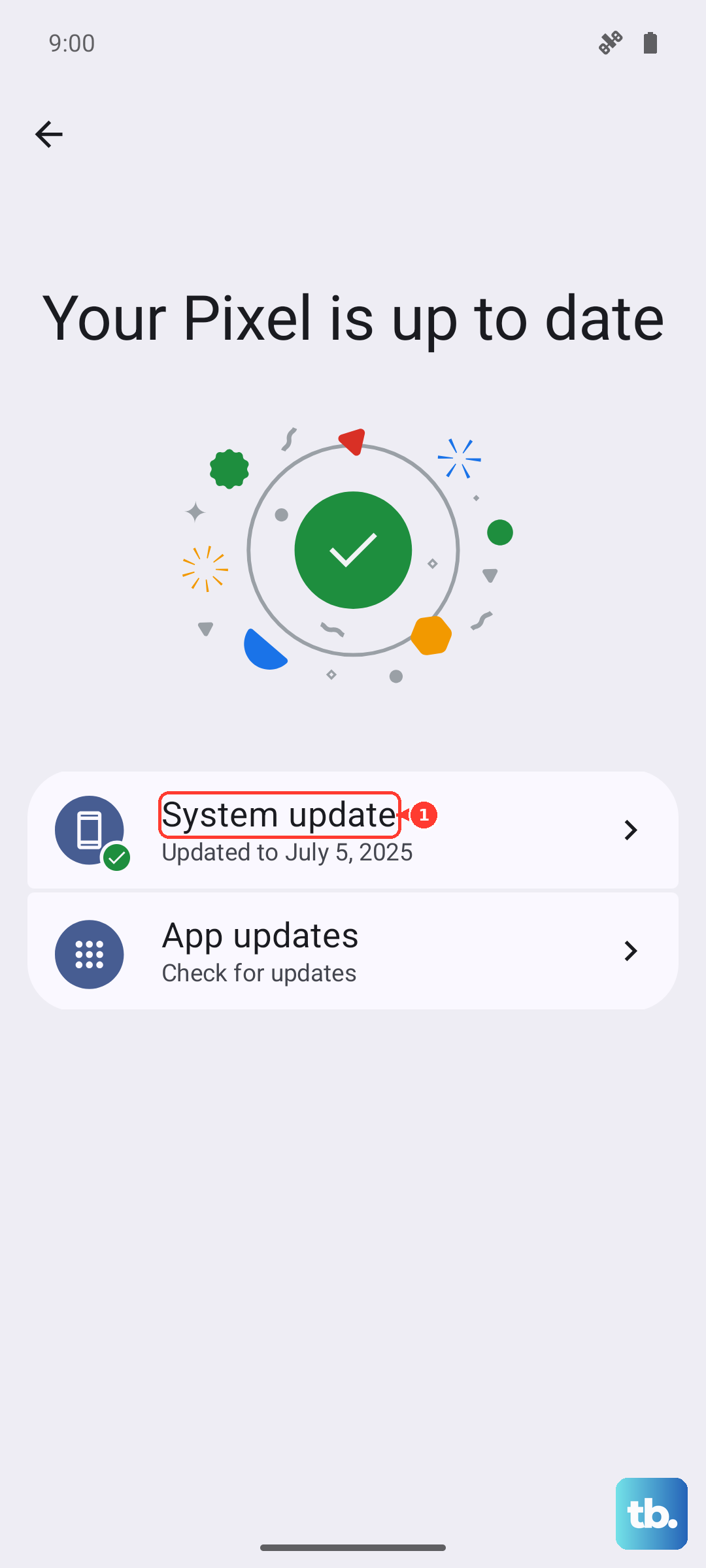
Per the official OxygenOS 14 manual, go to Settings > About device, then tap the version number at the top to check for updates and download one if it is available. Stay on Wi-Fi during the process, and do not touch the Power button while the update installs.
Reset Settings, Then Factory Reset and Contact OnePlus
For Bluetooth faults that survive everything above, the official OxygenOS 14 reset path can clear them without wiping your phone. Go to Settings > Additional settings > Back up and reset > Reset phone, where you can reset network settings or all settings first; these options leave your photos and apps in place while clearing the connection profiles.
A full factory reset is the last software step, and it erases everything, so back up first. Go to Settings > Additional settings > Back up & migrate > Local backup and tap "New backup", then return to the reset menu and choose "Erase all data". The manual warns directly: "your phone will be restored to factory settings and all your data will be erased. Please act with caution."
If the headphones still fail after a clean reset, the problem is most likely hardware, such as the USB-C port or the Bluetooth radio. At that point, contact OnePlus Customer Support or take the phone to an official OnePlus service center for help.
Frequently Asked Questions
Does the OnePlus Nord 4 have a headphone jack?
No. The OnePlus Nord 4 does not have a 3.5mm headphone jack. According to the official specs page and the Quick Guide hardware diagram, it has a single USB Type-C (USB 2.0) port for wired audio and charging, so wired headphones must use USB-C earphones or a USB-C-to-3.5mm adapter, while wireless headphones connect over Bluetooth 5.4.
Why do my USB-C headphones produce no sound on the Nord 4?
First reseat the connector firmly and check the port for debris. If a USB-C-to-3.5mm adapter still gives no sound, the adapter or earphones may be at fault, so try a different USB-C-to-3.5mm adapter or a pair of USB-C earphones before assuming the phone's hardware has failed.
How do I force restart a frozen OnePlus Nord 4?
Per the official OxygenOS 14 manual, press and hold the Power and Volume Up buttons together for more than 10 seconds. This is the correct combination for a frozen, unresponsive screen; it is not the Power button alone.
Will a factory reset fix my headphone problem?
It can fix software-level Bluetooth or audio faults, but it erases all your data, so try resetting network settings first and back up before erasing. Go to Settings > Additional settings > Back up & migrate > Local backup and tap "New backup", then use Settings > Additional settings > Back up and reset > Reset phone. If the issue continues after a clean reset, it is likely hardware and you should contact OnePlus support.
How do I stop my Nord 4 from connecting to the wrong device?
Go to Settings > Bluetooth, tap the gear beside any car, speaker, or spare earbuds you are not using, and remove them. With those competing connections cleared, re-pair your headphones so nothing else takes over the audio.