
When your MSI Stealth 16 suddenly loses all audio, it can be a baffling experience. The silence might stem from a simple software toggle, a driver conflict, or a deeper system setting unique to gaming laptops like this one. Let's walk through the most effective ways to restore your sound.
Before changing anything, play a quick left and right speaker test in your browser. It sends a tone to the left and right channels separately, so you immediately know whether the speakers produce any sound at all.
Check the Volume and Output Device
First, click the speaker icon in your Windows taskbar. Make sure the master volume slider isn't at zero and that the mute icon isn't highlighted. Right above the slider, click to see the list of available output devices. If you recently unplugged headphones, Windows might still be trying to send audio to that disconnected device. Select your laptop's internal speakers, often listed as "Speakers (Realtek Audio)" or similar.
Run the Windows Audio Troubleshooter
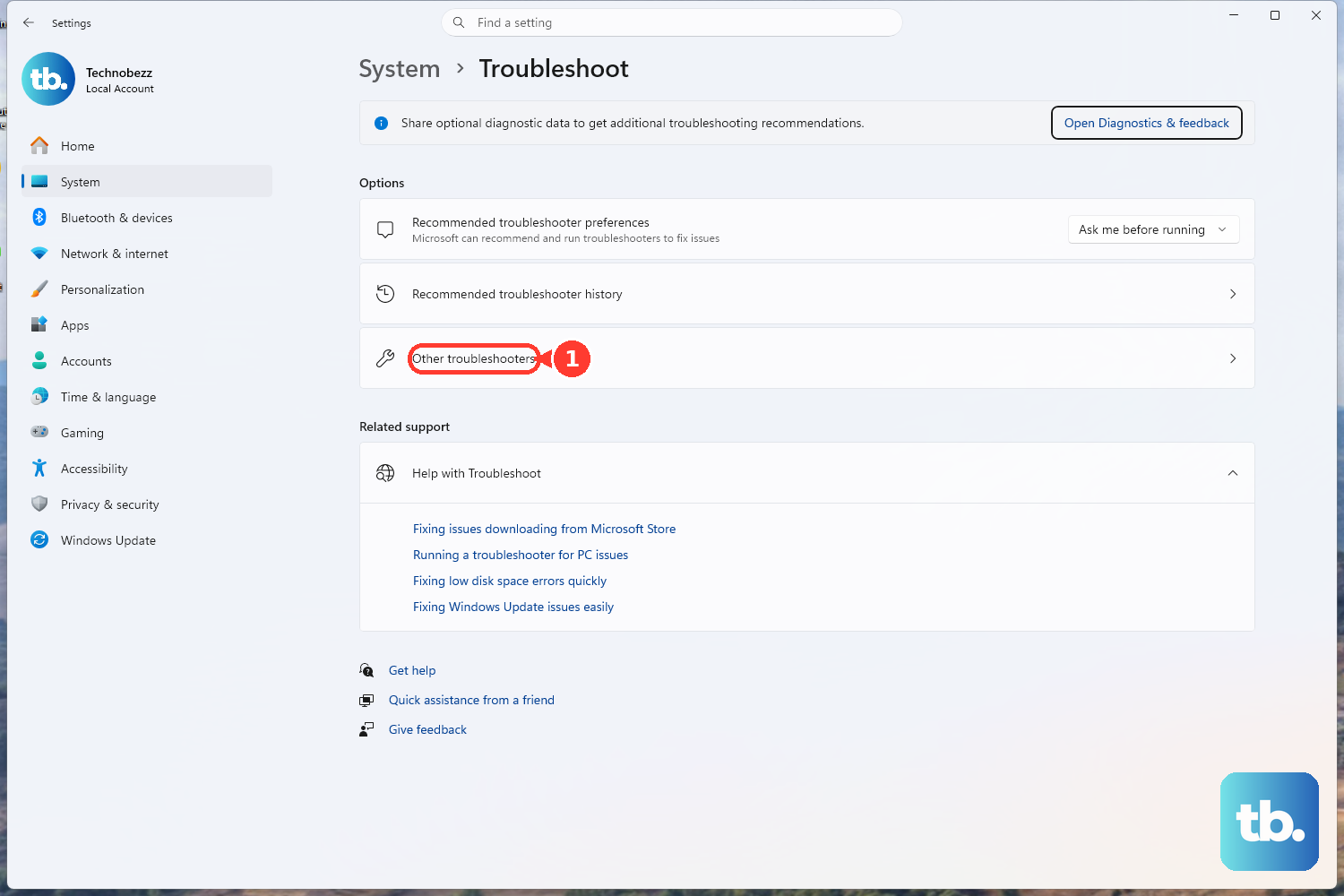
Windows has a built-in tool that can automatically find and fix common glitches. Go to Settings > System > Troubleshoot > Other troubleshooters. Find the Playing Audio troubleshooter and click "Run." It will scan for issues like disabled services or incorrect default devices and often resolves the problem in a few seconds.
Restart Your Stealth 16
This is a classic fix for a reason. A full restart clears out any stuck audio processes and reloads all your drivers. Click the Start menu, select the power icon, and choose "Restart." I've found this is particularly effective if the sound disappeared after the laptop woke from sleep or hibernation mode.
Update Your Audio Drivers
Outdated or corrupted drivers are a frequent culprit. Press the Windows key + X and select Device Manager. Expand the "Sound, video and game controllers" section. Right-click on your audio device (it's usually Realtek High Definition Audio) and choose "Update driver," then "Search automatically for drivers." If that doesn't help, try right-clicking and selecting "Uninstall device," then restart your laptop. Windows will automatically reinstall a fresh driver upon reboot.
Check MSI Center and User Scenario
Your Stealth 16 has powerful control software that can affect system behavior. Open the MSI Center application. Look at your active "User Scenario" profile. If it's set to "Silent" mode, some audio functions or enhancements might be limited to conserve power. Try switching to the "Balanced" or "Extreme Performance" profile, then test your audio again. Also, check within MSI Center for any pending driver or firmware updates that might include audio fixes.
Restart the Windows Audio Services
Sometimes the core services that manage sound get hung up. Press Windows + R, type services.msc, and hit Enter. In the Services window, scroll down and find "Windows Audio." Right-click it and select "Restart." Do the same for the "Windows Audio Endpoint Builder" service just below it. This forces the audio system to reset itself.
Disable Audio Enhancements
Sound enhancements from Windows or your audio driver can sometimes conflict and cause dropouts. Go to Settings > System > Sound. Click on your output device (your speakers), then scroll down and click "Audio enhancements." Set the drop-down menu to Off. This bypasses any extra processing and uses the raw audio signal, which often solves distortion or complete silence.
Check App-Specific Volume Mixer
You might have system sounds but no audio from a specific app like your browser or a game. Right-click the speaker icon in the taskbar and select "Open Volume mixer." You'll see individual volume sliders for each open application. Make sure the app you're using isn't muted or set to a very low volume independently of the main system volume.
Inspect Physical Connections and Ports
If you're using headphones or external speakers, try a different pair to rule out a problem with the peripherals. Carefully inspect the 3.5mm audio jack and the USB-C ports for any debris. For the internal speakers, ensure the laptop isn't sitting on a soft surface like a blanket or pillow that could be completely muffling the speaker grilles on the bottom or sides.
Roll Back or Reinstall the Audio Driver
If the sound stopped working right after a Windows Update or a driver update, you can revert to the previous version. Go back to Device Manager > Sound, video and game controllers. Right-click your audio device and select "Properties." Go to the "Driver" tab and click "Roll Back Driver" if the option is available. If not, use the "Uninstall device" method mentioned earlier to force a clean reinstall.