
When your Motorola Razr Plus (2024) gets stuck on an update, it's a common hiccup with a few straightforward fixes. You might see a download that won't start, an error message, or an installation that fails partway through.
Check Your Wi-Fi and Data
Android updates require a strong, stable internet connection. First, ensure you're connected to Wi-Fi, as updates are typically blocked over cellular data. Open a browser and load a webpage to test the speed. If it's slow, try restarting your router or connecting to a different network. Public Wi-Fi networks often have firewalls that can block the update download.
Free Up Storage Space on Your Razr
Your phone needs breathing room to download and unpack the update files. Go to Settings > Storage to see how much free space you have. A major Android update can require several gigabytes. I'd start by clearing cached data from apps or deleting old downloads and videos you no longer need to quickly free up space.
Restart Your Motorola Razr Plus
This is the simplest fix that often works. Press and hold the Power button for about 10-15 seconds until you feel a vibration and see the Motorola logo. This force restart clears out any temporary software glitches that might be preventing the update check from completing properly.
Clear the Cache for Google Play Services
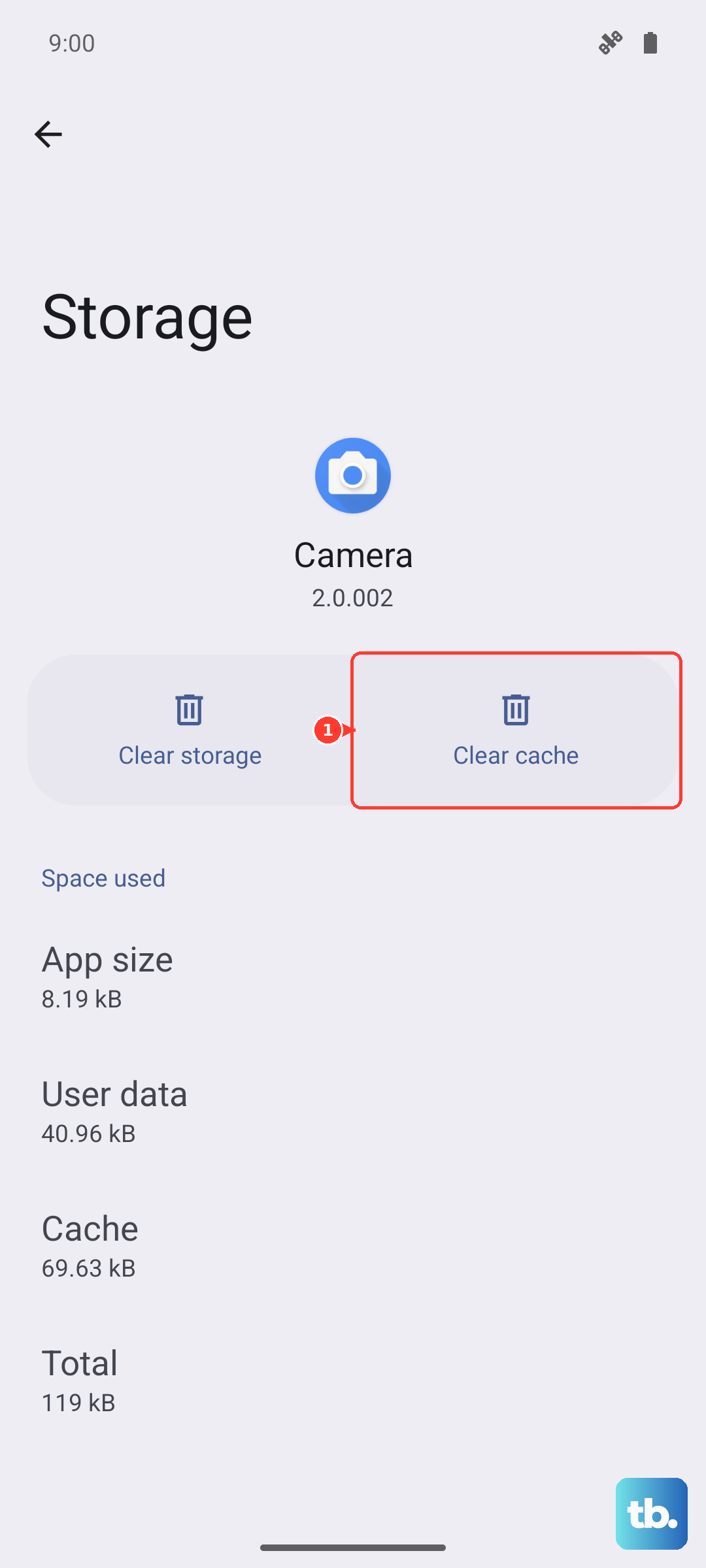
This system app handles update checks and downloads. Go to Settings > Apps > See all apps. Tap the three-dot menu, select Show system, then find and tap Google Play Services. Go to Storage & cache and tap Clear cache. Don't clear the storage data. Afterward, go back and check for the update again.
Check for Server-Side Issues
Sometimes, the delay isn't on your end. Motorola rolls out updates in stages, so your specific device or region might not have received it yet. You can check community forums or Motorola's official support pages to see if other Razr Plus (2024) owners are reporting the same wait. It's common to see a gap of a week or more between the initial announcement and when it hits every phone.
Update Using a Computer
If the over-the-air update is persistently failing, you can use Motorola's official software tool. Download the Motorola Device Manager or Lenovo Rescue and Smart Assistant tool on a Windows PC. Connect your Razr Plus with its USB-C cable, and the software can often detect and push the correct update directly to your phone, bypassing any phone-side download issues.
Try Updating at a Different Time
If a new update has just been released, the download servers can get overwhelmed. Trying late at night or early in the morning can result in a faster, more reliable download connection. This is especially true for large security patches or version upgrades.
Ensure Your Phone is Compatible and Unlocked
If you purchased your Razr Plus from a specific carrier, updates are sometimes managed by that carrier, not Motorola directly. Additionally, carrier-locked models often receive updates later than unlocked models. You can check your model number in Settings > About phone to see its variant.
Check for Background App Interference
Certain apps, like VPNs, aggressive battery savers, or custom DNS services, can interfere with the phone's ability to communicate with the update servers. Before attempting the update, disable any VPN apps and switch your DNS settings back to automatic in your Wi-Fi connection settings.
Keep Your Phone Cool and Unfolded
The Razr Plus's compact form factor is known to heat up during intensive tasks. If the phone gets too warm, it will automatically pause or block an update to protect the battery. During the update process, keep the phone unfolded on a cool, hard surface. Also, close any apps running on the cover screen to minimize background activity and heat generation.