
When your Motorola Razr Plus (2024) won't send pictures, it's usually a quick network or app setting that needs adjusting. The photo might get stuck on "Sending" or fail with an error, but you can almost always get it working again with a few checks.
Check Your Mobile Data and MMS Settings
First, make sure your phone can actually send multimedia messages over your carrier's network. Open the Settings app and go to Network & internet > Mobile network.
Tap on Advanced and look for an option labeled "MMS messages" or "Access Point Names." Ensure MMS is enabled here. If you see an APN section, your carrier's settings should be pre-loaded, but you can sometimes tap "Reset to default" to refresh them.
Verify Your Internet Connection
Pictures need a data connection to send, whether it's Wi-Fi or cellular. If you're on Wi-Fi, check that the icon is in your status bar. Try turning Wi-Fi off and using mobile data instead, or vice versa, to see if one network is the problem.
For cellular, glance at your signal bars. If they're low, moving to a different spot can help. I've found that sending a picture over 5G or a strong LTE signal is much more reliable than a weak one.
Force Close and Reopen Your Messaging App
A temporary glitch in your messaging app is a common culprit. Swipe up from the bottom of the screen and hold to enter the recent apps view. Find your messaging app, like Google Messages or another one you use, and swipe it up to close it completely.
Wait a second, then tap the app icon to reopen it. Try sending the picture again. This clears out any minor software hiccups that might be blocking the send function.
Perform a Quick Restart
If force-closing the app didn't help, restart the entire phone. Press and hold the Power button for about 10 to 15 seconds until you feel a vibration and the Motorola logo appears on screen.
This simple reboot can clear system-level caches and resolve background issues that might be interfering with messaging services. It only takes a minute and is a great next step.
Check for App and System Updates
An outdated messaging app or Android system can have bugs that break MMS. Open the Google Play Store, tap your profile icon, and go to Manage apps & device. See if there's an update available for your messaging app.
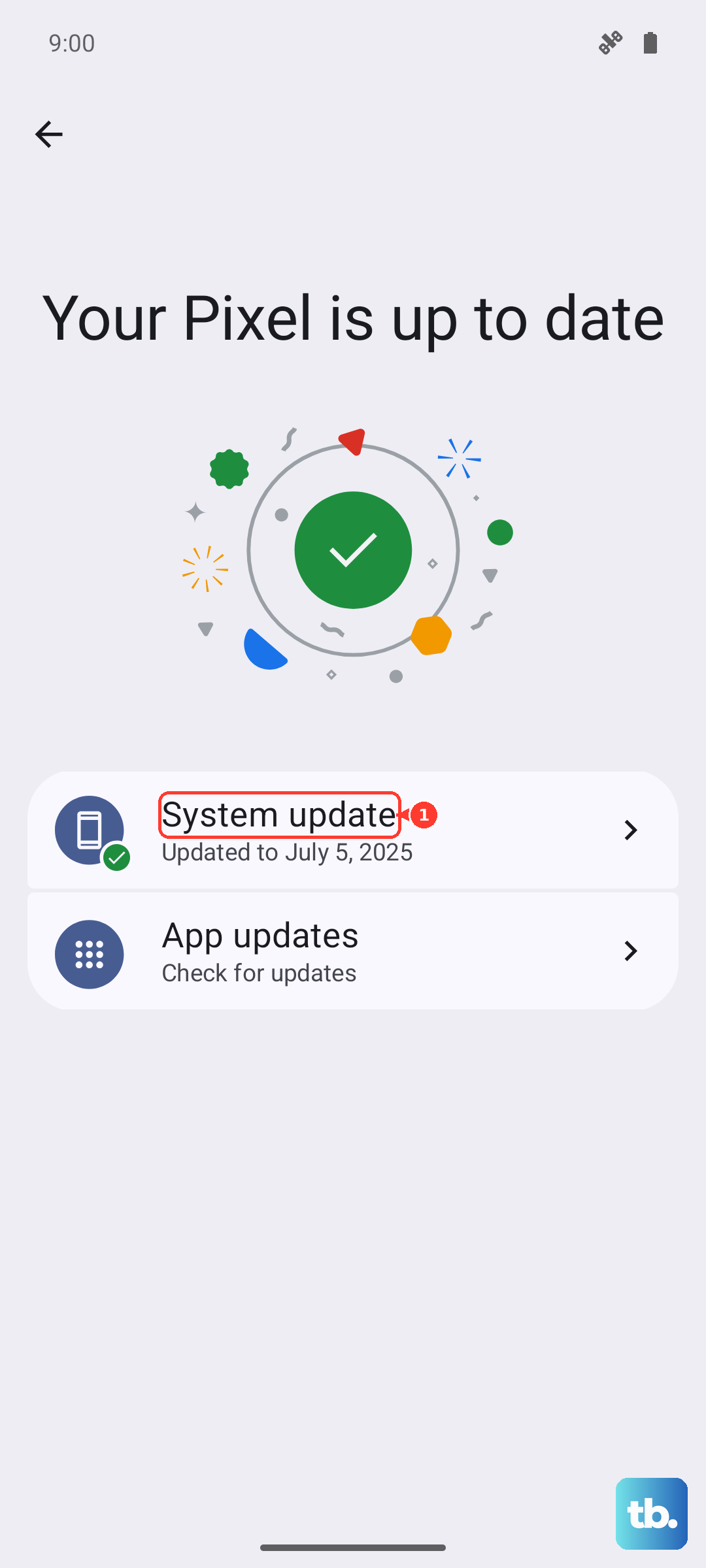
Next, check for a system update. Go to Settings > System > System update. If an update is there, installing it often fixes connectivity and messaging problems introduced in older software versions.
Disable Data Saver or Battery Optimization for Messages
Android's smart features can sometimes be too aggressive. Data Saver might block your messaging app from using background data. Go to Settings > Network & internet > Data Saver and make sure it's off, or add your messaging app to the "Unrestricted data" list.
Also, check Battery Optimization. Go to Settings > Apps > [Your Messaging App] > Battery. Set the battery setting to "Unrestricted" to ensure it can always run in the background to send your photos.
Try a Different Messaging App
This can tell you if the problem is with your specific app or with the phone itself. Download a simple, free app like Google Messages from the Play Store if you don't already have it. Set it as your default, grant it permissions, and try sending a picture.
If it works in the new app, the issue is likely with your previous app's settings or data. You can stick with the new one or use this info to troubleshoot the original app further.
Reset Your Network Settings
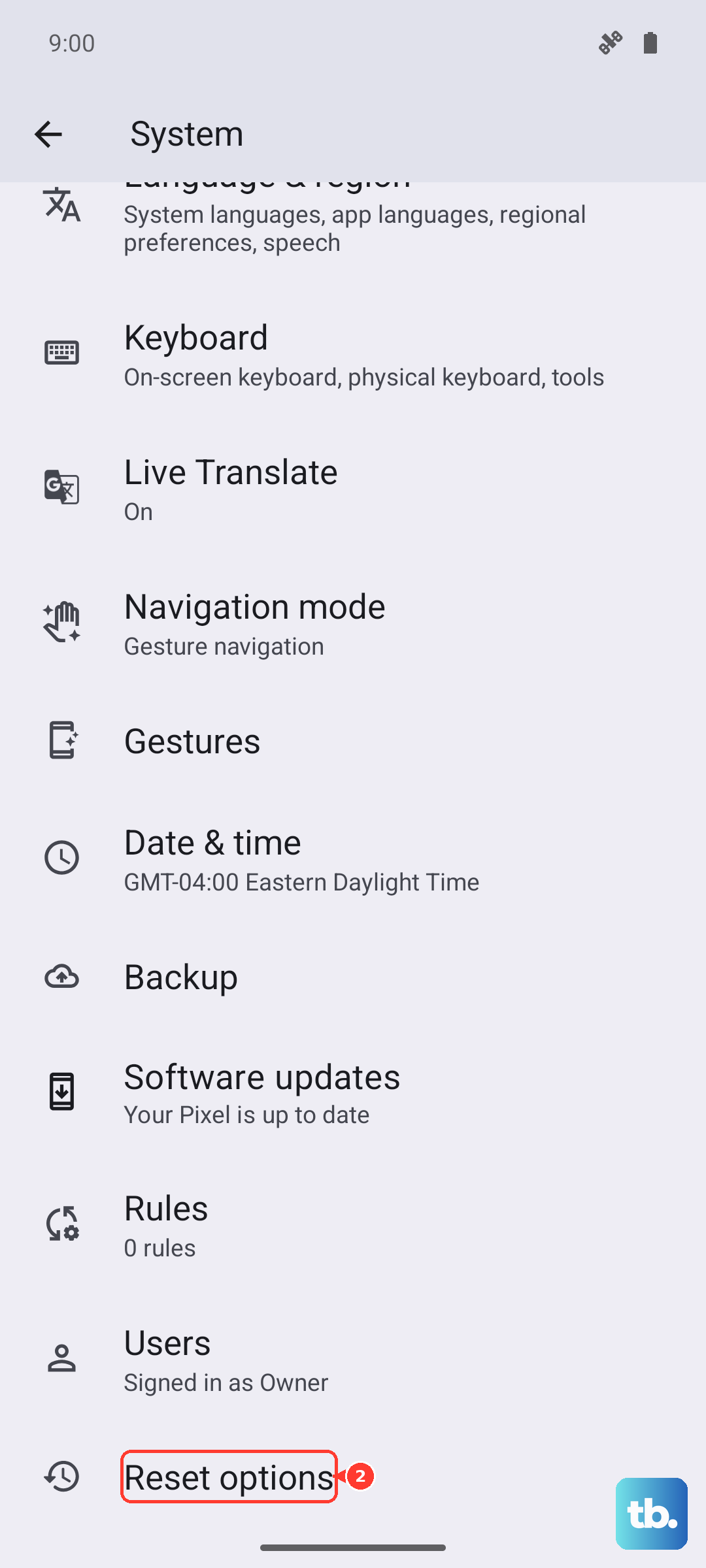
This is a more thorough step that clears all your network configurations. Go to Settings > System > Reset options. Tap on Reset Wi-Fi, mobile & Bluetooth.
You'll need to enter your PIN or password to confirm. This will erase all saved Wi-Fi networks, Bluetooth pairings, and cellular settings, so you'll have to reconnect to your Wi-Fi afterward. It often resolves persistent MMS and data issues.
Check the File Size and Format of Your Picture
Carriers have limits on MMS size, usually around 1MB. If your photo is a huge, high-resolution file from the Razr's camera, it might be too big. Try sending a different, smaller picture to test.
You can also compress the image before sending. Open the photo in Google Photos, tap the three-dot menu, and select "Save to device" or "Save as copy," which sometimes creates a smaller version suitable for messaging.
Contact Your Mobile Carrier
If you've tried everything else, the issue could be on your carrier's end. They can check if there's an outage in your area or if your line has any specific MMS blocks activated.
You can also ask them to reprovision your line or send you updated carrier settings. Sometimes a quick refresh from their side is all it takes to get picture messaging working again on your Razr Plus.