You're staring at your Motorola Razr Plus (2024), trying to get online, but that Wi-Fi icon just won't cooperate. It's a frustrating spot, especially on a brand-new foldable. The good news is that this is almost always a software hiccup you can fix yourself in a few minutes.
Toggle Wi-Fi and Restart Your Phone
Let's start with the simplest fix. Swipe down from the top of your cover screen or main display to open the quick settings panel. Tap the Wi-Fi icon to turn it off, wait a few seconds, and then tap it again to turn it back on. This forces the phone to drop the connection and search for networks fresh.
If that doesn't do it, restart the phone from the power menu. On the Razr+ 2024, press the Power and Volume up buttons at the same time, then tap Restart. If the phone is frozen or won't respond, hold the Power button for about 30 seconds, or until the phone restarts.
Use Airplane Mode to Reset Radios
This trick works on any phone, and the Razr Plus is no exception. Turning airplane mode on shuts down all wireless antennas, Wi-Fi, cellular, and Bluetooth. Swipe down for quick settings and tap the airplane icon, leave it on for about 15 seconds, then turn it off. This gives all the radios a clean slate to reconnect.
Forget the Problem Network
Your phone might be holding onto corrupted login data for your network. Open the Settings app, go to Network & internet > Internet (which is Wi-Fi). Tap the gear icon next to your network's name and select Forget.
Now, go back to the list of available networks, tap on yours, and re-enter the password. This is crucial if you've recently changed your Wi-Fi password or gotten a new router. I've seen this solve the "Saved, Secured" but won't connect error more times than I can count.
Check for Simple Oversights
It sounds basic, but it's worth a double-check. Make sure you're selecting the correct network name from the list, especially if you have a dual-band router with both 2.4GHz and 5GHz networks. Also, verify your password is correct, paying attention to capitalization and special characters.
While you're in the Wi-Fi settings, tap the gear icon next to your network and look for an option called Auto-connect. Make sure it's toggled on so your Razr Plus will join this network automatically when in range.
Turn Off Wi-Fi Scanning
If the connection keeps dropping, use Motorola's Wi-Fi troubleshooting step instead. Go to Settings > Location > Location services > Wi-Fi scanning and turn it off.
Motorola notes that turning off Wi-Fi scanning can make apps that use location work less well, so treat this as a targeted test and turn it back on if it does not help.
Review Battery and Performance Settings
Battery Saver can limit background activity, and Motorola's Maximum battery saver can pause non-essential apps, stop tethering and hotspot, and stop Wi-Fi and Bluetooth scanning. Open quick settings, check the Battery Saver tile, and turn Battery Saver off while testing Wi-Fi.
If you use Maximum battery saver, check its settings instead of looking for a "Peak Performance" mode. Motorola lists Adaptive performance under Maximum battery saver, where it can lower screen brightness, adjust CPU frequency, and lower power usage as needed.
Update Your Software
For best performance, Motorola recommends keeping the phone updated with the latest available Android software. To manually check, go to Settings > System updates > Check for updates.
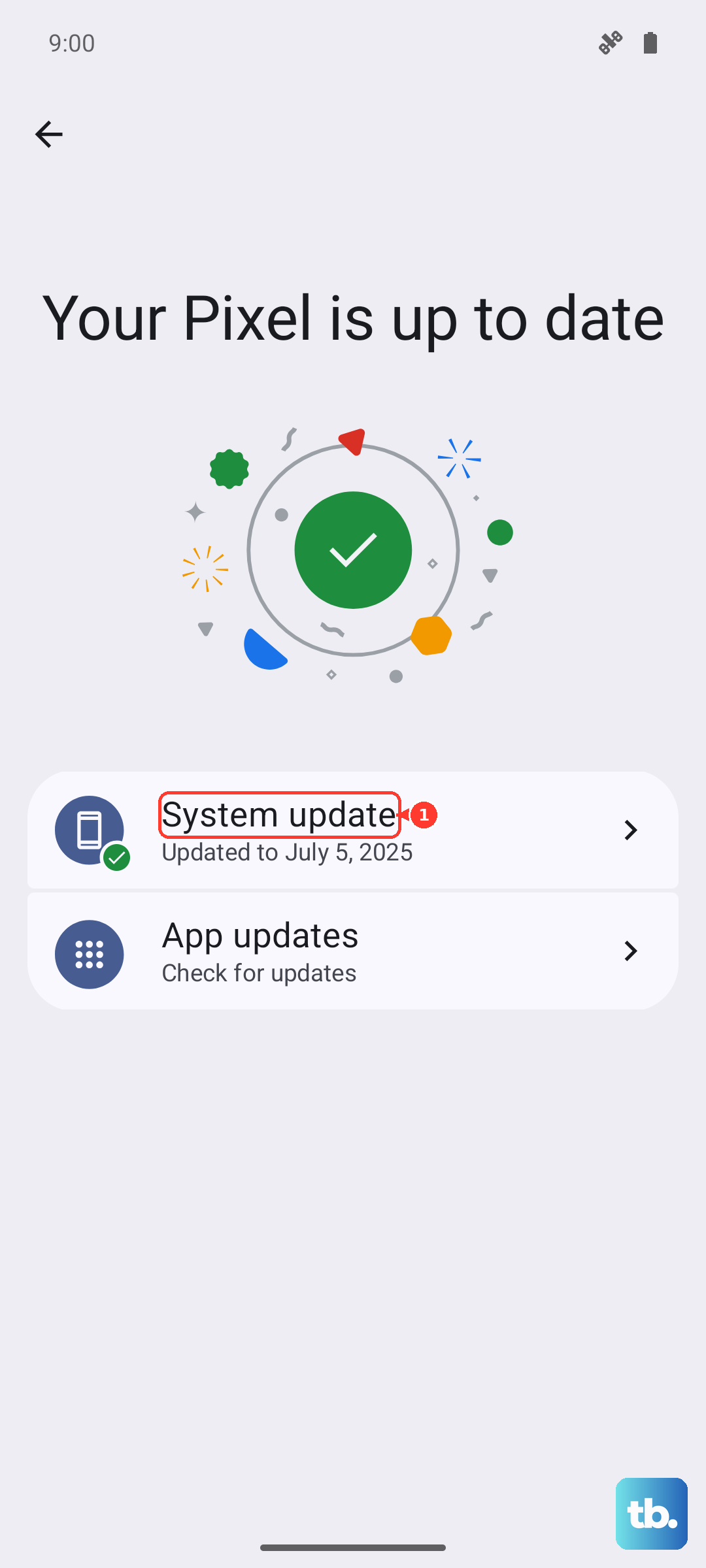
If an update is available, follow the onscreen instructions to install it, then test Wi-Fi again. Motorola says security updates include fixes and improvements from Google and Android OS updates are new Android versions; it does not identify Qualcomm Wi-Fi patches or tie this fix to Android 14.
Verify Date, Time, and Certificate Settings
Check the phone's clock settings. Go to Settings > System > Date & time, then turn on Set time automatically and Use network-provided time zone.
If your router uses parental controls, access control, or a MAC address allowlist, check the MAC address Android is using for this Wi-Fi network. Go to Settings > Network & internet > Internet, tap the settings icon next to the network, and scroll to Randomized MAC address. Add that address to the router's allowlist if needed; do not change privacy settings unless your network administrator or router setup requires it.
Reset Your Network Connections
This is a more thorough step for connection problems. Motorola says this reset removes all Wi-Fi devices and passwords, all mobile settings, all paired Bluetooth devices, and all VPN configurations, and you cannot choose individual connections to reset.
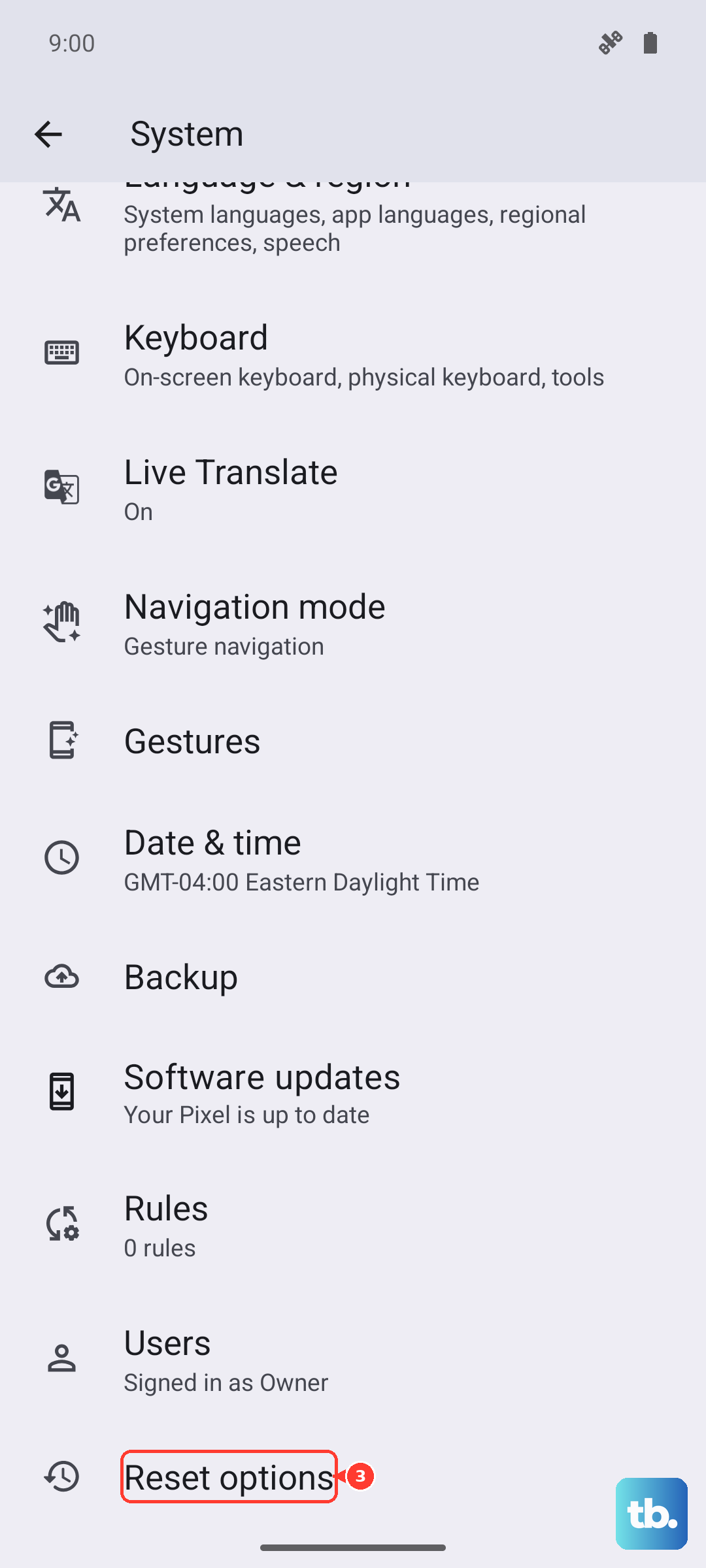
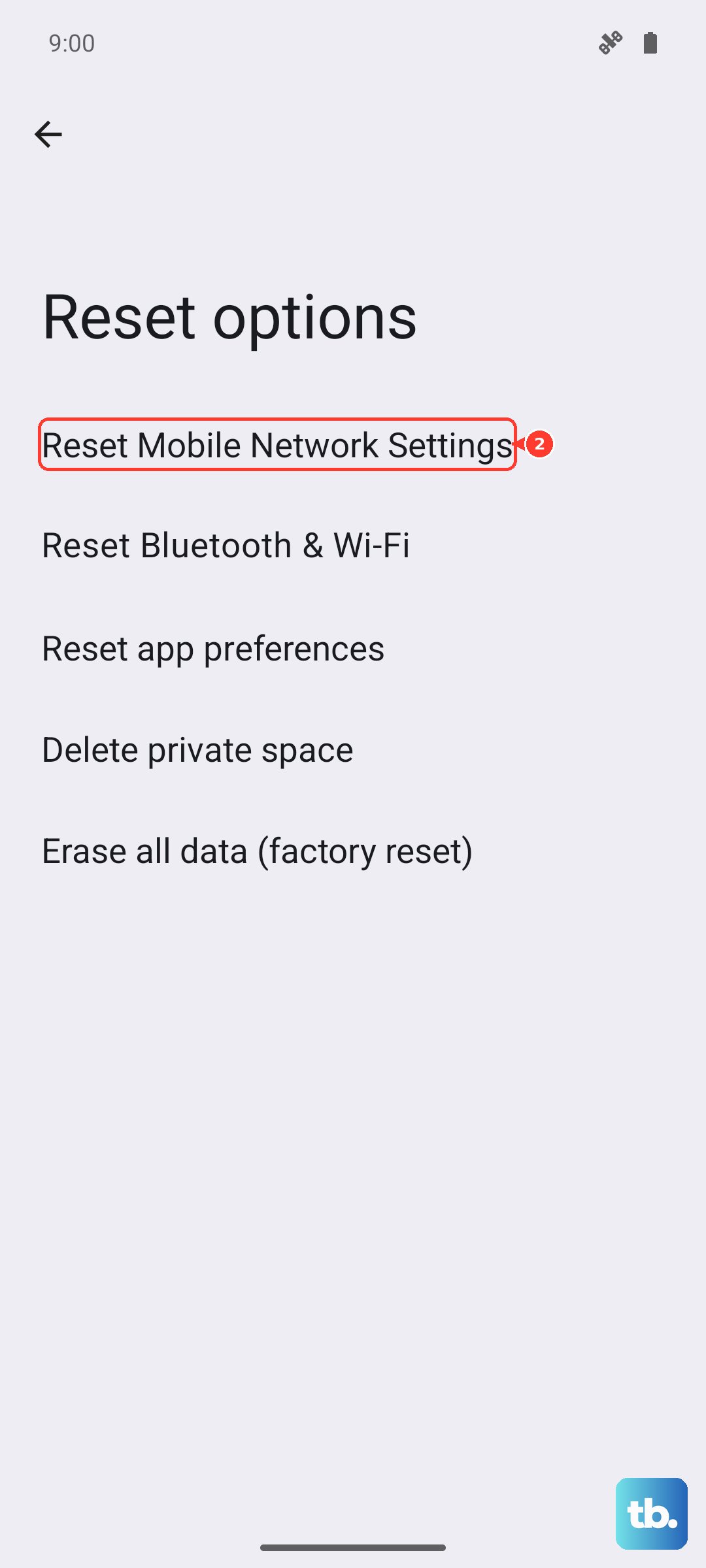
Go to Settings > System > Reset options. Tap Reset mobile network settings, then tap Reset Bluetooth and Wi-Fi. Afterward, reconnect to Wi-Fi, mobile data, and Bluetooth as needed.
Test in Safe Mode
If the problem started after installing a new app, use Safe Mode to test whether a downloaded app is involved. Press and hold the Power and Volume up buttons at the same time, or swipe down from the top of the screen and tap the power icon. Touch and hold Power off, then tap OK to restart in safe mode.
If Wi-Fi works in Safe Mode, Motorola says an app you downloaded is probably causing the problem. Exit Safe Mode, then remove recently downloaded apps one by one and restart after each removal to see whether that app solved it.
Restart Your Router and Modem
Don't forget that the issue might not be your phone at all. Motorola's Wi-Fi troubleshooting step is to restart the wireless router by unplugging it from power for about 30 seconds, then plugging it back in. Once the router is running again, try reconnecting your Razr Plus.
Once your home network is back online, try connecting your Razr Plus again. If other devices were also struggling, the router was almost certainly the problem.
Consider a Factory Reset
This is the last resort before considering a hardware issue. A factory reset will wipe your phone back to its original state. Before you do this, ensure everything is backed up to your Google account or an external drive.
Go to Settings > System, then tap Reset options > Erase all data (factory reset). If Wi-Fi still does not work after the reset, contact Motorola support or arrange service rather than assuming a specific antenna fault.