
When your Motorola Razr Plus (2024) starts crawling on mobile data, it can feel like you're stuck in the past. Streaming stutters, web pages hang, and apps take forever to load. The good news is that this is almost always a software or settings issue you can fix yourself.
I'd start with the quickest solutions first, as they often clear up temporary glitches. Let's get your foldable back up to speed.
Toggle Airplane Mode On and Off
This is the simplest and most effective first step. It forces your phone to disconnect from and then reconnect to your carrier's network, which can clear up a weak or stuck connection. Just swipe down from the top of your screen to open the Quick Settings panel and tap the Airplane icon.
Wait about 10 seconds, then tap it again to turn it off. Give your phone another 30 seconds to re-establish a solid data connection. This often fixes slow speeds immediately.
Check Your Current Network and Signal
Your Razr Plus might be clinging to a slower network type, like 3G, if the 4G or 5G signal is weak. Swipe down twice to open your full settings and go to Settings > Network & internet > Internet. Look at the status under your carrier's name.
If it says "LTE" or "5G," you're on a fast network. If it says "H+" or "3G," your speeds will be much slower. You can try manually selecting a network. Tap the gear icon next to your carrier, then Advanced > Preferred network type. Try selecting "5G/LTE" to prioritize the fastest available bands.
Restart Your Motorola Razr Plus
A full restart clears out the phone's temporary memory and stops any background processes that might be hogging your data connection. Press and hold the side Power button until the power menu appears, then tap "Restart."
If the screen is unresponsive, you can perform a force restart. Just press and hold the Power button for 10 to 15 seconds until you feel a vibration and see the Motorola logo appear. This is a safe way to reboot the system.
Review and Restrict App Data Usage
Some apps are data vampires, constantly syncing or updating in the background. The Razr Plus has a great tool to control this. Go to Settings > Network & internet > Data Saver and make sure it's turned on. This restricts background data for all apps.
For more control, go to Settings > Apps and select any app you suspect. Tap Mobile data & Wi-Fi. Here, you can turn off "Background data" for that specific app, preventing it from using data when you're not actively using it.
Clear the Cache for Key Services
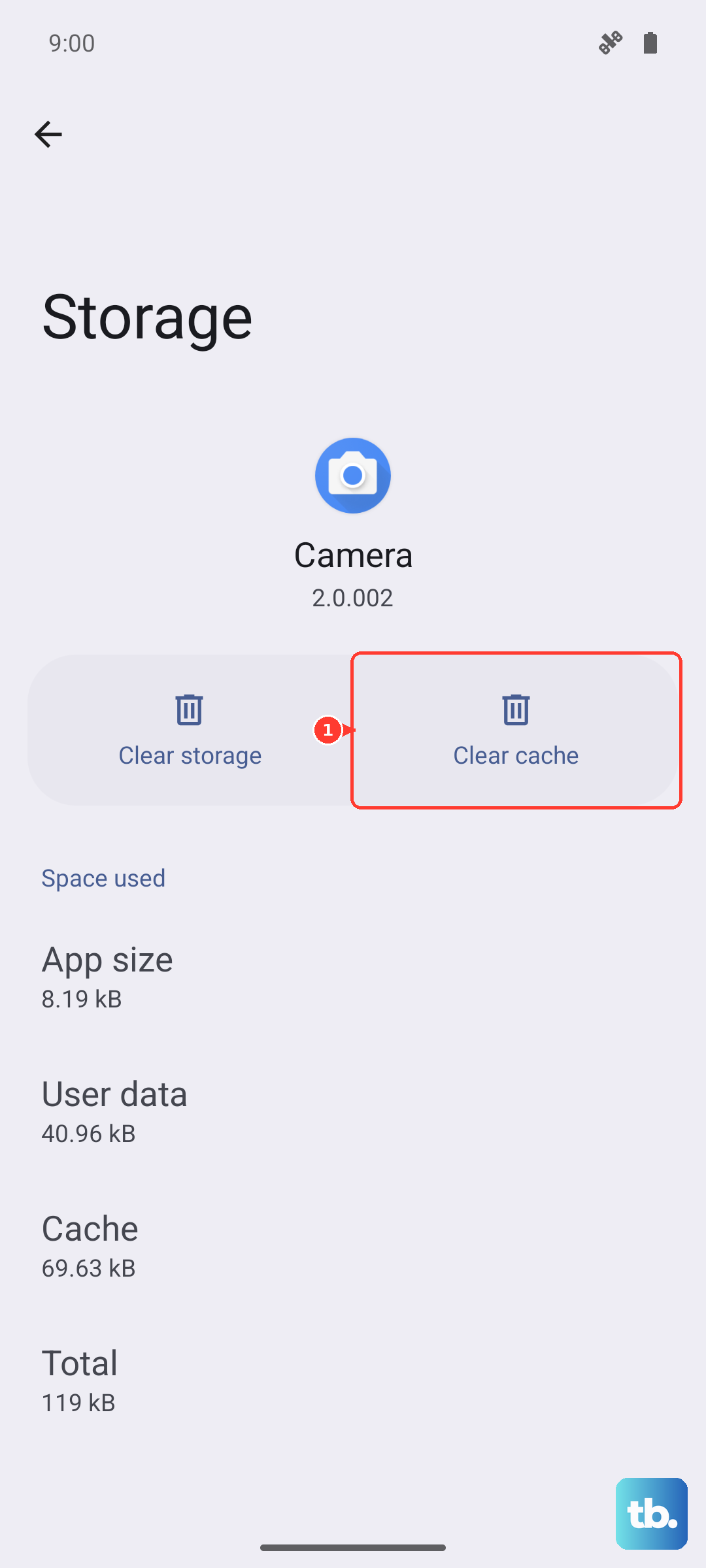
Corrupted cache files in system services can interfere with network connectivity. It's safe to clear these caches. Head to Settings > Apps > See all apps.
Find "Carrier Services" and tap it. Go to Storage & cache and tap "Clear cache." Do the same for "Google Play Services" and your preferred browser, like Chrome. This doesn't delete any personal data, just temporary files.
Update Your Carrier Settings and PRL
Your carrier occasionally sends out small updates that optimize network connectivity. While Android handles this automatically, you can manually check. The path can vary, but you can often find it by going to Settings > System > Advanced > System updates.
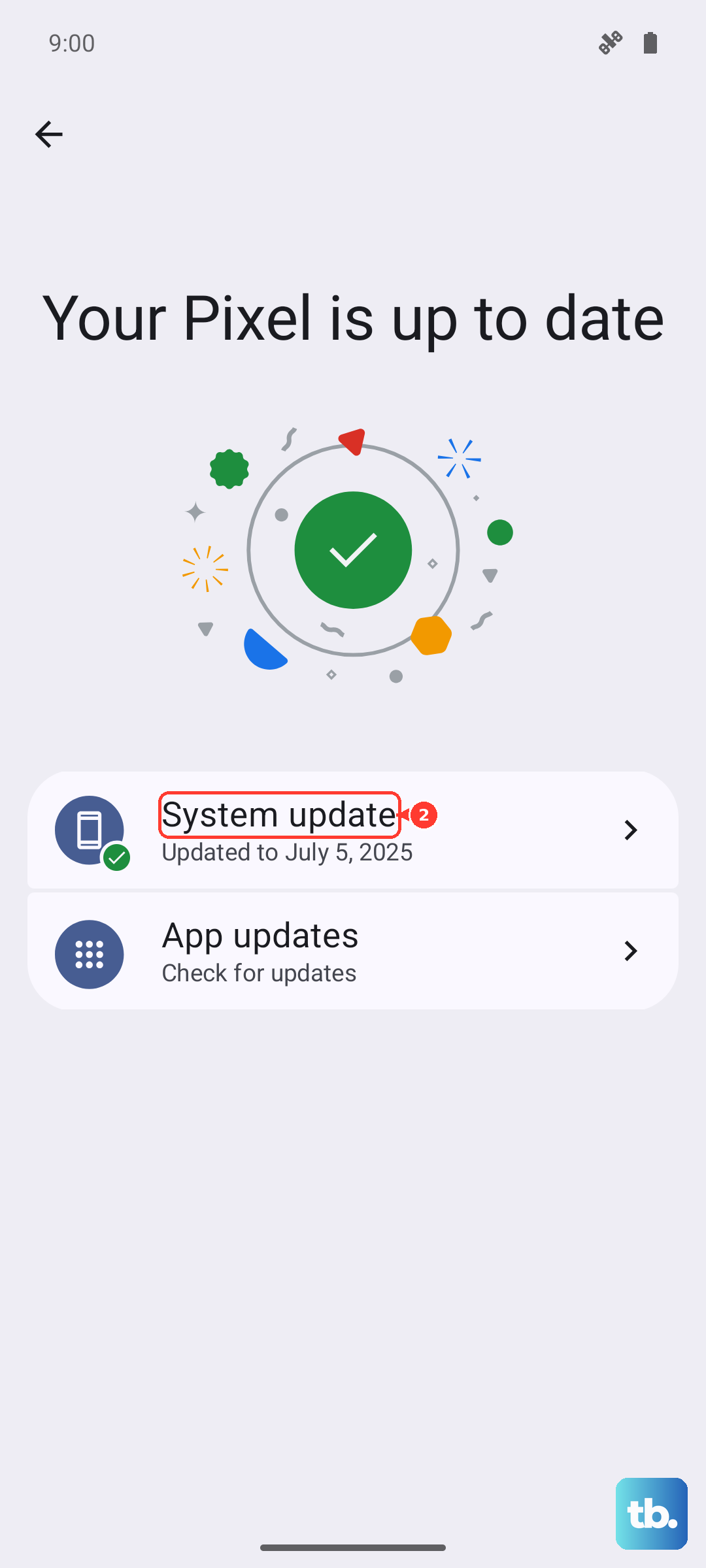
Look for an option like "Carrier settings update" or "Update PRL." If an update is available, install it. This can resolve issues with connecting to newer cell towers.
Reset Your Network Settings
This is a more comprehensive step if the simpler fixes haven't worked. It will erase all your saved Wi-Fi networks, Bluetooth pairings, and cellular preferences, but it won't touch your personal files or apps.
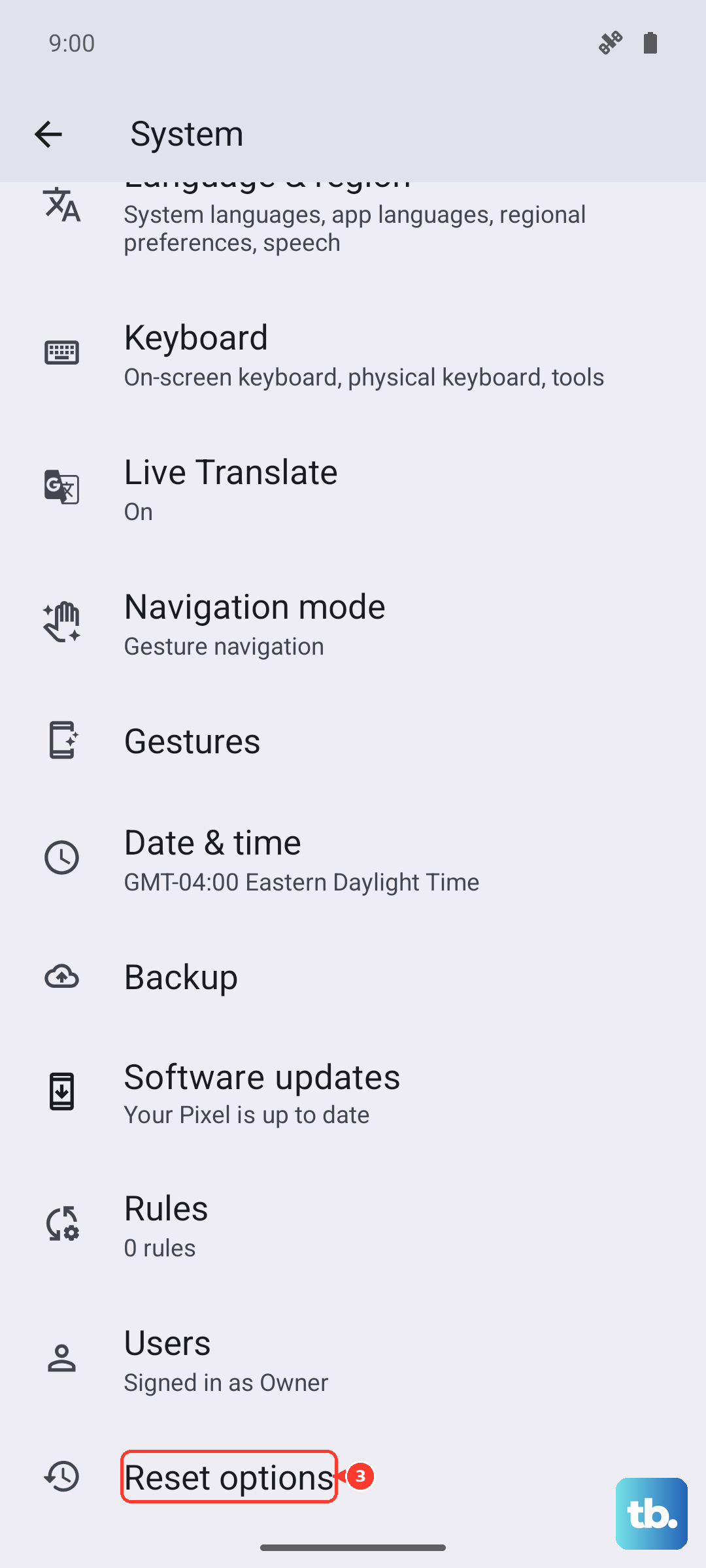
Go to Settings > System > Reset options. Tap Reset Wi-Fi, mobile & Bluetooth and confirm. After the phone reboots, you'll need to reconnect to Wi-Fi and re-pair Bluetooth devices, but it often clears deep-seated network glitches.
Check for a Software Update
Motorola releases updates that include performance improvements and bug fixes for connectivity. Make sure your Razr Plus is running the latest available version of Android. Go to Settings > System > System updates.
Tap "Check for update." If one is available, download and install it. It's best to do this over Wi-Fi if your mobile data is already slow. An update can directly address modem or radio firmware issues causing slow speeds.
Try Your SIM Card in Another Phone
This helps determine if the problem is with your Razr Plus or with your carrier account/service in your area. Carefully eject the SIM tray using the tool that came with your phone and place the SIM into another compatible device.
If mobile data is also slow on the other phone, the issue is likely with your carrier's network coverage. You should contact them to check for outages or account issues. If the other phone works fine, the problem is isolated to your Razr.
Disable Any Active VPN Connections
While VPNs are great for privacy, they route all your traffic through a remote server, which can significantly slow down your connection. If you have a VPN app running, open it and disconnect from the VPN server.
You can also check your Quick Settings panel (swipe down twice) to see if a VPN tile is active. Tapping it should disconnect the session. Test your mobile data speed again without the VPN to see if that was the bottleneck.