Your Motorola Razr+ 2024 is built to show off, so when the foldable main panel or the cover display starts flickering, pulsing, or strobing, it pulls your eye to exactly the wrong thing. The good news is that most flicker on this phone is a software or settings quirk, not broken glass, and the LTPO AMOLED screens here support up to 165Hz along with the brightness and flicker controls you need to chase it down. Work through the fixes below in order, because they move from the safest on-screen toggles to the last-resort reset and repair path. Stop as soon as the flicker clears.
A browser based monitor test cycles solid colors and gradients across the whole screen, which helps you confirm whether the panel itself shows the fault.
Rule Out Adaptive Brightness First
The most common cause of a "flickering" Razr+ 2024 is the screen auto-dimming and brightening as the light around you changes. Adaptive brightness matches the display to ambient light, and quick lighting shifts can read as a pulse or shimmer rather than a smooth fade. Toggling it is the safest first test on both the main and cover displays.
Open Settings > Display.
Turn Adaptive brightness off, then on again.
Set the brightness slider manually and watch whether the flicker stops.
If the screen settles with adaptive brightness off, leave it off and control brightness yourself, or turn it back on if the manual setting feels worse.
Switch On Flicker Prevention for Dark Rooms
Motorola includes a dedicated setting for this exact problem. In their words, if you are using your phone in dark environments and the screen flicker is irritating your eyes, use Flicker prevention. It is most noticeable at low brightness in a dim room.
Open Settings > Display.
Turn Flicker prevention on.
Try it both ways. Turning Flicker prevention on stops the effect for most people, but flip it off again if your particular flicker only appears with it enabled, so you can confirm which state keeps your Razr+ 2024 steady.
Pick a Steadier Refresh Rate
This phone can drive its displays up to 165Hz, and flicker is sometimes tied to high-refresh or adaptive-rate behavior rather than the panel itself. Changing the refresh rate is a clean way to test that without touching anything destructive.
Open Settings > Display.
Tap Display refresh rate.
Choose a refresh rate and watch the screen for a minute or two.
A higher rate looks smoother but uses more battery. Note that when Battery saver is on, the refresh rate is set to 60Hz, so if your screen looks different only on low battery, that is expected behavior rather than a fault.
Update the Software to Squash Display Bugs
Display and firmware bugs that cause flicker are frequently patched in later builds, and Motorola delivers Google security and Android OS updates for this model. Your Razr+ 2024 launched on Android 14 and is eligible for up to three OS upgrades, with Android 15 offered for it, so keeping it current matters.
Open Settings > System > System updates.
Install any pending update and let the phone restart.
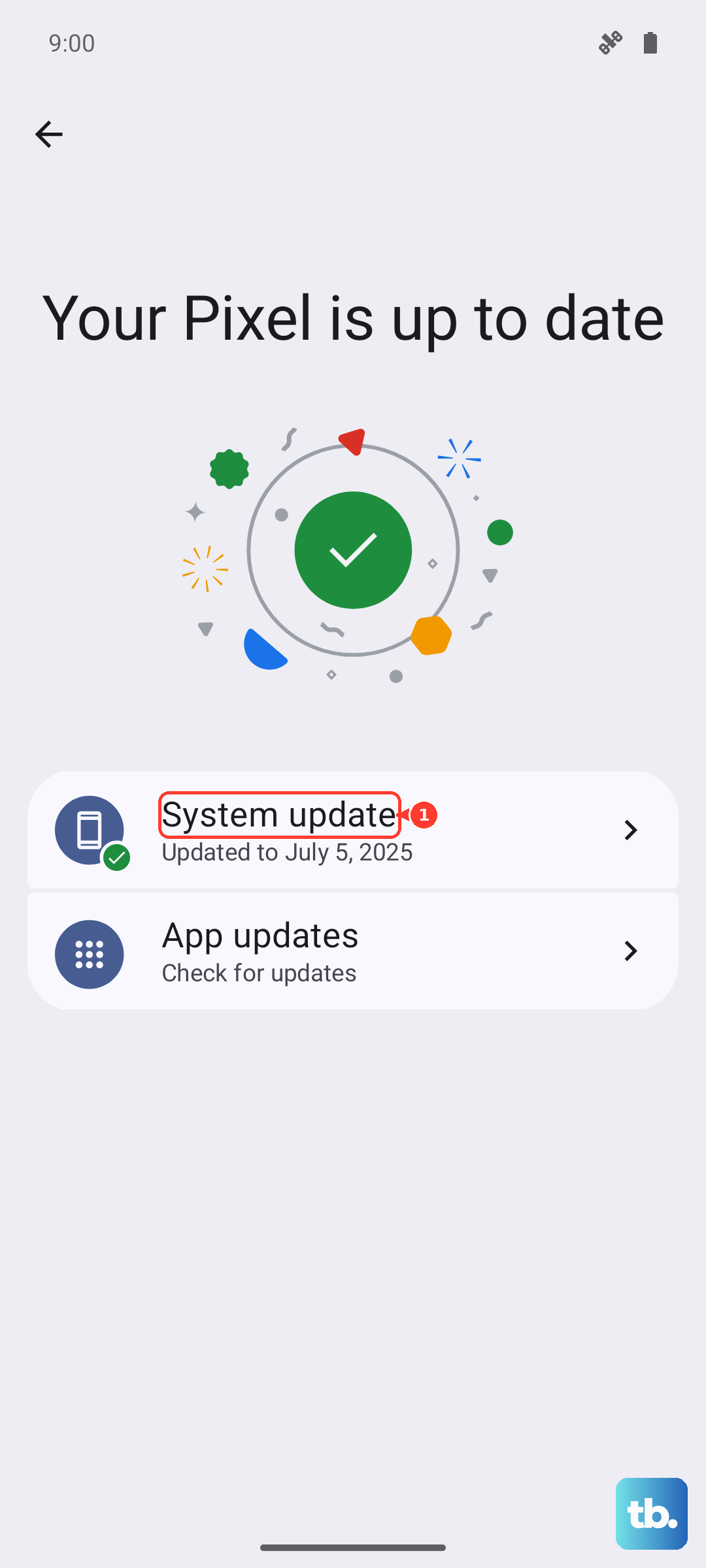
The phone may also download security updates automatically, but checking manually makes sure nothing is waiting. Install everything available before moving on.
Force a Restart to Clear a Temporary Glitch
If the flicker started suddenly, a stuck process behind the display can be the culprit, and a forced restart clears those temporary glitches without erasing anything. Use the model-specific sequence below exactly.
- 1.Hold down the Power button for about 30 seconds to force the phone to restart.
- 2.If nothing happens, charge the phone for at least 5 minutes.
- 3.While still connected to the charger, hold down the Power button for 30 seconds again.
Once it powers back up, use the phone for a while to confirm the flicker is gone before deciding it worked.
Use Safe Mode to Expose a Misbehaving App
A downloaded app or widget can interfere with how the screen draws, and safe mode disables every third-party app so you can test that theory cleanly. It changes nothing permanently and is fully reversible.
Press and hold the Power and Volume up buttons at the same time.
Touch and hold Power off, then touch OK to restart in safe mode.
Confirm "Safe mode" appears across the bottom of the home screen.
If the flicker disappears in safe mode, a downloaded app is the cause. Restart the phone normally to exit safe mode, then uninstall recently added or suspect apps one at a time until the flicker stays away.
Clear Out Storage When the Screen Also Stutters
A nearly full phone can develop performance issues, and that can pair flicker with freezing or sluggish redraws. If your screen stutters or hangs as it shimmers, give the system more room to work.
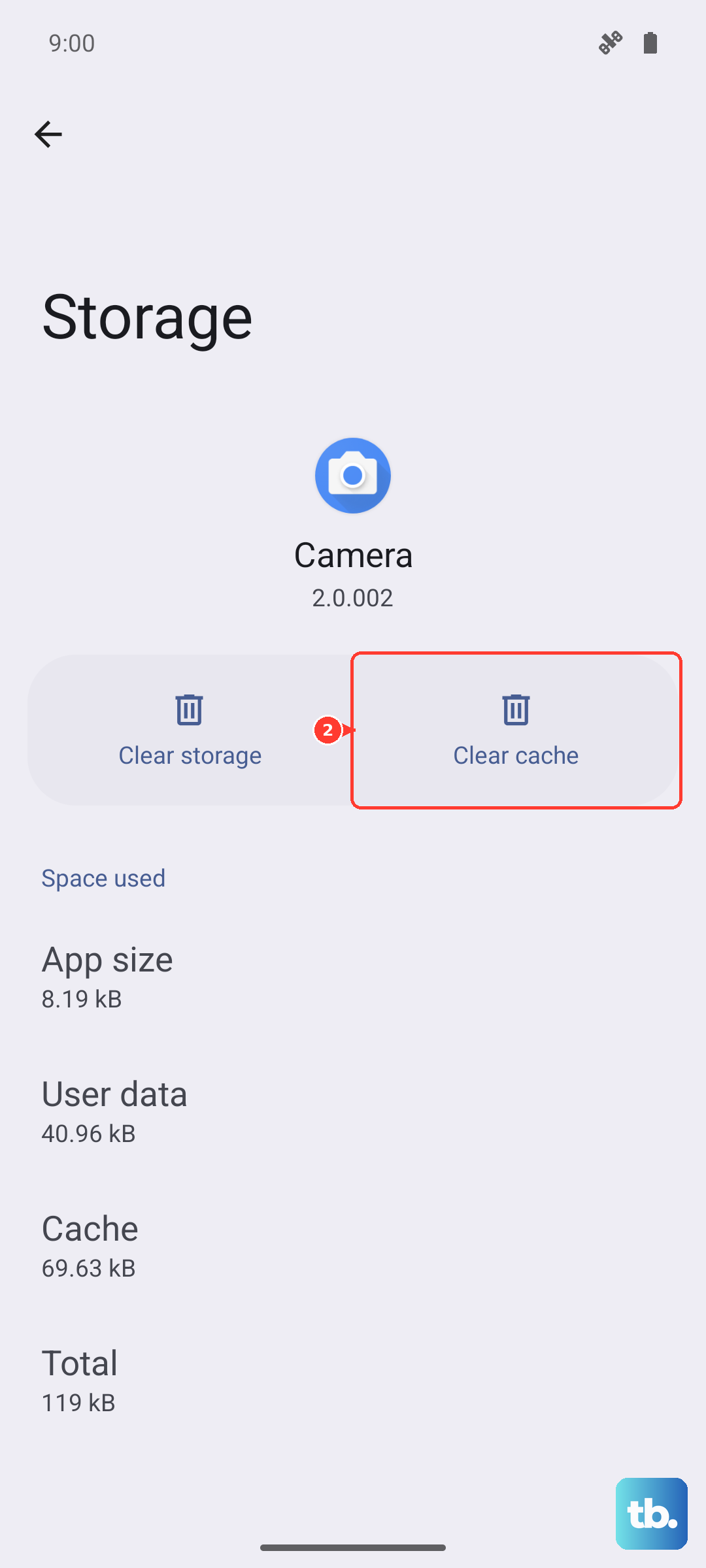
Remove unnecessary photos, videos, and downloads you no longer need, uninstall apps you do not use, and clear cached data to free space. Freeing storage will not fix a true display fault, but it often smooths out the freezing-plus-flicker combination on a heavily loaded Razr+ 2024.
Erase Everything as Your Final Software Move
If the flicker survives every step above, a factory reset is the last software option, and it should only come after a backup because it is destructive. Motorola warns that this erases all data and restores the phone to its out-of-the-box condition. Back up your photos, videos, files, contacts, and calendar first.
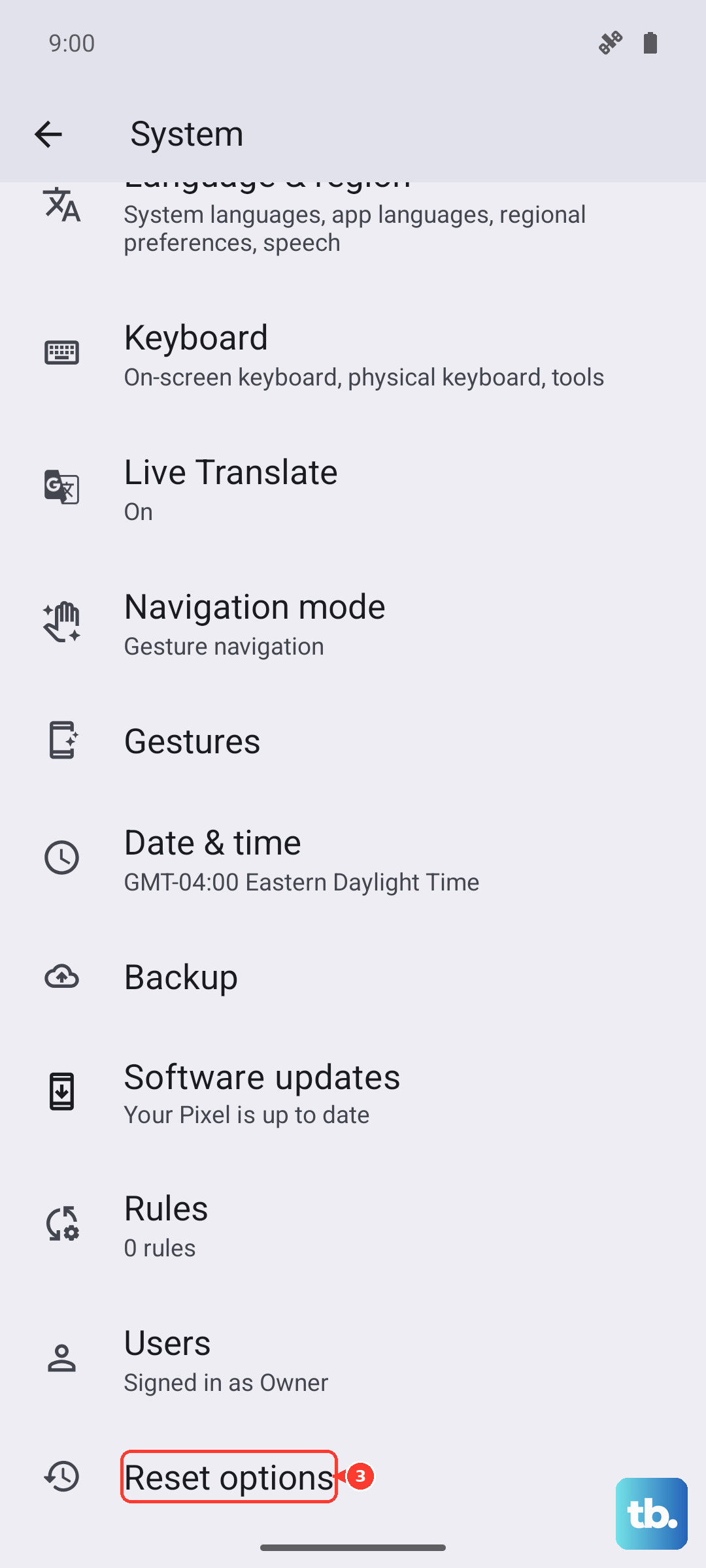
Open Settings > System > (Advanced) > Reset options > Erase all data (factory reset).
Confirm the reset and let the phone wipe and restart.
If the screen is too unstable to navigate Settings, use recovery instead. Use the Volume buttons to scroll to Wipe data/factory reset and press Power to select, then choose Factory data reset, then Reboot system now. After the reset, test the screen before restoring your backup, so you can tell whether the problem was software or hardware.
When the Flicker Is Hardware, Reach Out for Repair
Some flicker is not something settings can fix. If the flickering comes with lines on the display, color artifacts, or any visible glass damage, or if none of the software steps above made a difference, treat it as a possible hardware issue.
In that case, Motorola directs you to its Repair Options portal to submit the device for professional repair, including warranty service where it applies. Have your model details and a clear description of when the flicker happens ready so the assessment goes faster.
Frequently Asked Questions
Why does my Razr+ 2024 screen only flicker in dark rooms?
That is exactly the scenario Flicker prevention is built for. Motorola says to use it when you are in dark environments and the screen flicker is irritating your eyes. Turn Flicker prevention on under Settings > Display, and adjust adaptive brightness if low-light dimming is what you are seeing.
Will changing the refresh rate hurt my battery life?
A higher refresh rate looks smoother but uses more battery, so there is a trade-off when you choose a faster setting. Also remember that with Battery saver on, the refresh rate is forced to 60Hz, which can explain why the screen behaves differently when the battery is low.
Does a factory reset delete my photos and contacts?
Yes. A factory reset erases all data and restores the phone to its out-of-the-box condition, so back up your photos, videos, files, contacts, and calendar before you start. Only use it after the safer steps have failed.
Which Android version should my Razr+ 2024 be running?
It launched on Android 14 and is eligible for up to three OS upgrades, and Android 15 is offered for this model, so an in-use device may be on Android 14 or 15. Check Settings > System > System updates and install anything pending to stay on the latest build.
The flicker comes with lines on the screen. Is that fixable at home?
Flicker paired with lines, color artifacts, or visible glass damage usually points to a hardware fault rather than a setting. Run the software steps to be sure, and if they do not help, use Motorola's Repair Options portal to arrange a professional repair.