That frustrating lag or freeze on your new Motorola Razr Plus (2024) can feel out of place on such a modern phone. It's often a temporary software hiccup or a resource-heavy app causing the trouble. The fixes are usually straightforward and don't require any special tools.
I'd start with a simple restart. It's the quickest way to clear out any temporary glitches that might be slowing things down. Just press and hold the power button for 10 to 15 seconds until you see the Motorola logo appear and the phone reboots itself.
This force restart is a bit different from just turning the screen off and on, and it can resolve a lot of minor performance issues right away.
Close Recent Apps and Check the Cover Screen
Too many apps running, especially on the cover screen, can eat up your phone's memory. Swipe up from the bottom of the main screen, hold, and then swipe away any apps you're not using.
Don't forget about the cover screen. Apps running there continue to use resources even when the phone is closed. Swipe through your cover screen panels and close any apps you left open there as well.
Free Up Storage Space
When your internal storage gets too full, the phone has less room to operate efficiently, which can lead to lag. Head to Settings > Storage to see what's taking up space.
Look for old downloads, large video files, or apps you haven't used in months. The Razr Plus has a fantastic camera, but those high-resolution photos and videos can fill storage fast. Consider moving them to Google Photos or another cloud service.
Update Your Apps and Android Version
Outdated apps are a common culprit for performance problems. Open the Google Play Store, tap your profile icon, and go to Manage apps & device. Install any pending updates, as developers often release performance patches.
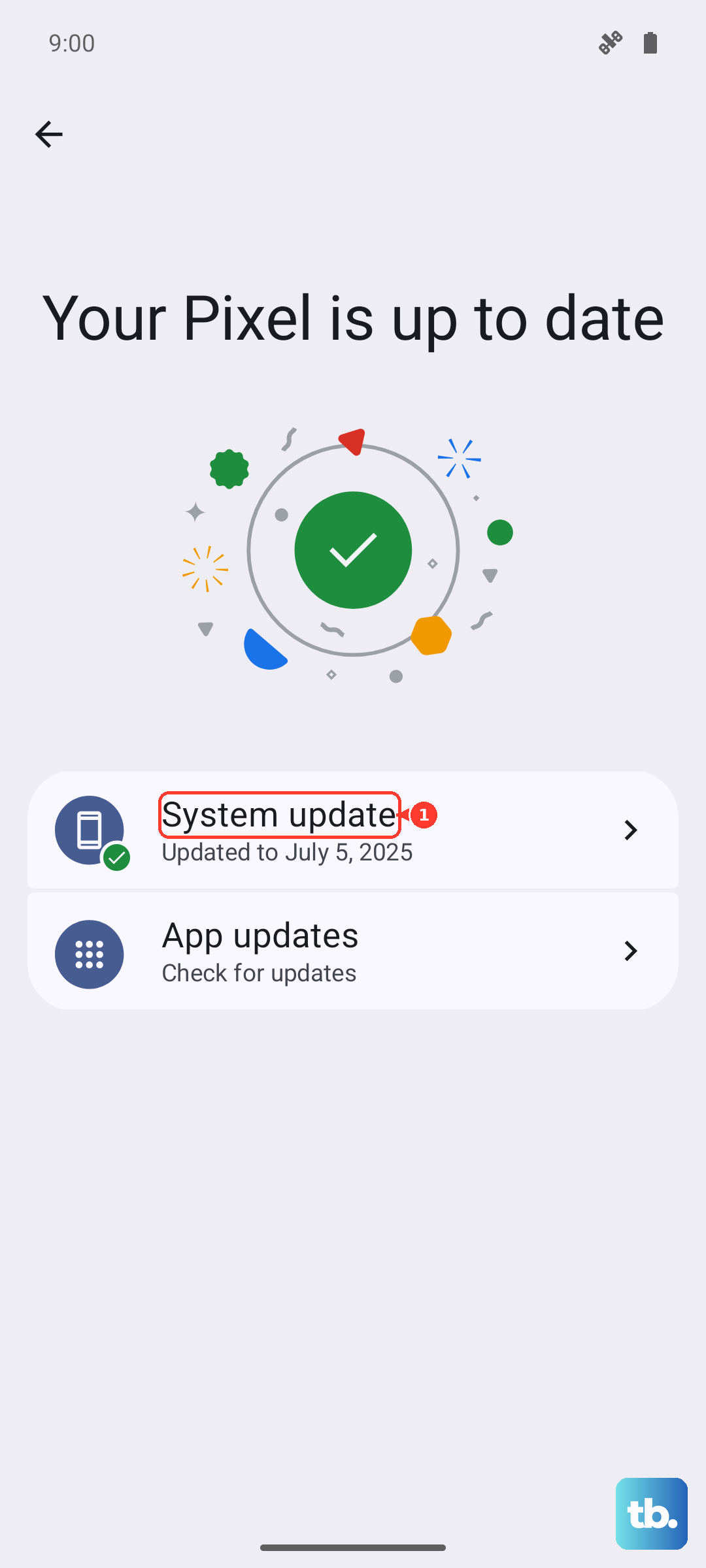
Next, check for a system update. Motorola regularly releases optimizations. Go to Settings > System > System updates to see if a newer version of Android is waiting. Keeping the software current is key for smooth operation.
Check for Overheating
The Razr Plus's compact, foldable design is beautiful, but it can trap heat more easily than a slab phone. If the device feels warm to the touch, it may be throttling performance to cool down.
Take it out of any case, avoid using it while it's charging, and close any demanding games or camera apps for a few minutes. Letting it cool down can immediately restore normal speed. Also, close any apps running on the cover screen during heavy use, as they add to the processor load.
Manage Background App Activity
Some apps are overly eager to run in the background. You can rein them in. Go to Settings > Apps > See all apps.
Tap on an app you suspect might be causing issues, then select Mobile data & Wi-Fi. Here, you can toggle off Background data for that specific app. This prevents it from updating when you're not actively using it, saving both battery and processing power.
Review Battery Usage and Health
While Android doesn't have a simple "battery health" percentage like iOS, you can see which apps are draining power. Go to Settings > Battery and tap on Battery usage.
If a single app is using a disproportionate amount of power in the background, it could be malfunctioning and causing lag. Consider force-stopping it or checking for an update. For a deeper look, enable Developer options and use tools there to monitor processes.
Clear App Caches
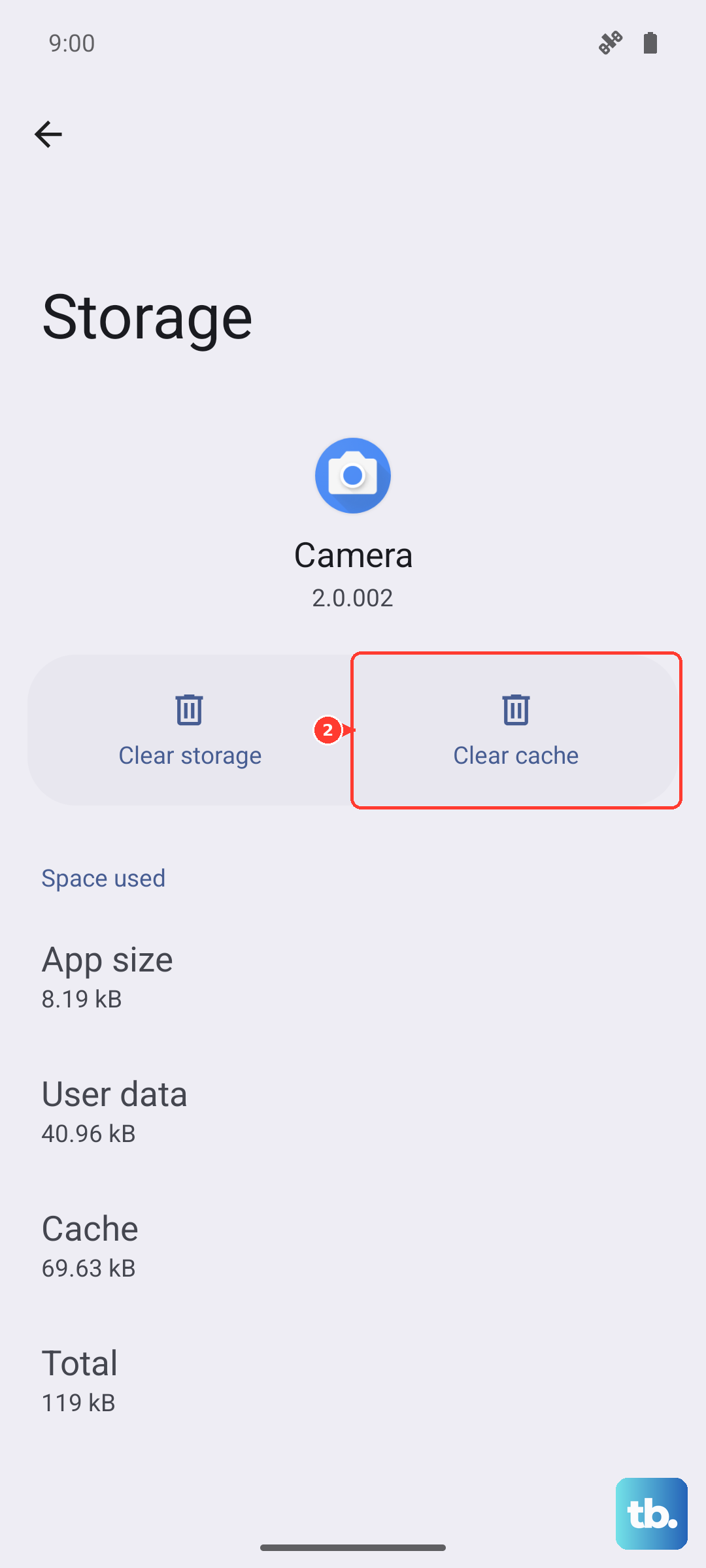
Over time, apps store temporary data that can become corrupted. Clearing an app's cache can fix lag without deleting your personal data within the app. Go to Settings > Storage and tap on Other apps.
Select an app, then tap Clear cache. Do this for apps that feel slow, like your web browser or social media apps. Avoid "Clear storage" or "Clear data," as that will reset the app completely.
Reduce Animations and Visual Effects
Speeding up or disabling the fancy transition animations can make the phone feel snappier. First, you need to enable Developer Options. Go to Settings > About phone and tap on Build number seven times.
Now, go back to Settings and enter the new System > Developer options menu. Scroll down to the Drawing section. Here, you can adjust the Window animation scale, Transition animation scale, and Animator duration scale. Setting these to .5x or turning them off can make navigation feel instantly faster.
Perform a Software Reset (Reset All Settings)
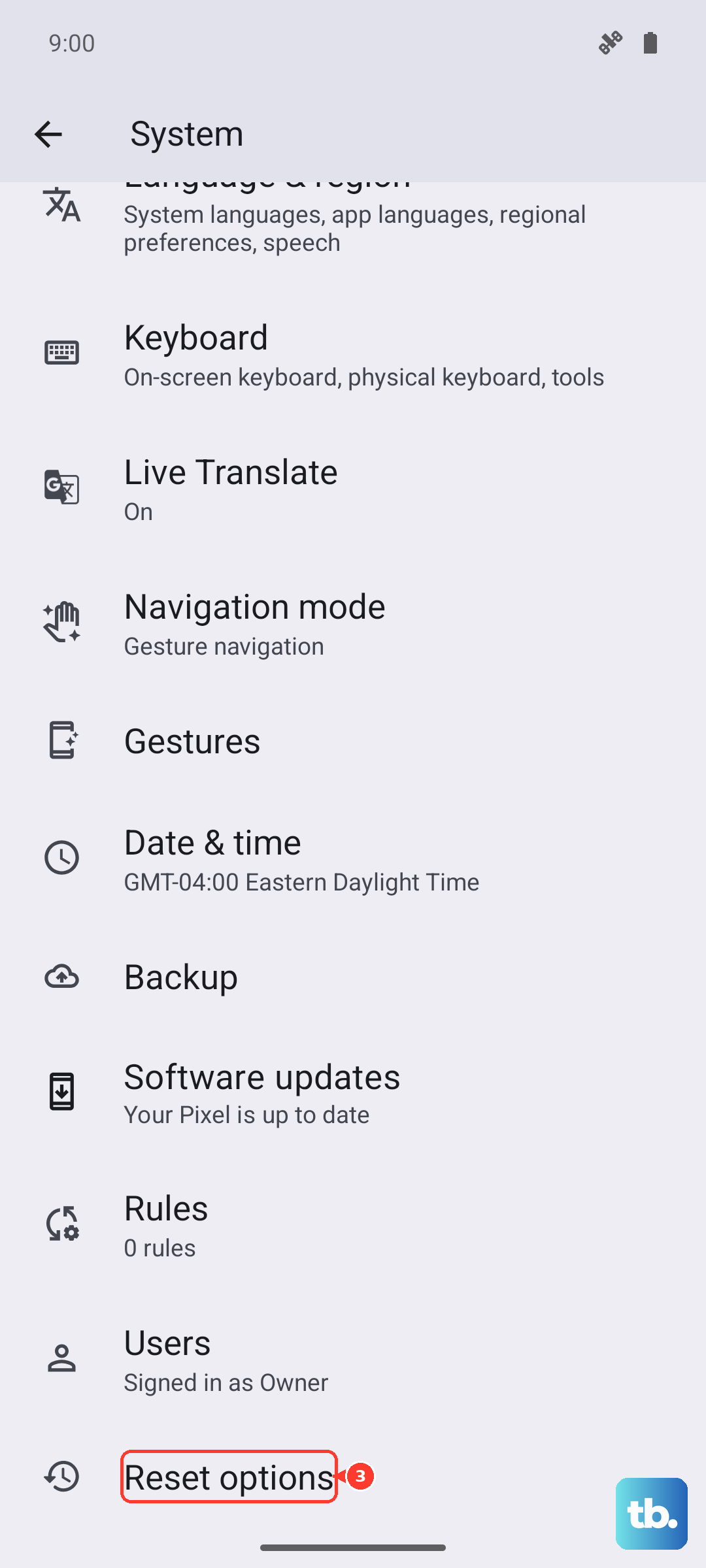
If lag persists, a software reset can help. This will revert all your system settings back to default without touching your personal photos, messages, or apps. It's a good middle step before a full factory reset.
Go to Settings > System > Reset options. Tap on Reset all settings and confirm. You'll need to re-setup things like Wi-Fi passwords, Bluetooth pairings, and ringtones, but it often clears out any conflicting settings causing slowdowns.