
When your Motorola Razr Plus (2024) starts restarting on its own, it can be incredibly disruptive. This is especially true on a foldable where apps might be running on both screens. The issue is usually a software hiccup, but it's worth checking a few specific things on this model.
Before you start, it's a good idea to make sure your photos and important files are backed up. You can use Google One or just manually copy files to a computer. This keeps your data safe if you need to take more serious steps later.
Perform a Force Restart
This is almost always the first thing I'd try. A force restart clears the phone's temporary memory and can stop a minor software loop that's causing the restarts. For the Razr Plus, press and hold the Power button for about 10 to 15 seconds.
Keep holding it until you see the Motorola logo appear on the screen. The phone will then boot up normally. This doesn't delete any of your personal data or settings.
Check for Overheating
The Razr Plus's compact design can sometimes lead to heat buildup, which Android will try to manage by restarting. Feel the back of the phone, especially near the hinge. If it's very warm to the touch, let it cool down completely.
To help it cool, close any apps running on the cover screen by swiping them away. Also, try charging the phone while it's unfolded to improve airflow. Avoid using demanding apps or wireless charging until the restarting stops.
Update Your Apps and Android
An outdated app or a bug in the system software is a common culprit. Start by updating all your apps through the Google Play Store. Open the Play Store, tap your profile picture, and go to Manage apps & device.
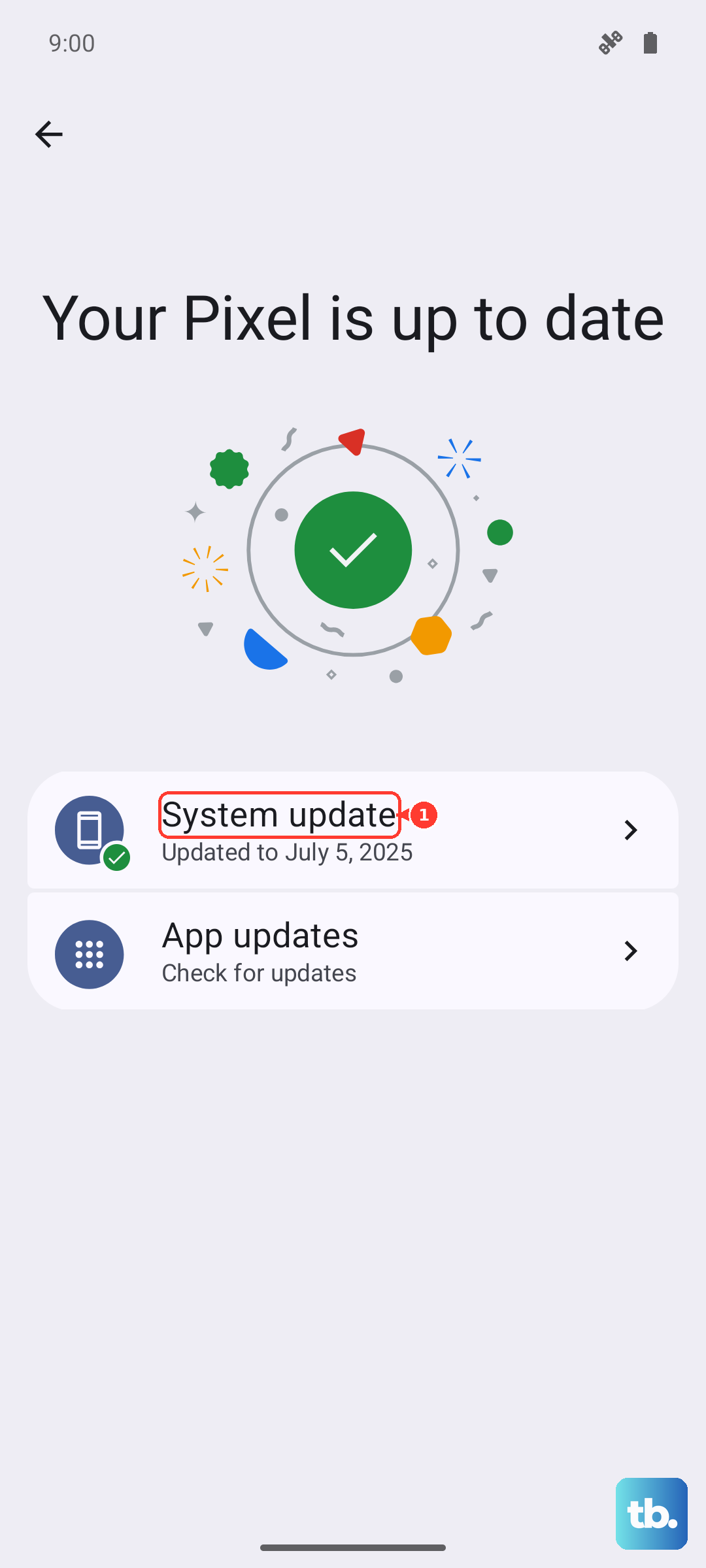
Tap "Update all" if updates are available. Next, check for a system update. Go to Settings > System > System update. Download and install any available updates, as these often include critical stability fixes.
Boot Into Safe Mode
Safe Mode temporarily disables all third-party apps. If the phone stops restarting in Safe Mode, you know a downloaded app is causing the problem. To enter Safe Mode, press and hold the Power button until the power menu appears.
Then, tap and hold the "Power off" option on your screen. A prompt will ask if you want to reboot to Safe Mode. Tap "OK". Your phone will restart with "Safe Mode" in the bottom corner.
Use the phone for a while in this state. If it's stable, you'll need to find the problematic app by uninstalling recent downloads one by one after restarting normally.
Clear App Cache and Data
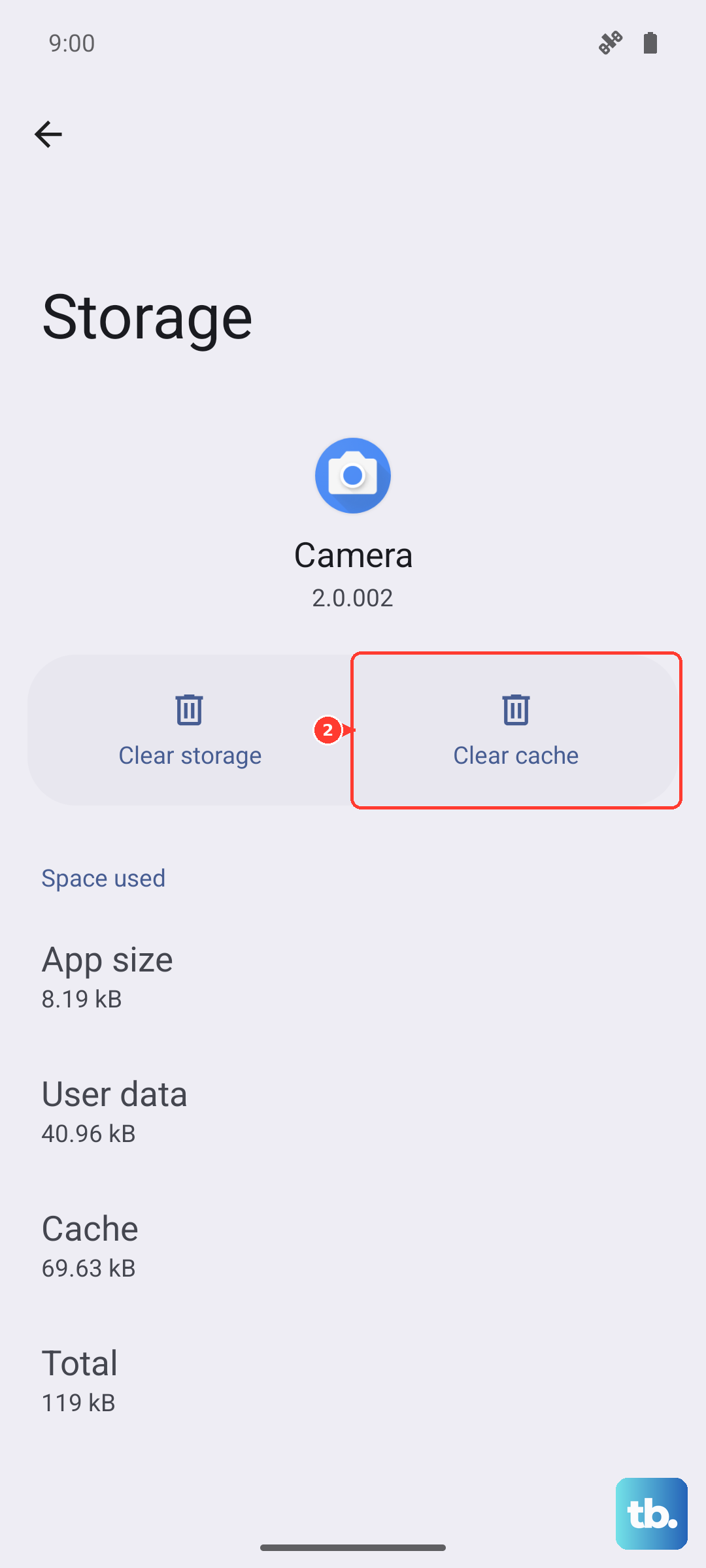
If a specific app seems to trigger the restart, try clearing its cached data. This can resolve corruption without deleting your login info. Go to Settings > Apps > See all apps.
Select the app you suspect, then tap Storage & cache. Tap "Clear cache". If the problem continues, you can tap "Clear storage" or "Clear data", but know this will reset the app completely, deleting any saved information within it.
Free Up Storage Space
When your phone's internal storage is critically full, the system can become unstable. Android needs free space to operate smoothly. Check your storage by going to Settings > Storage.
Look at the breakdown. If you're below 10% free space, start by offloading large videos or files to the cloud or a computer. You can also use the "Free up space" tool that Motorola provides in the storage settings menu.
Reset All Network Settings
This can help if the restarts seem tied to connectivity issues with Wi-Fi or mobile data. It will erase all saved Wi-Fi networks, Bluetooth pairings, and mobile data settings. Go to Settings > System > Reset options.
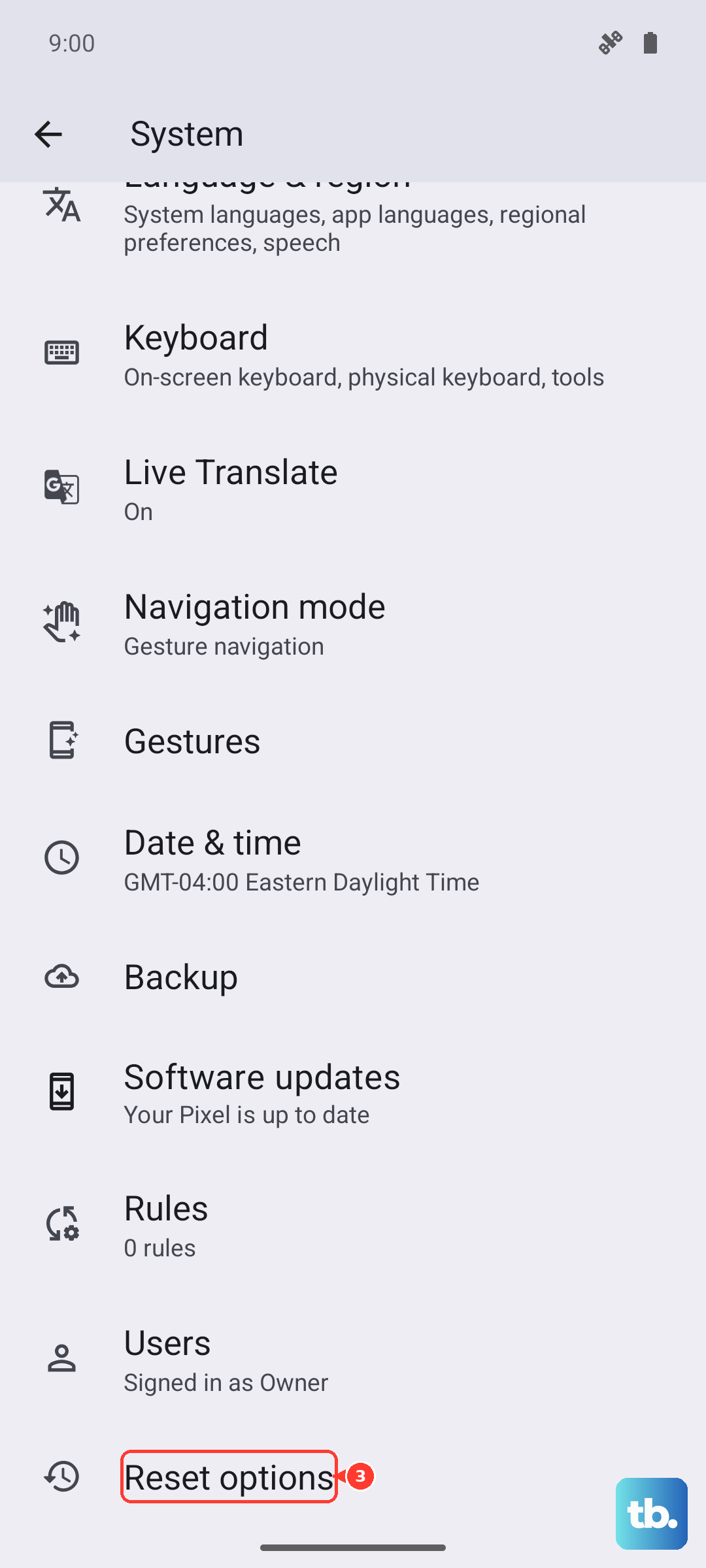
Tap "Reset Wi-Fi, mobile & Bluetooth". Confirm your choice. After the phone reboots, you'll need to reconnect to your Wi-Fi and re-pair any Bluetooth devices like headphones or your watch.
Perform a Factory Reset
If nothing else has worked, a factory reset will return the phone to its original out-of-the-box state. This is a last resort because it erases everything. First, ensure your data is backed up.
Then, go to Settings > System > Reset options > Erase all data (factory reset). Follow the prompts. After the reset, set up the phone as new to see if the restarting issue is gone before restoring your backup, as the backup could contain the problem.
Check for Physical or SIM Issues
On a foldable, it's worth checking that nothing is physically interfering. Make sure there's no debris in the USB-C port or around the hinge. A crimped charging cable from folding the phone while plugged in can cause short-term issues.
Also, try removing your SIM card. Use the SIM eject tool to open the tray on the side of the phone. Take the SIM out, inspect it for damage, and then reinsert it firmly. A faulty or loose SIM can sometimes cause unexpected reboots.