
When your Moto G Stylus 5G (2025) won't send a picture, it's usually a quick network or setting issue. The most common fix is toggling Airplane Mode on and off. Swipe down from the top of your screen twice to open the Quick Settings panel and tap the Airplane icon. Wait about 10 seconds, then tap it again to turn it off. This refreshes your connection to the cellular network and often gets MMS moving again.
Check Your Mobile Data Connection
MMS requires a mobile data connection, even if you're on Wi-Fi. First, make sure mobile data is turned on. Go to Settings > Network & internet > Mobile network and ensure the "Mobile data" toggle is switched on.
If it's on but you're still having trouble, try temporarily disabling Wi-Fi. A weak Wi-Fi signal can sometimes interfere with the phone's attempt to use mobile data for MMS. You can do this from the same Quick Settings panel.
Verify Your APN Settings
Incorrect Access Point Name (APN) settings are a frequent culprit for MMS failures on Android. These settings tell your phone how to connect to your carrier's multimedia messaging service. You can find and check them by going to Settings > Network & internet > Mobile network > Access Point Names.
Your carrier should have configured these automatically, but it's worth a look. If the settings seem blank or incorrect, you'll need to get the correct APN details from your carrier's website or support team and enter them manually here.
Enable MMS in Your Messaging App
Your default messaging app, likely Google Messages, has its own setting for MMS. Open the Messages app, tap your profile picture in the top right, and go to Messages settings > Advanced.
Look for options like "Auto-download MMS" or "Group messaging" and make sure they are enabled. There's also usually a setting for "Send as SMS when MMS is unavailable," which you can try toggling off and on.
Clear the Cache for Your Messages App
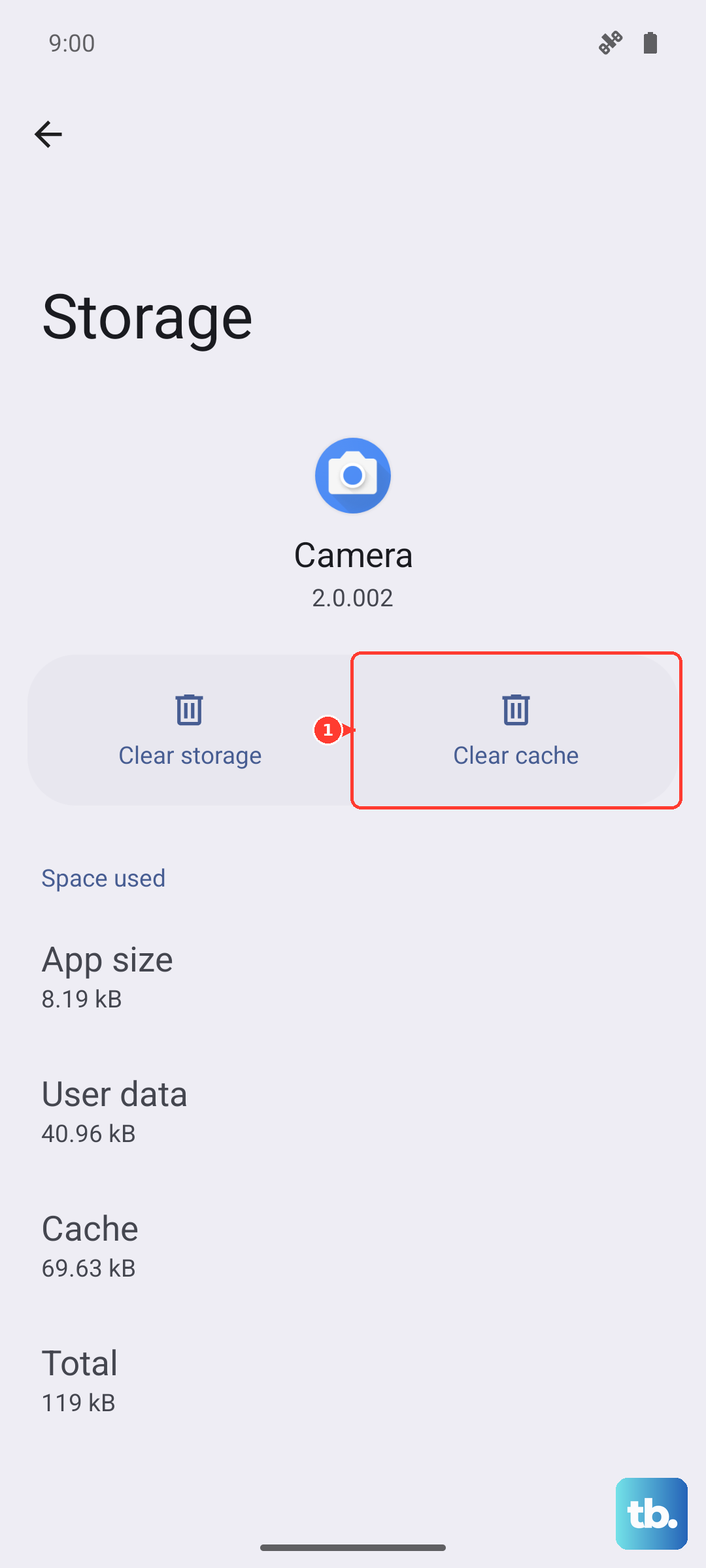
A corrupted cache in the messaging app can cause send failures. This doesn't delete your conversations. Go to Settings > Apps > See all apps and find your messaging app (e.g., Messages).
Tap on it, then select Storage & cache. Tap "Clear cache." For a more thorough reset, you can tap "Clear storage" or "Manage space," but be aware this will delete your app data, including message history, so only do this if you're comfortable losing your texts.
Check for a Software Update
Motorola and Google regularly release updates that can fix messaging bugs. With your Moto G Stylus 5G (2025) running Android 15, it's good to stay current. Connect to Wi-Fi, then go to Settings > System > System update.
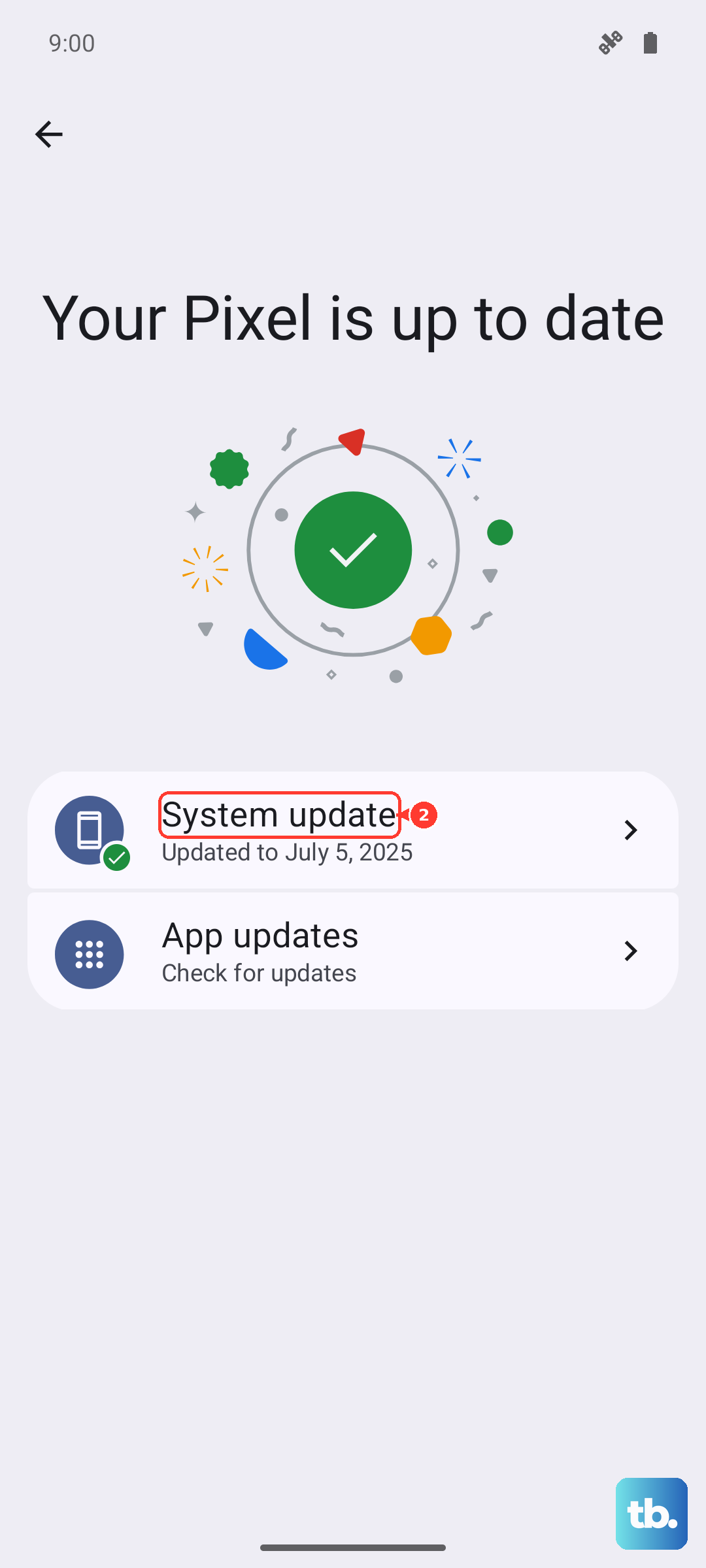
Tap "Check for update." If one is available, install it. I've seen minor point updates resolve quirky network issues like this more than once.
Try a Different Messaging App
This is a great way to figure out if the problem is with the app itself or with the phone's system. Download a free alternative like Textra or Signal from the Play Store, set it as your default, and try sending an MMS.
If it works in the new app, the issue is likely with your previous messaging app's configuration or data. You can stick with the new app or use this as a sign to fully reset the old one.
Perform a Network Settings Reset
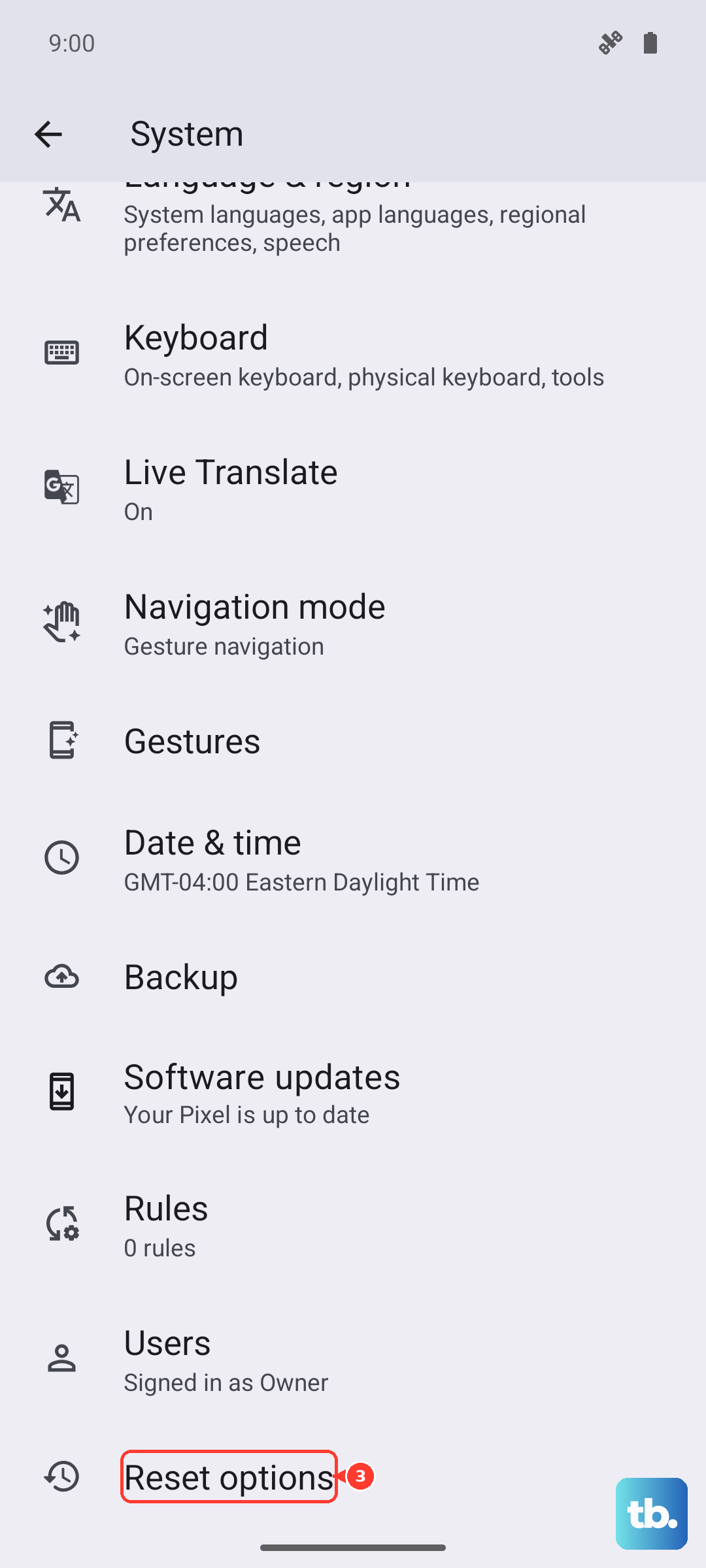
This will wipe all your network-related data back to factory defaults. It clears out your Wi-Fi passwords, paired Bluetooth devices, and cellular network settings, which can resolve deep-seated connection glitches.
Go to Settings > System > Reset options. Tap "Reset Wi-Fi, mobile & Bluetooth." You'll need to re-enter your Wi-Fi passwords afterward, but it often clears up stubborn MMS problems.
Restart Your Phone in Safe Mode
Booting into Safe Mode temporarily disables all third-party apps you've downloaded. If MMS sends successfully in Safe Mode, you know a downloaded app is causing interference. To enter Safe Mode, press and hold the power button until the power off menu appears.
Then, press and hold the "Power off" option on your screen. You'll get a prompt to reboot to Safe Mode. Tap "OK." Test your MMS. To exit, just restart your phone normally.
Contact Your Mobile Carrier
If you've tried everything here, the issue might be on your carrier's end. There could be a service outage in your area, a problem with your account provisioning, or a specific block on MMS that needs to be removed.
Give them a call or use online chat. Be ready to tell them the steps you've already tried. They can often refresh your connection on their side or confirm the correct APN settings for your Moto G Stylus 5G (2025).