
When the autocorrect on your Motorola Moto G Stylus 5G (2025) starts making bizarre suggestions or stops working entirely, it can turn simple texting into a chore. The keyboard might replace common words with gibberish, fail to catch obvious typos, or stubbornly refuse to learn your slang. I've found that on Android 15, these issues often stem from a corrupted language model or a simple setting that's gotten out of sync.
Start With a Quick Restart
Before diving into settings, give your phone a fresh start. Press and hold the Power button for about 10 seconds until you feel a vibration and see the Motorola logo. This clears out any temporary software glitches that might be interfering with the keyboard's predictive engine. It's the fastest thing to try and often solves the problem right away.
Clear the Gboard App Cache
Since your Moto G Stylus uses Google's Gboard by default, the first real fix is clearing its cache. This deletes temporary files that might have become corrupted without touching your personal dictionary or settings.
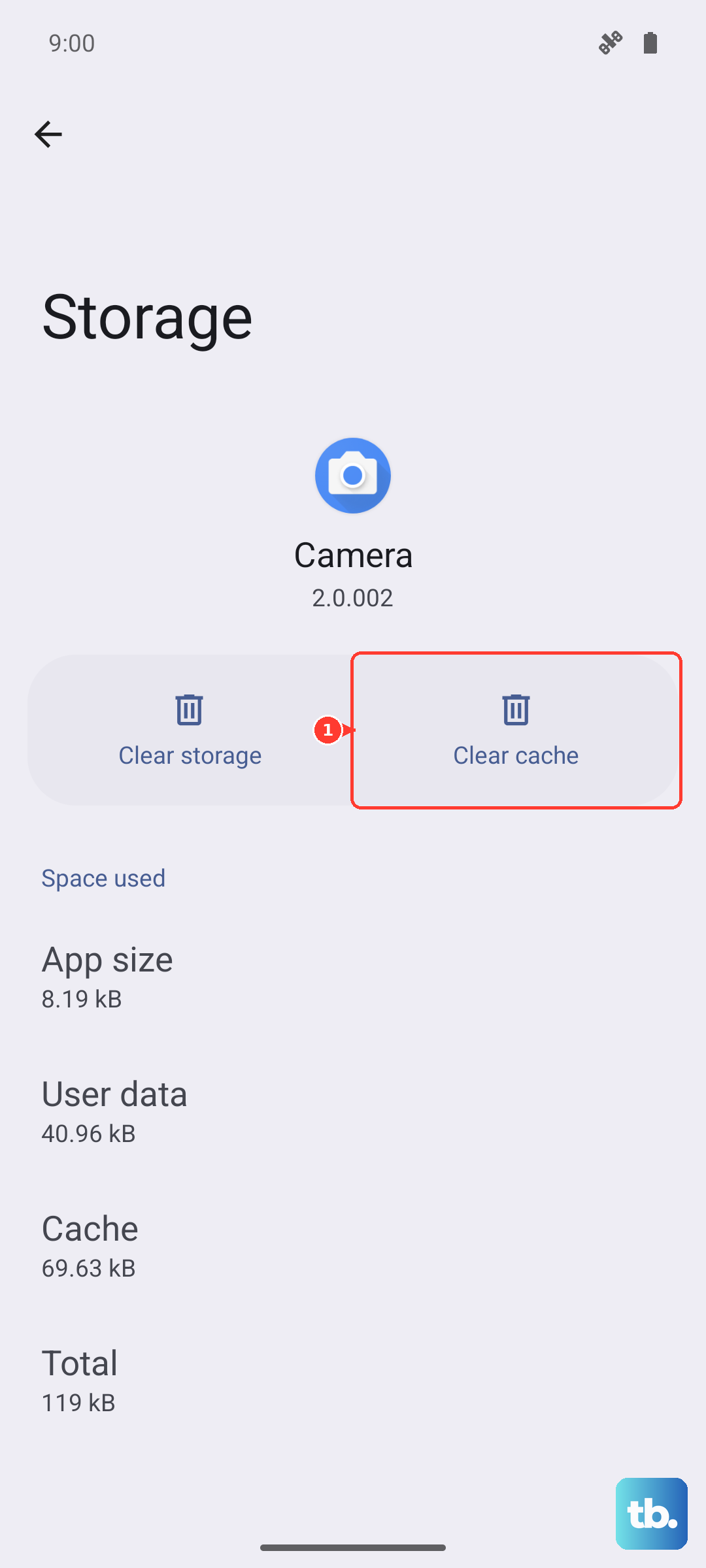
Open Settings and go to Apps > See all apps. Find and tap on Gboard. Select Storage & cache and then tap Clear cache. Give it a moment, then open your messaging app to see if autocorrect is behaving better.
Reset Your Gboard Dictionary and Settings
If the cache clear didn't help, the next step is to reset the app's data. This will wipe your personalized dictionary and revert all Gboard settings back to their defaults, so you'll lose any custom words you've added.
Go back to Settings > Apps > Gboard > Storage & cache. This time, tap Clear storage or Manage space > Clear all data. Confirm your choice. Afterward, you'll need to go through Gboard's initial setup again, but this often purges a deeply corrupted language file.
Check and Toggle Autocorrect Settings
Sometimes the feature just gets switched off by accident, or a sub-setting is causing conflict. Open any app that uses the keyboard and tap to bring it up. Tap the gear icon on the top row of Gboard, or press and hold the comma key to access settings.
Navigate to Text correction. Here, make sure Auto-correction is toggled on. You can also adjust the correction strength here. While you're in this menu, I'd recommend toggling Show suggestion strip and Next-word suggestions off and back on to refresh them.
Update Your System Language Pack
Gboard relies on separate language packs for prediction. If yours is outdated, it can cause poor suggestions. Open Gboard settings and go to Languages. Tap on the language you use (like English US).
Look for an option labeled Update or a version number. If an update is available, install it. This downloads a fresh, optimized dictionary and prediction model directly from Google, which can significantly improve accuracy on your Moto G Stylus.
Ensure Gboard Is Updated in the Play Store
An outdated version of the keyboard app itself can have bugs that affect autocorrect. Open the Google Play Store, tap your profile picture, and go to Manage apps & device. Look under "Updates available" for Gboard.
If you see it, tap Update. If not, you can search for "Gboard" manually and see if an update button appears there. Google releases frequent updates to improve prediction algorithms and fix known issues.
Try a Different Keyboard Temporarily
If you're still having problems, installing a different keyboard like Microsoft SwiftKey can help diagnose the issue. If autocorrect works perfectly on the other keyboard, it confirms the problem is isolated to Gboard's data on your device, and a more thorough reset may be needed.
You can always switch back to Gboard later. To change keyboards, pull down the notification shade and tap the keyboard icon, or go to Settings > System > Languages & input > On-screen keyboard.
Review App-Specific Permissions
In rare cases, a specific app like Messages or WhatsApp might have restricted Gboard's ability to function fully. Go to Settings > Apps and select the problematic app. Tap Permissions.
Ensure that no relevant permissions are denied. While Gboard doesn't typically need special app permissions, ensuring the app has basic storage access can sometimes help with learning your typing style within that app.