
When your Motorola Moto G Stylus 5G (2025) can't download a picture or video someone sent you, it's usually a quick fix. MMS messages need a mobile data connection and the right settings to work, and a simple setting or app glitch can block them.
Let's get your multimedia messages downloading again.
Restart Your Moto G Stylus
This is always the best first step. A restart clears out temporary software bugs that can interfere with the messaging service. Just press and hold the power button for about 10 seconds until you feel a vibration and see the Motorola logo.
It's a simple trick that fixes more problems than you'd think.
Check Your Mobile Data Connection
MMS doesn't download over Wi-Fi by itself. It requires an active mobile data connection, even if you have full Wi-Fi bars. Swipe down from the top of your screen to open the Quick Settings panel and make sure the mobile data icon is turned on.
Also, check your signal strength. If you only have one or two bars, try moving to a different spot. A weak signal can prevent the larger MMS file from coming through.
Enable MMS Auto-Download in Messages
Your phone might be set to ask for permission before downloading MMS to save data. To change this, open the Google Messages app. Tap your profile picture in the top right, then go to Messages settings > Advanced.
Here, you'll find the Auto-download MMS option. Make sure this is turned on. While you're here, also check that Auto-download MMS when roaming is enabled if you travel.
Force Stop and Relaunch the Messages App
If the app itself is stuck, forcing it to close and restart can help. Go to Settings > Apps > See all apps. Find and tap on "Messages."
On the app info page, tap Force stop, then confirm. Wait a moment, then open the Messages app again from your home screen. This gives it a clean slate.
Clear the Messages App Cache
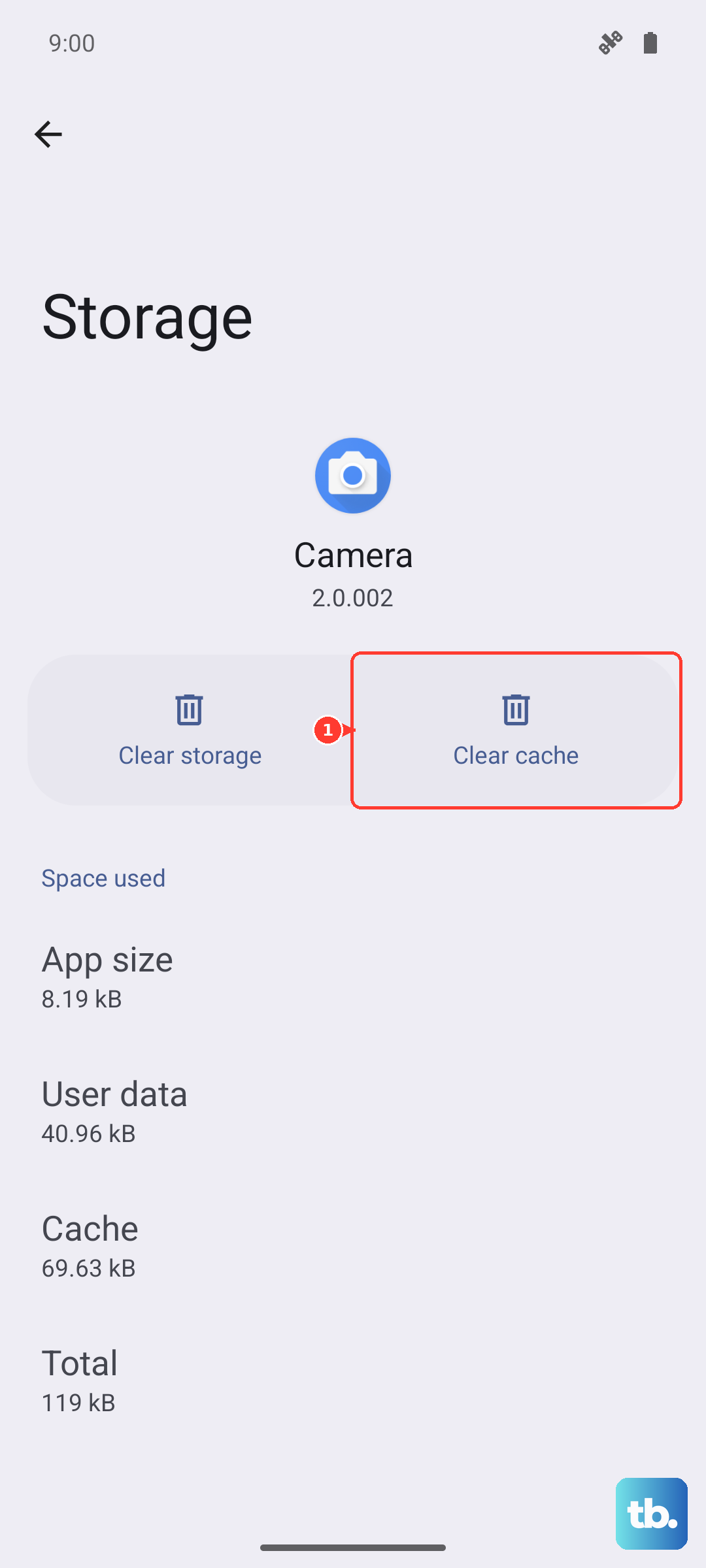
Corrupted temporary files in the app's cache can cause download failures. Clearing it is safe and won't delete your texts. Go back to Settings > Apps > Messages.
Tap Storage & cache, then tap Clear cache. I'd try this before clearing app data, as it doesn't affect your personal information.
Verify Your APN Settings
Incorrect Access Point Name (APN) settings are a common culprit for MMS issues. These settings tell your phone how to connect to your carrier's multimedia service. Go to Settings > Network & internet > Mobile network > Advanced > Access Point Names.
You should see a list of APNs. Your carrier's correct one should be selected (often indicated by a filled-in circle). If you're unsure, the best move is to contact your carrier's support. They can send you the correct APN configuration directly, which is more reliable than searching online.
Check for a Software Update
Since you're running Android 15, Motorola and Google are still refining the software. A system update could contain a fix for a messaging bug. Go to Settings > System > System update.
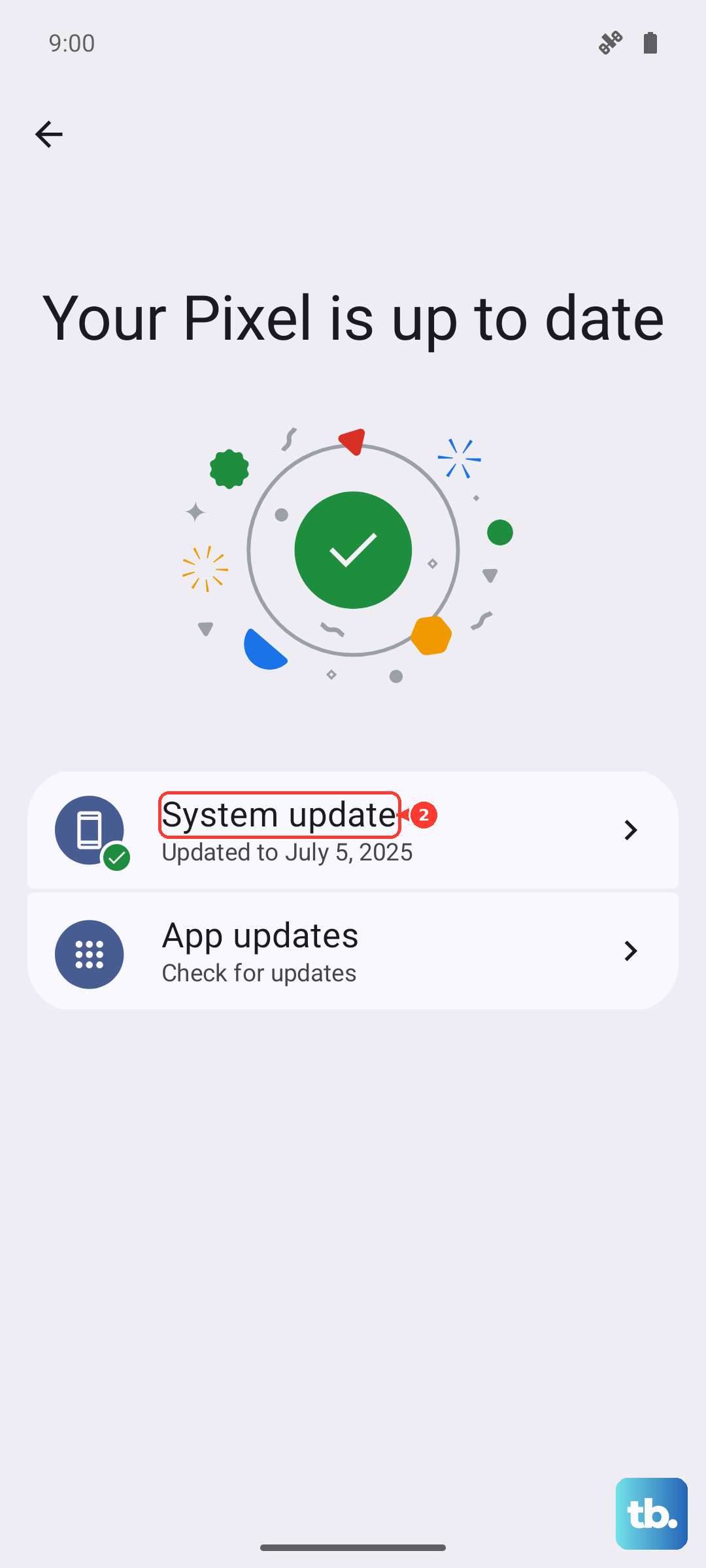
Tap Check for update. If an update is available, I recommend installing it while connected to Wi-Fi and using your 68W TurboPower charger to keep the battery topped up.
Reset Your Network Settings
This will wipe all your network connections, including Wi-Fi passwords and Bluetooth pairings, and restore the defaults. It often resolves persistent MMS problems. Go to Settings > System > Reset options.
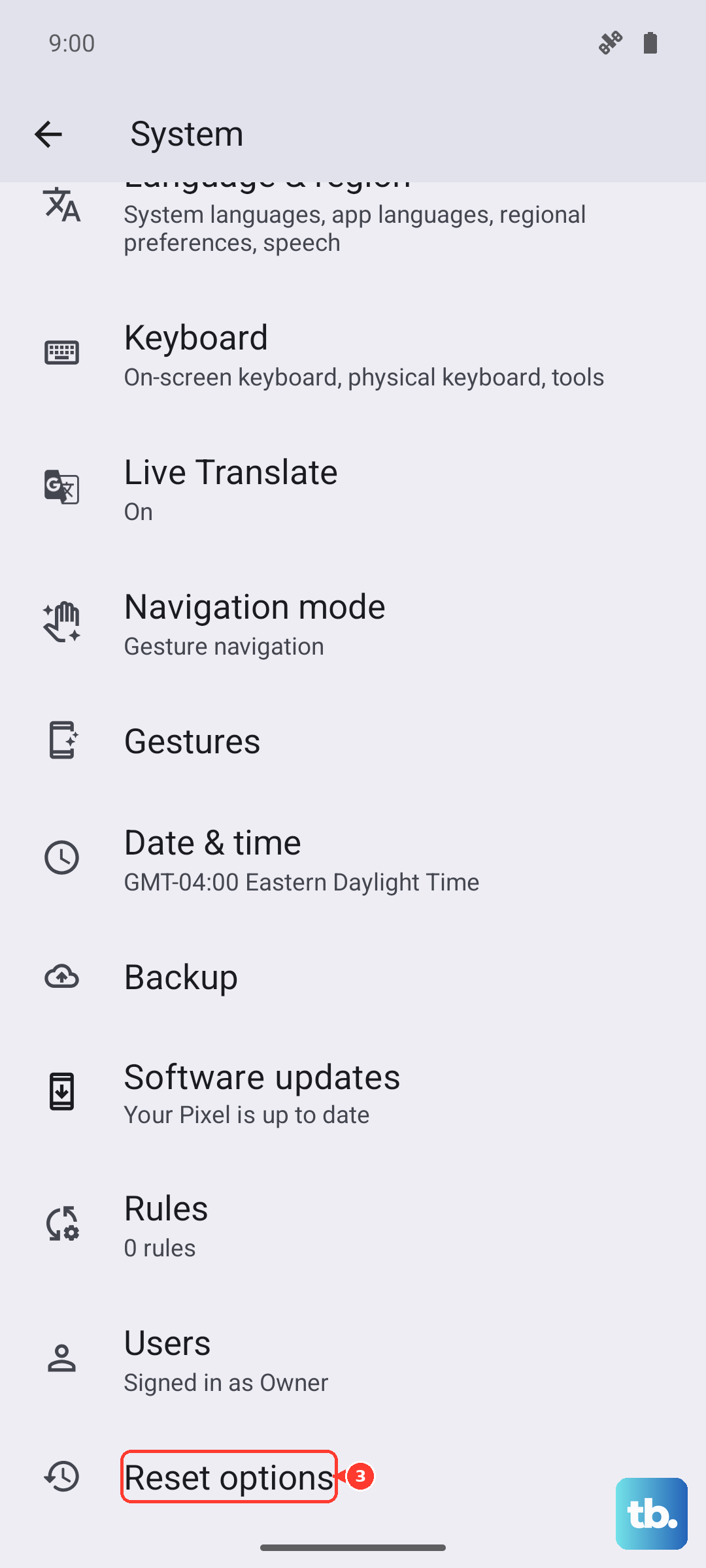
Tap Reset Wi-Fi, mobile & Bluetooth. Confirm the reset. After your phone reboots, you'll need to reconnect to Wi-Fi networks and re-pair Bluetooth devices, but your message history will remain intact.
Try a Different Messaging App
This is a great way to figure out if the problem is with the Google Messages app itself or with your phone's system. Download a well-regarded alternative like Textra or Pulse SMS from the Play Store.
Set it as your default messaging app when prompted, and ask a friend to send you a test picture. If the MMS downloads in the new app, the issue is likely with the original app's data, and you may need to clear its storage or stick with the new one.
Contact Your Mobile Carrier
If you've worked through all these steps, the issue might be on your carrier's end. Sometimes there are account provisioning errors or temporary network issues that block MMS.
Call your carrier's support line. They can check your account status, reprovision your multimedia services, and confirm there are no outages in your area. They can also verify that your Moto G Stylus 5G (2025) is properly registered on their network for all services.