Your Moto G Stylus 5G (2025) is showing a hotspot toggle, but the laptop or tablet you are trying to get online either cannot see the network, refuses the password, or connects and then immediately drops with no internet. Because the hotspot on this phone shares your mobile (5G or LTE) data rather than creating its own connection, a dead hotspot almost always traces back to the cellular link, the carrier plan, or a small setting that quietly changed. The good news is that this model genuinely supports Wi-Fi hotspot tethering, and every control lives in the on-device Settings app, so there is no extra software to install. Work through the fixes below in order, since the first few solve the most common causes in seconds and the riskier steps are saved for the end.
Check that your phone has an internet connection to share
The hotspot has nothing to broadcast if the phone itself is offline. The guidance here is direct: check that cellular data is on, because if cellular data is off, your phone does not have an internet connection to share. Before touching anything else, confirm you can load a webpage on the phone itself over mobile data rather than Wi-Fi.
If the phone is connected to a Wi-Fi network at the same time, turn that Wi-Fi off briefly and confirm pages still load on cellular data alone. That quick test tells you whether the underlying mobile connection is healthy, which is the foundation everything else depends on.
Make sure your plan is actually allowed to share data
Even with mobile data working perfectly for the phone, your hotspot can still fail if the plan does not permit tethering. Your cellular plan must support data sharing, and if you do not know whether it does, contact your carrier. Many plans block hotspot use entirely or meter it separately from your regular data allowance, so a depleted tethering bucket can look exactly like a broken feature.
If you have recently changed plans, used up a monthly hotspot cap, or switched SIMs, this is a likely culprit. Your carrier can confirm in a moment whether data sharing is included and whether any cap has been reached.
Toggle the hotspot off and on, then verify its name and password
A simple restart of the feature, paired with a fresh password, clears up a surprising number of connection refusals. Open the controls and step through them deliberately.
Go to Settings > Network & internet > Hotspot & tethering.
Touch Wi-Fi hotspot, turn it off, wait a few seconds, then turn it back on.
Confirm the Hotspot name matches the network you are selecting on the other device.
Tap 'Hotspot password' to view the current password, then type over it to set a fresh one and try connecting again.
Typing over the current password helps prevent unauthorized use of your cellular data and forces the connecting device to authenticate fresh, which often resolves a stale wrong-password loop. After saving, reconnect from your other device using the exact name and password shown.
Power-cycle the phone and the device trying to connect
If the hotspot appears but the link is unstable, a full restart of both ends usually settles it. Restarting clears temporary glitches so the two devices can renegotiate the connection cleanly.
- 1.Turn off the connection from your other device.
- 2.Turn off the phone's hotspot.
- 3.Restart the phone.
- 4.Wait a moment for it to fully power back up.
- 5.Turn the hotspot back on and reconnect.
If the phone is frozen or will not restart normally, you can force a restart by pressing and holding the Power key for 10 to 20 seconds. Data on your phone will not be deleted by this force restart.
Switch the broadcast band between 5GHz and 2GHz
When a device cannot see the hotspot at all, or keeps dropping it, the broadcast band is often mismatched to the situation. The AP band setting lets you choose which frequency the phone broadcasts on.
If the hotspot signal is experiencing interference, change the band to 5GHz. If the signal seems weak or the connecting device is farther away, change it to 2GHz, since 2.4GHz has better range and broader device compatibility. Older or budget devices in particular sometimes only support 2.4GHz, so dropping to 2GHz can make a missing network suddenly appear.
Loosen the security type and clear the connected-device list
Newer encryption can lock out older hardware, and a full device list can quietly block the gadget you actually want online. Adjust both from the same screen.
Under Wi-Fi hotspot > 'Security', WPA3 is the most secure choice, but for newer devices made after July 2020 you can choose WPA2/WPA3, which is more broadly compatible. If an older laptop or smart device still cannot join, the stricter security type is a common reason.
Next, tap Wi-Fi hotspot > 'Manage devices' to control access. Tap 'Device limit' to check or raise the number of devices allowed, and under 'Connected devices,' tap a device's name and then 'Disconnect' to free up a slot or remove anything you do not recognize.
Bring the phone and its apps up to date
A pending system update can carry fixes for connectivity and tethering bugs, and an out-of-date app can interfere with the connection it relies on. Updates here are delivered over the air, so no PC tool is needed.
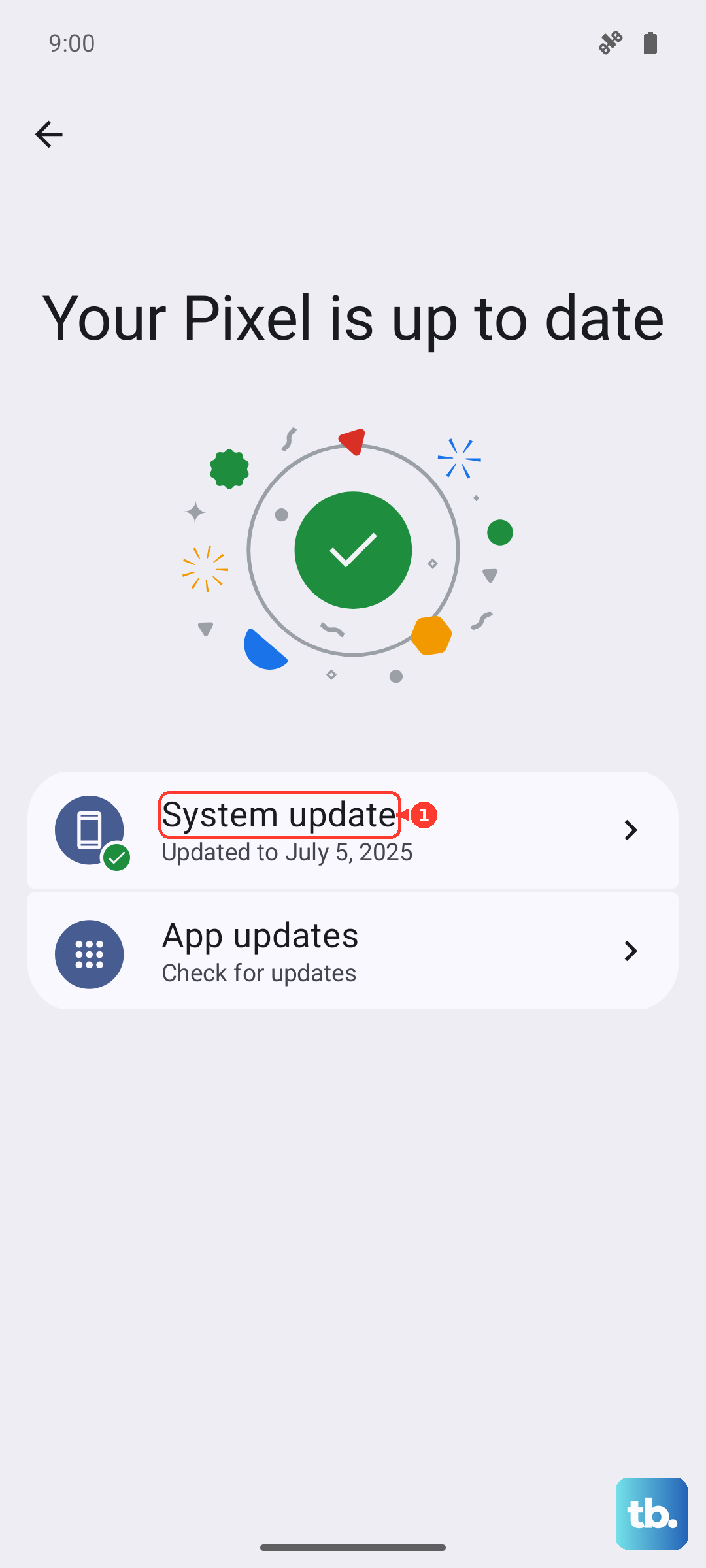
Open Settings > System Updates. If you do not see System Updates, touch About Phone > System updates.
Follow the on-screen prompts to download and install any available update.
Open the Play Store, go to Manage apps & devices, and under 'Updates available,' touch 'Update all.'
Let the phone finish any restart it requests after a system update, then test the hotspot again before moving on.
Wipe the saved network configuration
If the hotspot still misbehaves, a corrupted network setting can be the cause, and resetting just the network configuration clears it without erasing your personal data. Choose the reset that matches the problem.
Go to Settings > System > Reset options.
Tap 'Reset Mobile Network Settings' to reset the cellular connection, which covers mobile data, 5G, and LTE.
Or tap 'Reset Bluetooth & Wi-Fi' to reset Wi-Fi and Bluetooth.
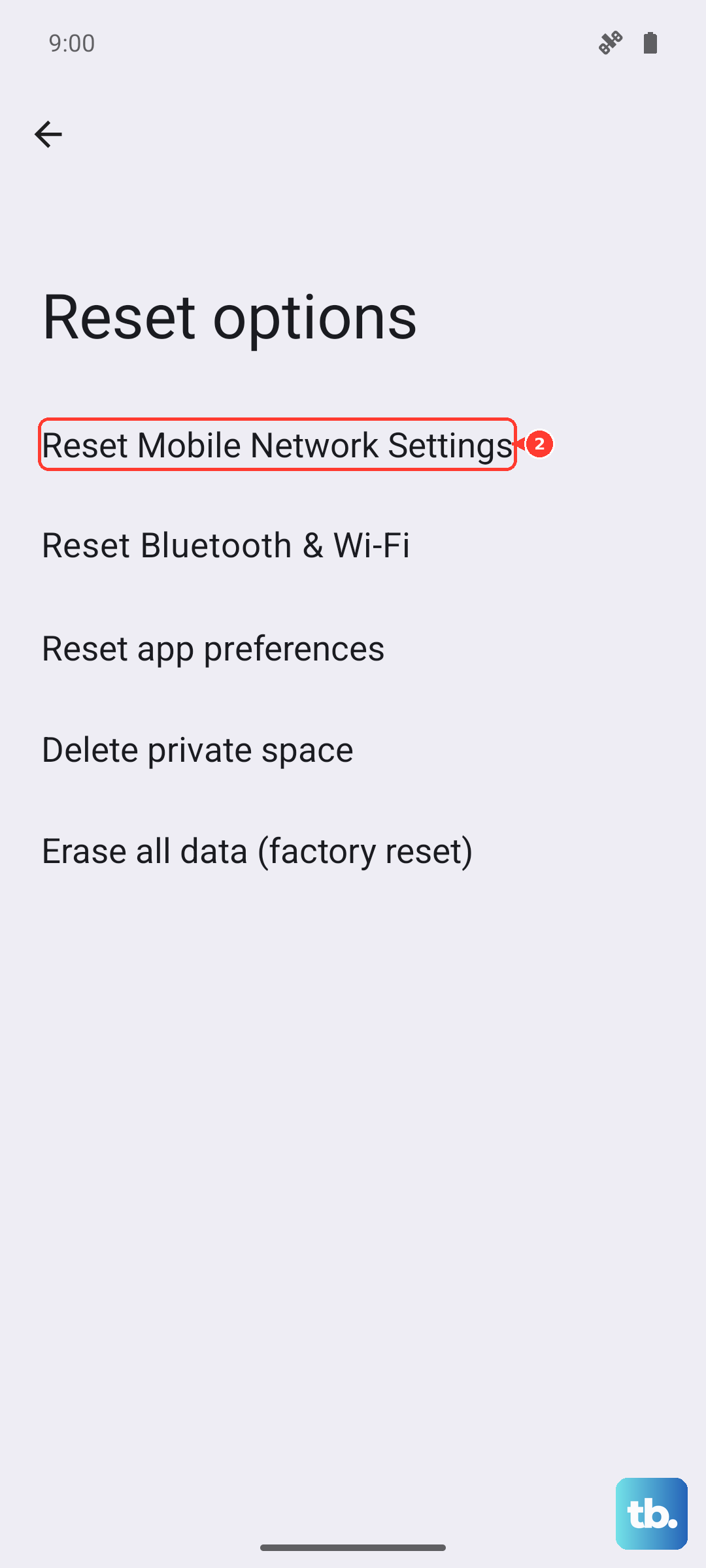
Since the hotspot depends on mobile data, the mobile network reset is the more relevant of the two for most hotspot failures. After it finishes, confirm cellular data is back on, then set up the hotspot fresh.
Reset to factory settings as a last resort
A factory reset should only come after everything above has failed, because it is destructive. This resets the device to factory default and clears your apps and personal data, so back up anything important first.
Back up your photos, files, and any other personal data.
Go to Settings > System > Reset options.
Tap 'Erase all data (factory reset)' and follow the prompts.
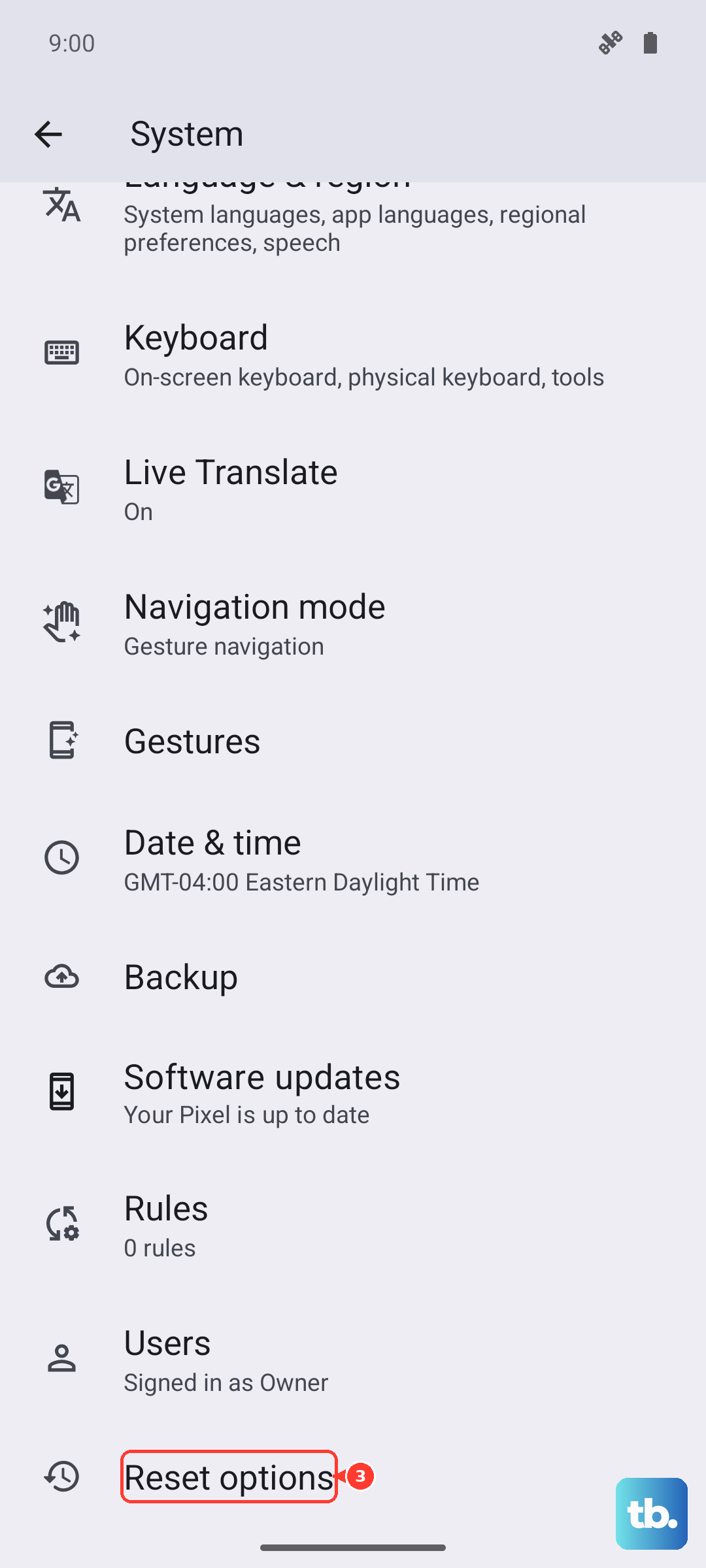
Once the phone is set up again, turn on mobile data and test the hotspot before restoring everything, so you can tell whether the reset itself resolved the problem.
Bring in your carrier or Motorola support
If the hotspot still fails after all of the above, the issue is likely outside the phone's settings. Confirm with your carrier that data sharing is supported on your plan and that no hotspot allowance has been exhausted, since whether a specific carrier blocks or limits tethering is plan-dependent.
For a suspected hardware or software fault, reach Motorola Support through its Contact Us channel for this device. Have your model details ready and describe exactly which step failed, since that speeds up any diagnosis.
Frequently Asked Questions
Does the Moto G Stylus 5G (2025) actually have a hotspot feature?
Yes. Motorola's official specifications for this model list Wi-Fi hotspot, and the feature is configured entirely in the phone's Settings app under Settings > Network & internet > Hotspot & tethering. No separate companion app is required to manage it.
Why does my hotspot turn on but show no internet?
The hotspot only shares the phone's mobile connection, so if cellular data is off, there is nothing to share. Confirm mobile data is on and that a webpage loads on the phone over cellular, and verify your plan permits data sharing, since some plans block or separately meter tethering.
How do I see or change my hotspot password?
Go to Settings > Network & internet > Hotspot & tethering > Wi-Fi hotspot, then tap 'Hotspot password' to view the current one. To change it, type over the current password, which also helps prevent unauthorized use of your cellular data.
An older laptop cannot find or join my hotspot. What should I try?
Switch the AP band to 2GHz, since 2.4GHz has better range and broader device compatibility, and set Security to WPA2/WPA3 rather than WPA3 for devices made after July 2020. Then check Wi-Fi hotspot > 'Manage devices' to confirm the device limit has not been reached.
Will resetting network settings or doing a factory reset delete my data?
Resetting network settings, whether Reset Mobile Network Settings or Reset Bluetooth & Wi-Fi, clears saved network configurations without erasing personal data. A factory reset (Erase all data) does clear your apps and personal data, so back up anything important before using it as a last resort.