Missing calls on your Motorola Moto G Power (2025) can be a real headache, especially when you see the missed call notification pop up but never heard a sound. The good news is this is almost always a settings issue or a minor software hiccup. Let's run through the most common fixes to get your phone ringing again.
Check Your Sound Mode and Volume
First, look at the top of your screen. If you see a bell icon with a line through it, your phone is in silent or vibrate-only mode. You can swipe down from the top to open your Quick Settings panel and tap that icon to switch back to ring mode. Sometimes a simple volume check is all you need.
Press a Volume button. If media volume is the slider you see, tap the volume-panel shortcut to show all volume controls, then raise the ring/notification volume. You can also open quick settings, tap the current sound mode, and choose Ring instead of Silent or Vibration only.
Review Do Not Disturb
Do Not Disturb can mute ringtones for incoming calls, stop vibration, and block notifications. Swipe down twice from the top of the screen to open quick settings, then tap Do Not Disturb if it is on.
For a more detailed look, go to Settings > Sound & vibration > Do Not Disturb, or touch and hold the Do Not Disturb quick setting. Check Schedules and People to review when it turns on and which calls are allowed.
Verify Your Ringtone and Notification Settings
It's possible your ringtone file got corrupted or was changed to "None" by accident. Head to Settings > Sound & vibration > Phone ringtone. Tap on a different, built-in ringtone to select it and then immediately have a friend call you to test it.
While you're in the sound settings, also check that notifications for your Phone app are enabled. Go to Settings > Apps > See all apps, find and tap on "Phone", then select Notifications. Make sure notifications are turned on and that the "Incoming calls" category is set to "Make sound and pop on screen".
Disconnect Bluetooth Accessories
If your Moto G Power is connected to a Bluetooth device like headphones, a speaker, or your car, incoming call audio is often routed there instead of your phone's speaker. To quickly rule this out, swipe down your Quick Settings panel and tap the Bluetooth icon to turn it off.
Then, try a test call. If the ringtone plays through your phone speaker now, you know the issue was the Bluetooth connection. To manage or forget a paired device, go to Settings > Connected devices. Under Saved devices, tap See all if needed, tap the settings icon next to the device, then tap Forget device.
Check for Blocked Numbers and Call Forwarding
You might have accidentally blocked the person trying to reach you. Open your Phone app, tap the three-dot menu in the top right, and go to Settings > Blocked numbers. Review the list to see if any numbers you're expecting calls from are there.
Another less common setting is call forwarding. If this is active, calls are sent to another number before your phone even has a chance to ring. You can usually check this within the Phone app's settings under "Call forwarding" or by contacting your mobile carrier directly, as they can disable it from their end.
Perform a Force Restart
A quick reboot can clear out temporary glitches in the software that might be affecting the ringer. For the Moto G Power (2025), press and hold the Power button for about 30 seconds to restart it. If that does not work, charge the phone for at least 5 minutes, then hold the Power button for 30 seconds again while it is connected to the charger.
This forces the phone to shut down and boot back up. It doesn't delete any of your data. Once it's back on, test with a call immediately to see if the restart resolved the silent ringing.
Update Your Phone's Software
For best performance, keep your phone updated with the latest available Android software. To manually check for updates, use Wi-Fi if possible, then go to Settings > System updates > Check for updates.
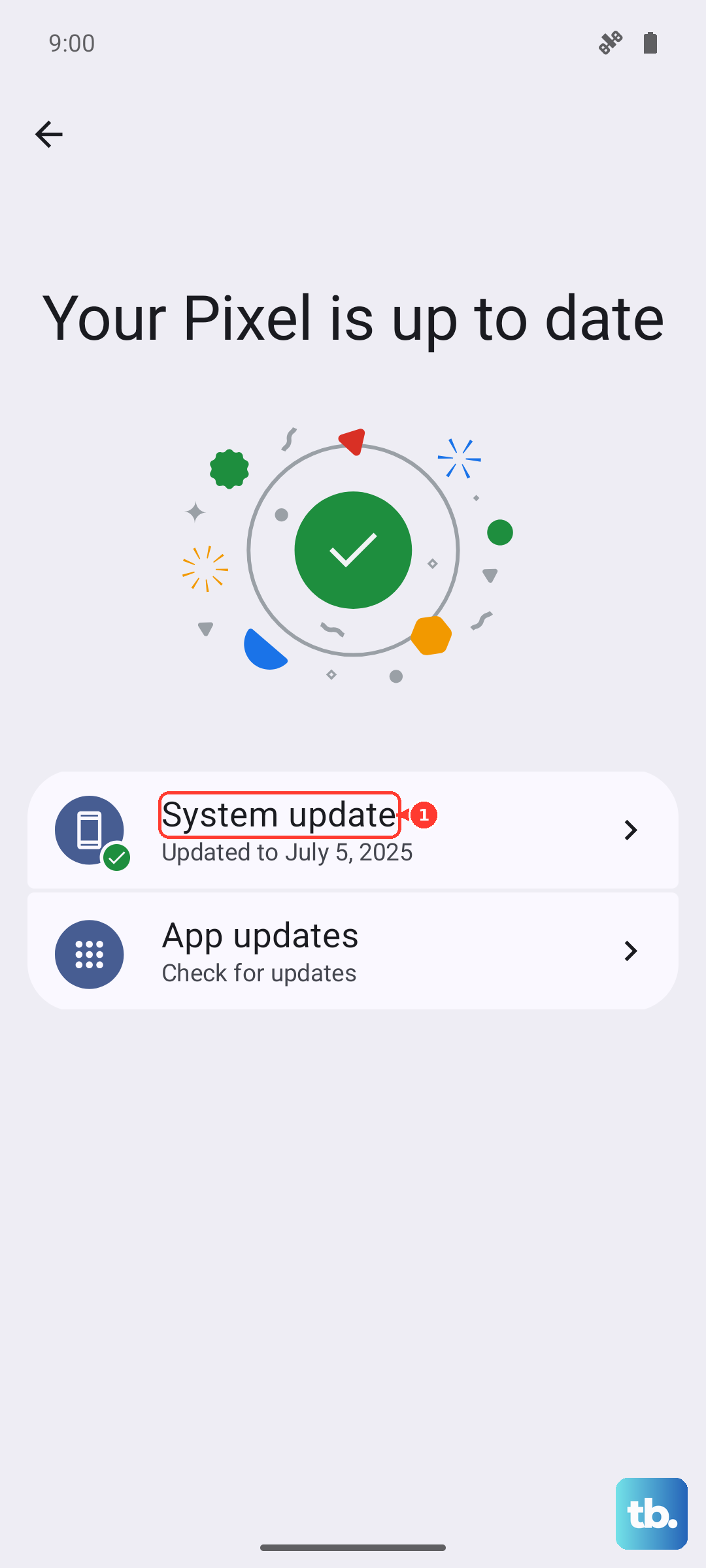
If an upgrade is available, follow the onscreen instructions to install it. You can't downgrade to a previous software version after installing an update.
Reset App Preferences or Network Settings
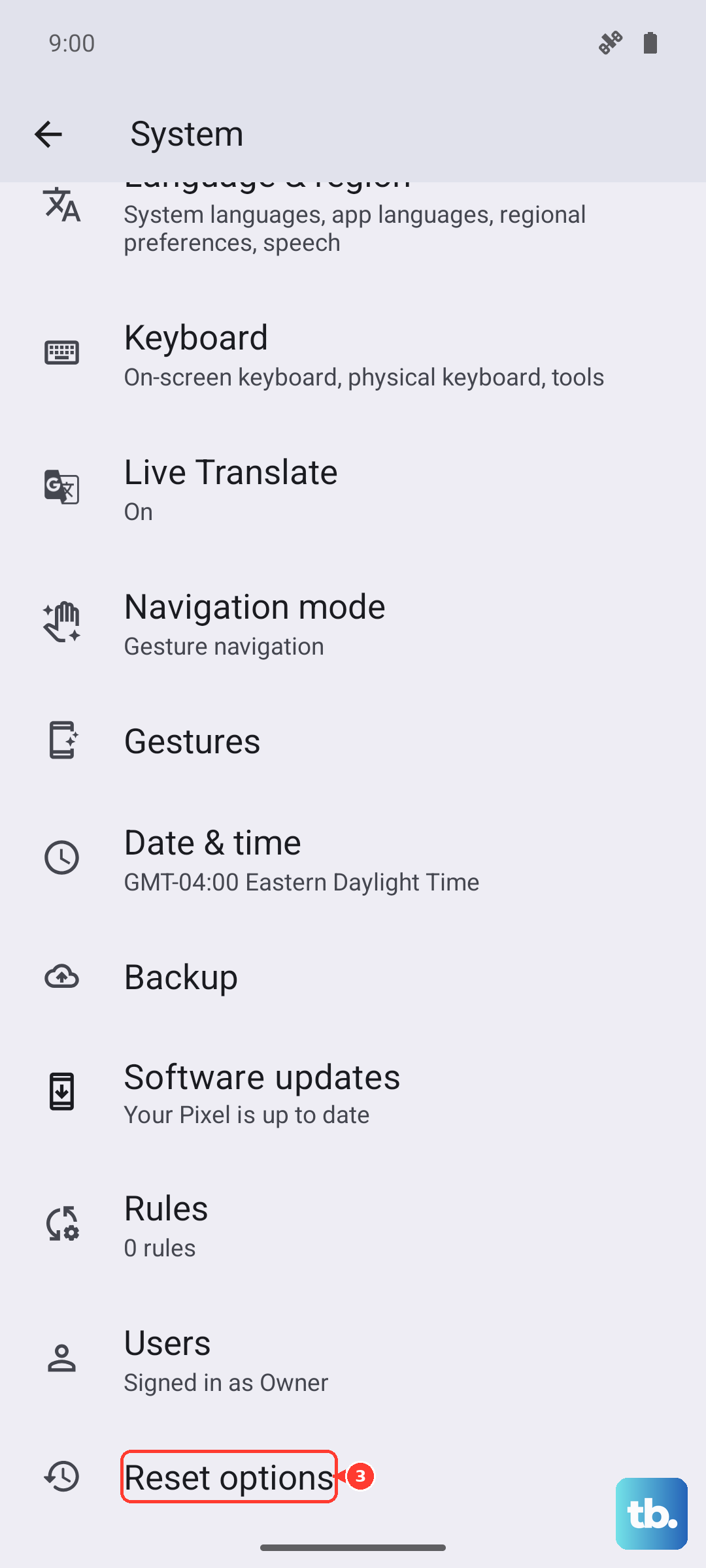
If the problem seems isolated to calling apps like WhatsApp or Facebook Messenger, try resetting app preferences. This resets notification and permission settings for all apps but won't delete your app data. Go to Settings > System > Reset options and tap "Reset app preferences".
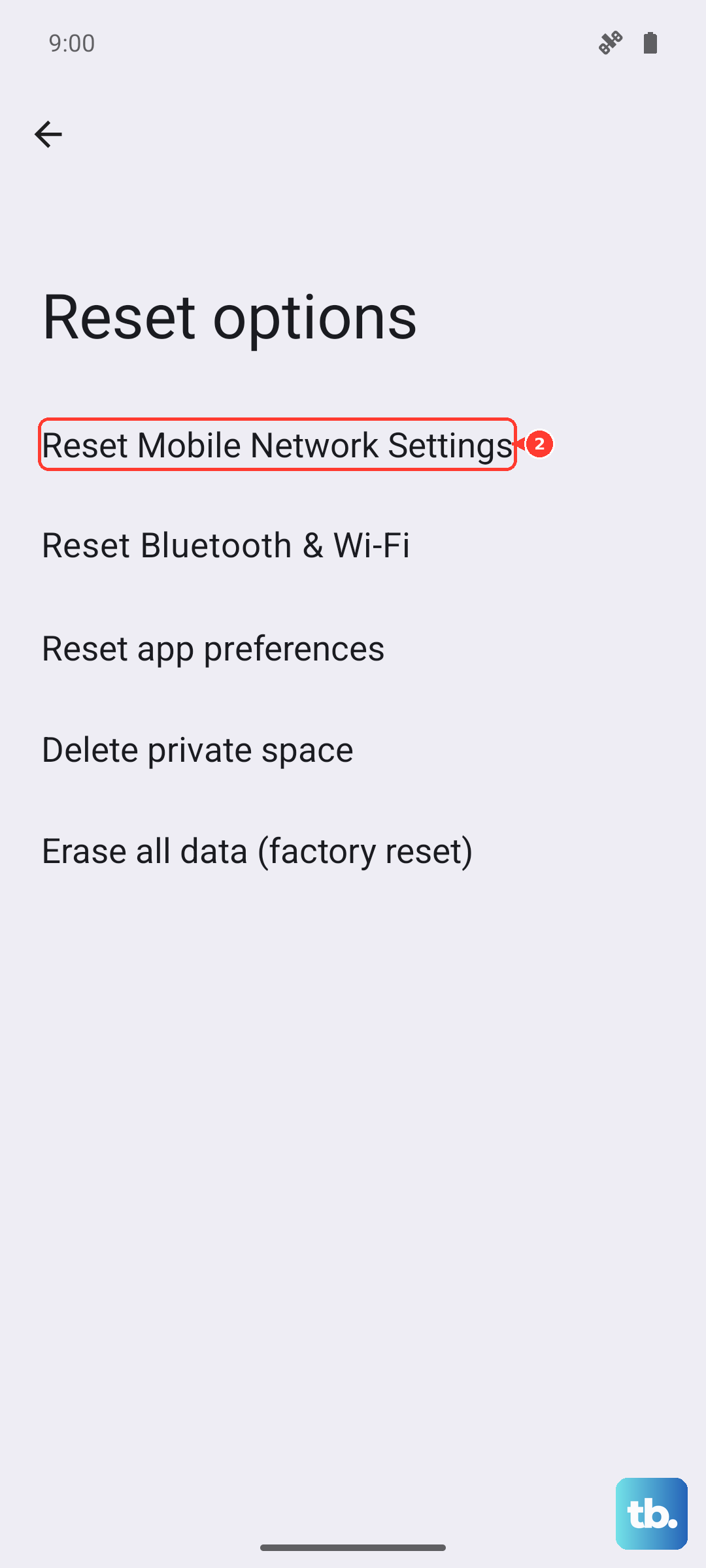
For general calling or connection issues, a reset can help, but the Moto G Power (2025) splits this into separate options. Go to Settings > System > Reset options, then tap Reset Mobile Network Settings for the mobile network or Reset Bluetooth & Wi-Fi for Wi-Fi and Bluetooth. These resets remove saved Wi-Fi devices and passwords, cellular/mobile settings, paired Bluetooth devices, and VPN configurations.
Consider a Factory Reset
If you've tried everything else and your Moto G Power still won't ring, a factory reset is the final step. This will erase all data on your phone and return it to its original out-of-the-box state. It's crucial to back up everything important first.
Use Google One to back up your app data, photos, and settings. Once backed up, go to Settings > System > Reset options > Erase all data (factory reset). Follow the prompts to complete the reset. Given the 128GB base storage, this process might take a few minutes if your storage was nearly full.