
When your Moto G Power (2025) won't download a picture or video someone sent you, it can feel like you're missing out on the conversation. MMS messages need a specific set of conditions to work, and a small hiccup in your network, settings, or the app itself can stop them in their tracks.
Let's walk through the most effective ways to get those photos and videos flowing again on your device.
Start With a Simple Restart
It sounds basic, but a full restart clears out temporary glitches that can block MMS downloads. Press and hold the power button for about ten seconds until you feel a vibration and see the Motorola logo appear. This force restart is often the quickest fix.
Check Your Mobile Data Connection
Unlike regular texts, MMS requires an active mobile data connection to download, even if you're on Wi-Fi. Swipe down from the top of your screen twice to open the Quick Settings panel and make sure the mobile data icon is turned on.
Also, take a glance at your signal bars. If you're in a weak coverage area, try moving to a different spot or temporarily disabling Wi-Fi to ensure the phone is using the cellular network for the download.
Force Close and Reopen Your Messages App
Sometimes the app just gets stuck. Swipe up from the bottom of your screen and hold to enter the recent apps view. Find the Messages app and swipe it all the way up to close it completely. Then, tap its icon to launch it fresh and see if the MMS downloads.
Verify Your MMS Auto-Download Settings
Your phone might be set to wait for your permission before downloading multimedia, which can look like a failure. Open the Messages app, tap the three-dot menu in the top right, and go to Settings > Advanced.
Here, make sure "Auto-download MMS" is enabled. While you're in this menu, it's also a good idea to check that "Auto-download MMS when roaming" is on if you travel.
Clear Space in Your Messages App
The Moto G Power (2025) starts with 128GB of storage, but if your Messages app is crammed with old threads full of videos, it can struggle. I'd recommend manually deleting some of the oldest or largest conversations.
You can also set messages to auto-delete after a certain period. In the Messages app settings, look for a "Message history" or similar option to set old messages to delete after 30 or 90 days.
Clear the Cache for Your Messaging Services
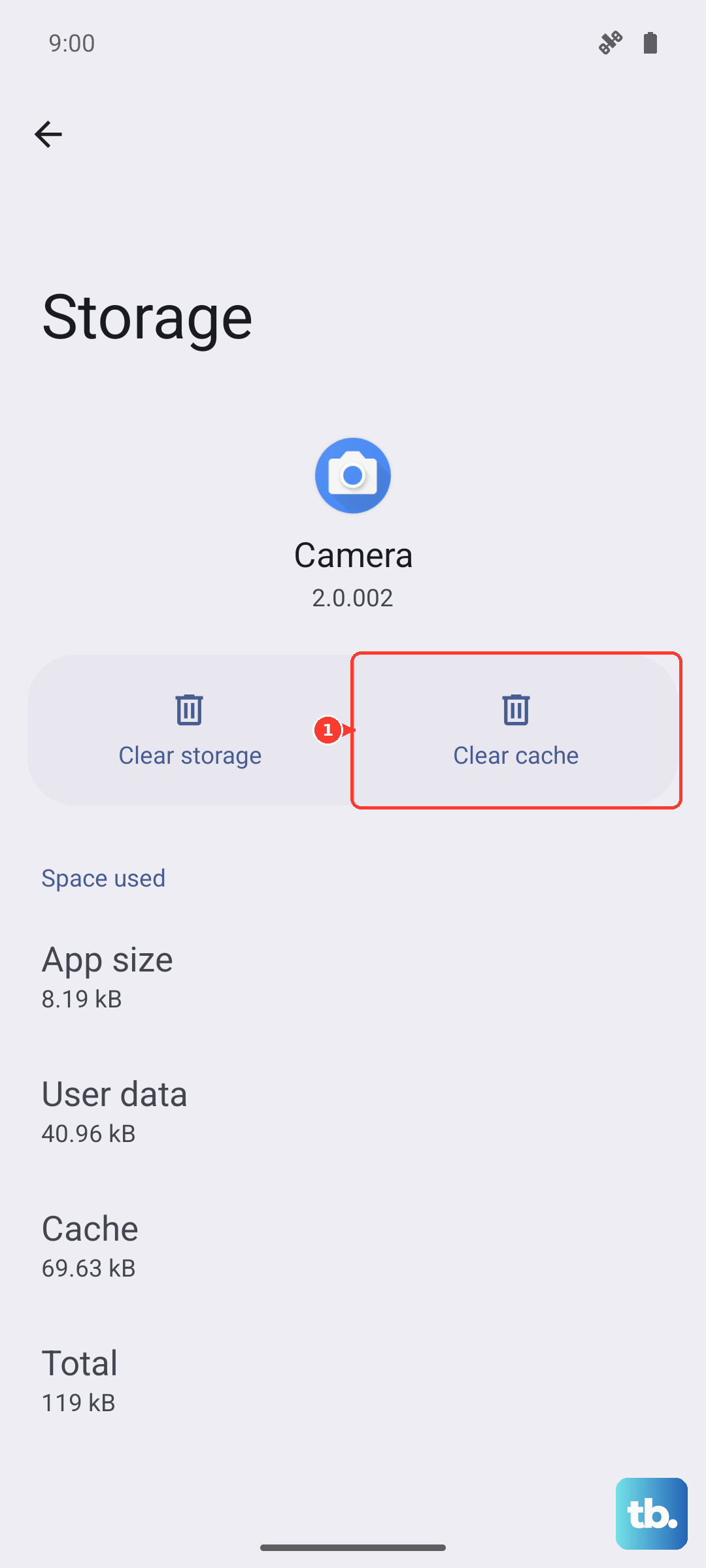
Corrupted temporary files can cause download failures. Go to your phone's main Settings > Apps > See all apps.
First, find and tap on "Messages." Select Storage & cache and then tap Clear cache. This won't delete any of your actual messages. For a more thorough clean, you can repeat this process for the "Carrier Services" app, which handles MMS communication on many Android phones.
Review Your APN Settings
Incorrect Access Point Name (APN) settings are a common culprit. These tell your phone how to connect to your carrier's multimedia service. Go to Settings > Network & internet > SIMs (or SIMs & Mobile network) > your SIM > Access Point Names.
You should see a list of APNs. Your carrier's correct one should usually be selected. If things look wrong or you only see generic entries, the best move is to contact your carrier's support. They can send you the correct configuration settings specific to your plan and the Moto G Power.
Reset Your Network Settings
This step clears all your Wi-Fi passwords, Bluetooth pairings, and cellular network settings back to default, which can resolve deeper configuration conflicts. Go to Settings > System > Reset options.
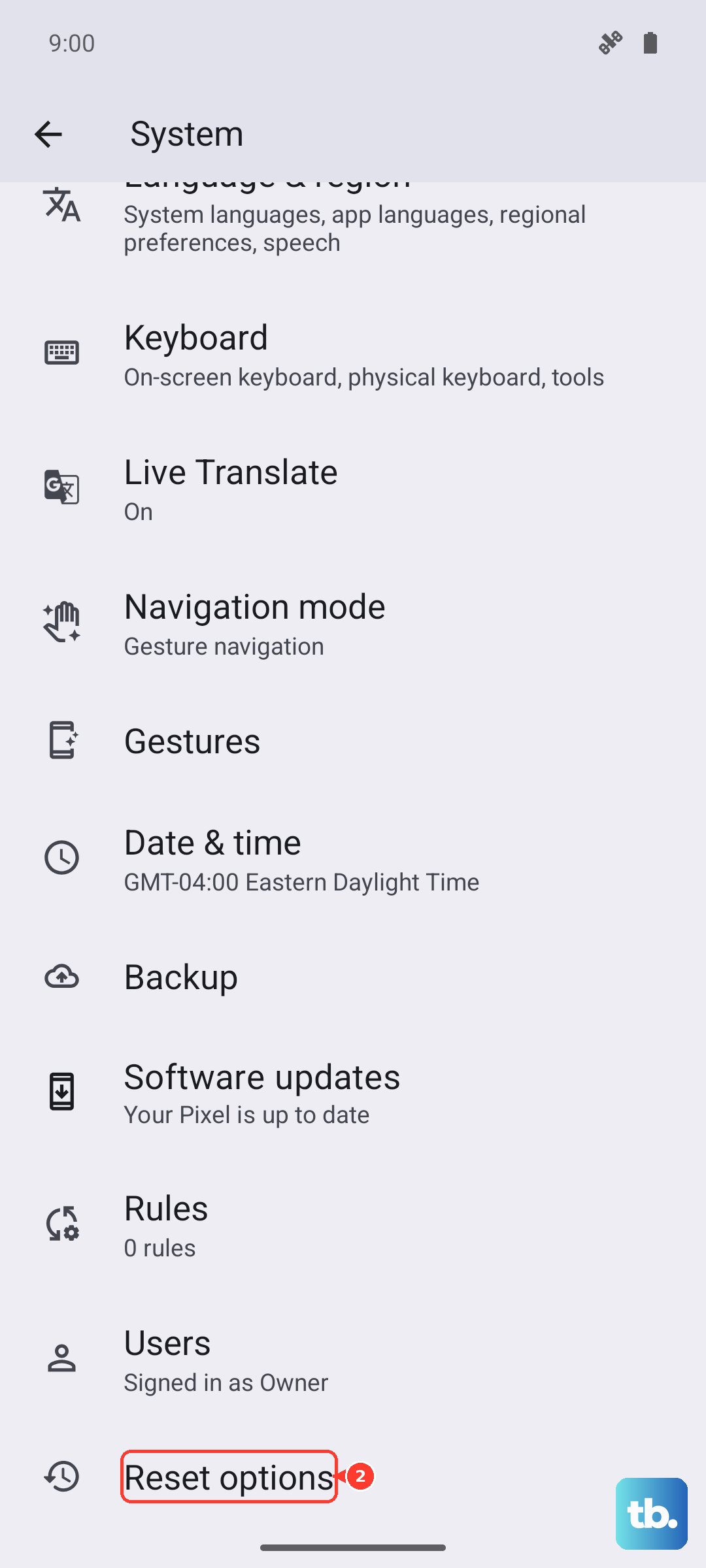
Tap Reset Wi-Fi, mobile & Bluetooth and confirm. You'll need to reconnect to Wi-Fi networks and re-pair Bluetooth devices afterward, but it often fixes persistent MMS issues.
Check for a System Software Update
Motorola releases updates that can fix bugs affecting messaging. Since your phone runs Android 15, make sure you have the latest patch. Go to Settings > System > System update and tap "Check for update."
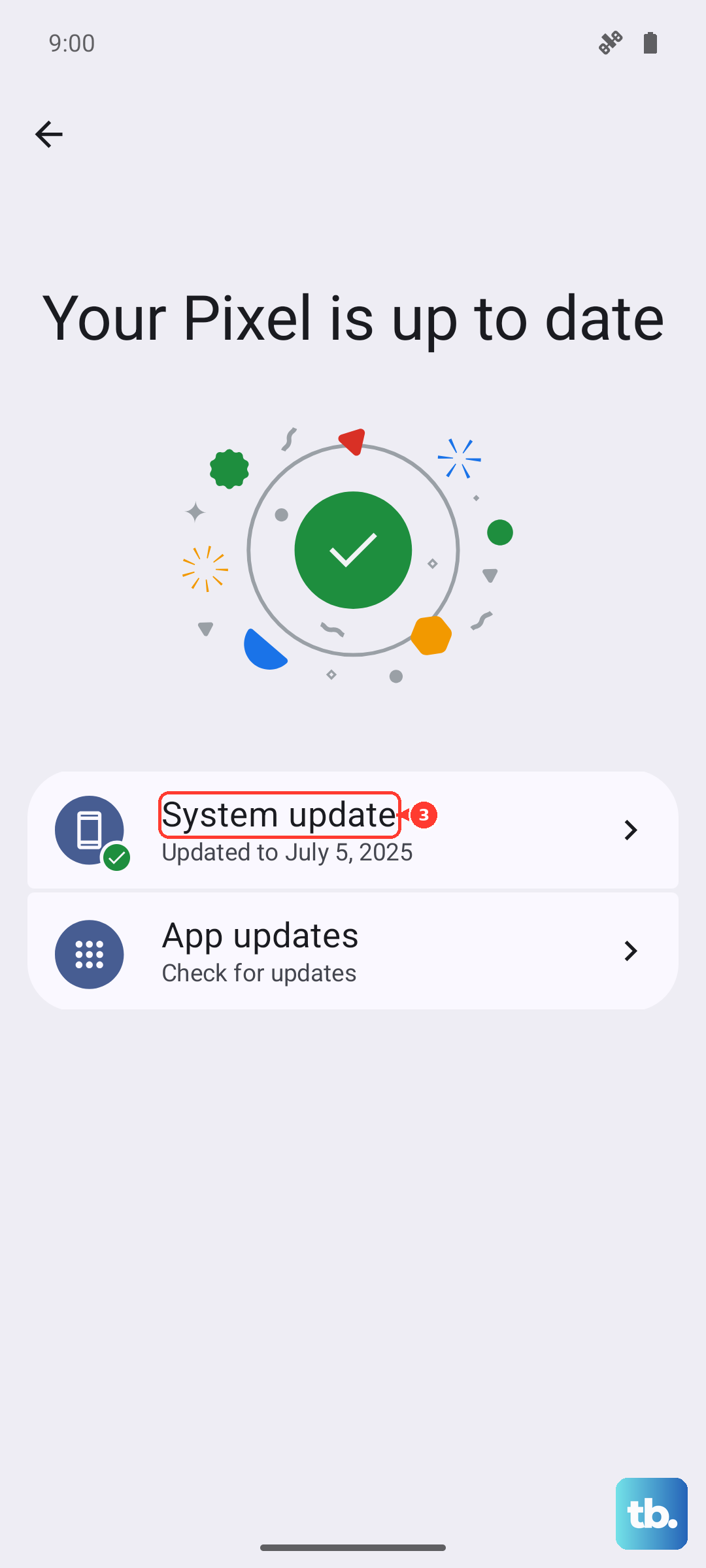
If an update is available, install it. I'd recommend doing this while connected to a stable Wi-Fi network and with your phone plugged into a charger, like a 30W USB-PD charger for the fastest speed.
Try an Alternative Messaging App
If the problem seems isolated to the default Messages app, testing with another app can tell you if the issue is with the app itself. Apps like Google Messages are free and easy to set up as a temporary test.
Download one, set it as your default messaging app temporarily, and see if you can receive MMS. If you can, the problem likely lies with the original app's data, and a more thorough clearing of its storage (which deletes your message history) may be needed.