
A blurry camera on your Moto G Power (2025) can be frustrating, especially when you're trying to capture a clear moment. The blur might make everything look soft, affect only certain parts of the photo, or seem worse in low light. Before you worry about the hardware, which is a basic but capable setup for the price, try these steps to clear things up.
Clean the Camera Lens
Start with the simplest fix. Grab a soft, lint-free microfiber cloth and gently wipe the camera lens on the back of your phone. Fingerprints, dust, and everyday smudges are the most common culprits for a hazy, blurry photo. I'd avoid using your shirt or a paper towel, as they can leave micro-scratches on the lens coating over time.
Remove Your Phone Case
Take your case off and snap a quick test photo. Some cases, even well-reviewed ones, can have a camera cutout that's slightly misaligned or sits too close to the lens. This can cause a shadow or even touch the glass, creating a permanent blur. Also, make sure you haven't accidentally left a plastic shipping film or a separate camera lens protector on.
Tap to Focus Properly
Open the Camera app and tap directly on your main subject on the screen. You should see a focus box appear. The camera's autofocus isn't perfect, and it might be locking onto the background instead of your friend's face. For close-up shots, this is especially important. Tap and hold on the subject to lock focus and exposure if you need to recompose the shot.
Check Your Shooting Mode
The Moto G Power (2025) has different shooting modes like Photo, Portrait, and Night Vision. If your photos are blurry in one mode, try another. For instance, the Night Vision mode uses a longer exposure, so any hand movement will cause blur. Stick to the standard Photo mode for general shooting and make sure you're holding the phone steady.
Close and Reopen the Camera App
Swipe up from the bottom of your screen to see your recent apps, then swipe the Camera app away to close it completely. Now, open it fresh from your app drawer. A temporary software glitch in the app can cause the autofocus to freeze or the image processing to act up, resulting in consistently blurry pictures.
Restart Your Phone
Press and hold the Power button on the right side for about 10 seconds, until you see the Motorola logo appear and the phone restarts. This force restart clears out any stuck processes in the background that might be interfering with the camera's performance. It's a quick fix that takes less than a minute.
Check for Storage Space
With 128GB of base storage, it can fill up faster than you think, especially with photos and videos. Go to Settings > Storage and see how much space is free. When storage is critically low, the phone can struggle to process and save images properly, which might lead to compression artifacts or blur. Consider moving files to the cloud or using the SD card slot to expand your storage.
Update Your Phone's Software
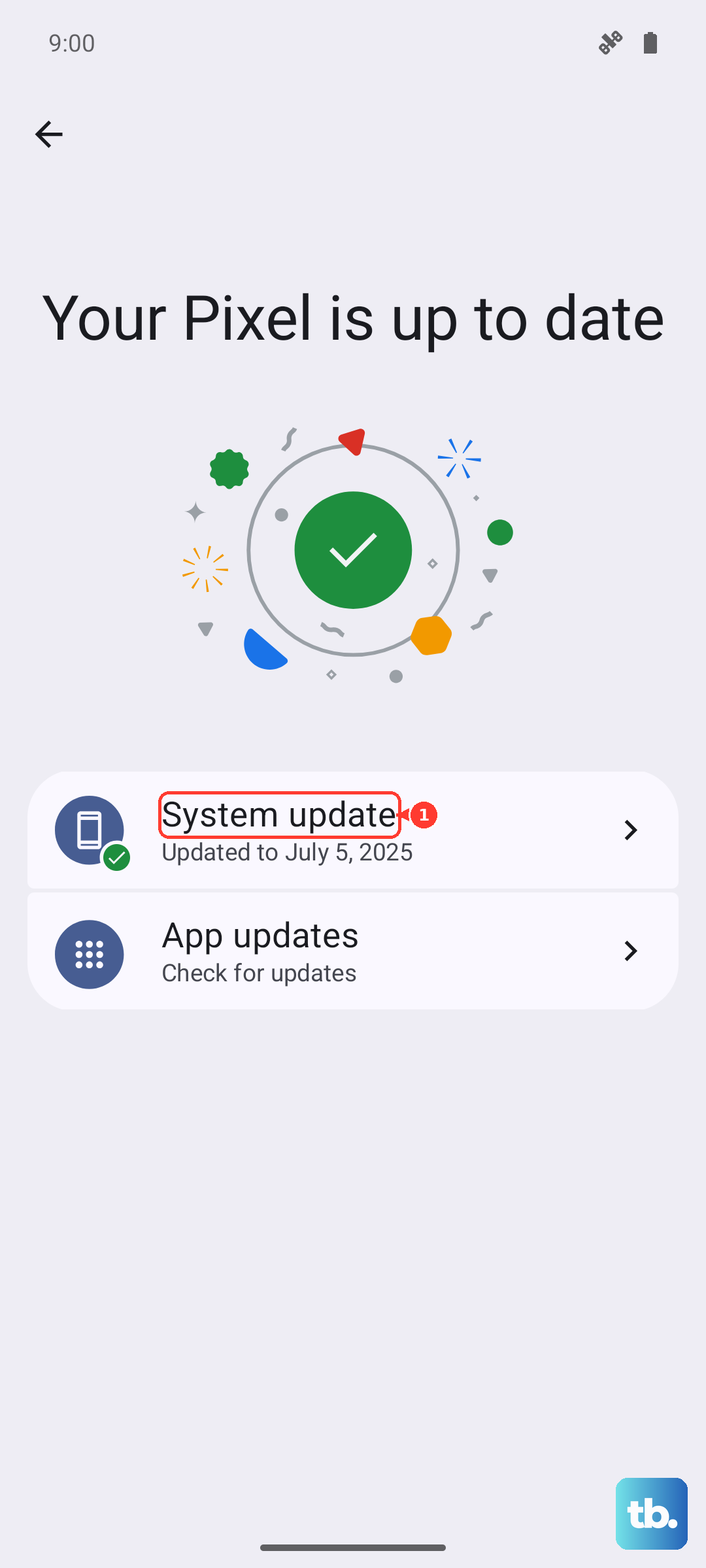
Navigate to Settings > System > System updates. Motorola regularly releases updates that can include camera performance improvements and bug fixes for Android 15. An update might resolve a known autofocus or image processing issue that's causing the blur.
Reset the Camera App
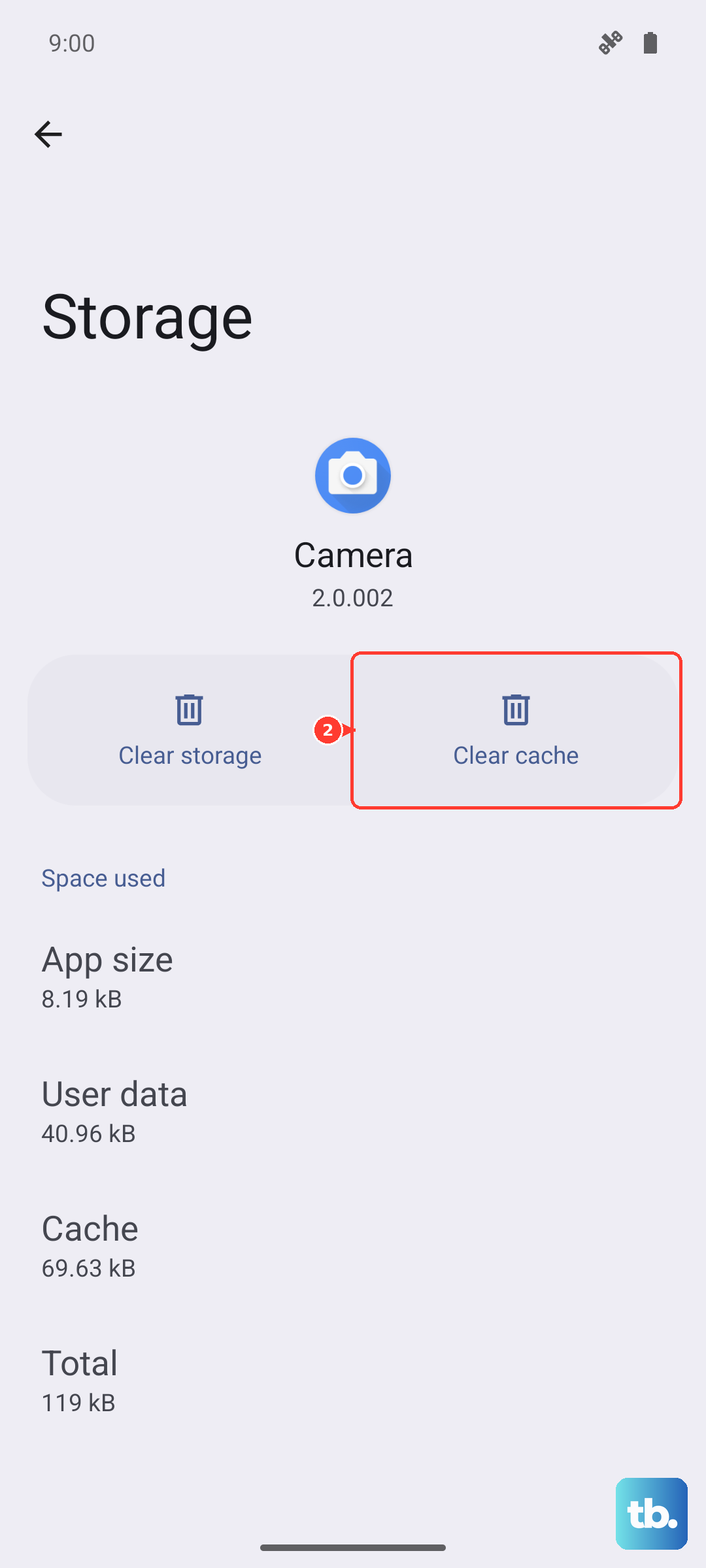
If the problem persists, reset the camera app's settings. Go to Settings > Apps > See all apps. Find and tap on "Camera," then select Storage & cache. Tap on "Clear cache" first. If that doesn't help, you can tap "Clear storage" or "Manage space," then "Clear all data." This will reset the app to its default state without deleting your photos.
Check for Physical Damage or Moisture
Inspect the camera lens closely for any cracks or deep scratches. While the phone has a MIL-STD-810H rating for durability, a direct impact on the lens can still damage it. Also, moving from a cold environment to a warm one can cause condensation to form inside the lens, creating a foggy blur. Let the phone sit at room temperature for 15-20 minutes to see if it clears.