
When your Motorola Edge 50 Pro's voice assistant stops responding, it can feel like you've lost a key feature. Whether it's Google Assistant or Moto Voice that's gone silent, the fixes are usually straightforward. I'd start by checking the most common settings that get accidentally toggled off.
Verify Your Assistant is Enabled and Listening
First, confirm which assistant you're using and that it's actually turned on. The Edge 50 Pro can use Google Assistant or Motorola's own Moto Voice, and sometimes an update can reset the default.
Open the Google app and tap your profile picture in the top right corner. Go to Settings > Google Assistant. Here, make sure "Hey Google" is toggled on. If you prefer Moto Voice, open the Moto app, tap Moto Voice, and ensure it's enabled and set to listen for its wake word.
Also check the phone's general microphone permissions. Go to Settings > Apps > Default apps > Digital assistant app and ensure your preferred assistant is selected. Then, go to Settings > Privacy & security > Permission manager > Microphone and verify your assistant app has permission set to "Allow only while using the app" or "Allow all the time."
Check for Audio Conflicts and Interference
Several features on your Edge 50 Pro can interfere with the microphone or prevent the assistant from activating. The most common culprit is connected audio devices.
If you have any Bluetooth headphones, speakers, or your car audio system connected, try disconnecting them. Sometimes the assistant tries to listen through an external microphone that isn't picking up your voice clearly. Also, check if you have any battery-saving modes enabled, like Battery Saver or Extreme Battery Saver, as these can limit background processes including voice listening.
Another setting to look at is Do Not Disturb. While it shouldn't block the assistant, some users report it can cause delays. Swipe down from the top of your screen twice to open the quick settings panel and make sure the moon icon isn't highlighted.
Retrain the Voice Model
If the assistant hears you but doesn't activate, or activates for others but not you, it might need to relearn your voice. Background noise, different speaking patterns, or even a software update can throw off the model.
For Google Assistant, go back to Google app > Settings > Google Assistant > Hey Google & Voice Match. Tap "Retrain voice model" and follow the prompts, speaking clearly in a quiet room. For Moto Voice, the process is similar within the Moto app's voice settings. This only takes a minute and often solves recognition issues completely.
Restart Your Phone
A simple restart clears out temporary glitches in the system that might be affecting the voice services. Press and hold the power button on the right side of your Edge 50 Pro for about 10 seconds, until you feel a vibration and see the Motorola logo appear as it reboots.
If a standard restart doesn't help, try a more thorough reset of the system processes. Press and hold the Power button until the power menu appears, then tap and hold the "Power off" option on your screen. This will often prompt a reboot into "Safe mode" – tap OK to confirm. In Safe mode, test if "Hey Google" works. If it does, a third-party app you installed is likely causing the conflict. Restart normally to exit Safe mode and try uninstalling recent apps one by one.
Update Your Software and Apps
Since the Edge 50 Pro runs Android 14, make sure you have the latest system update. Motorola's updates can sometimes be slower than other brands, but they do include important bug fixes. Go to Settings > System > System updates to check.
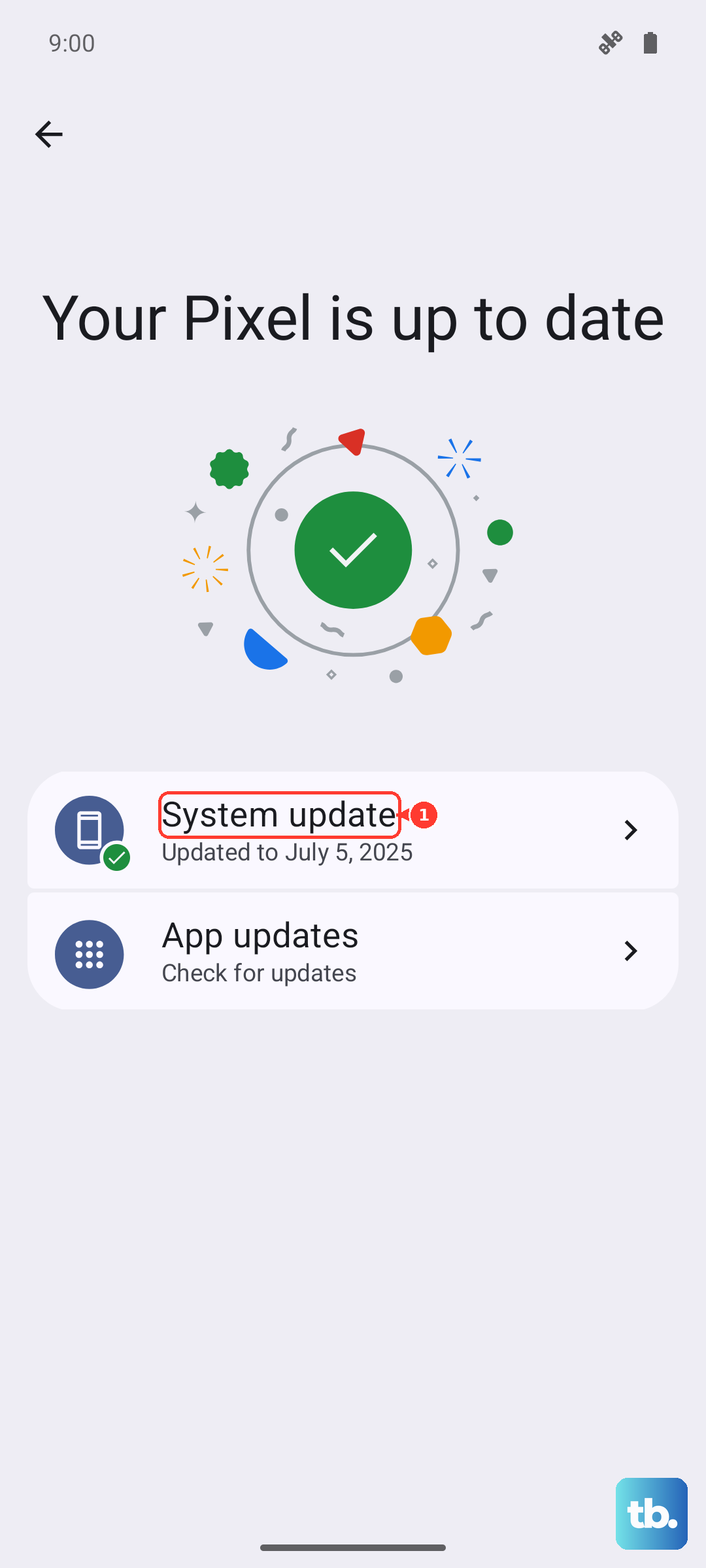
Also, update the Google app itself. Open the Play Store, tap your profile picture, and go to Manage apps & device > Updates available. Look for the Google app and update it. The Google Assistant functionality is built into this app, so an outdated version is a common cause of problems.
Clear the Assistant App's Cache and Data
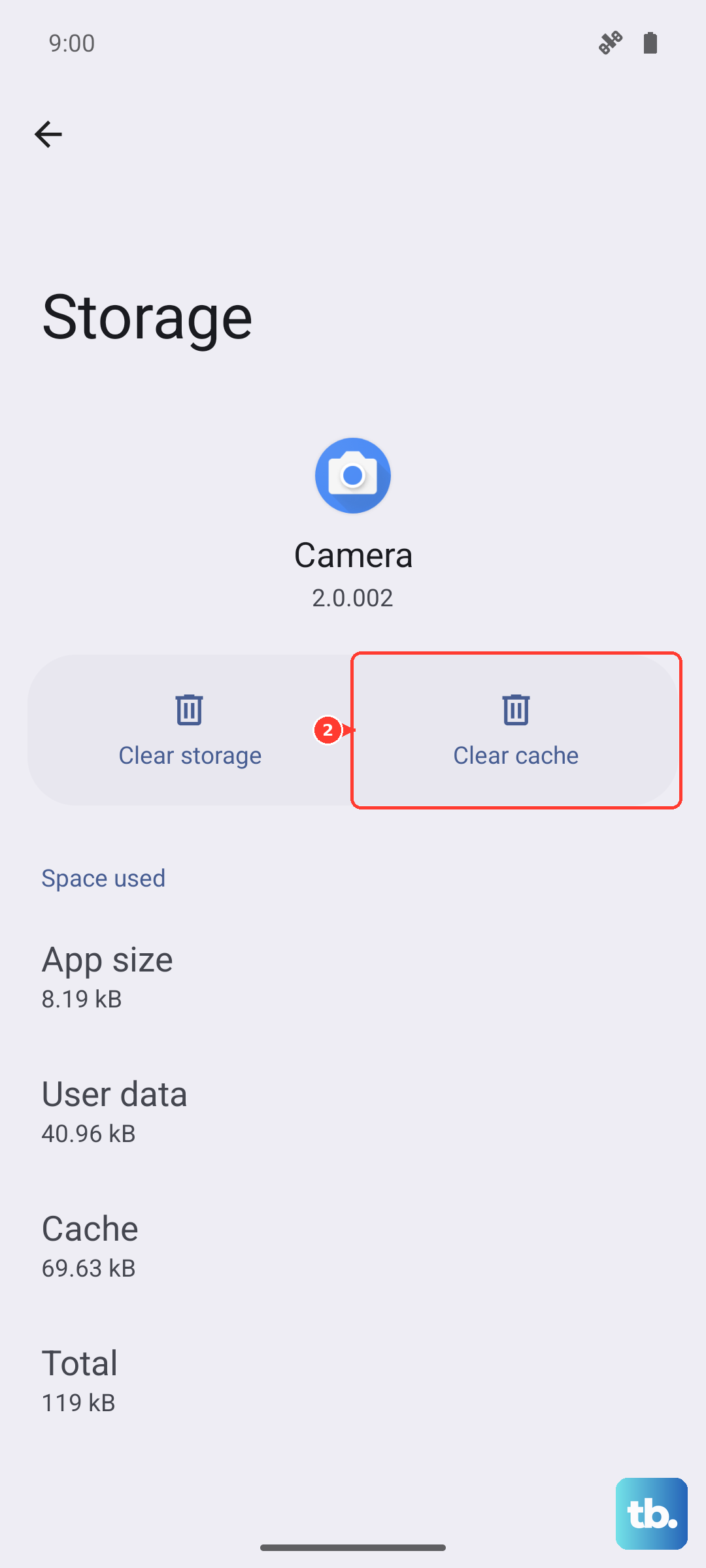
Corrupted temporary files can break voice features. Clearing the cache is safe and won't delete your personal data or voice model. Go to Settings > Apps > See all apps.
Find and tap on the Google app. Then, go to Storage & cache. Tap "Clear cache." Test the assistant. If it still doesn't work, you can go back and tap "Clear storage" or "Manage space," then "Clear all data." Be aware this will reset the Google app, so you'll need to sign back in and retrain your voice model.
Check for Physical Microphone Blockages
The Edge 50 Pro has multiple microphones for noise cancellation and clear audio. If they're blocked, the phone can't hear you say the wake word. Check the small pinhole at the bottom of the phone next to the USB-C port, and the secondary microphone usually located near the top edge or within the camera module.
Gently brush these areas with a soft, dry toothbrush or use a can of compressed air to blow out any lint or dust. Also, check if your phone case is improperly aligned and covering any of these microphone ports. Try removing the case temporarily to see if that fixes the issue.
Reset App Preferences or All Settings
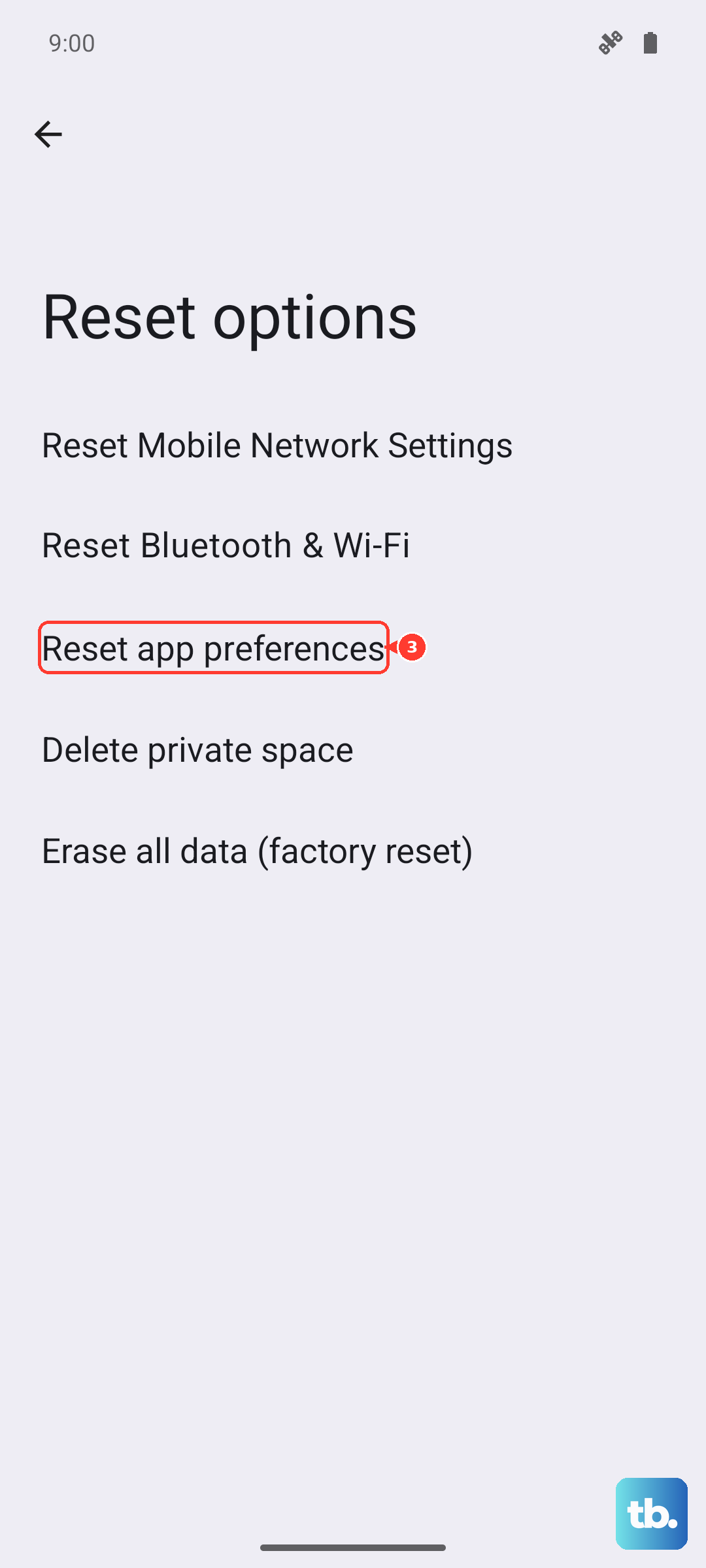
This is a more significant step but doesn't erase your personal files like photos or messages. It resets all your app permissions, default apps, and background restrictions back to factory defaults, which can fix a misconfigured setting that's hard to find.
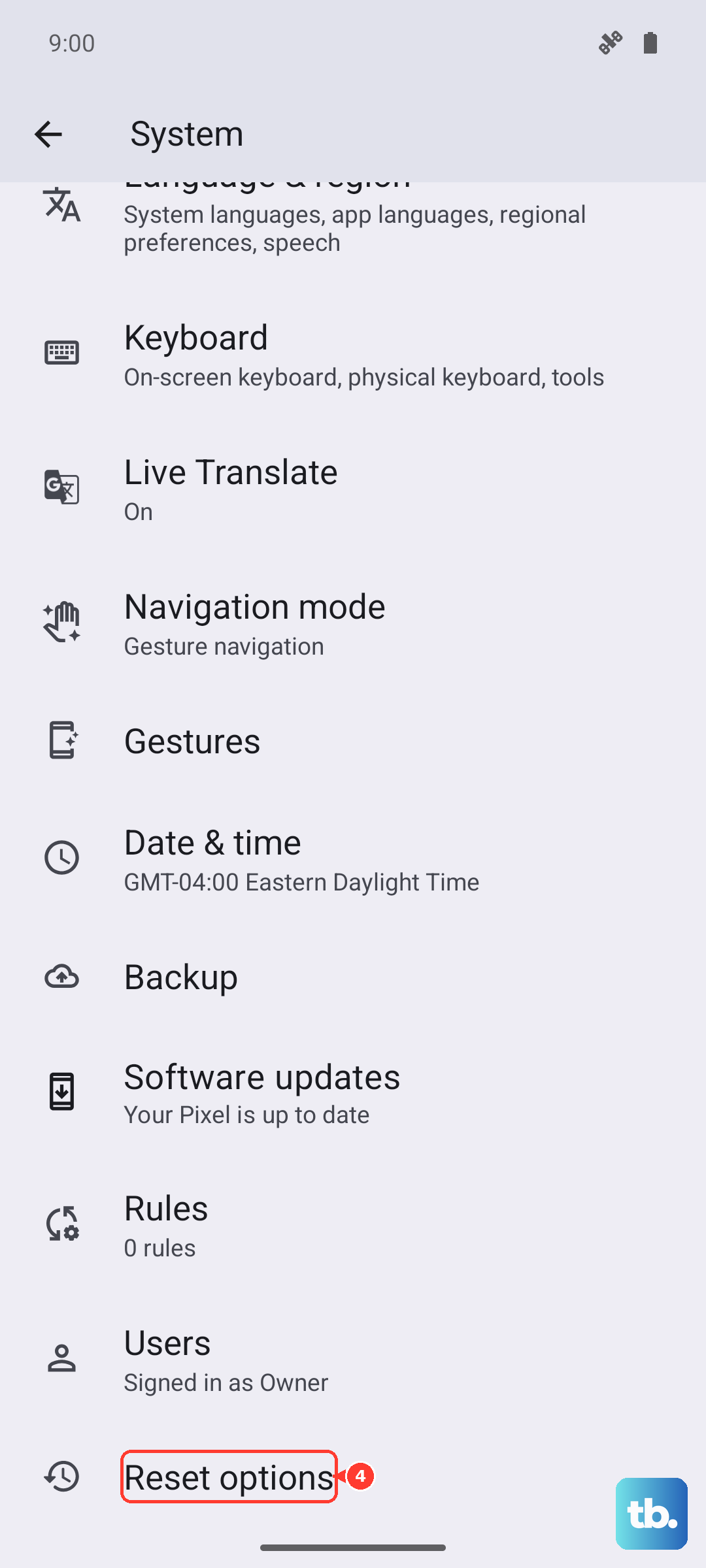
Go to Settings > System > Reset options. Tap Reset app preferences. This will revoke all app permissions, so you'll need to re-allow microphone access for your apps, but it often resolves deep-seated conflicts. If that doesn't work, you can go back and choose Reset Wi-Fi, mobile & Bluetooth, which is helpful if a Bluetooth conflict is the root cause.
Ensure a Stable Network Connection
While basic "Hey Google" detection happens on the device, many Assistant requests require an internet connection to process. If you're on a slow or unstable Wi-Fi network, or have mobile data disabled, the assistant might fail to respond after hearing the wake word.
Check your connection by trying to load a webpage. If you're on Wi-Fi, try toggling it off and using mobile data instead to see if the problem is network-related. You can also try resetting your network connections by going to Settings > System > Reset options > Reset Wi-Fi, mobile & Bluetooth.
Check the "Digital Wellbeing" Focus Modes
Android's Digital Wellbeing features include Focus modes designed to minimize distractions. If you have a Focus mode enabled that silences notifications, it might also be interfering with the always-listening microphone for the assistant.
Go to Settings > Digital Wellbeing & parental controls > Focus mode. See if any modes are currently active and turn them off. Also, check the schedules to ensure a mode isn't set to turn on automatically at certain times, which could explain why the assistant works sometimes but not others.